Employees
Employees are people working in your business. Each registered employee is granted access to the system (if login details are shared). From this menu, you can manage employee contact information, specialisation, permissions, notifications, workplaces, schedule, attendance, etc.
How to set up PROMAN to count salary
How to create Employee contract
Date of Employment and Redundancy
Allow Login Using Entrance Card
| How to find "Employees"? |
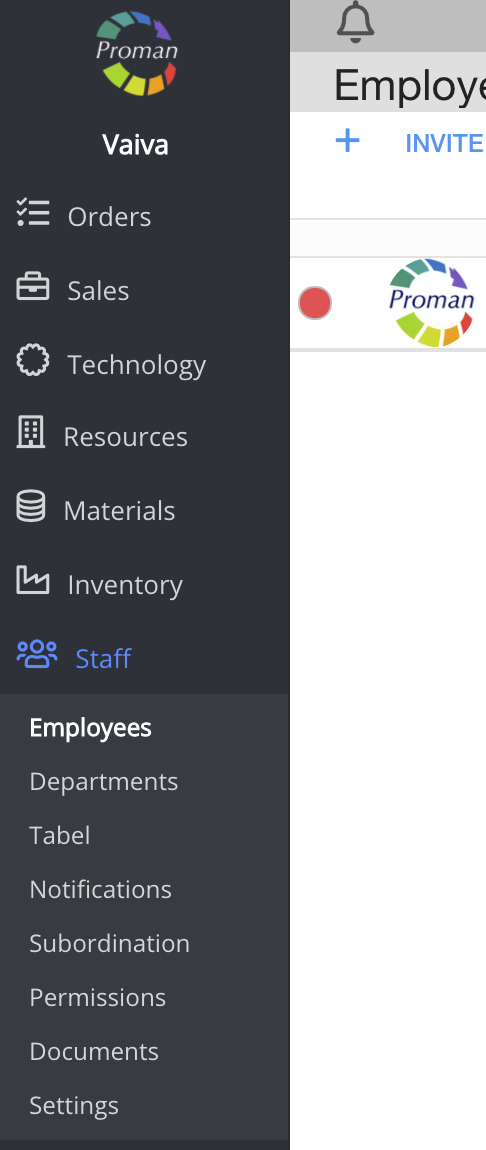
To find Employees:
1. Go to 
2. Then- 
Now you can see the Employee list:

How to manage Employee? |
| Information |
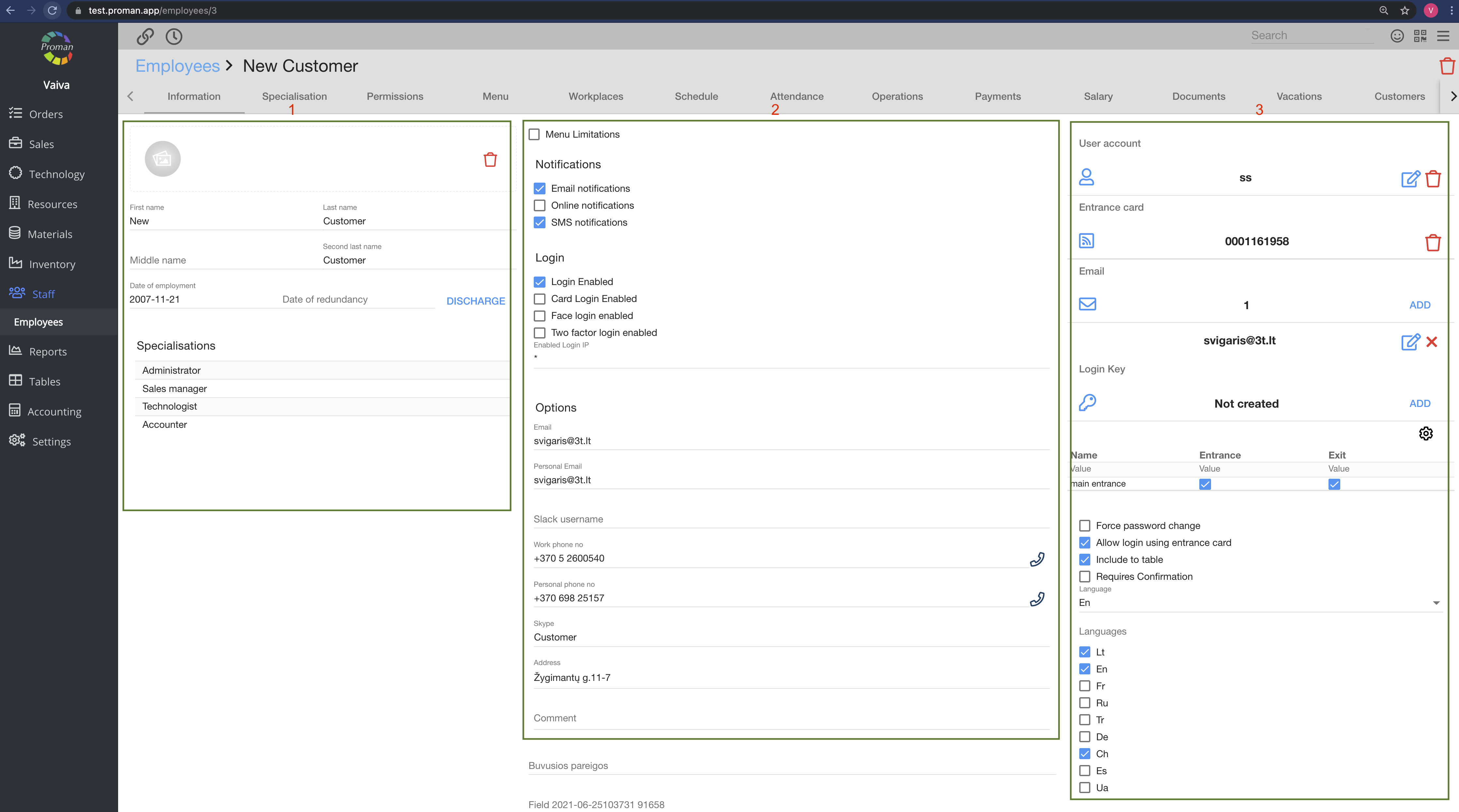
Here you can add information about the employee. For more information, please visit here
| Button | What does it indicate? |
| Date of Employment* | You can enter this if you want to see the employee in tabel |
| Date of Redundancy* | You can enter this if you don't want to see the employee in Tabel anymore (the history won't be deleted) |
 | You can set up what an employee can see in the SmartOn app. You can use this button only if you have a permission "Permission Edit". For more information about permissions, click here. |
 | You can set up that the employee gets notifications via email |
 | You can set up that the employee gets notifications online |
 | You can enable employee login |
 | You can set up an employee card login |
 | You can set up an employee face login |
 | You can set up a two factor employee login |
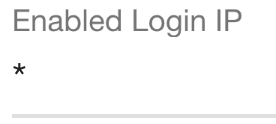 | You can limit the login IP address |
 | You can force the employee to change the password |
 | You can allow an employee to login using an entrance card |
 | You can include the employee to tabel |
 | You can require the confirmation |
* If you don't have this permission "Employee remove", you might not be able to see these fields. For more information about the permissions see here
| How to set up the language? |
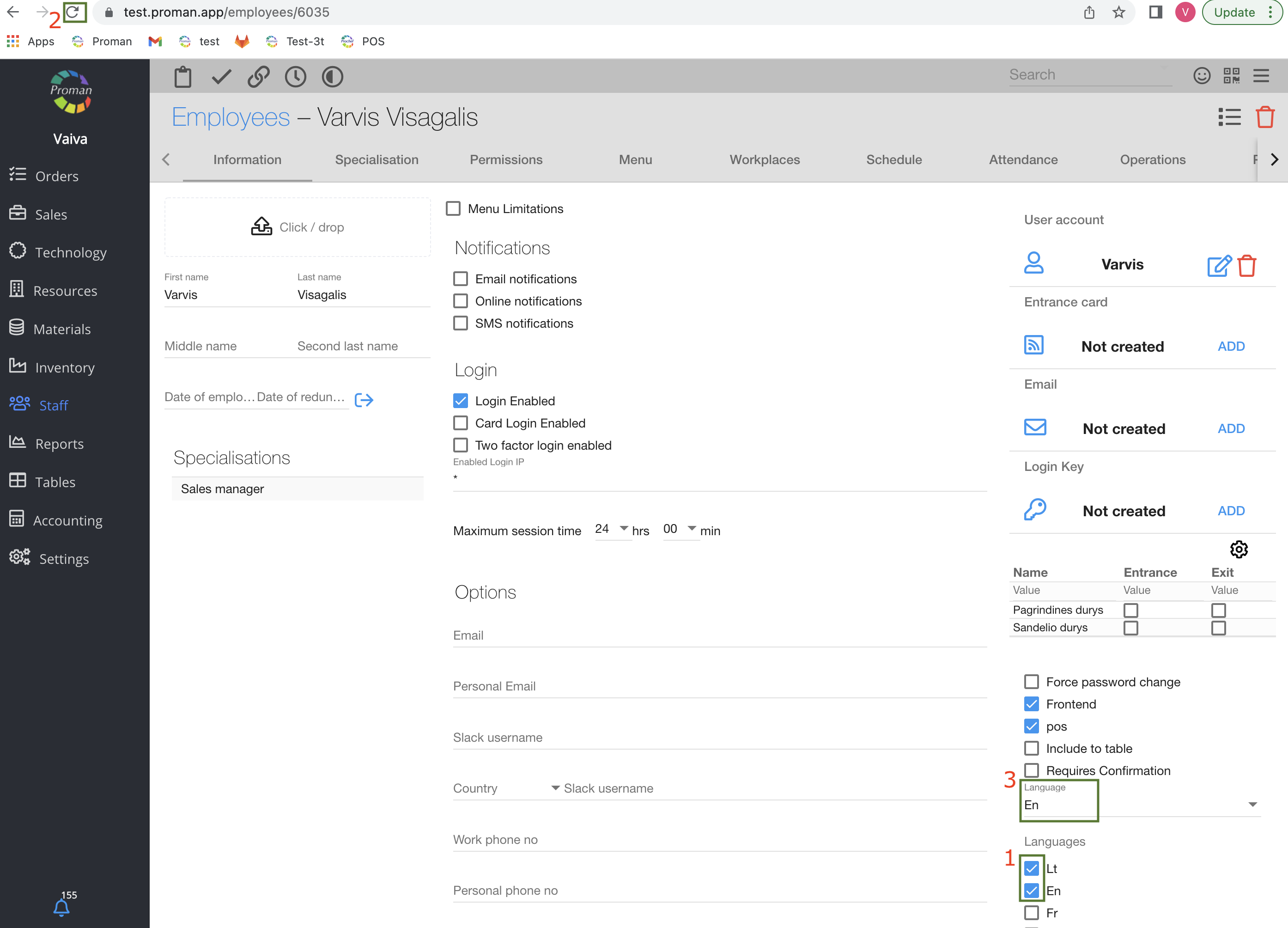
1. Select languages you would like to have in SmartOn (more than one at the beginning)
2. Refresh the browser

3. Select one of the languages
| Specialisation |
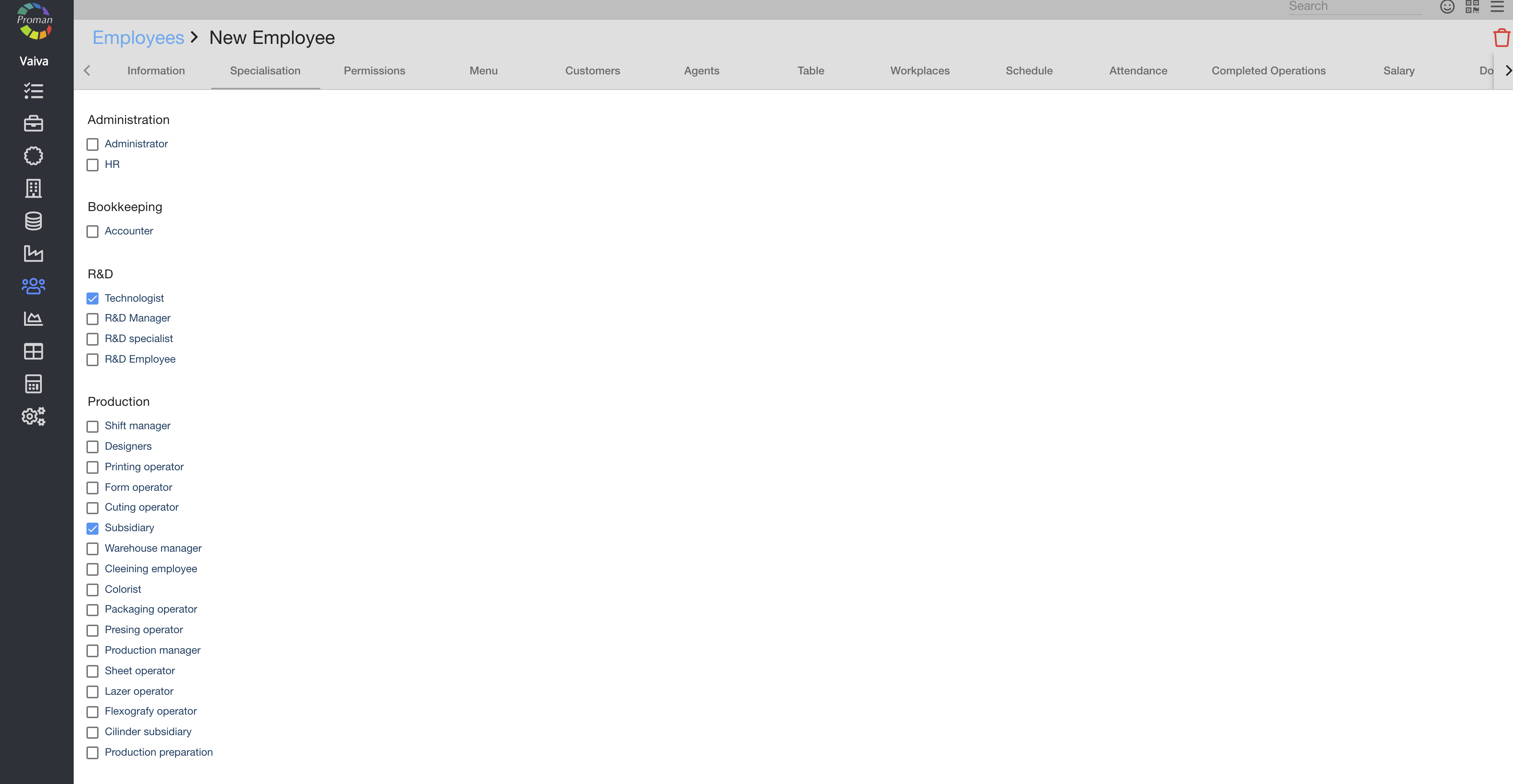
Here you can see and choose ( 
| Permissions |
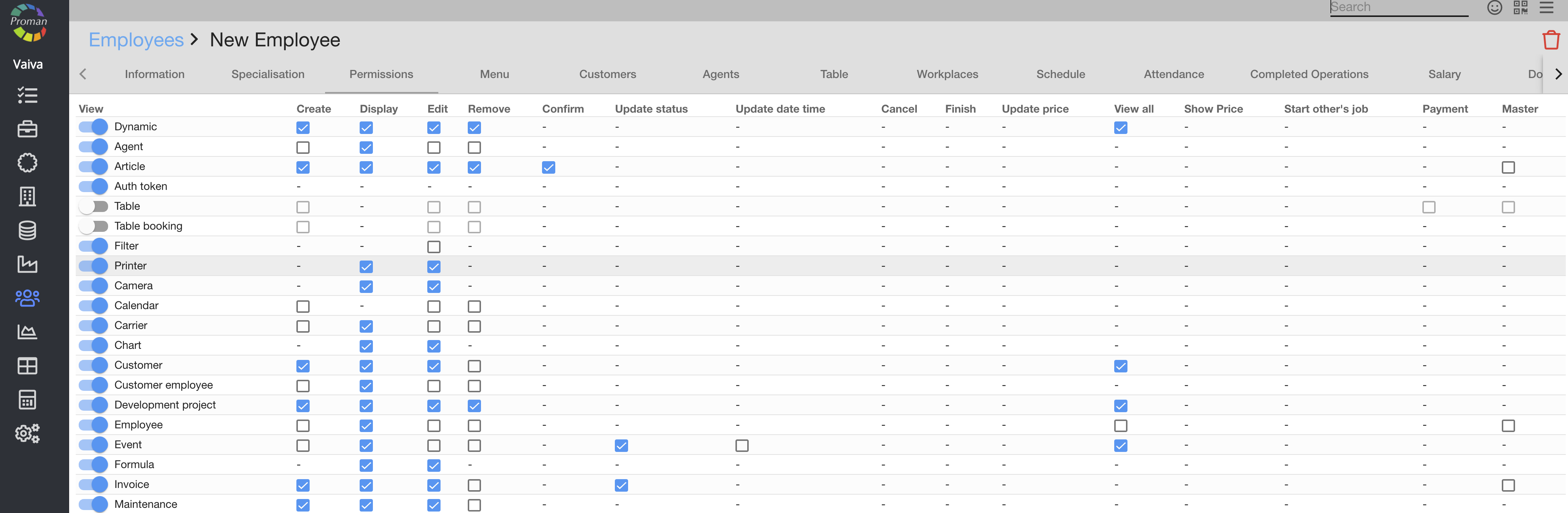
Here you can see, add (
| Menu |
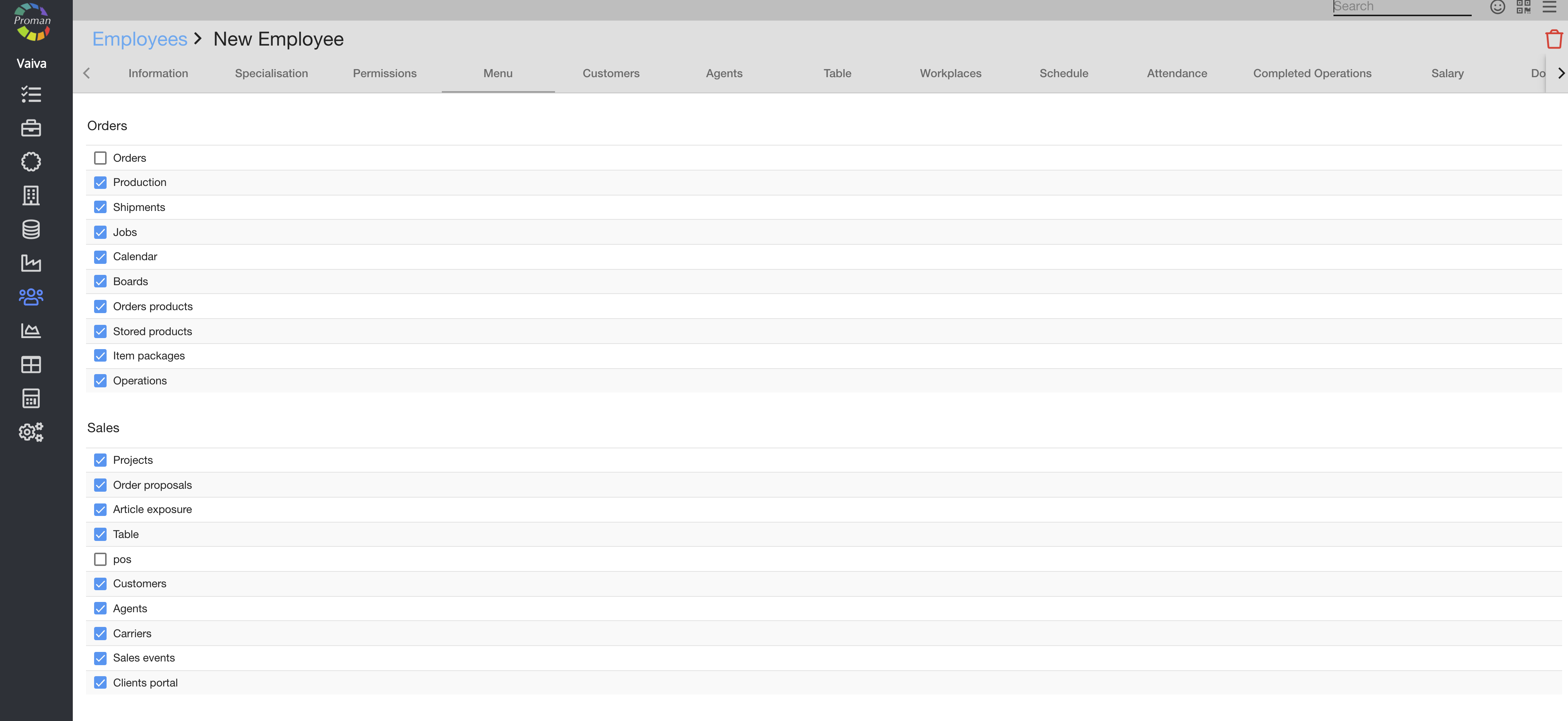
Here you can see, add (
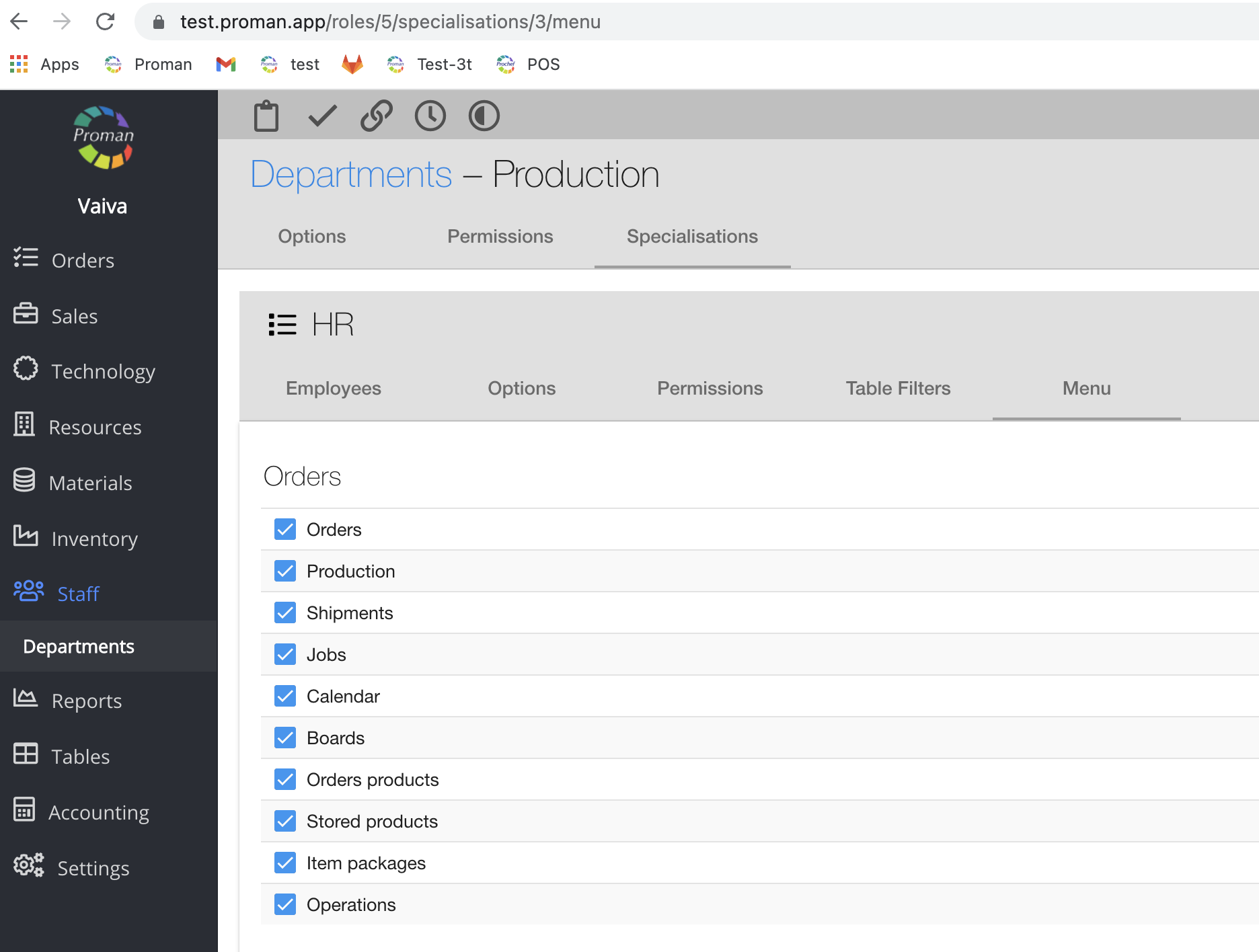
Note: The main menu limitations sets in specialisation. If orders are not checked in specialisation, the employee may also not see them.
| Workplace |
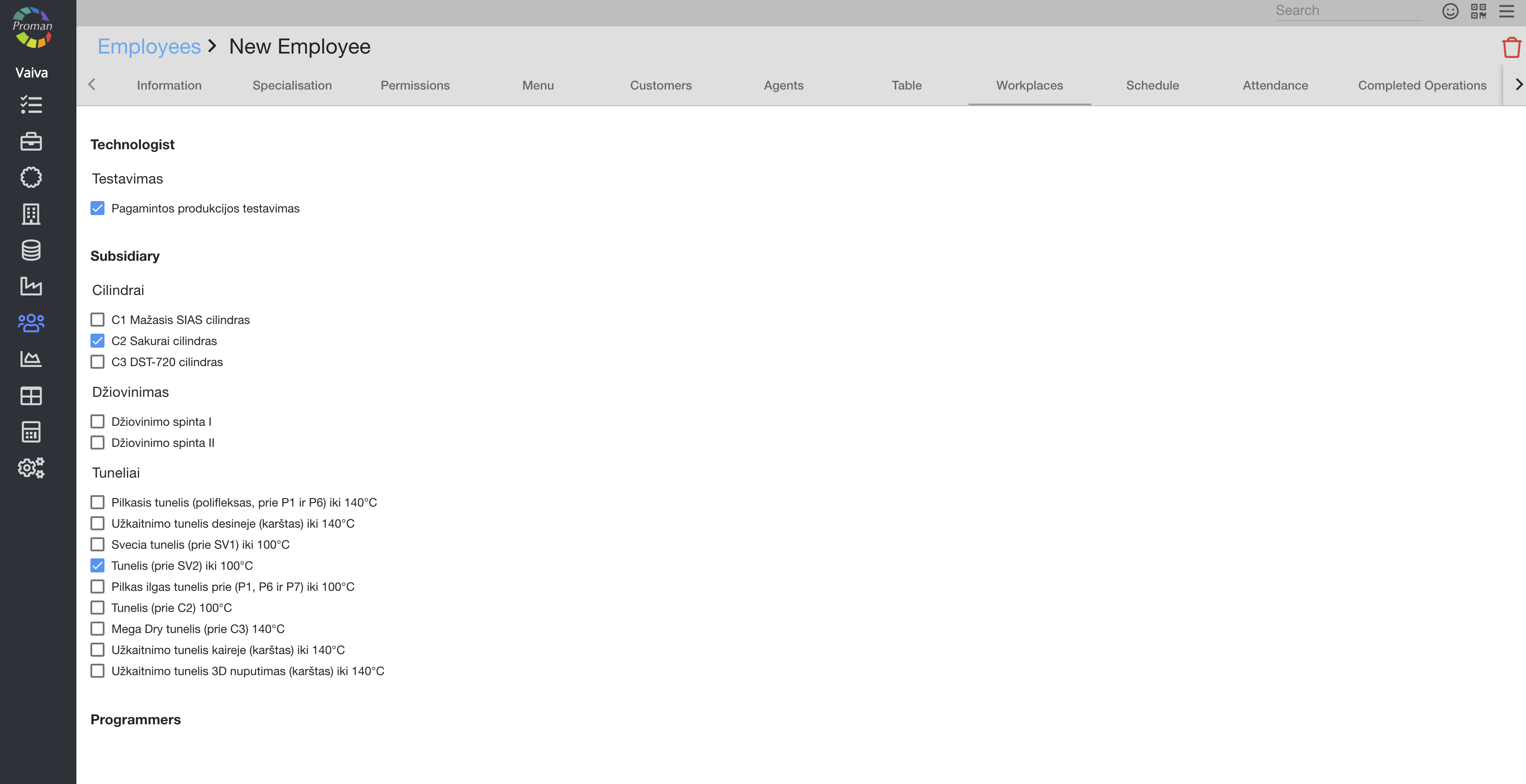
Here you can see, add (
| Schedule |
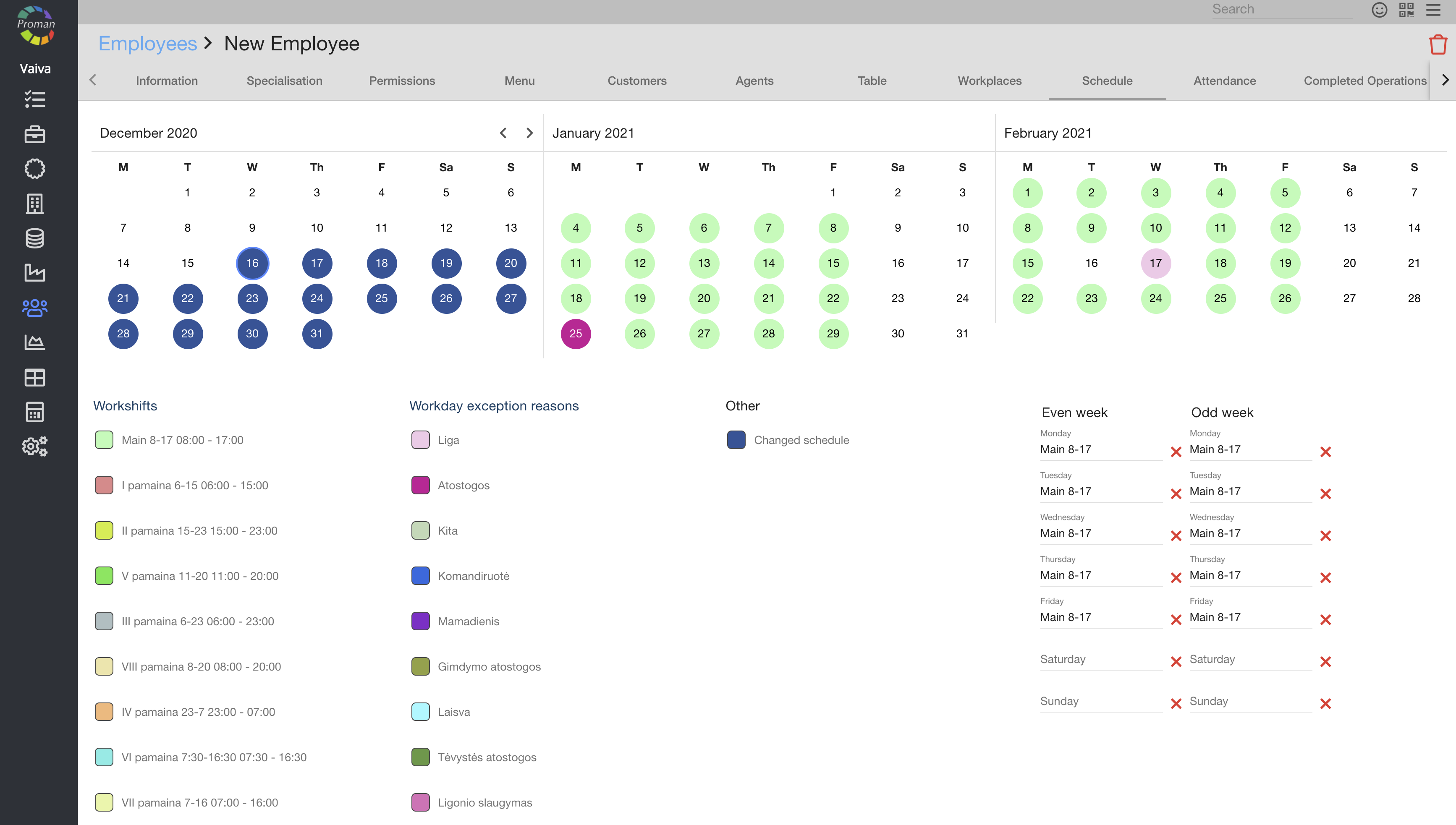
Here you can see, add (

For more information visit here
| Attendance |
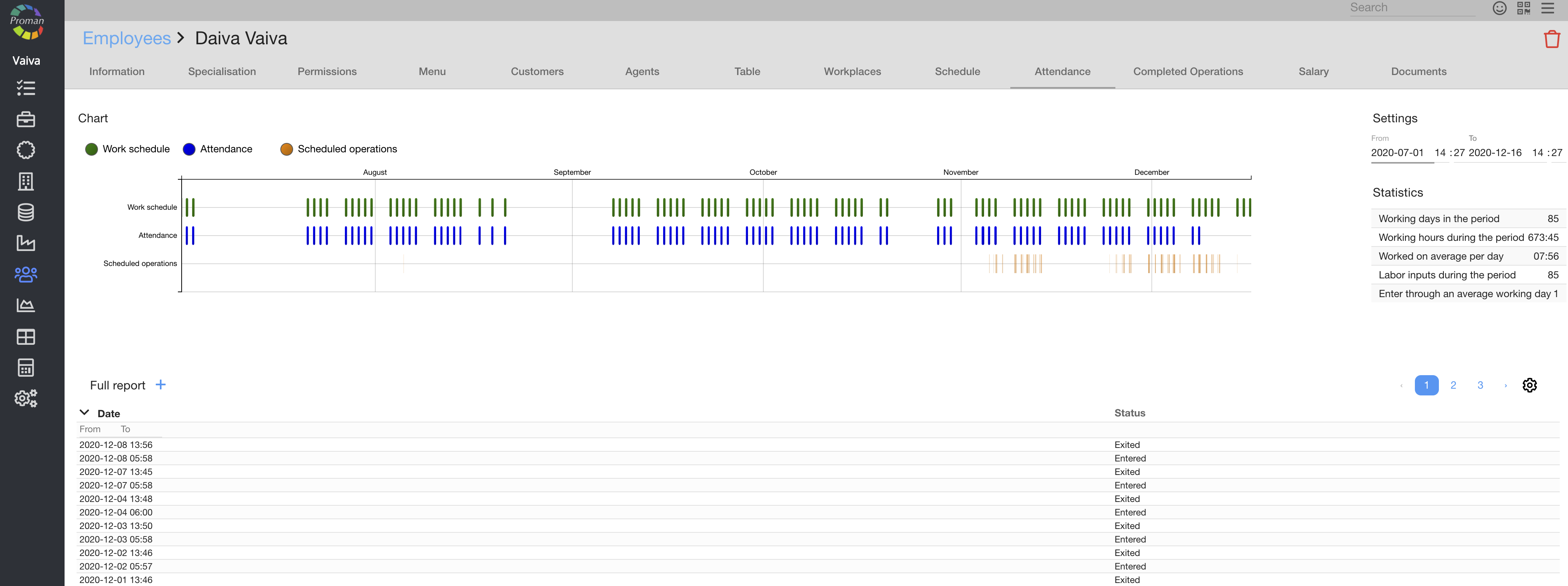
Here you can see employee's attendance
| Operations |
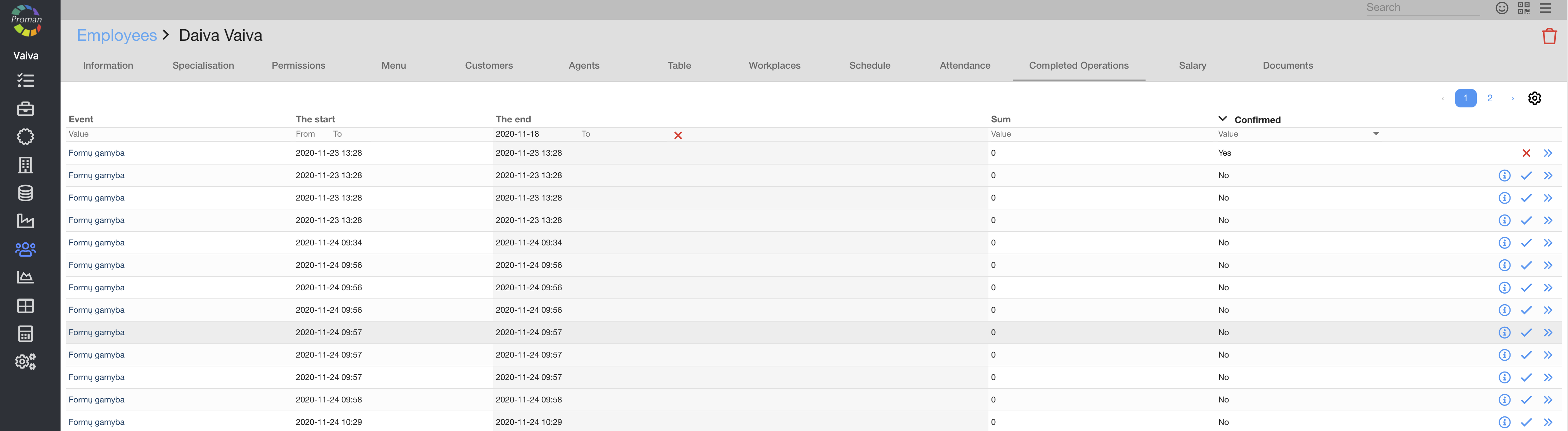
Here you can see completed operations, see their parameters (


You could also do these things to several operations:
1. Click on
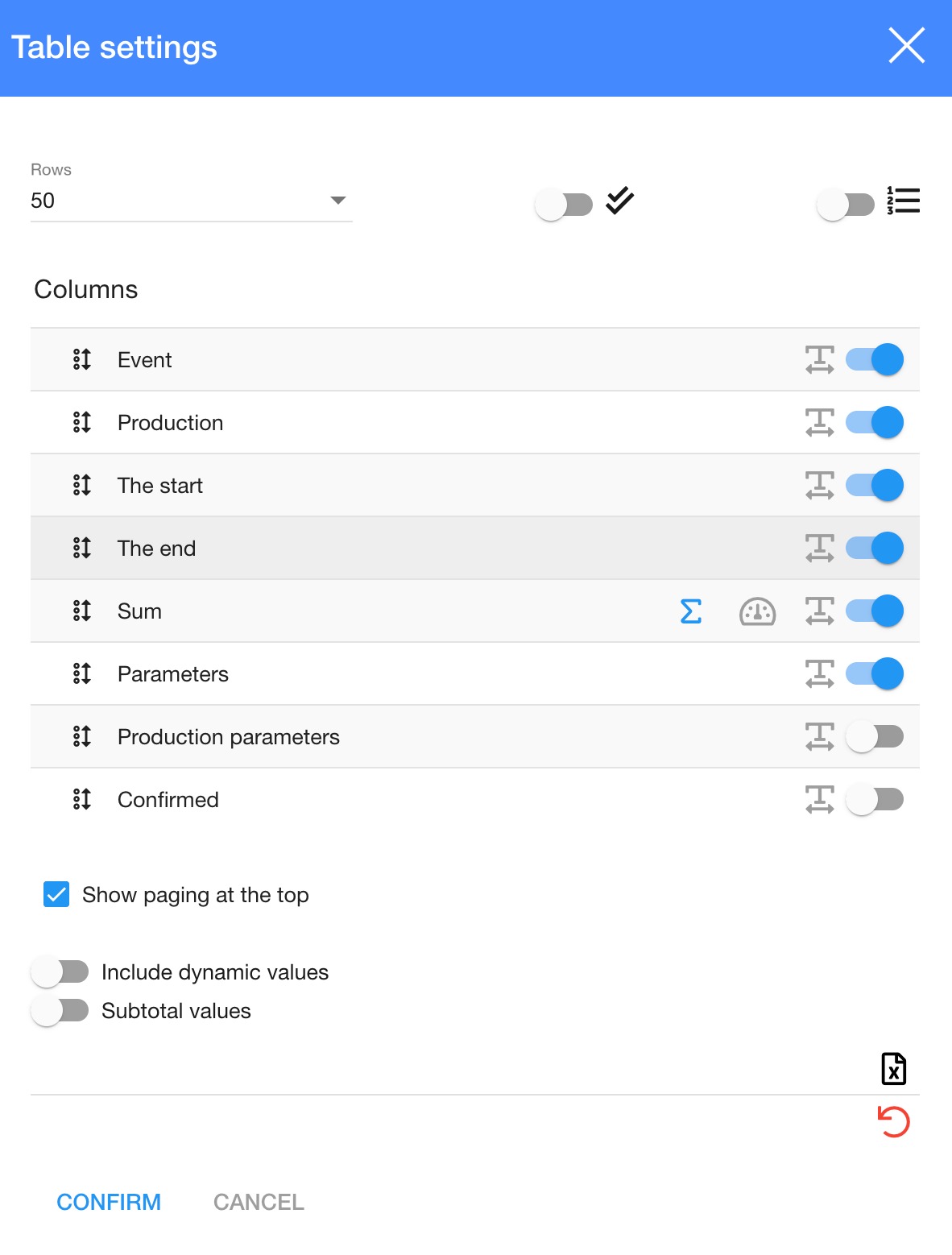
Now you can see table settings in the dialog table:
2. Click on

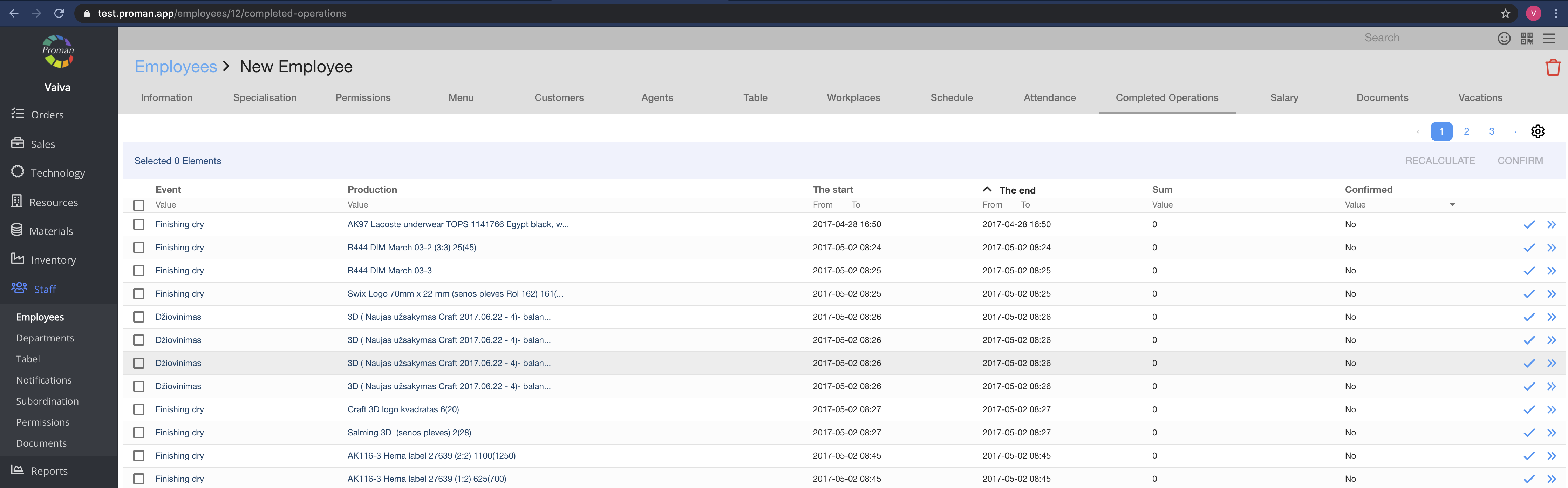
Now you can see the checkbox near completed operations:
3. Check completed operations that you need (
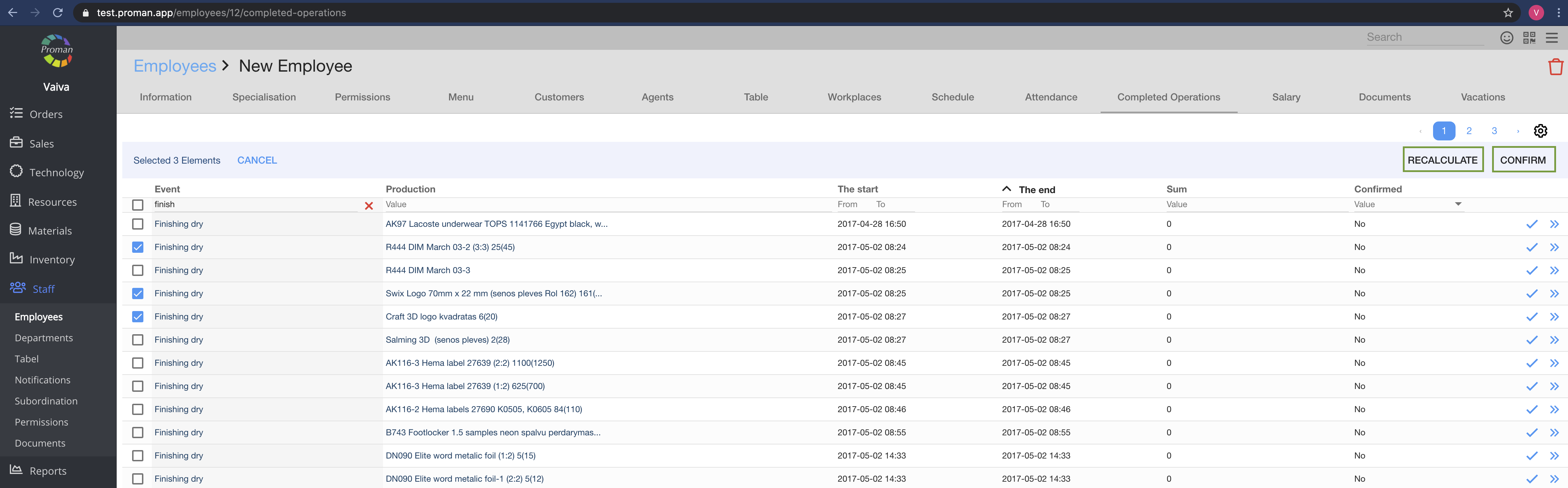
Now you can see the activated button: DELETE
4. Click on 
Now you can see that completed operations' sums are recalculated or confirmed
| How to set up Operation cost? |
1. Firstly, you need to have production processes in place.
2. Now you can add a cost expression to specialisation. For more information about specialisation options, visit here
Note:
When an employee, who has this specialisation, finishes an operation, the salary for an employee will be added to the employee operation.
| Payments |
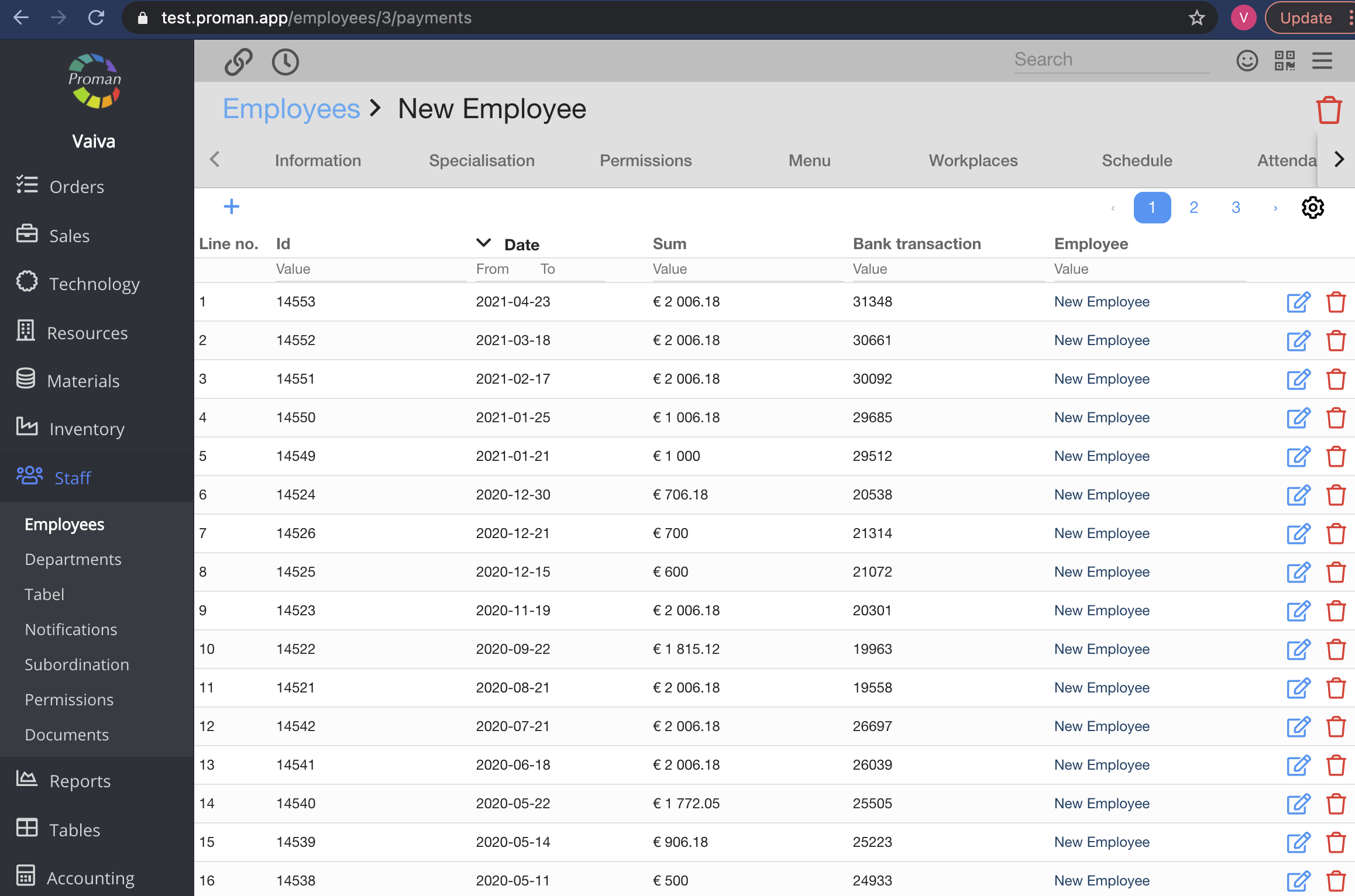
Here you can see, add (


| Salary |
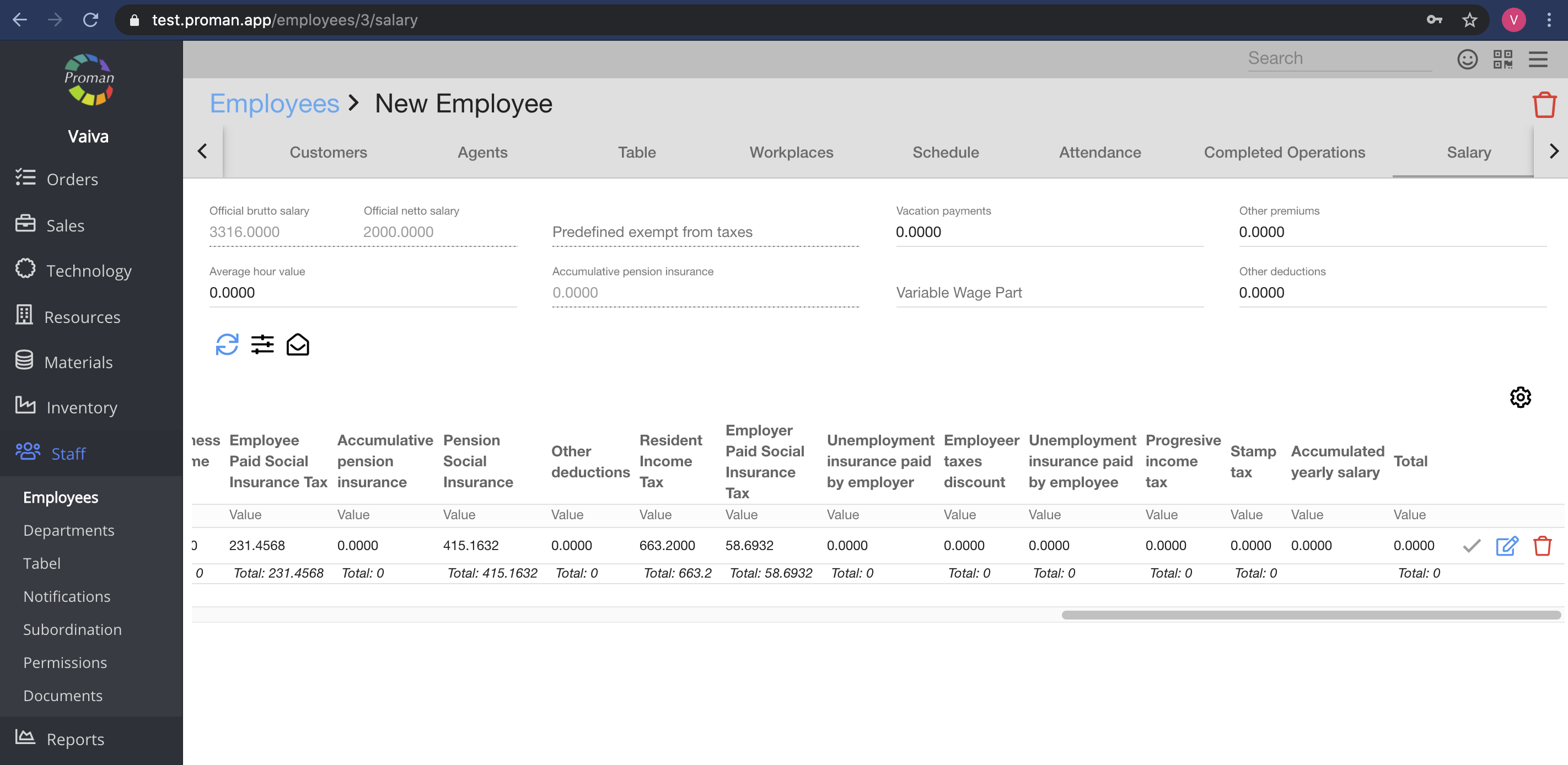
Here you can see and manage the employee salary and taxes.
| Button | What does it indicate? |
 | You can generate the salary |
 | You can change accounting salary options |
 | You can send a template to the employee |
 | You can confirm employee's salary and taxes |
 | You can edit employee's salary and taxes |
 | You can delete employee's salary and taxes |
Note:
1. If there are no employee contract, you will not be able to see any of this information.
2. You can set table to all employees (
| How to set up Smarton to count salary? |
- First of all, you need to create an employee contract (For more information on how to do it, visit here).
- Secondly, you need to create a working schedule (For more information on how to do it, visit here) and add it to an employee (For more information on how to do it, visit here and here )
- Then, you need to enter salary options (For more information on how to do it, visit here)
- Also include the employee to a table (For more information on how to do it, visit here) and enter the date of the employment (For more information on how to do it, visit here). Note: Make sure that the schedule is filled for the employee that month.
- Finally, you can generate a salary (For more information on how to do it, visit here)
| Documents |
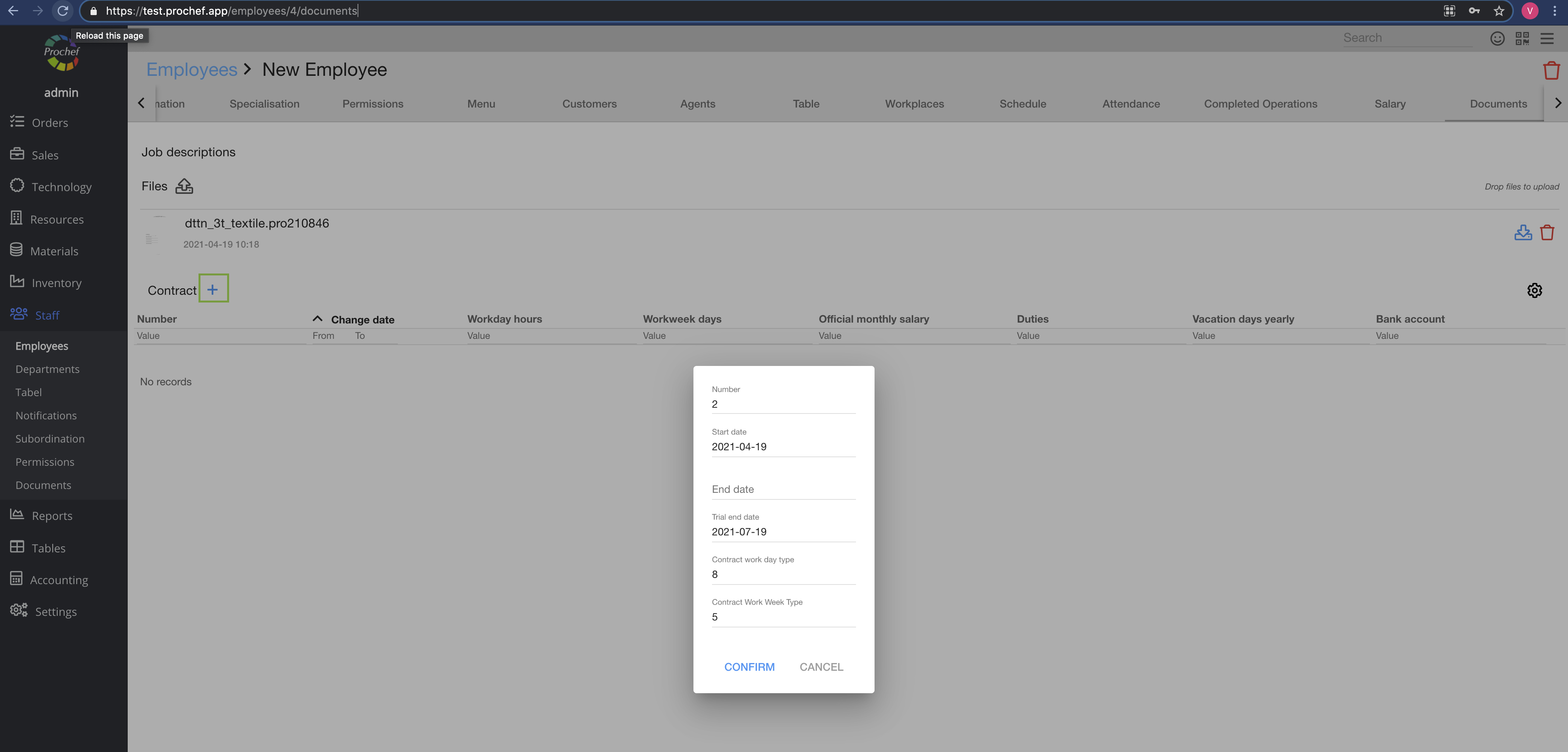
Here you can see, upload and delete (
| How to create an employee contract? |
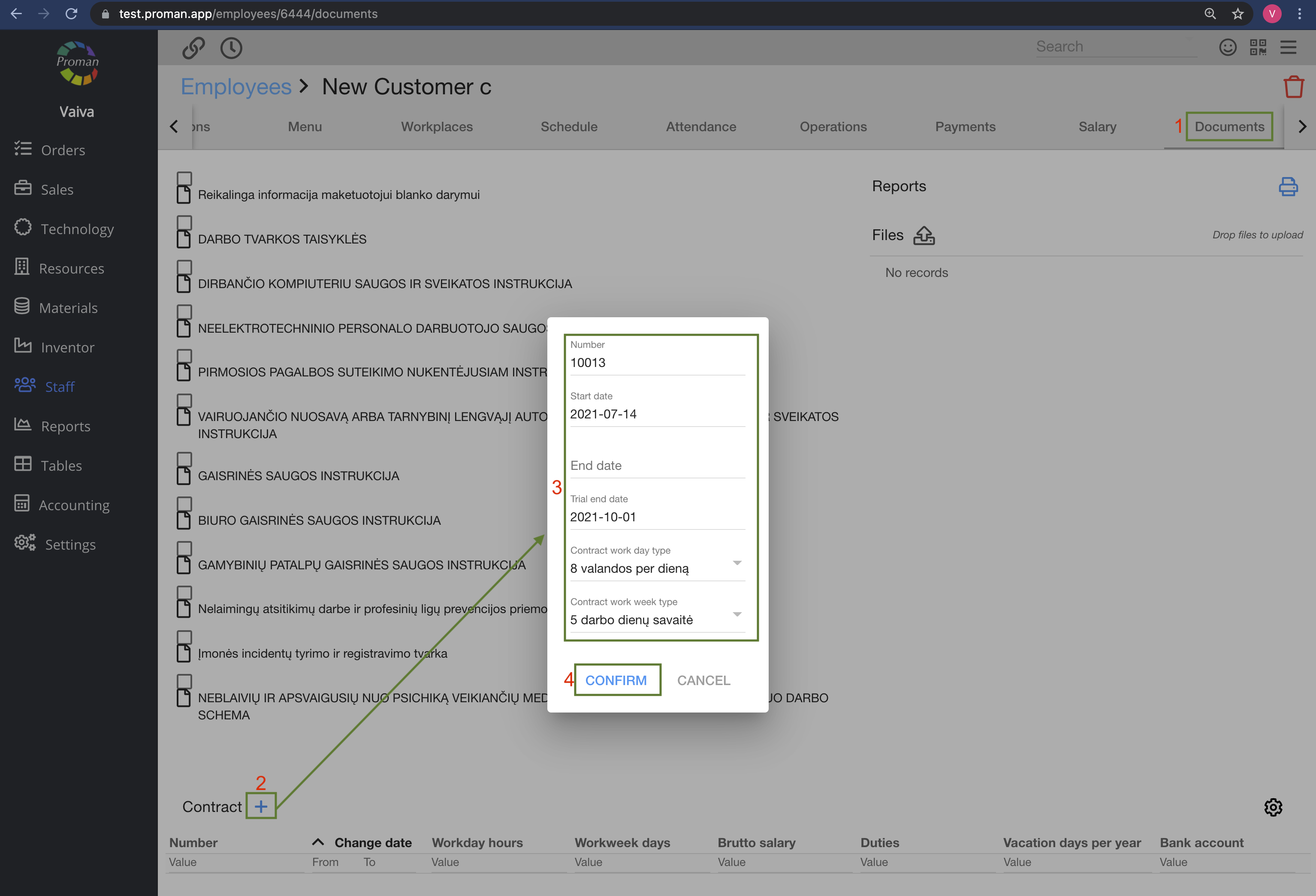
1. Go to Documents
2. Click on Contract
3. Now you can see the dialog table - fill it in and click on 
| Button | Where is it and what it indicates? |
 | yourdomain.app/accounting/props, click on Workday Types (in grey table)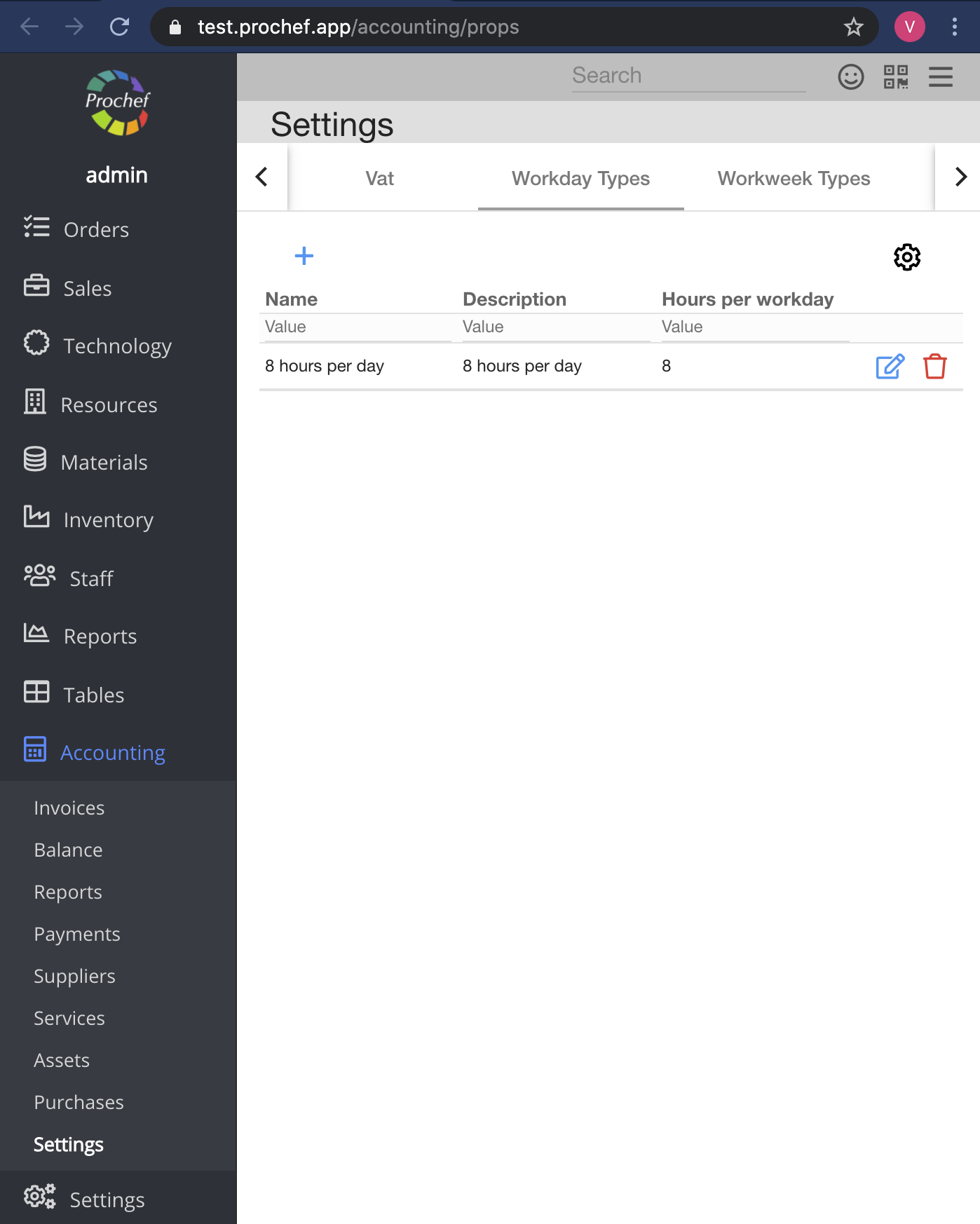 |
 | yourdomain.app/accounting/props, click on Workweek Types (in grey table)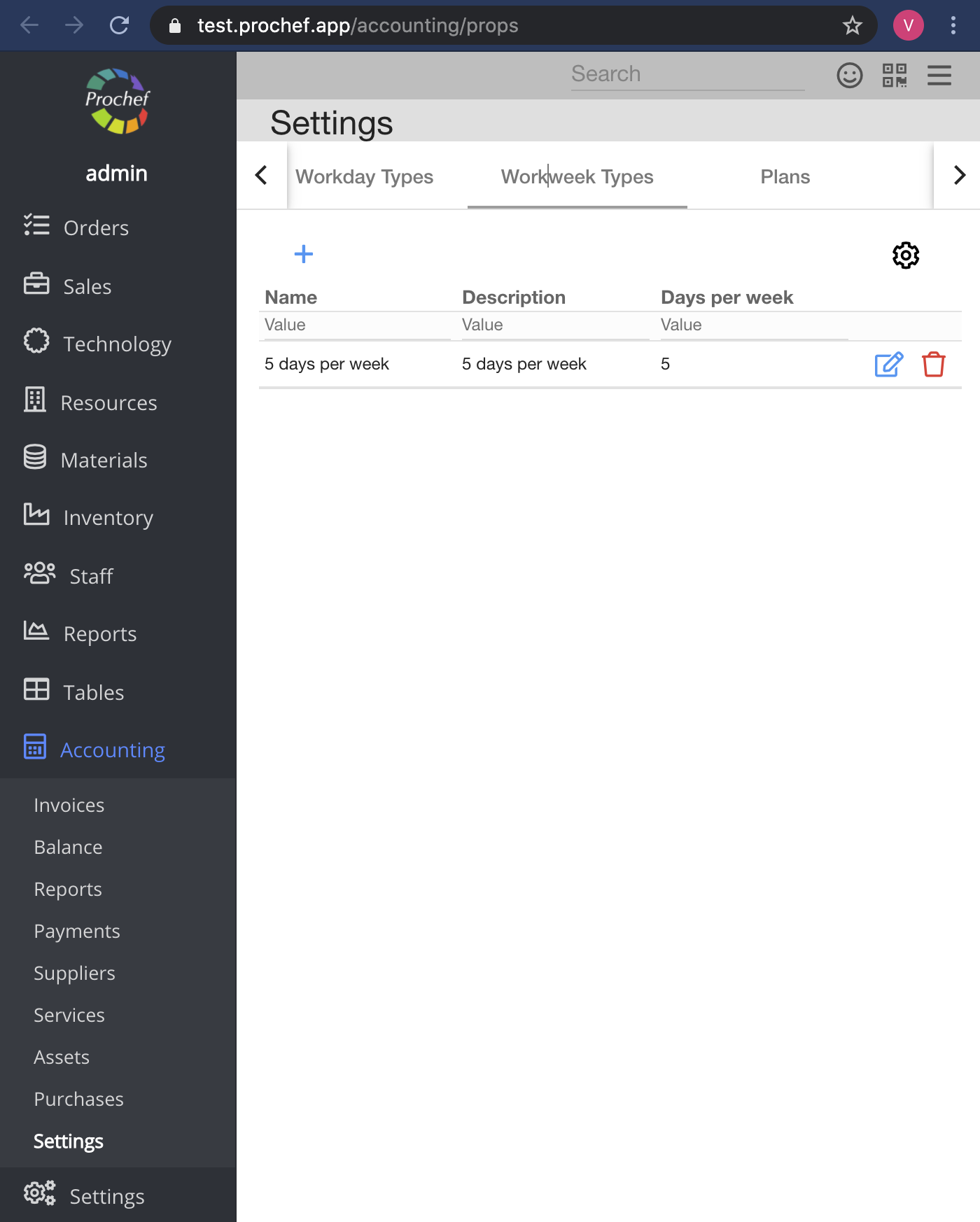 |
4. Click on Contract
Now you can see another dialog table:
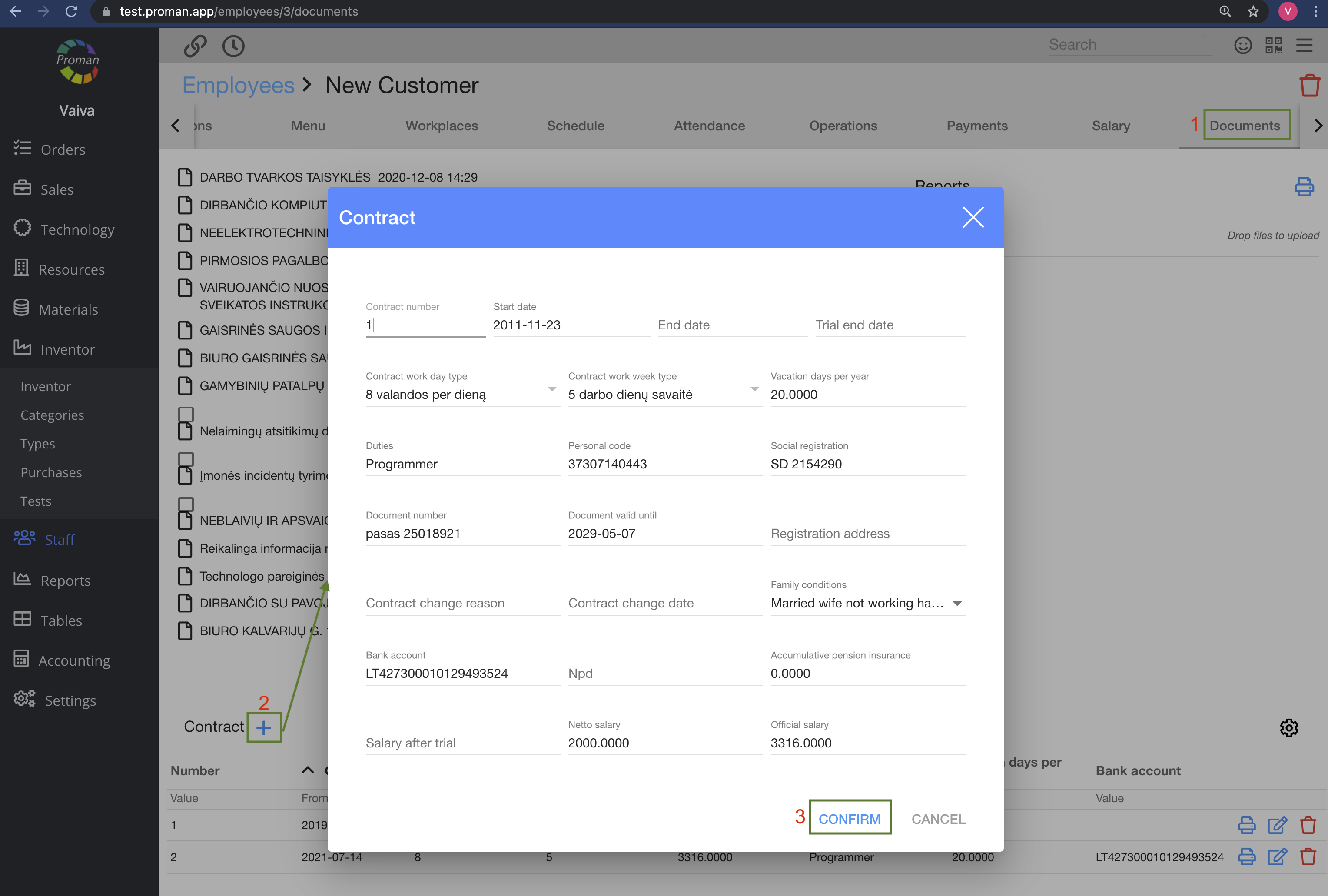
5. Fill in it and click
| Vacations |
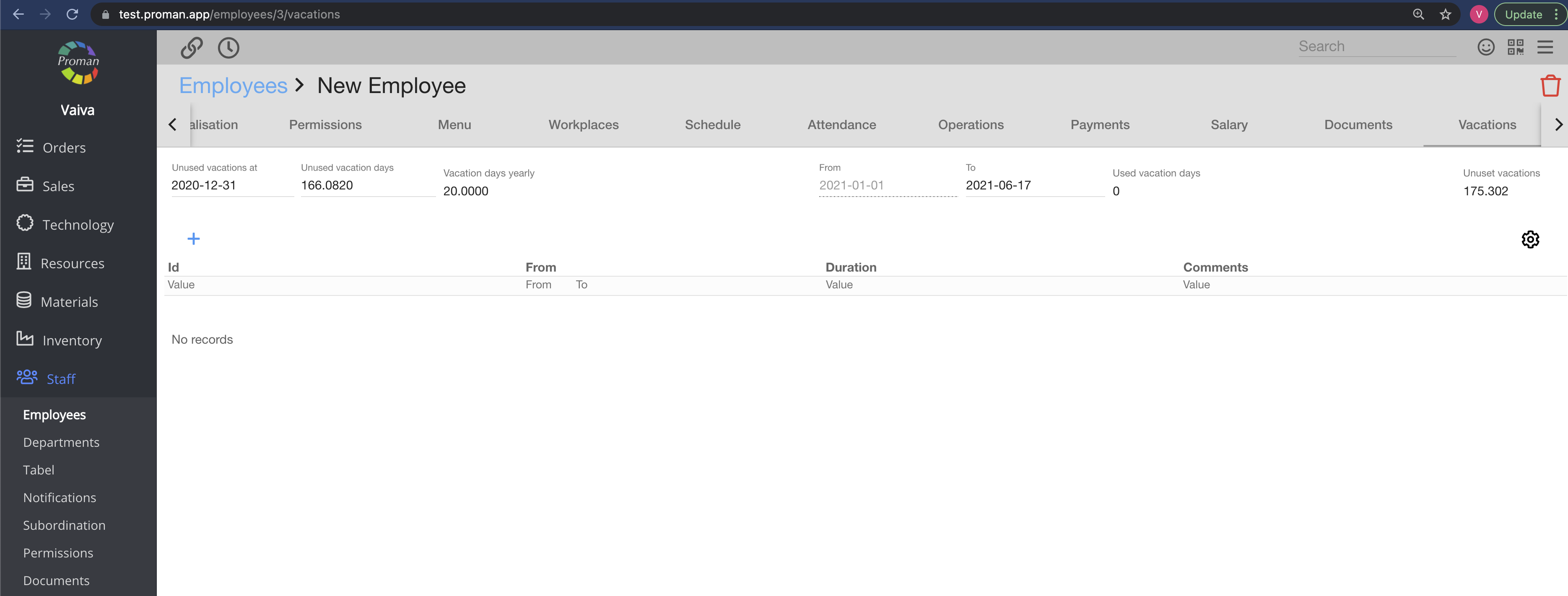
| How set up vacations? |
1. First of all, set up types of the workday exception reasons (in Resources --> Times Options --> Workday Exception Reasons)
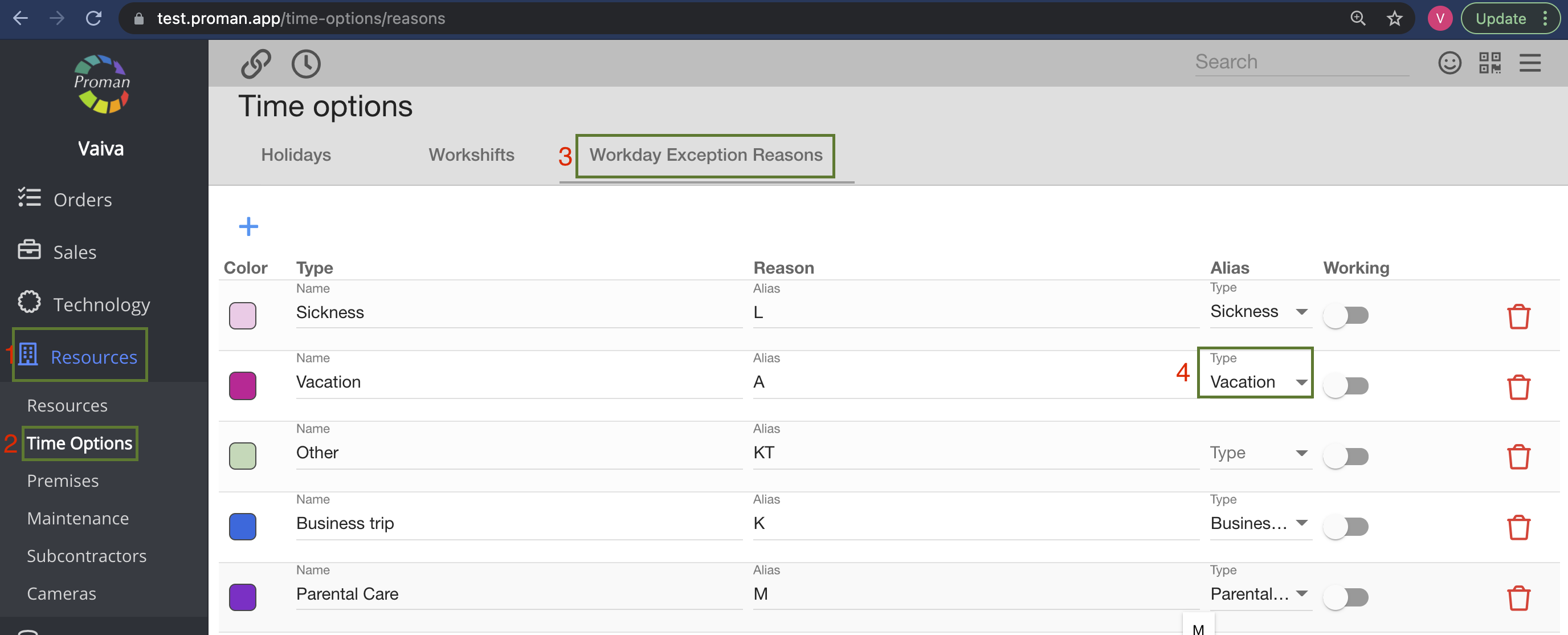
2. Come back to Staff --> Employee --> Vacations and click on
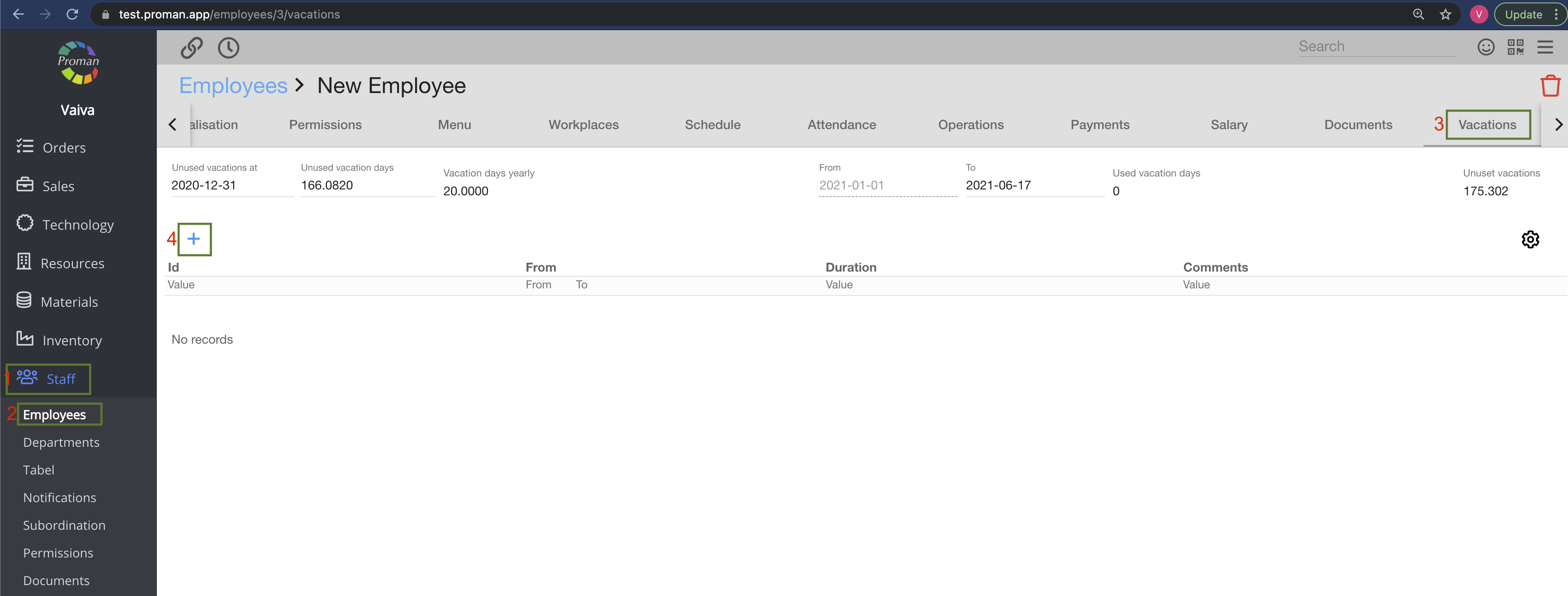
Now you can see the dialog table:
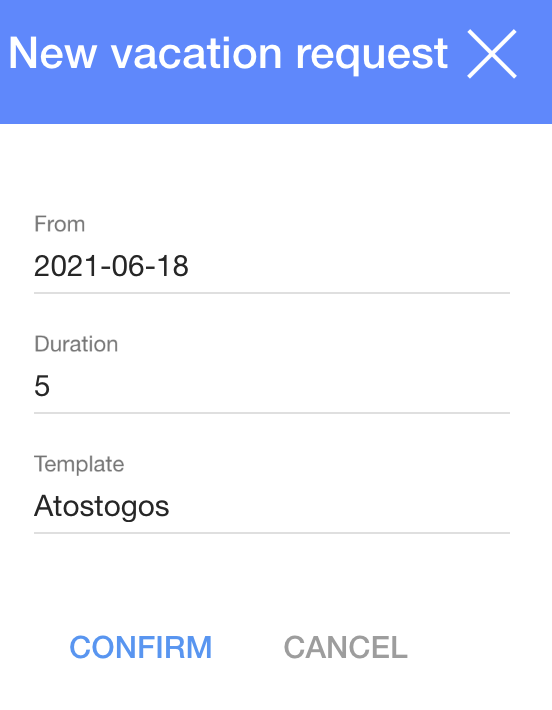
3. Fill in the dialog table:
3.1. Choose the start date of vacation;
3.2. Enter the duration (Working Days without weekends)
3.3. Choose a template for the vacation
3. Click on
4. Download the document and sign it.
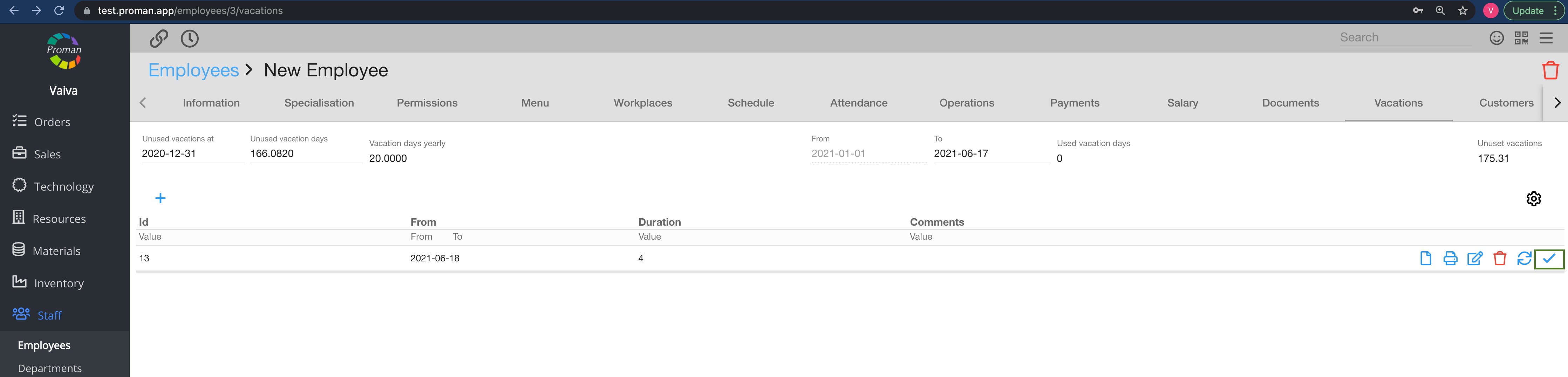
5. Then the director or accounting (the ones, who have the permission "Employee.Master") should confirm your request.(For more information visit here)
Note: You will not be able to edit the start day and duration after the confirmation
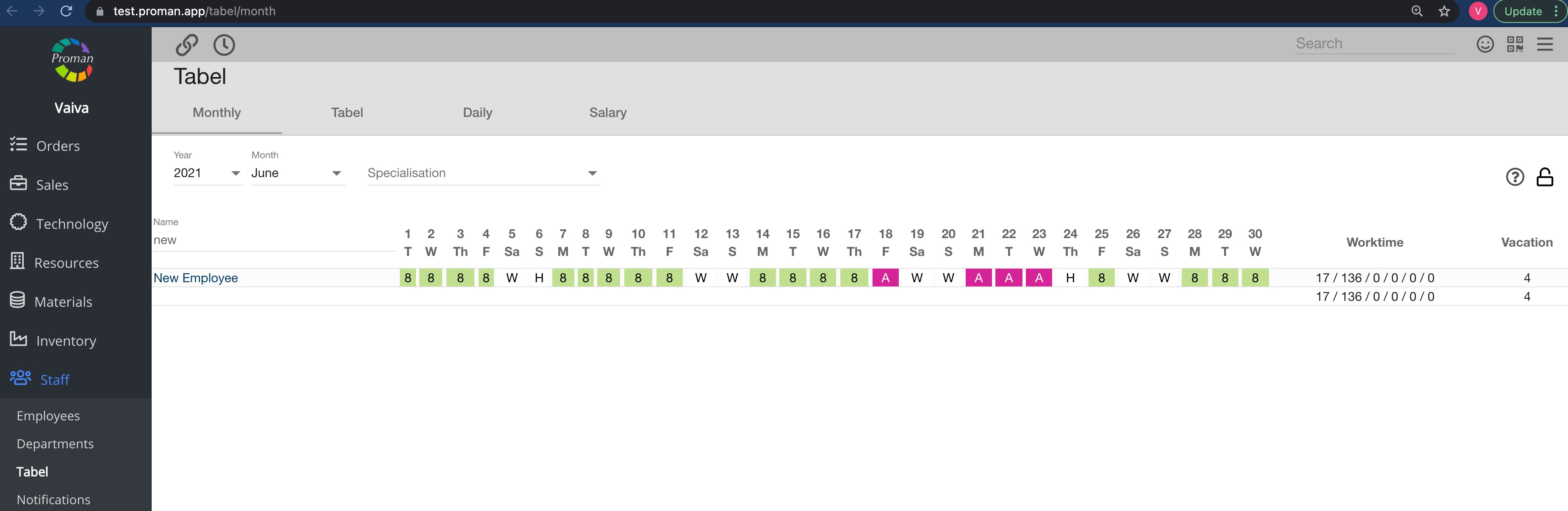
Now you can see the vacation in the employee tabel
Here you can see request to have vacations 


| Customers |
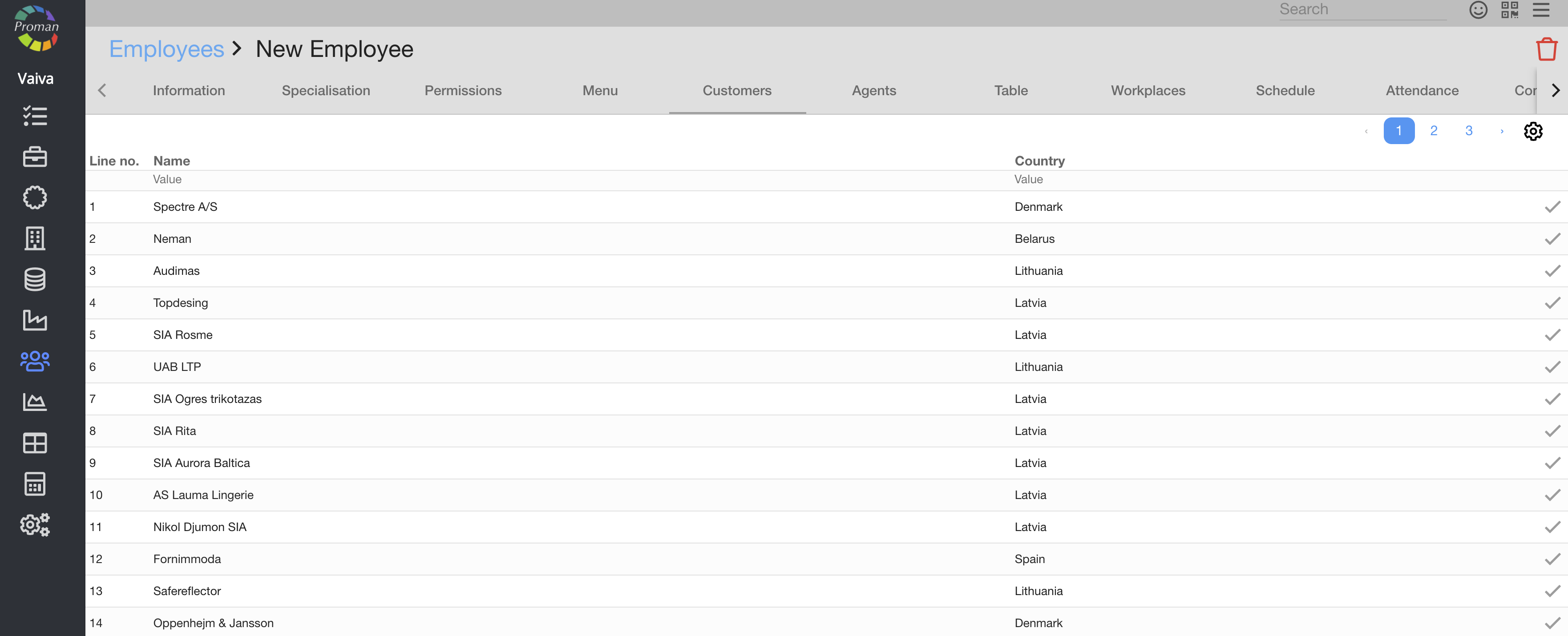
Here you can see, add (
| Agents |
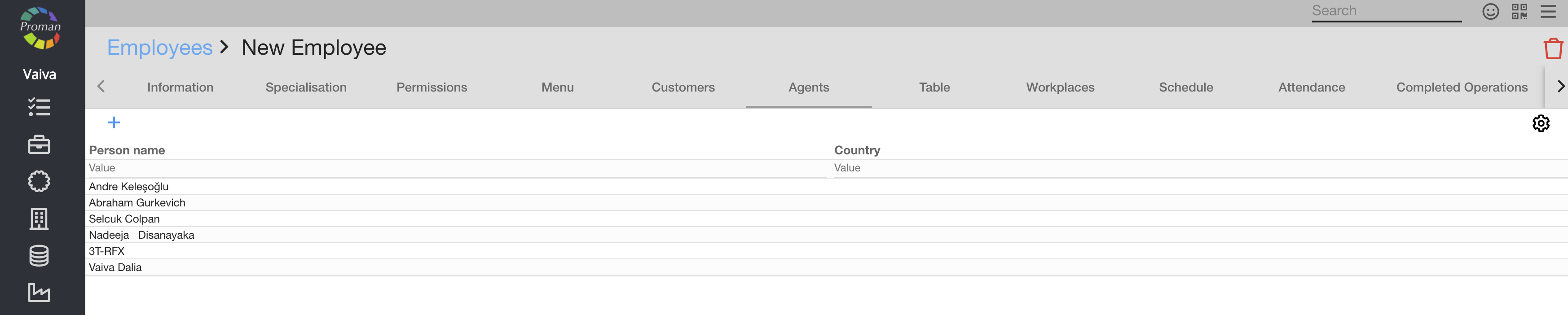
Here you can see agents
| Table |

Here you can see, add (
FAQ about Employees |
1. Is it possible to migrate all employees database to other containers?
Yes, you could import Employees. For more information on how to import employees, visit here.