User Settings
How to get all notifications and help
How to set up action on the top?
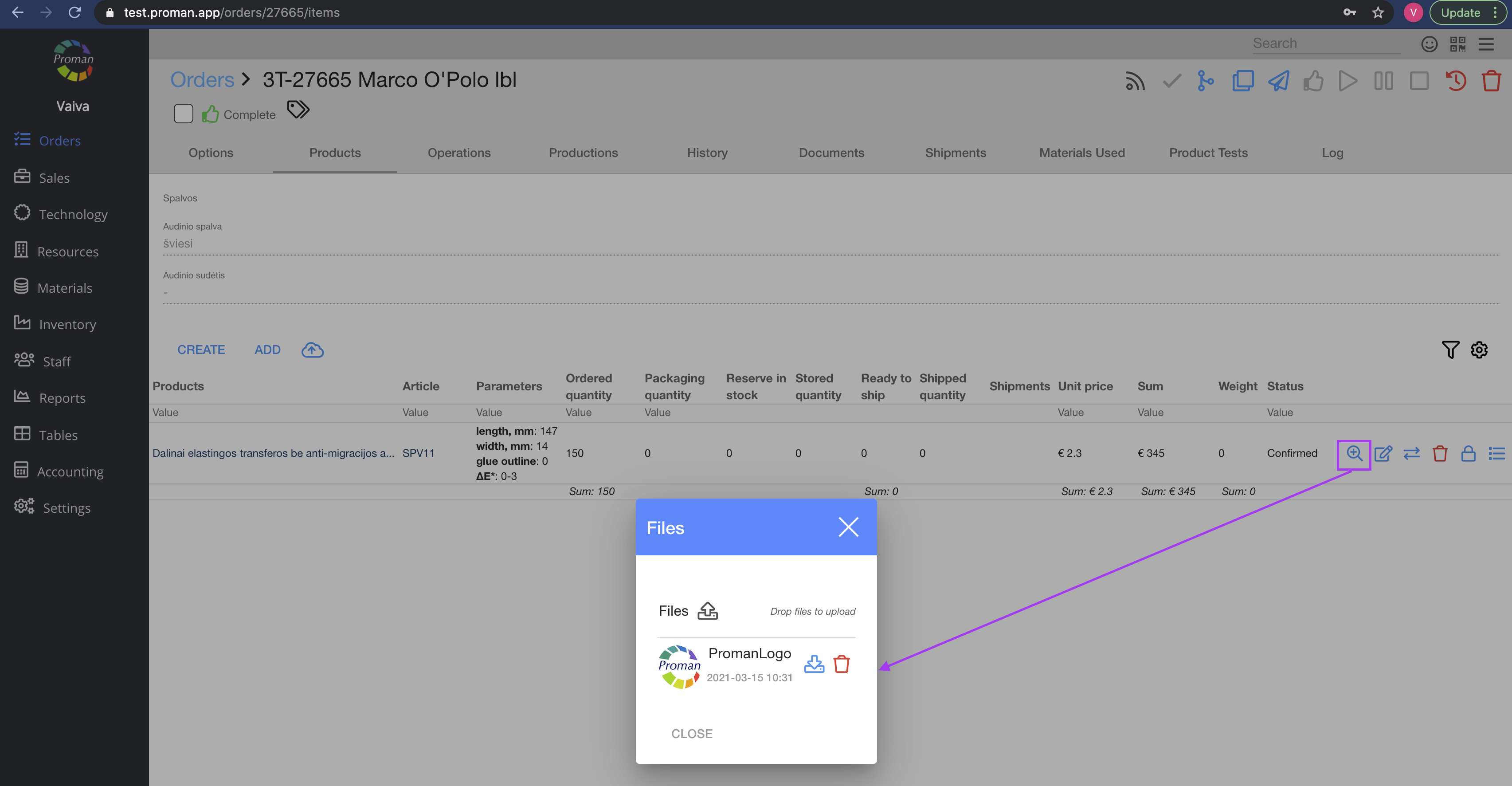
How to see and add files to Order products?
Add template on the top as a button
How to clean local storage on computer chrome
How get preview file in window?
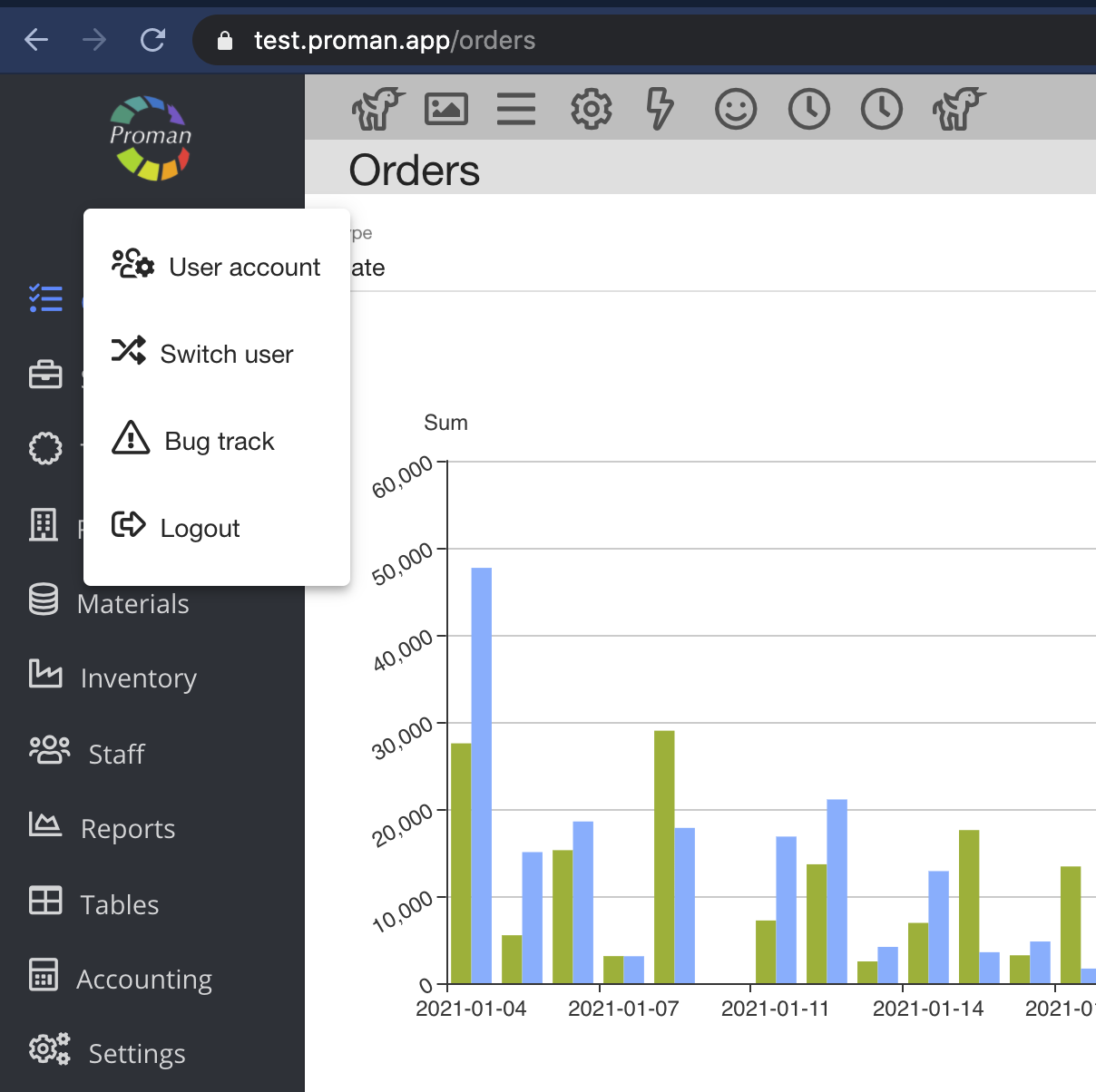
 User account User account |
| Information |
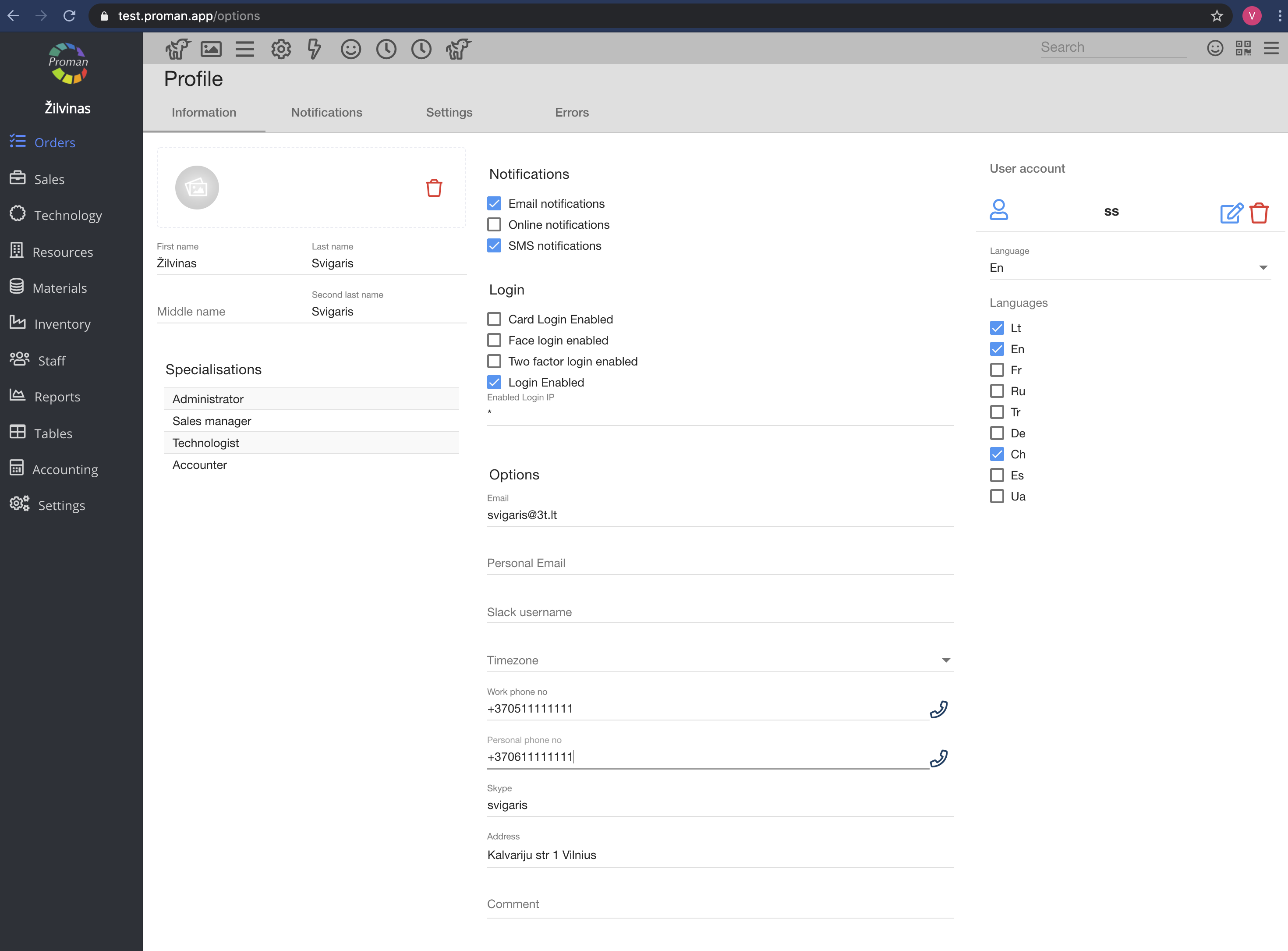
Here you could add your profile photo and fill in information about yourself, choose how to contact with you, how to login to proman.app, change password (

For more information about Employee information, please visit here
| Notifications |
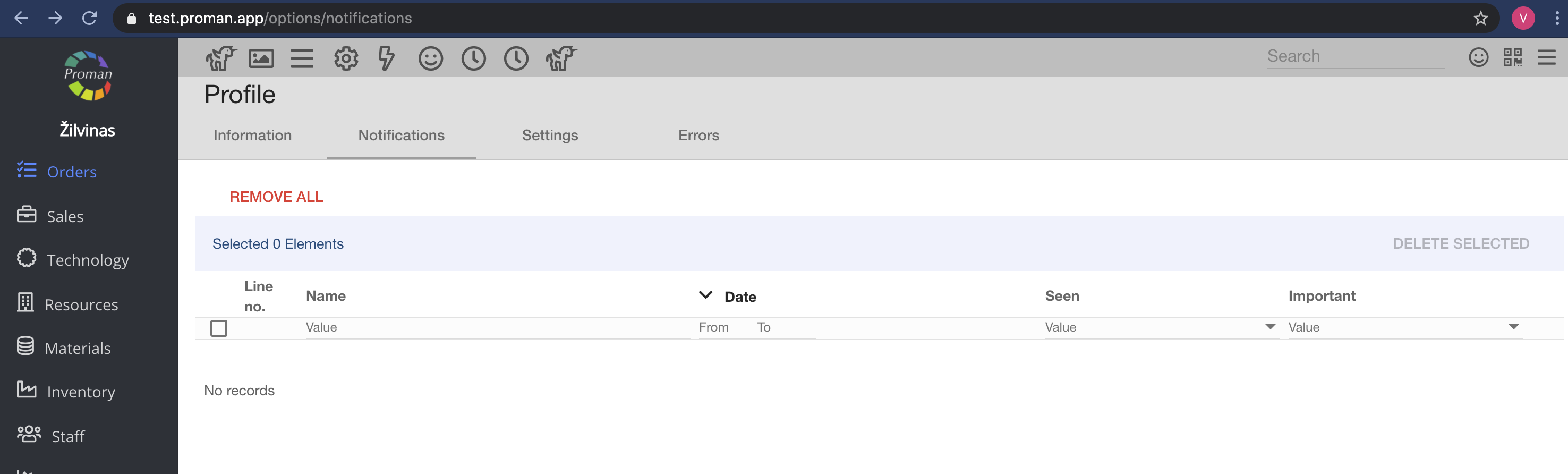
Here you could see all notification you got
| Settings |
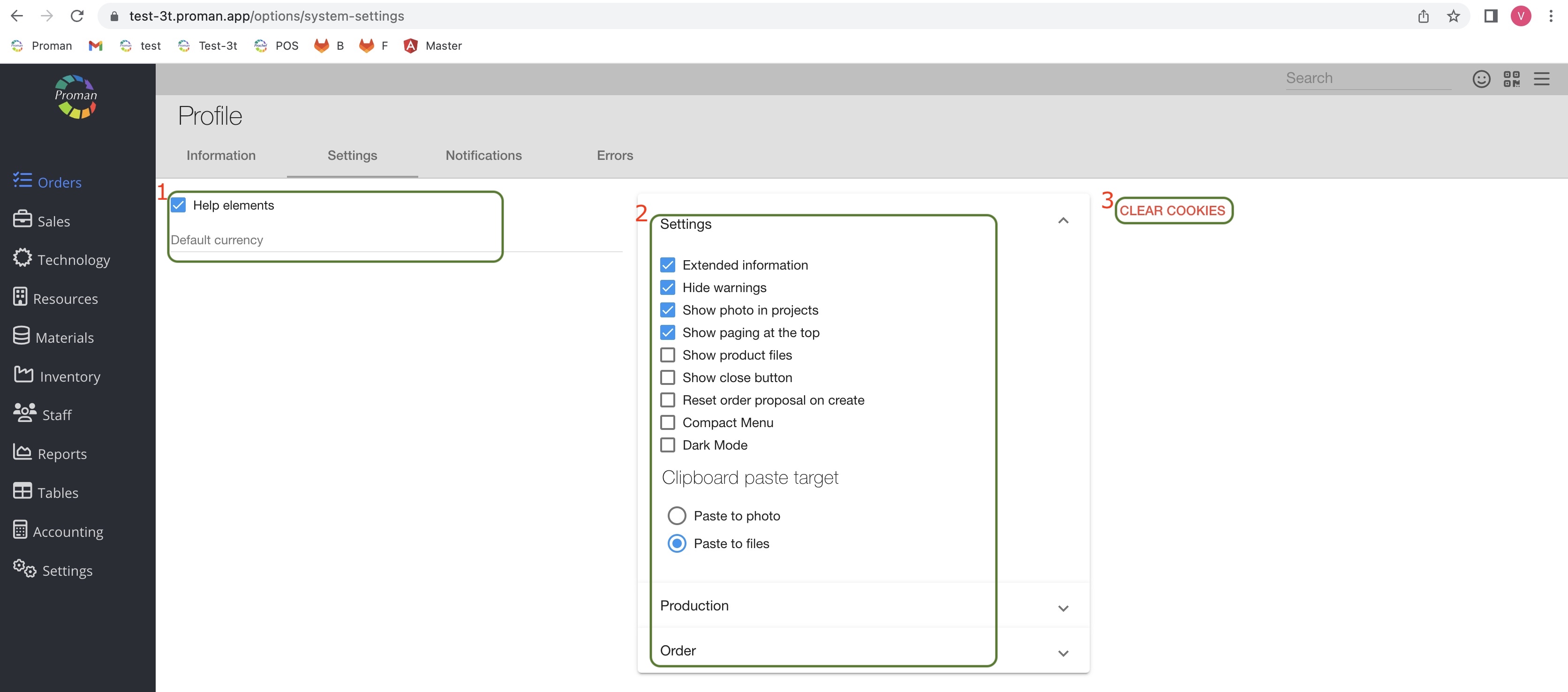
| Setting | What does it indicate? |
1 section | |
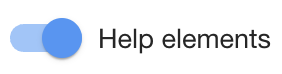 Help elements Help elements | You could set if you would like to see help elements |
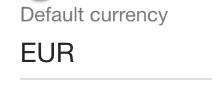 Default currency Default currency | You could set if you would like to see default currency |
2 section | |
 | You could set if you would like to see and edit information about: 1. Materials: Overview; 2. Articles: Options; |
 | You could set if you would like to see photo in sales projects Show photo in projects |
 | You could set if you would like to see pages at the top of tables Show paging at the top |
 | You could set if you would like to see close button in Sales opportunities (Sales --> Project --> Choose project (at the bottom)) Show cl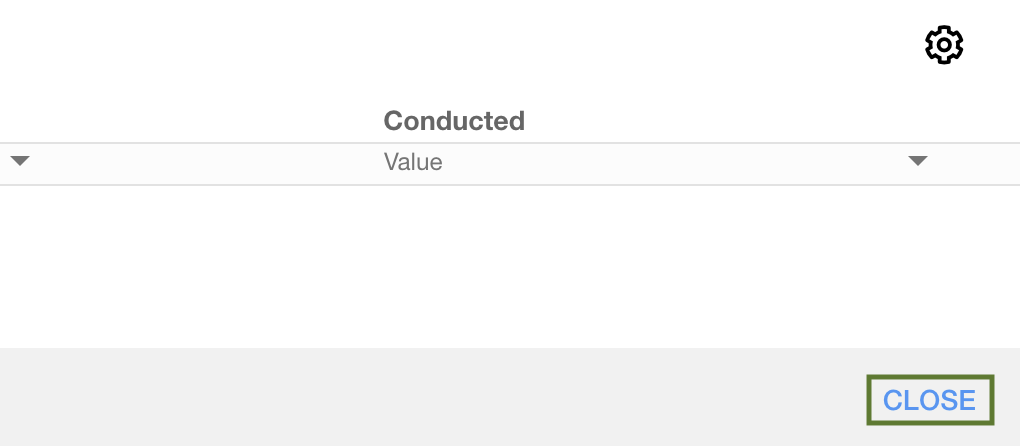 ose button ose button |
 | You could set if you would like to hide warnings |
 | You could set how you would like to paste photos Clipboard paste target |
 | You could set if you would like to paste photo to comment Paste to photo |
 | You could set if you would like to paste photo to file Paste to files |
 Show product files Show product files | You could set if you would like to see product files in Order |
 | You could set if you would like to reset order proposal after create Reset order proposal on create |
 | You could set if you would like to see icon without titles (left side of Proman menu tab) Compact menu |
 Dark mode Dark mode | You could set if you would like to see Proman in dark mode |
 | You could set which row you would like to see in Order table |
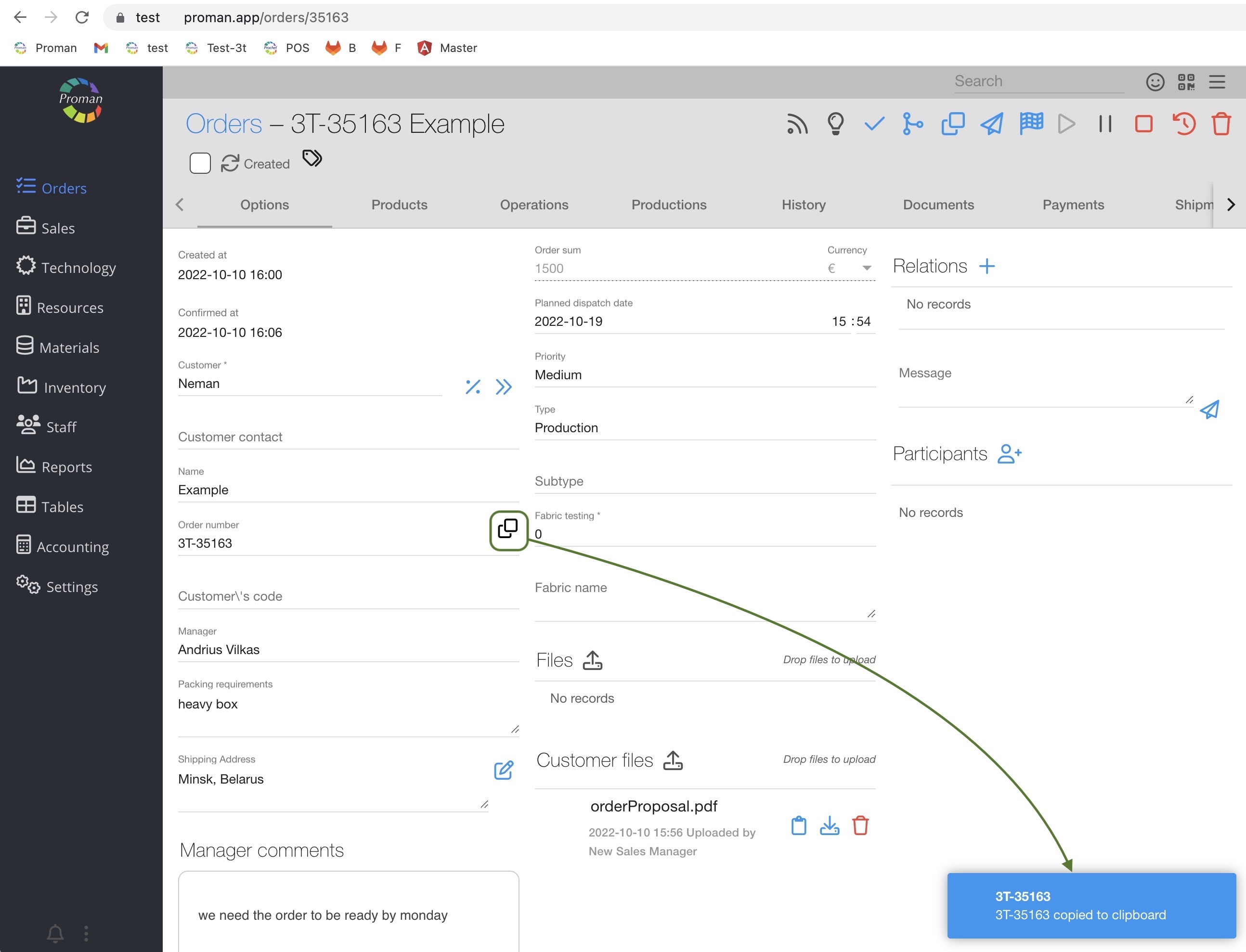
| How to get all notification and help? |
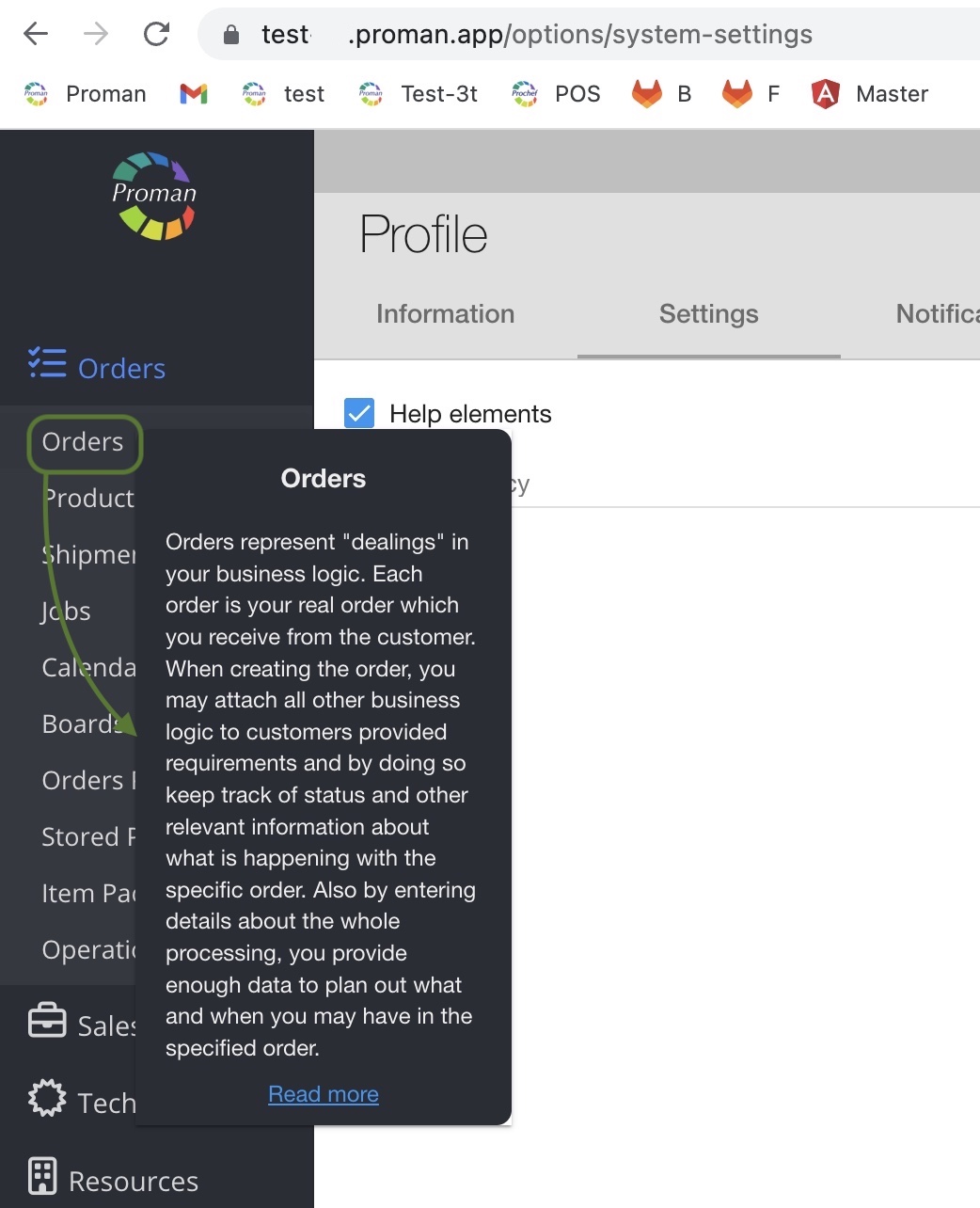
You could see additional information about the system
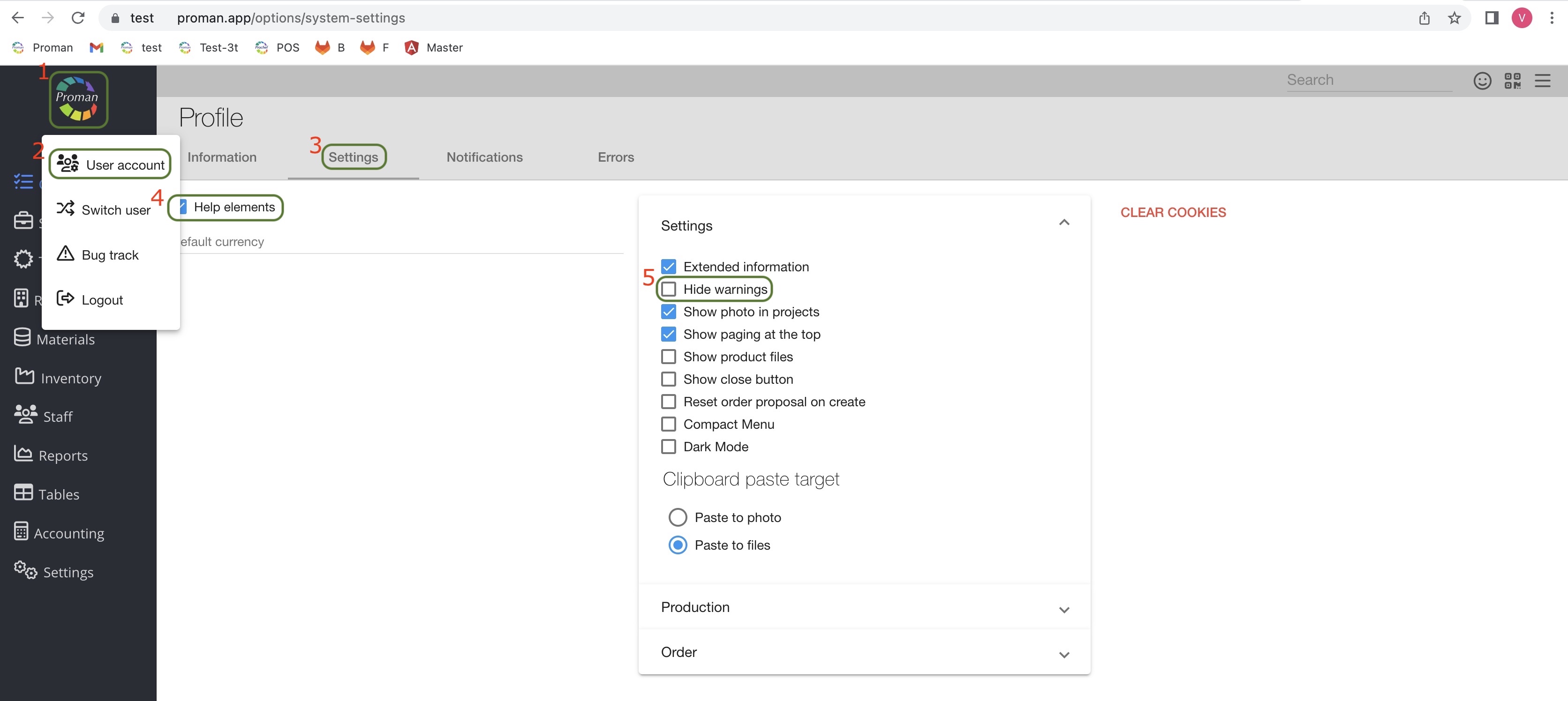
Now you could see help elements
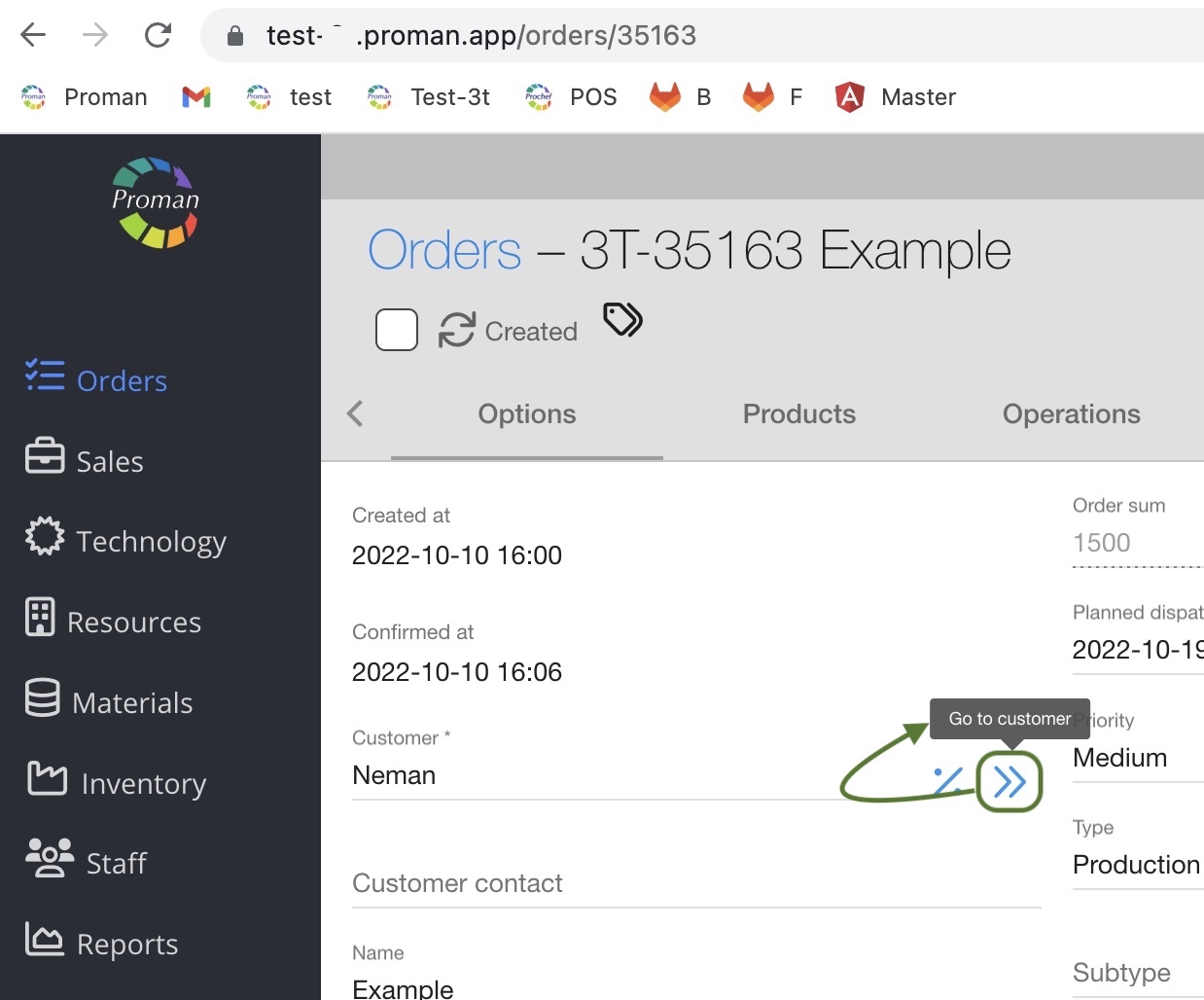
And notifications
 |
You could see product files in Order
 Bug track Bug track |
You could use it if there is a problem in Proman. Just press
Now you could see windows photo and location.
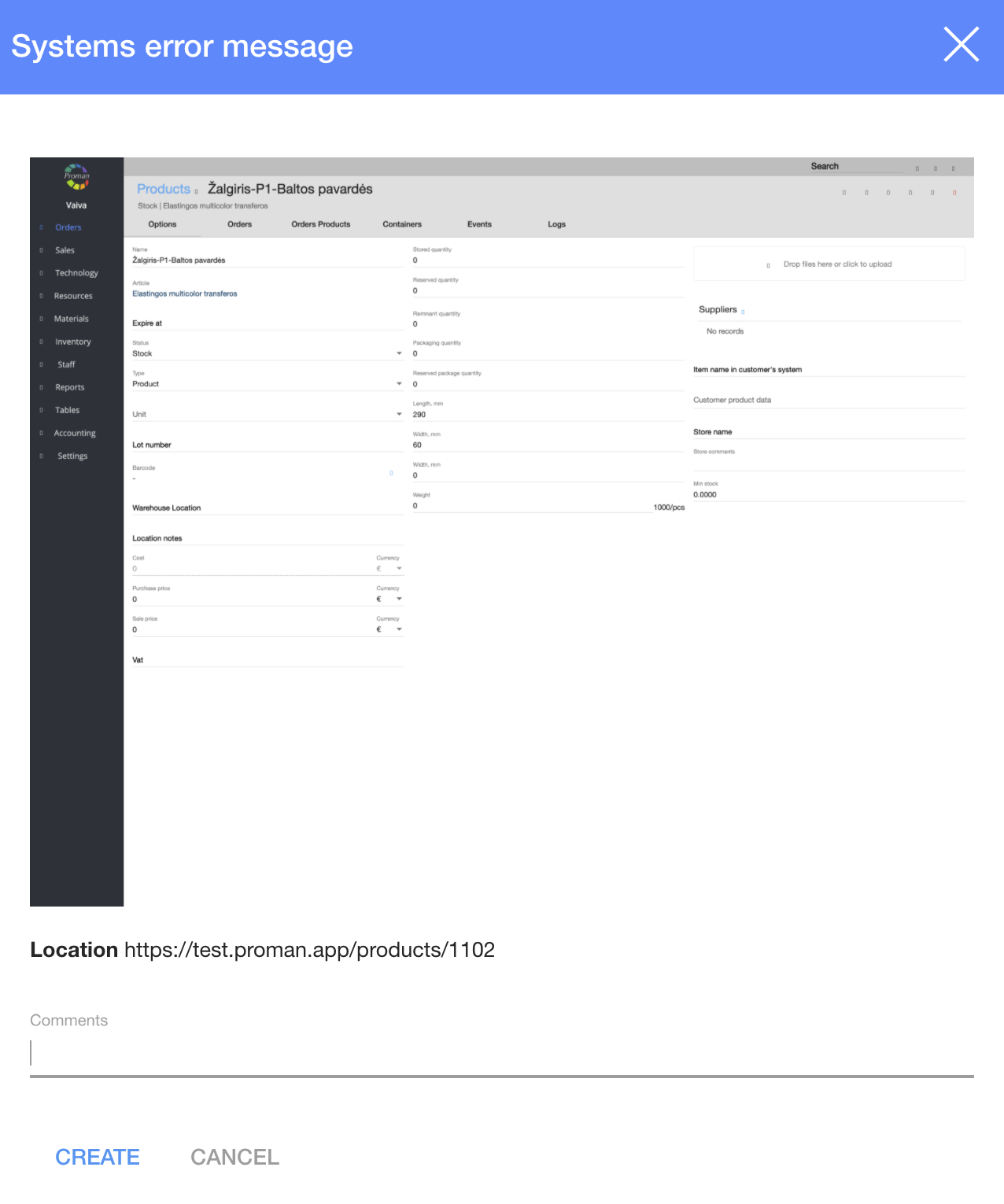
1. Enter how problem appeared step by step (in order programmer could understand how problem appeared and fix it as soon as possible).
2. Press 
 Switch User Switch User |
You could log in with your colleague and just switch user to another one.
 Logout Logout |
You could logout
| How to set up action on the top? |
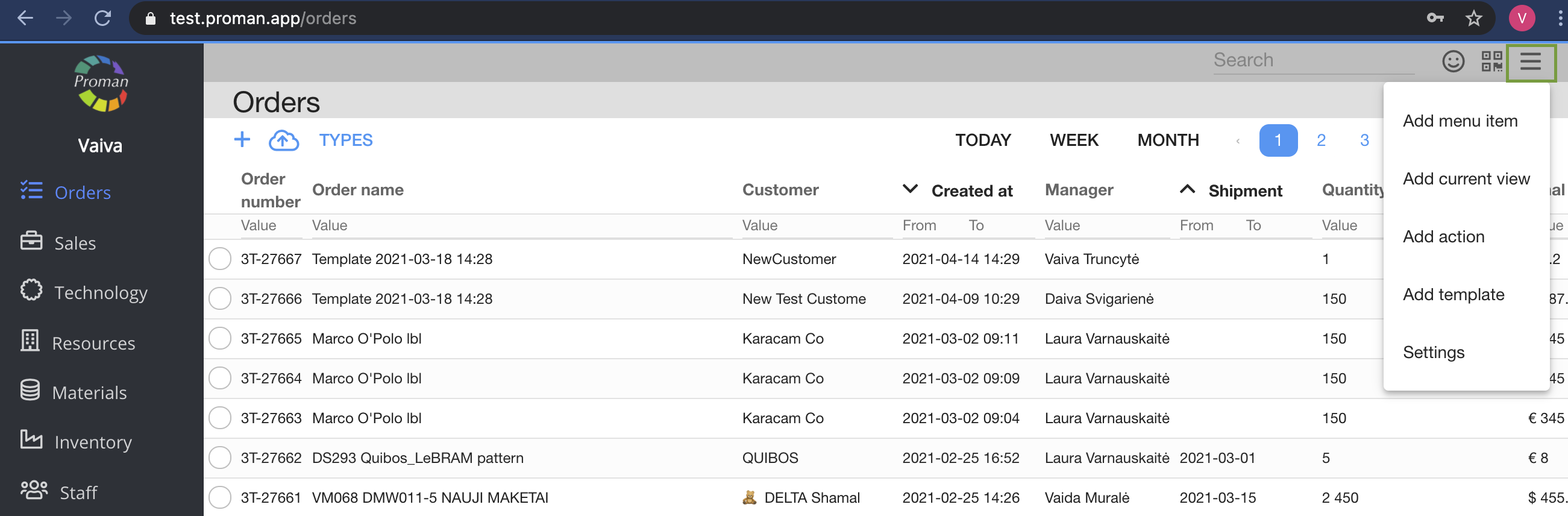
Press

| Button | What does it indicate? | How to set up? |
| Add menu item | You could choose which menu item would you like to see | Press on this row and choose menu item |
| Add current view | You could choose current page would you like to see | Press on this row |
| Add Action | You could choose which action would you like to see | Press on this row and choose Action from list |
| Add Template | You could choose which Template would you like to see | Press on this row and choose Template from list. For more information please visit here |
| Settings | You could change the order of buttons and delete the | Press on this row and manage buttons |
| How to add template on the top? |
Note:
1. You could see this button (Add Template) only if you have permission Report.Master. For more information about Permissions, please visit here
2. You could add only Pos daily report action Context Template. For more information about Templates Context, please visit here
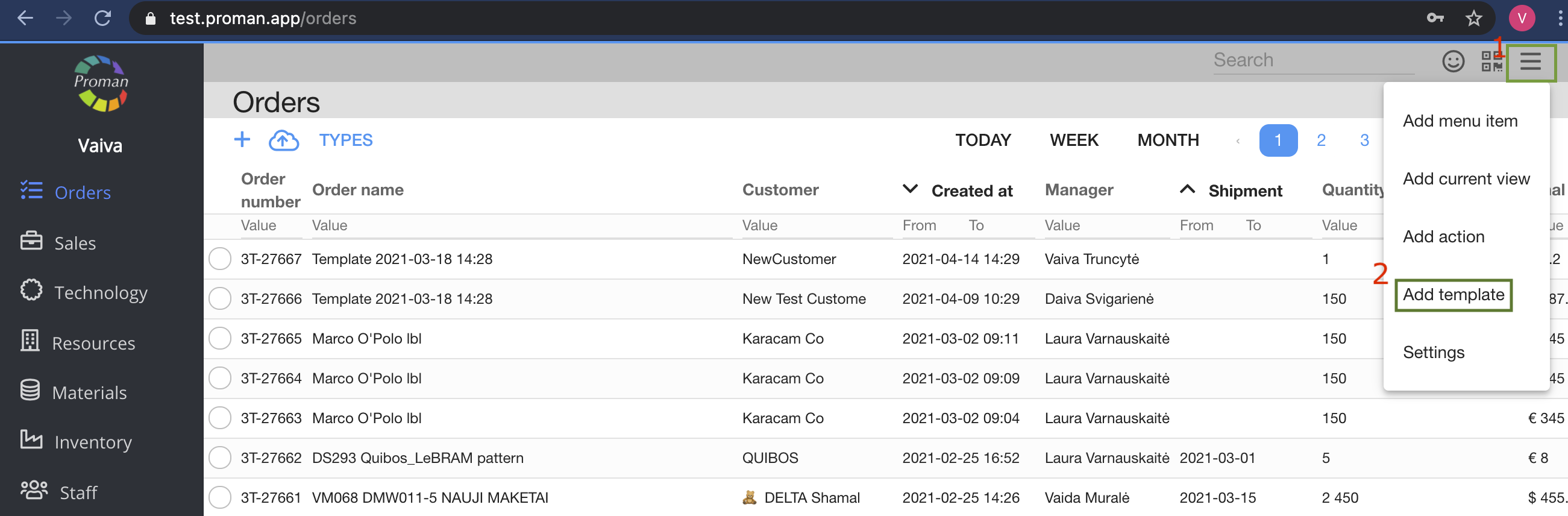
1. Press
2. Press Add Template
Now you can see dialog table
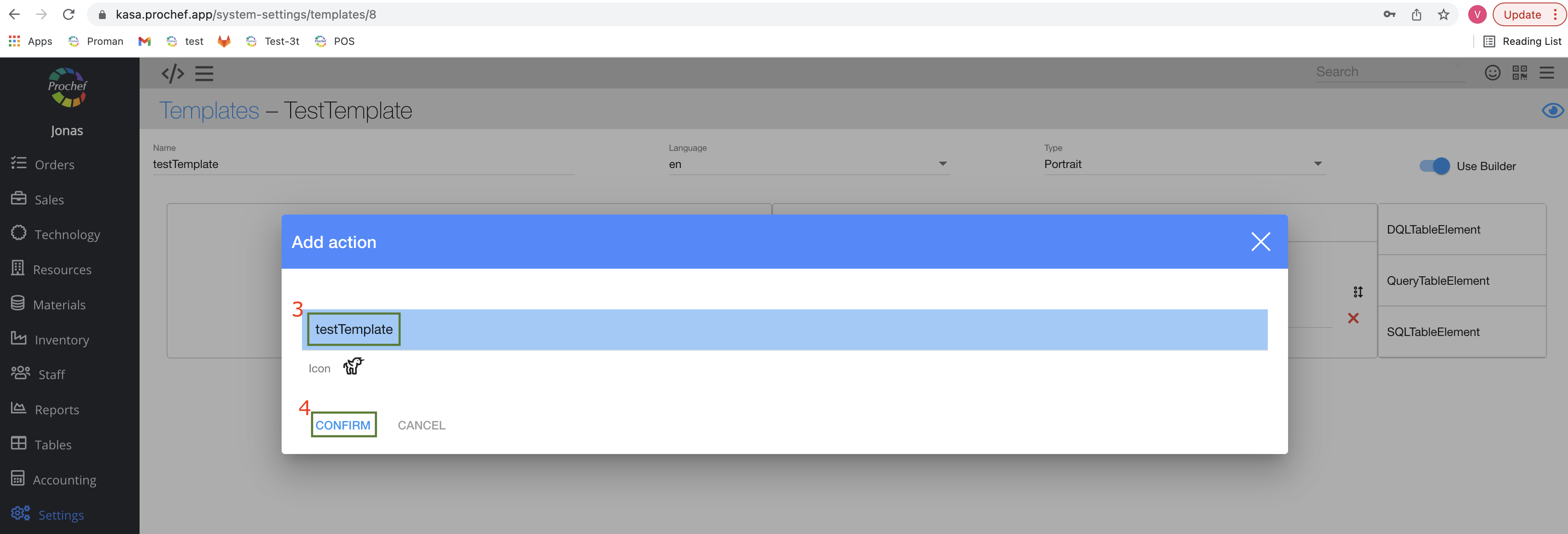
3. Choose Template, which you would like to add on the top
4. Press
| Why image is so small? |


Here is a video if you don't like reading
How to clean local storage?
1. Press the right mouse button;
2. Press Inspect;

3. Select Application menu
4. Press Clear storage
5. Press Clear site data
6. Reload site.

| Table settings |
 You could filter objects in the list You could filter objects in the list |
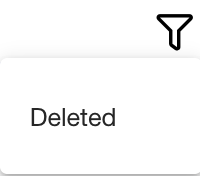

 Manage what do you want to see Manage what do you want to see |
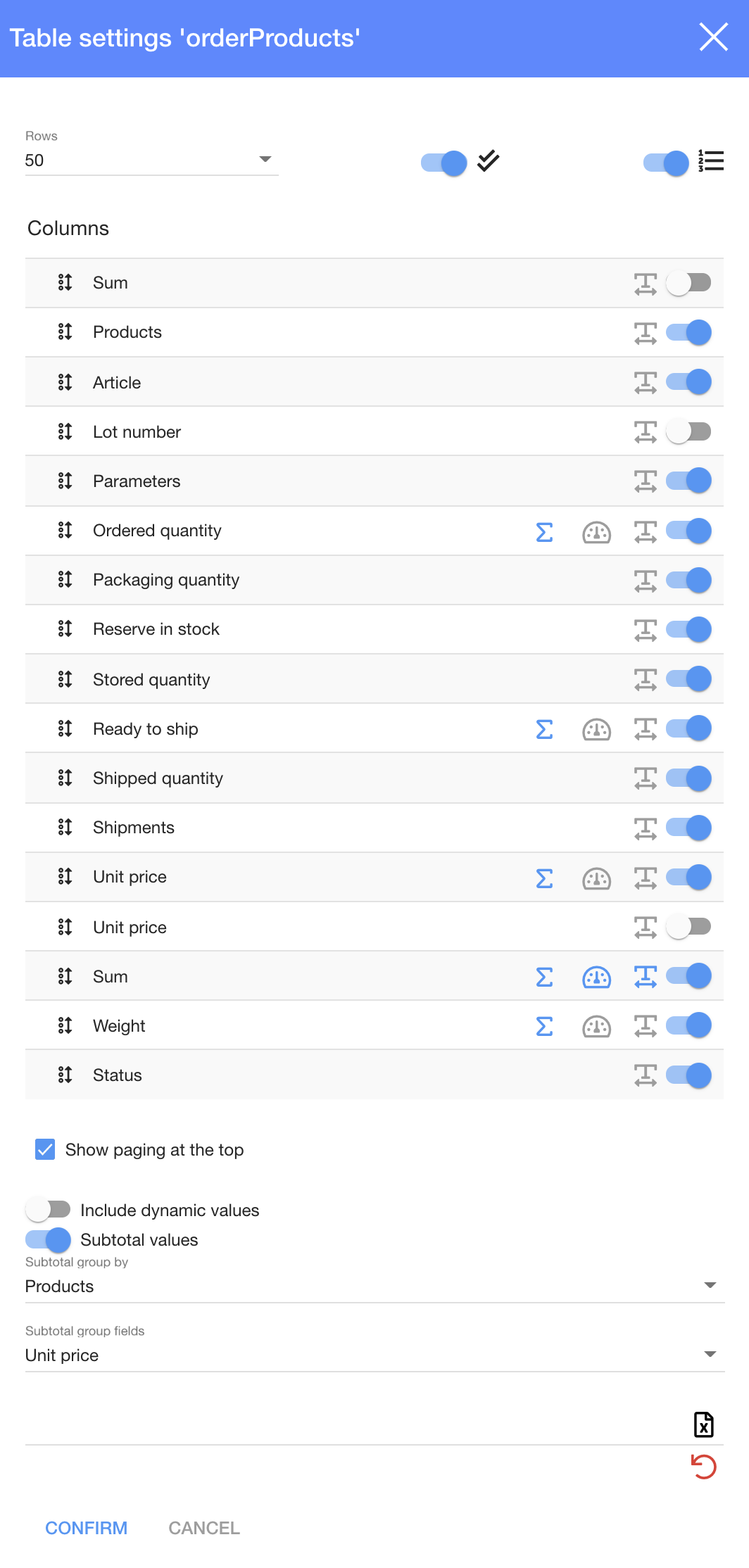 |
You could manage what would you like to see in tables
| Button | What does it indicate? |
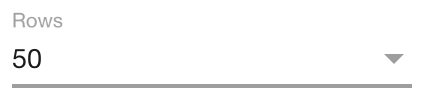 | You could choose and set how many rows you want to see in this table |
 | You could add check box in column (you will see in each column) in each column) |
 | You could add numbers in column (you will see 1, 2, 3, ... in each column) |
 | You could change row order |
 | You could count sum of all values at bottom |
 | You could count average of all values at bottom |
 | You could see all text in row |
 | You could enable to see row |
 | You could disable to see row |
 | You could show paging at the top |
 | You could include dynamic values |
 | You could add subtotal values |
 | You could download the list of products |
 | You could reset table settings |
 How to add subtotal values? How to add subtotal values? |
To add subtotal values:
1. Press 
2. Press 
| How to send email? |
Go to your chrome chrome://settings/handlers

Go to your email https://mail.google.com/mail/u/0/#inbox

Go to your chrome again chrome://settings/handlers

Now you can send email

| How to see file preview in new Window? |

Check button "Open file preview in new window". That's it. Now file preview will open in new tab