Notifications
Notifications are used to inform users about some important events in the system. Here you can customize what is important in your business model and which employees should be notified about such information.
How to set Button Listener on top
How to find the "Notifications" tab? |
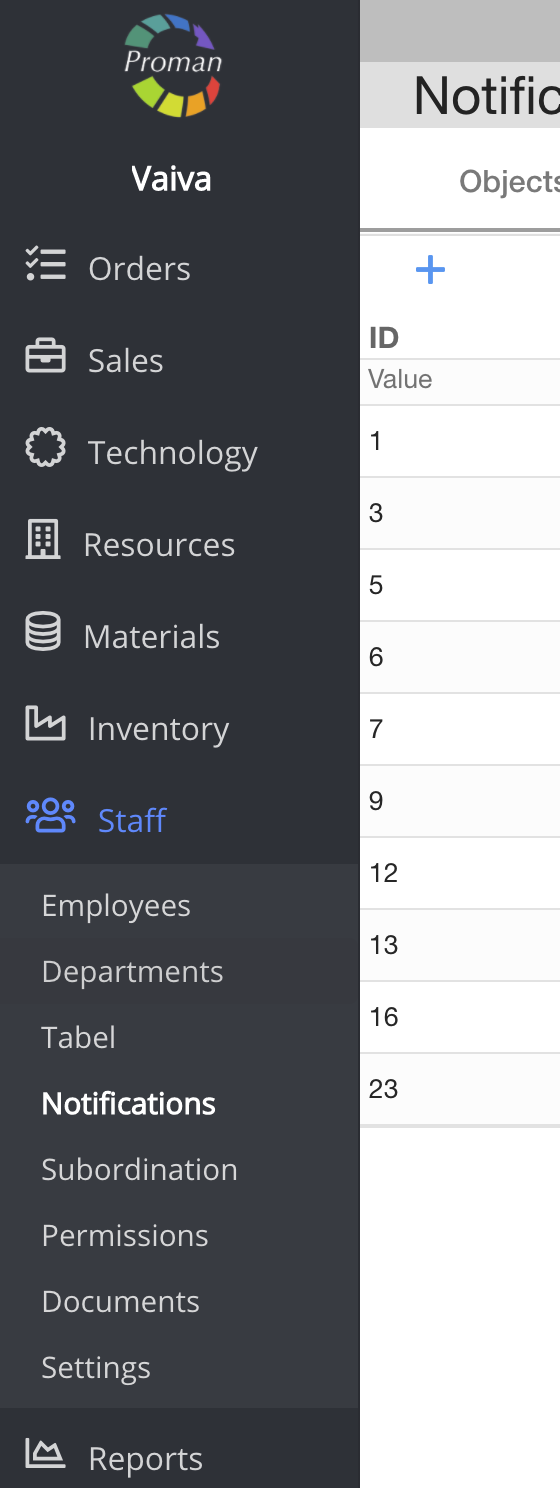
1. To find the "Notification" tab:
1.1. Go to 
1.2. And then-
Now you can see the notifications list (Objects):
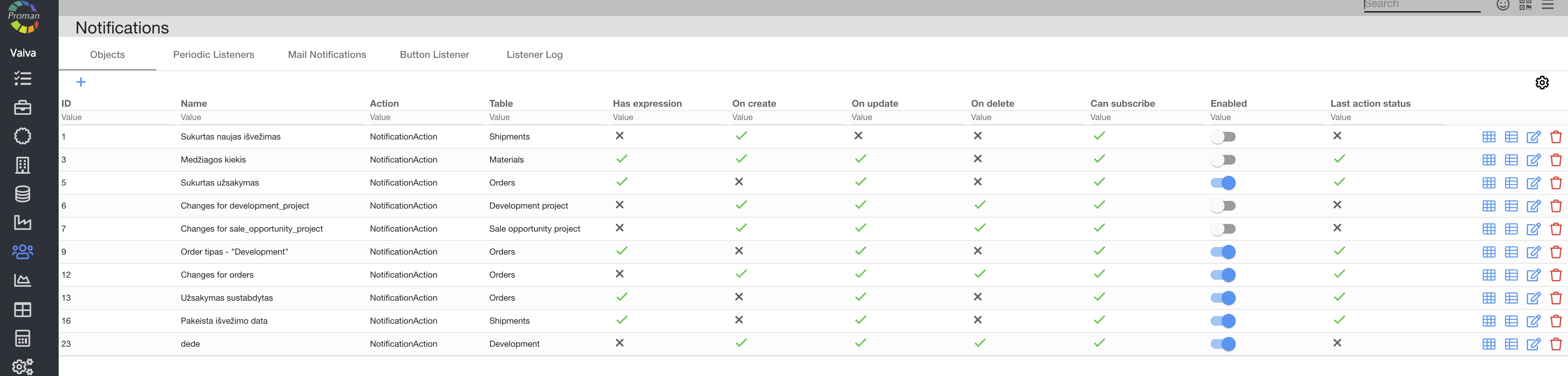
| Button | What does it indicate? |
Enabled  | You can enable () or disable ( ) the notification ) the notification |
 | You can see what has changed |
 | You can see, when the notification was sent |
 | You can edit the notification |
 | You can delete the notification |
How to create a new notification? |
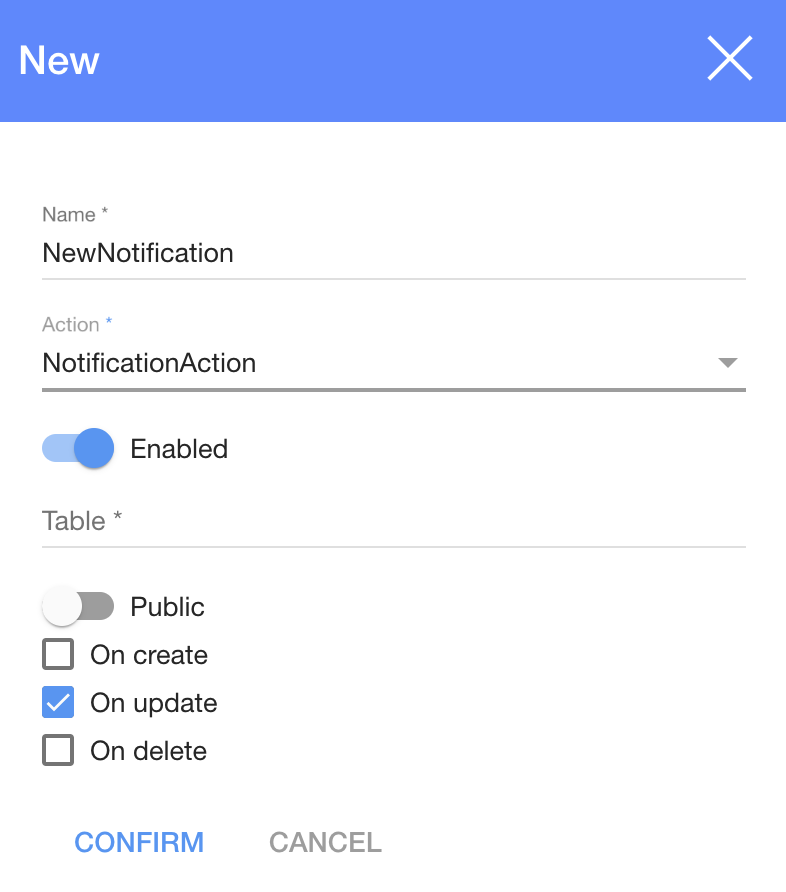
1. Click on 
2. In the dialog table:
2.1. Enter a name;
2.2. Choose an action;
2.3. Enable (
2.4. Choose a table:
- Article;
- Document;
- Sale;
- SaleEvent;
- Development;
- DevelopmentTask
- Event;
- CustomEvent;
- MaintenanceOperation;
- Quant;
- PurchaseOrder;
- Material;
- Order;
- Invoice;
- Shipment;
- Product;
- Person;
- Production
- ProductionOperation;
- ect.
2.5. Public (
2.6. Check, when you want to get the notification (When created, On update or when deleted)
3. Click

Action list
| Action | What does it indicate? |
CalculateEmployeeSalaryAction | You can calculate the employee's salary |
CheckFiscalStatusAction | You can check the fiscal status |
CheckOrderPriceAction | You can check the order price |
CloseEmptyOrderAction | You can close an empty order |
CopyConfirmOrderAction | You can copy a confirmed order |
CreateSaleOpportunityProjectAction | You can create a sales project |
MaterialMinQuantityCheckAction | You can check Material's minimum quantity |
DeleteEmptyOrderAction | You can delete an empty order |
InformUnpaidInvoice | You can inform about an unpaid invoice. For more information, please visit here |
InformOrderCertificateEndAction | You can inform about the order certificate end |
MessageProformInOrderAction | You can Message Proforma In Order |
NotificationAction | You can send notifications |
PrintOrderAction | You can print an Order |
SendEmailFromTemplate | You can send an email from templates |
SendGeneratorOutputAction | You can send a generator Output |
SendOrderSummaryAction | You can send an order summary |
UnfinishedOperationsReportAction | You can get an unfinished operation's report |
UpdateAllUsersPasswordAction | You can update all user's passwords |
UpdateManagerPasswordAction | You can update the manager's password |
How to manage notifications? |
To manage notification, you should click on
| Settings |
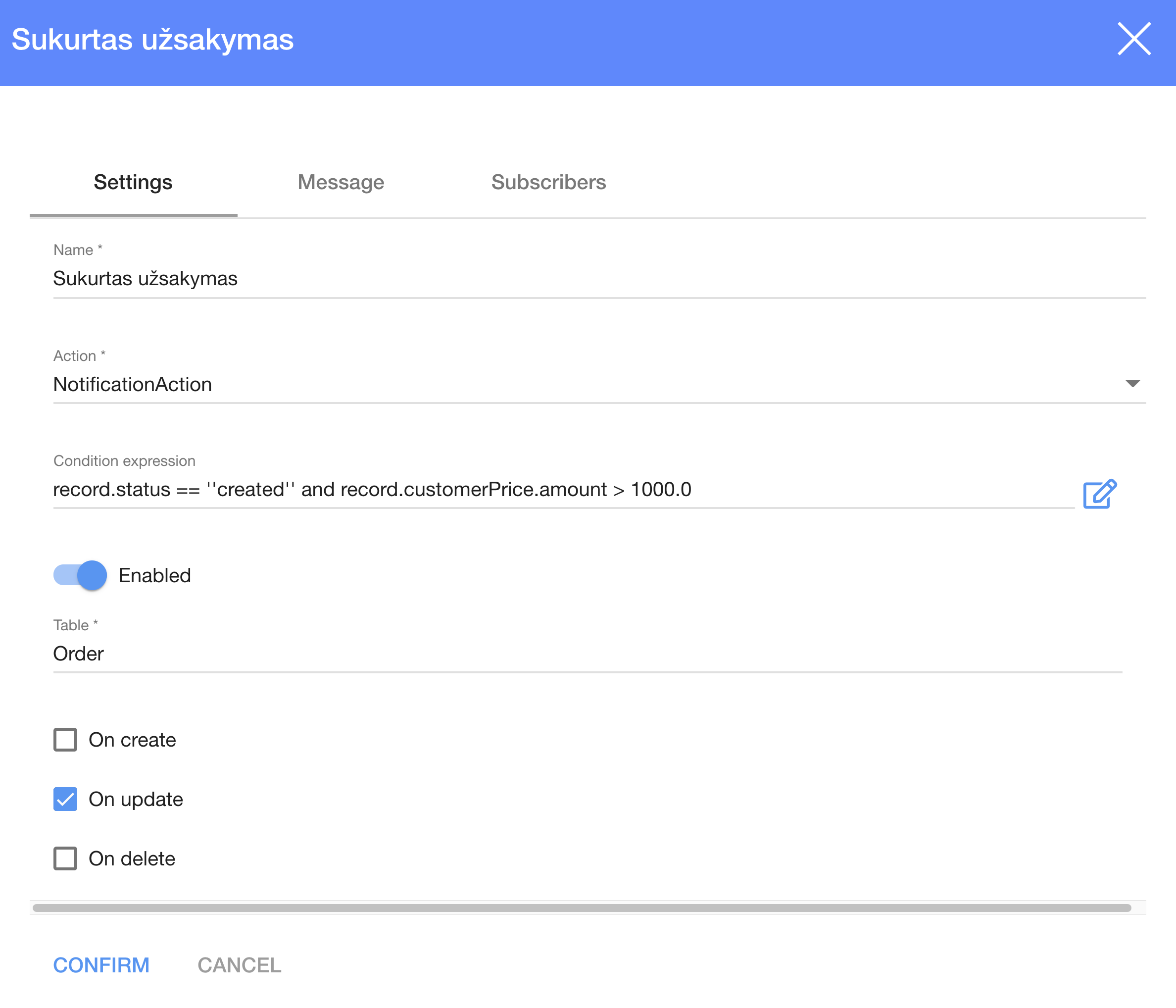
Here you can change the name, action, set expression, enable an action, choose a Table and when you want to get a notification.
For more information about expressions, visit here
| before.status != record.status && record.status == "sent" | Get a notification when Shipment status changes from "Prepared" to "Sent" |
| Message |
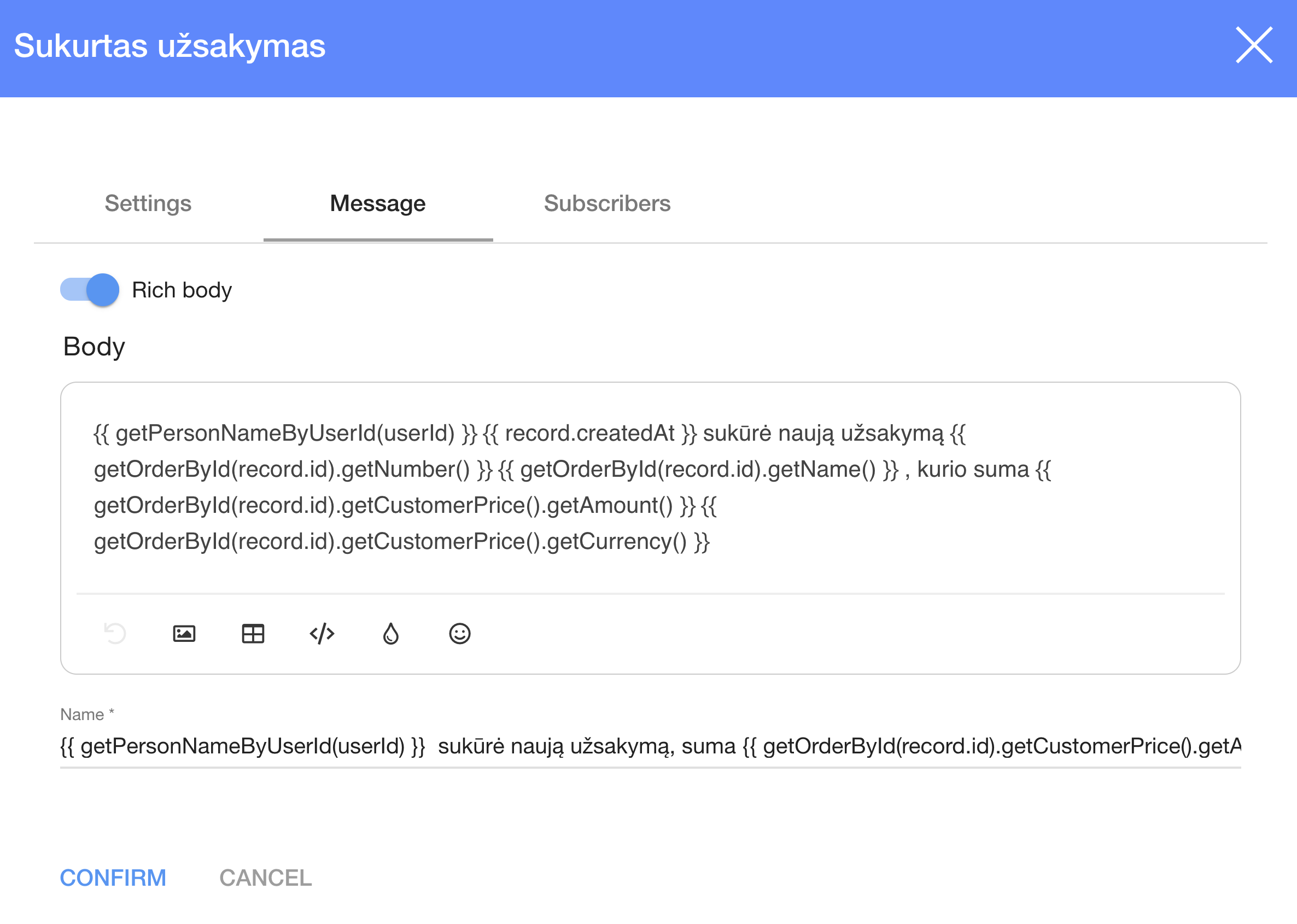
Here you can write messages
| Subscribers |
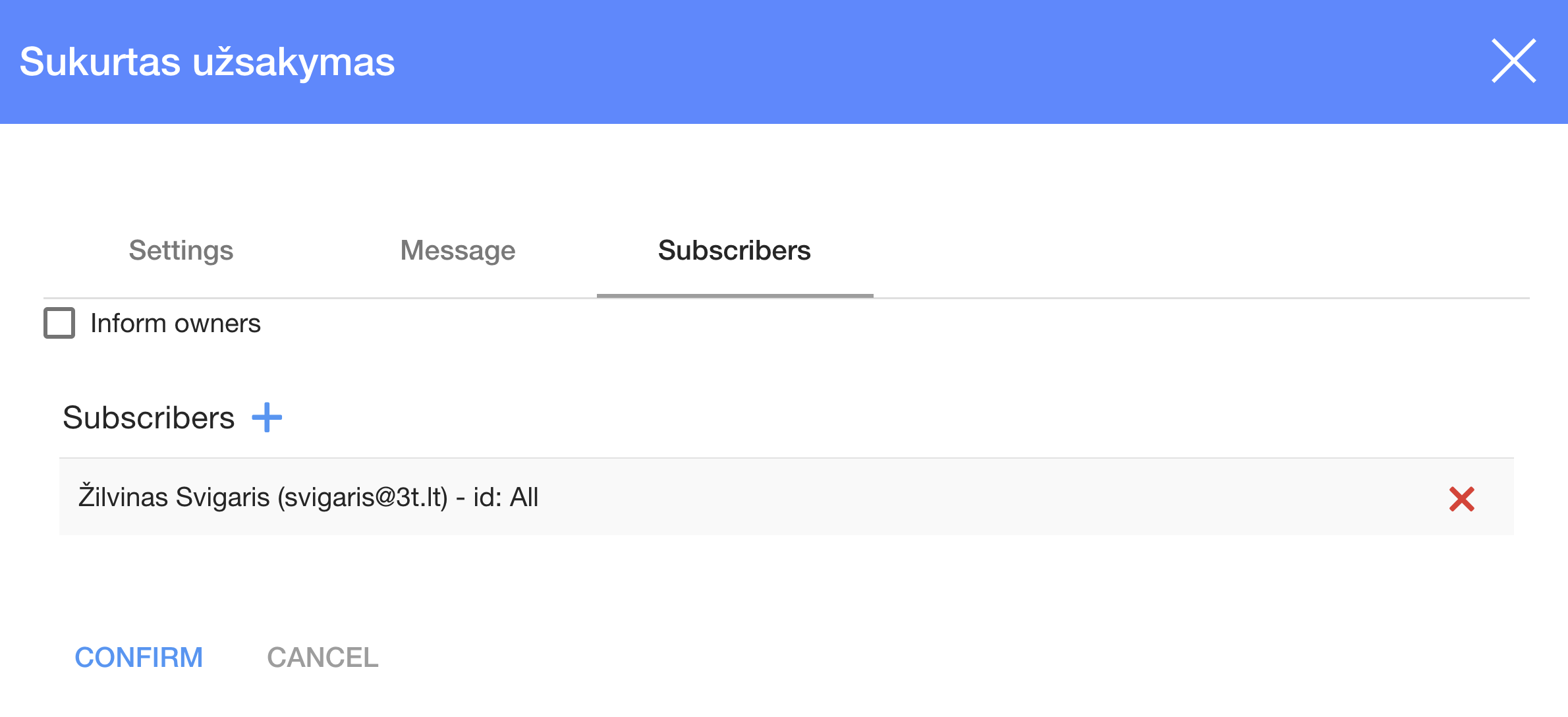
Here you can add Subscribers
Periodic Listener |
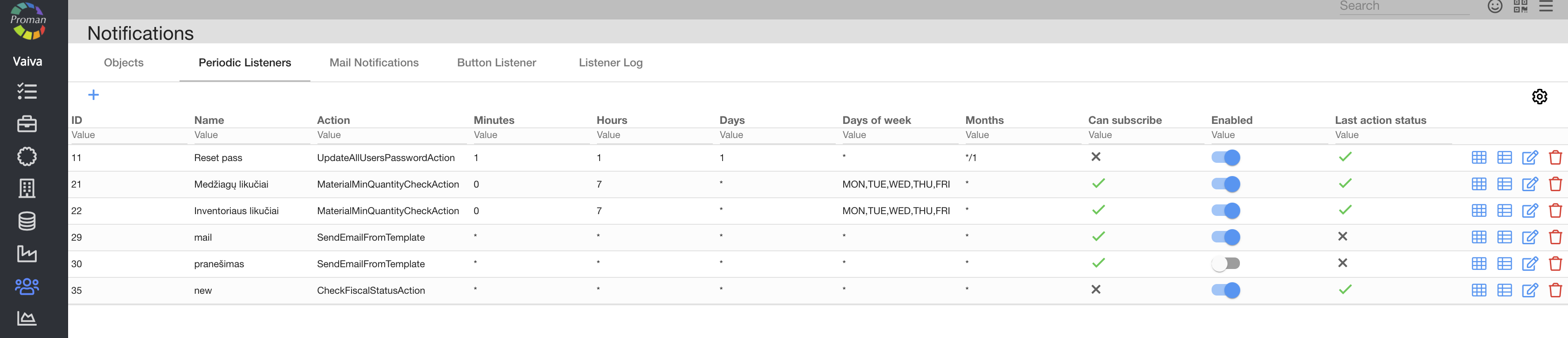
Here you can add periodic notifications
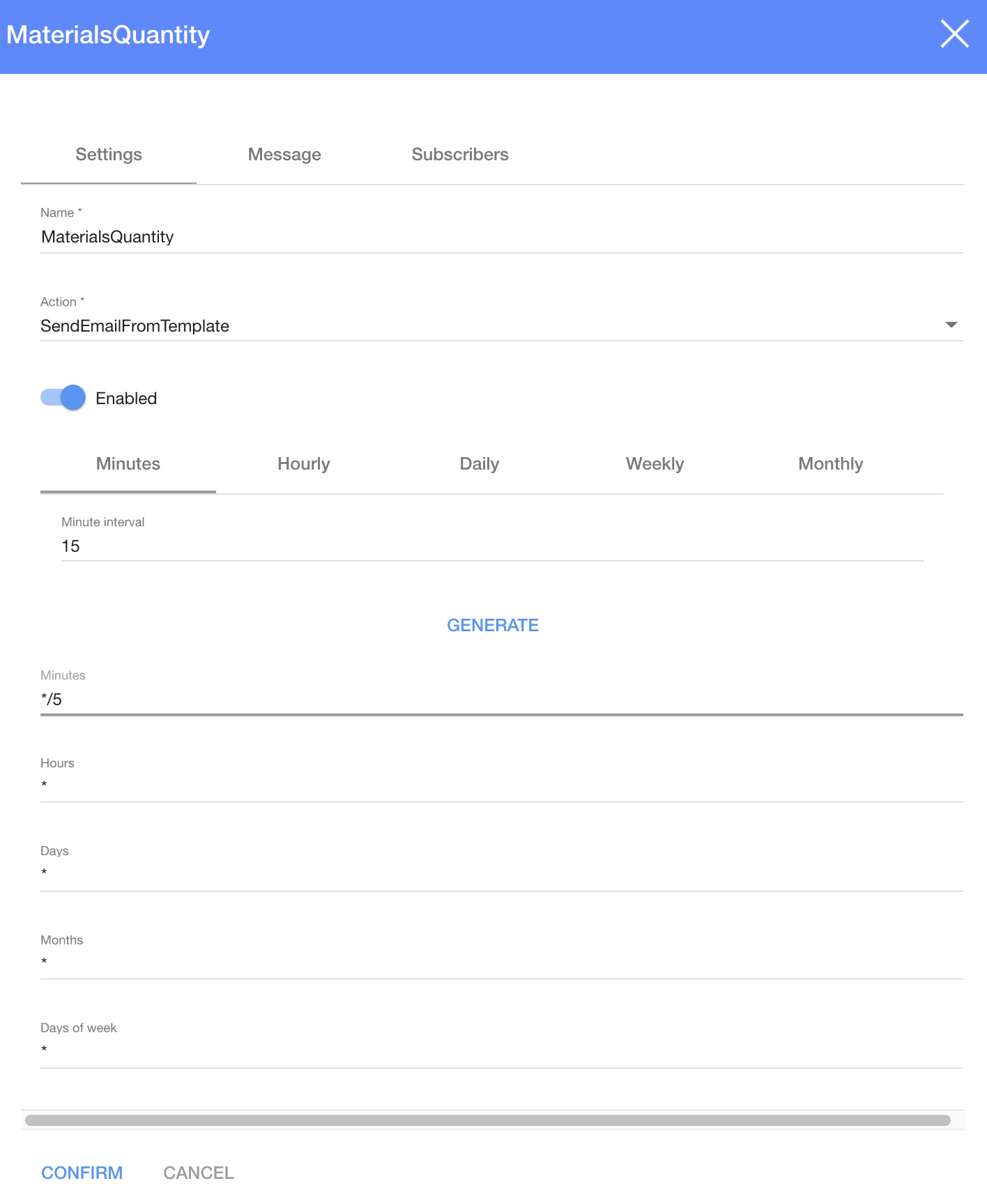
| Button | What does it indicate? |
| */5 | Every 5 days/hours/minutes |
| * | Every day/hour/minute |
For more information how to set a time, please visit here
Mail Notification |

Here you can add notifications, which will be sent by email
Button Listener |

Here you can add notifications, which are activated after pressing a button
| How to set Button Listener on top |
1. To set a Button Listener on top, click

2. Now you can see the dialog table:
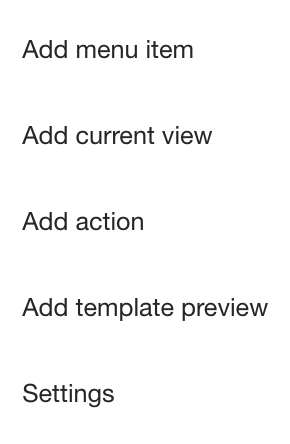
3. In the dialog table choose "Add action"
Now you can see the dialog table's "Add Action" (the same as Notification Button Listener)
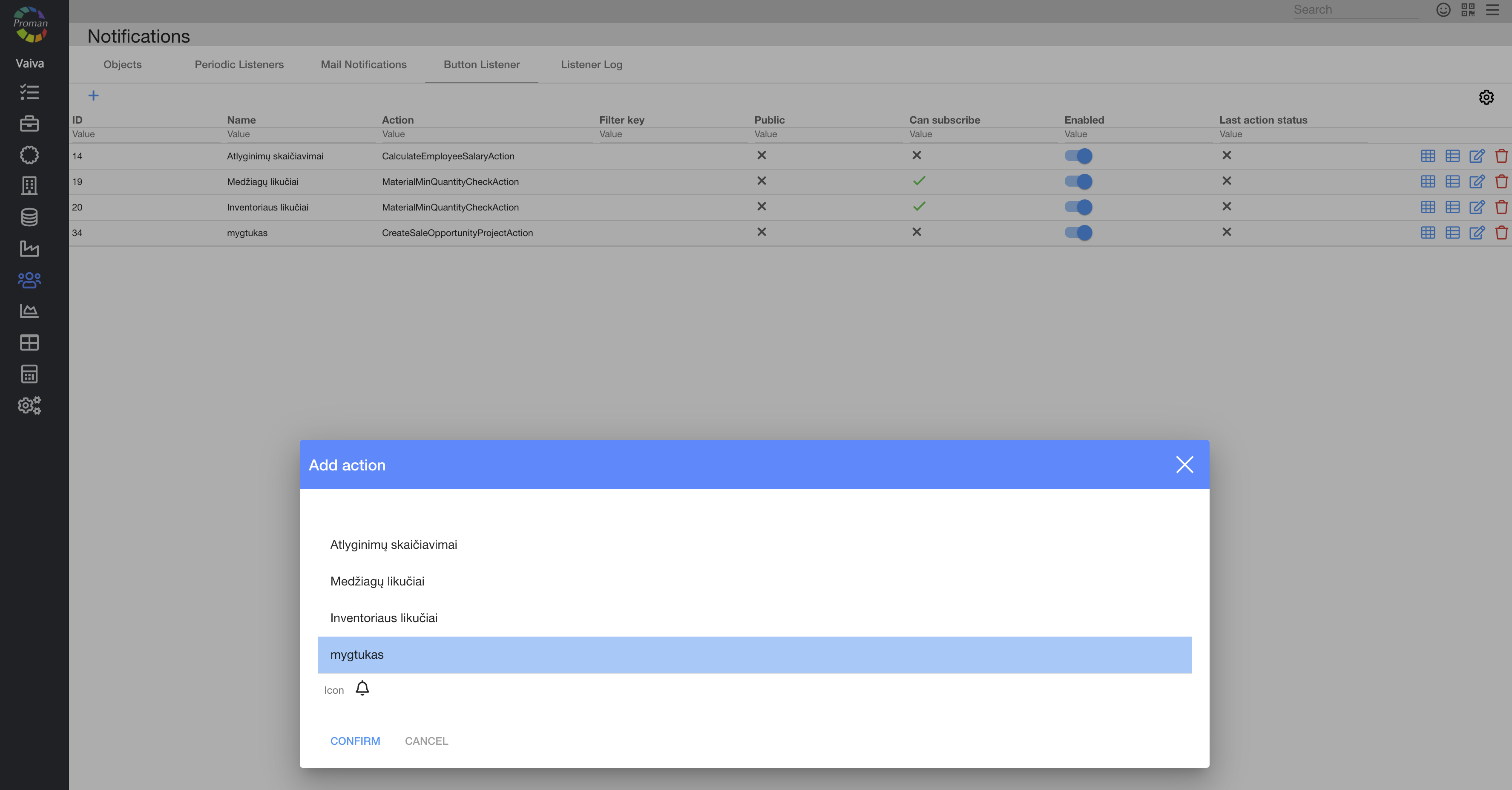
4. Choose a Button Listener Action and click
Now you can see the button on top

Listener Log |

Here you can add all logs regarding the notification
Notifications are split by two types:
- Reminder
- Event