Shipments
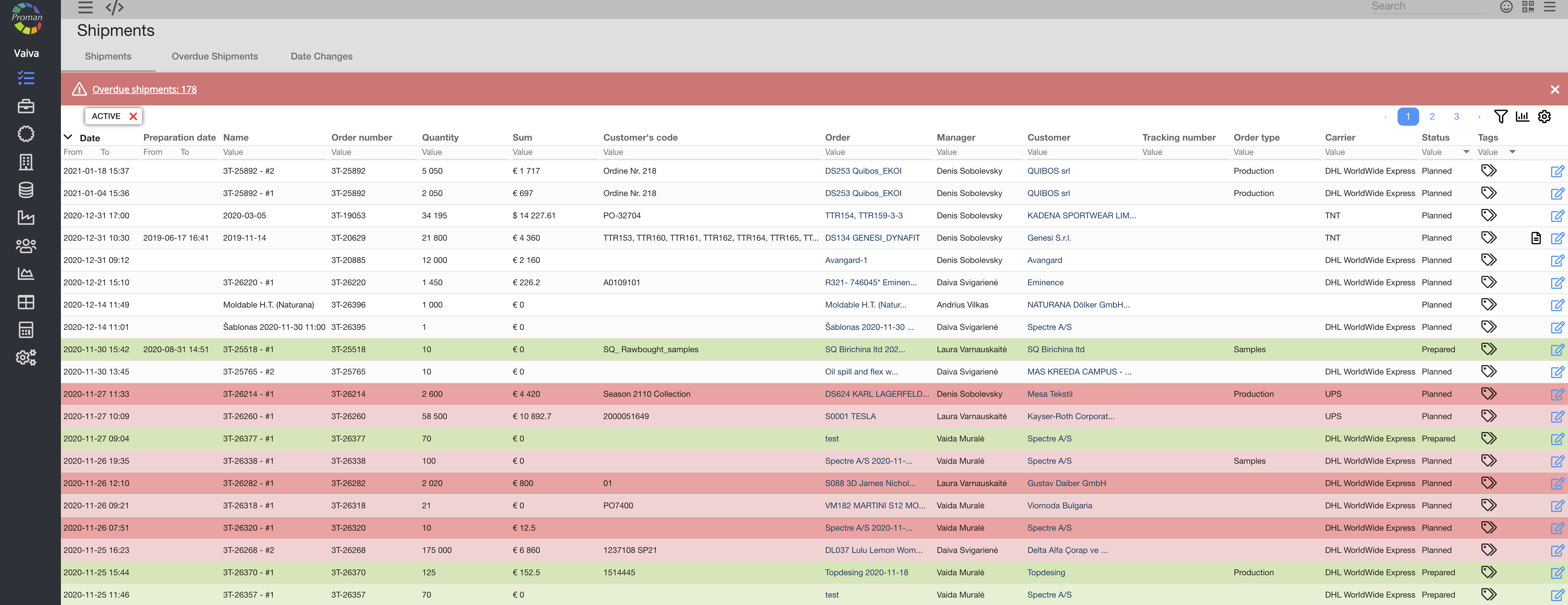
Shipments define planned deliveries of ordered products to a carrier by a scheduled date. Exit belongs to the order and consists of exit positions and shipment containers. One order can have one or more departures.
The Shipment status is automatically checked when the quantities prepared for the shipment positions change.
| How to find "Shipments" directly? |
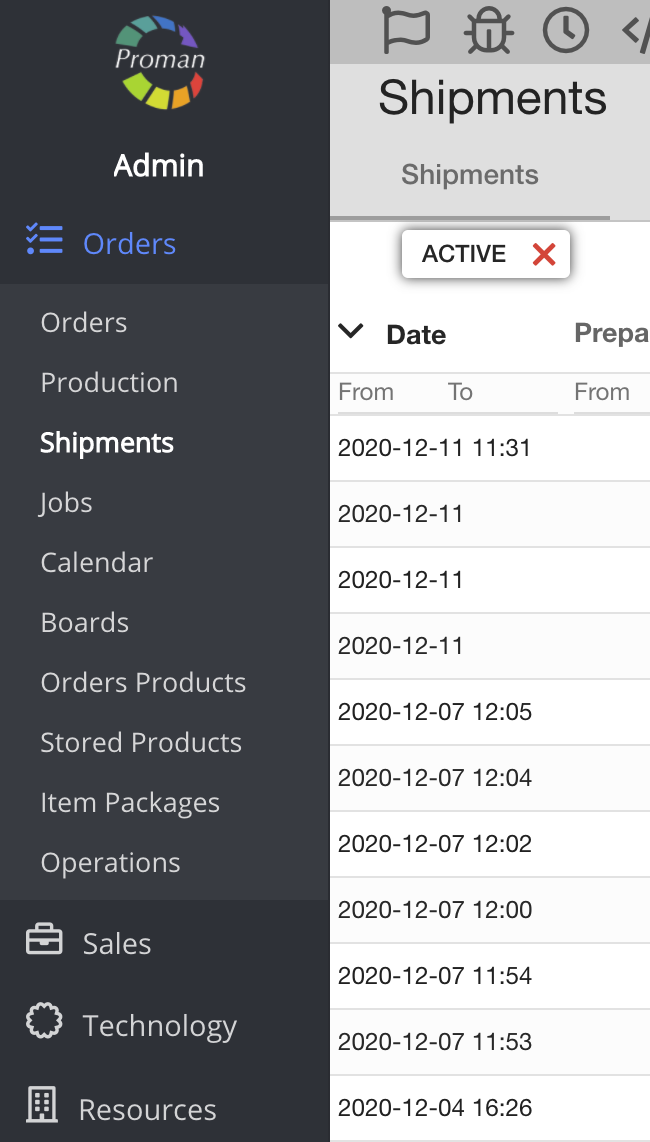
1. Go to 
2. Then-
Now you can see the "Shipment" list
| How to find shipments from an order? |
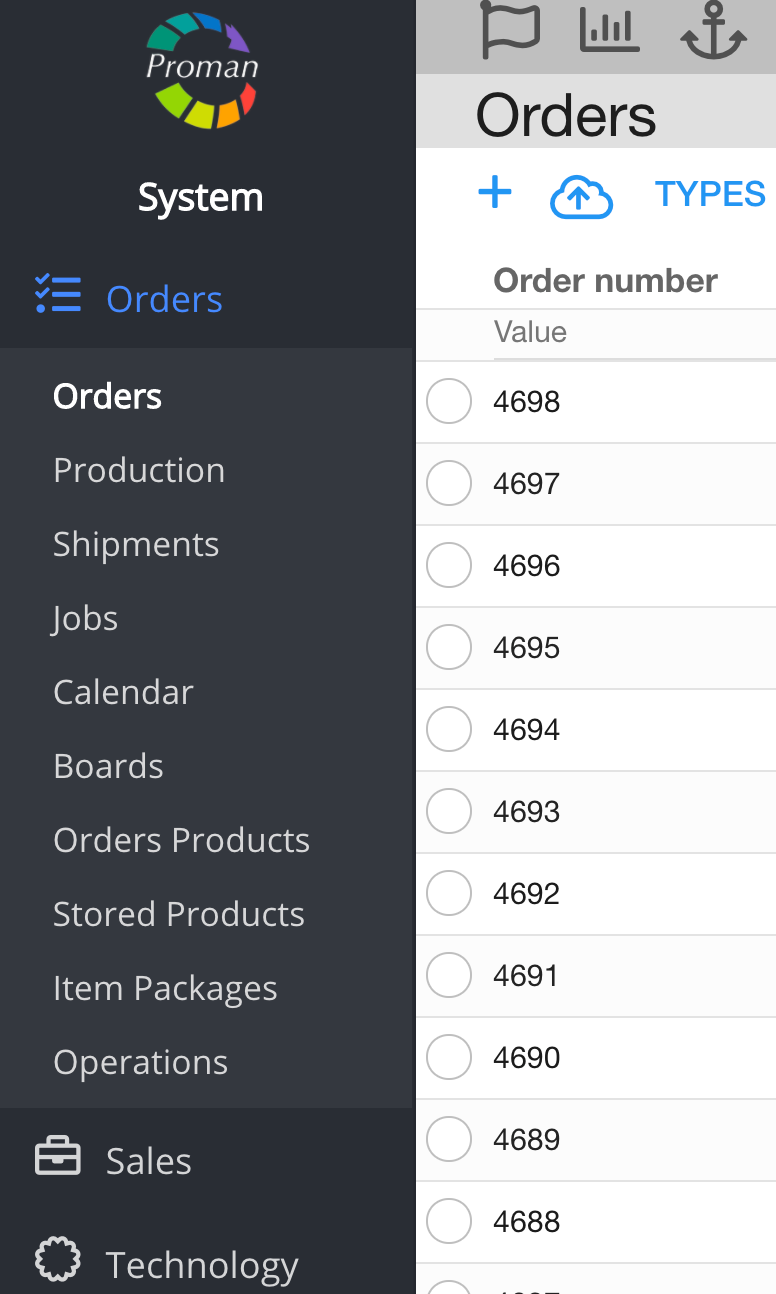
1. Click on 
2. Then- 
3. Choose an order;
Now you can see the order options:
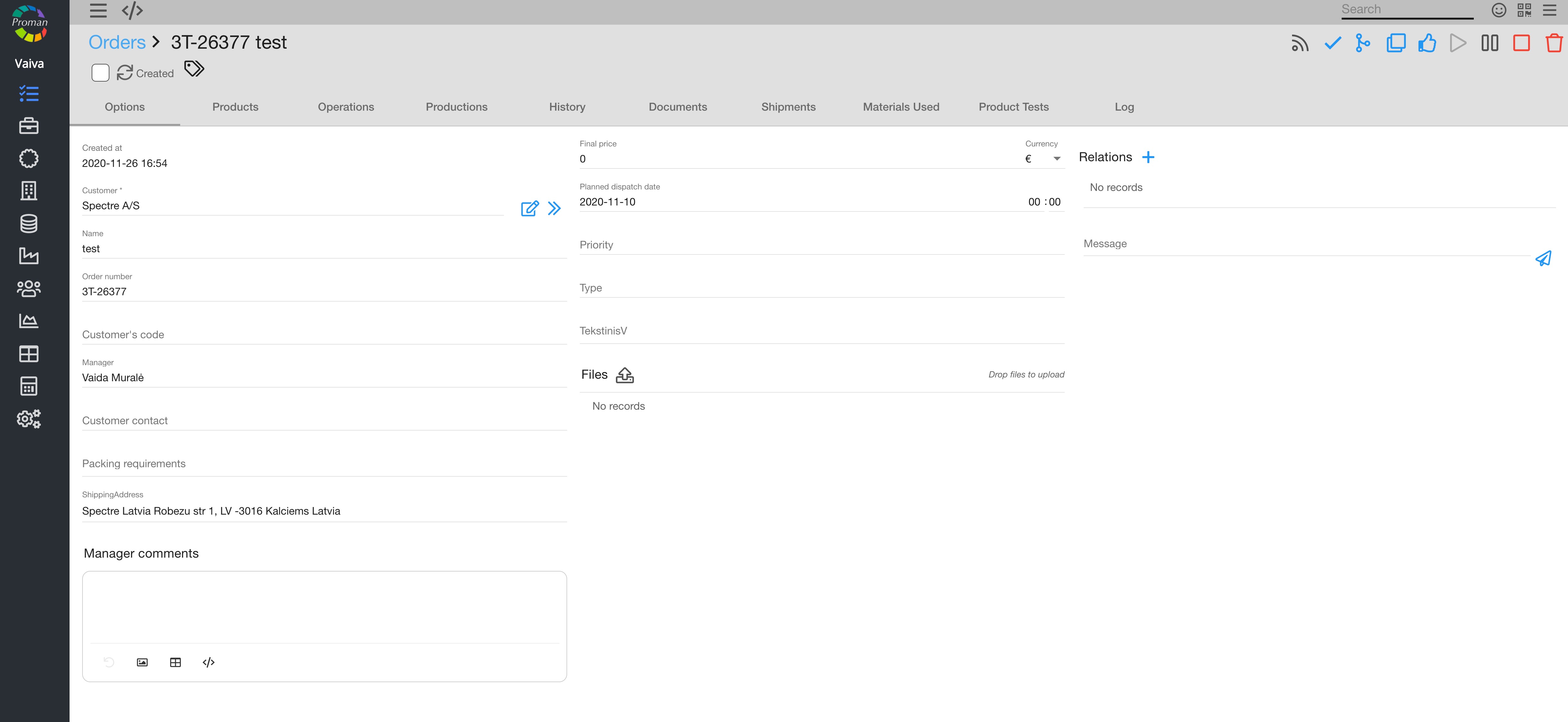
2. In the grey menu tab choose

Here you may preview the whole list of planned, prepared, sent or overdue shipments from all your business orders in the production.
Now you can see order shipments:
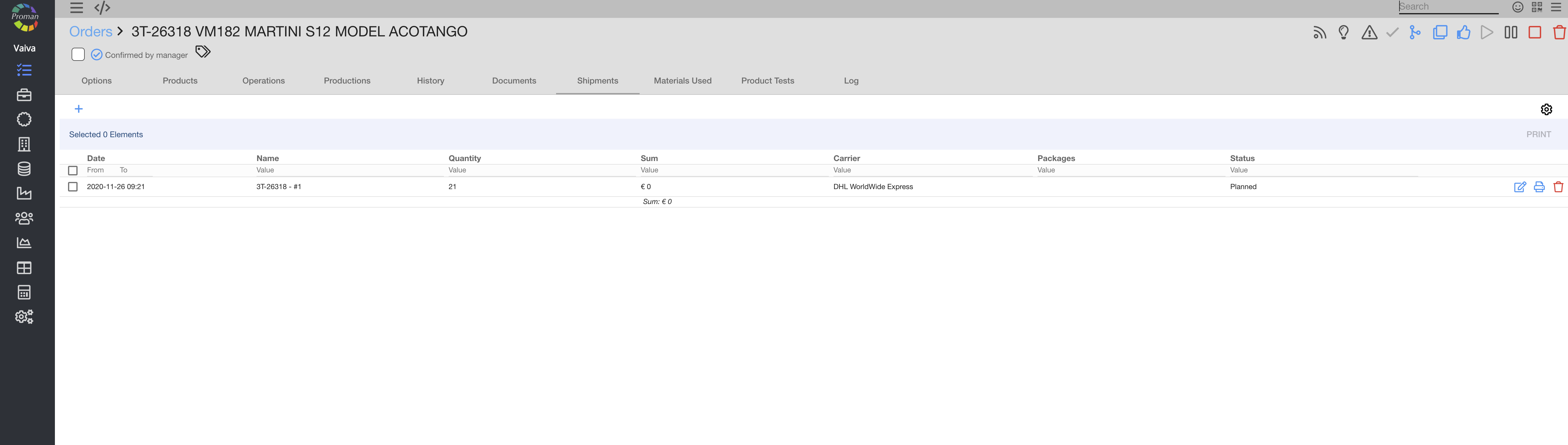
Basic shipment functionality: |
- to tag selected shipment - click on
- to edit selected shipment - click
- to print Shipment list - click on
- to delete Shipment - click


| Button | What does it indicate? |
 | Shipment has an invoice |
 | Shipment includes uploaded documents |
 | Shipment has billing of lading |
There is a lot hidden by 
Shipment status: |
| Status | What does it indicate? | When does it appear? |
| Planned | You have created a new shipment, but it's not prepared or sent yet | When you create a new shipment |
| Prepared | You have prepared the shipment, but it's not sent yet | When you finish all products |
| Sent | You have prepared and sent the shipment | When you click on  button in the shipment area button in the shipment area |
 Keywords KeywordsShipment – entry of planned, prepared or sent shipment. Order number – unique number for invoicing purposes. Order name – name that represents given order information as a short summary what must be done. |