Invoices
Here you can see, create, edit, remove and regenerate Invoices, check them as paid or uncheck them
| How to find "Invoices"? |
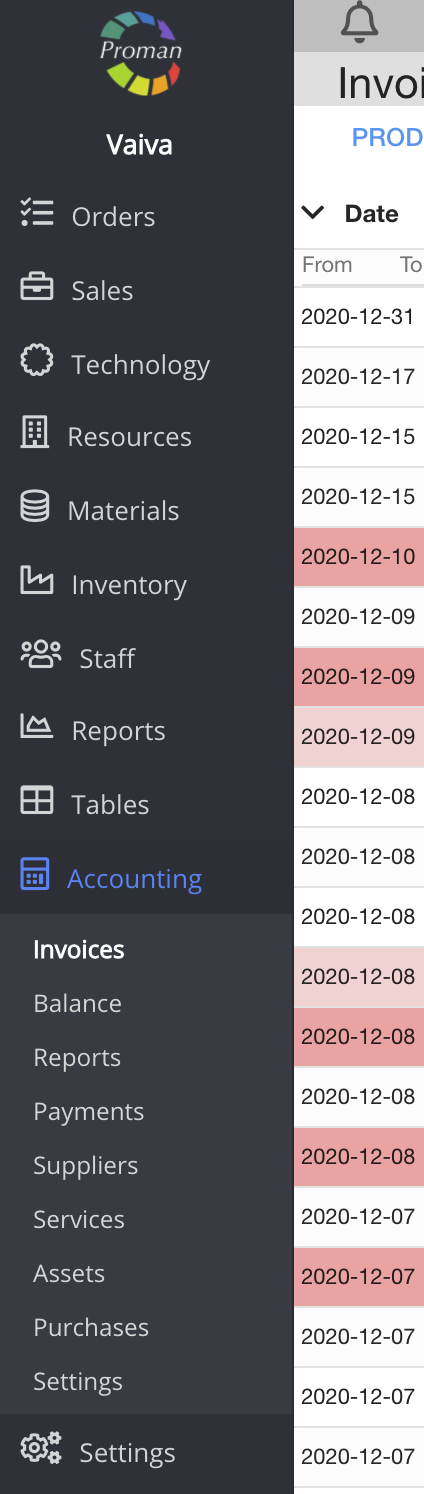
To find Invoices:
1. Click on

2. Then-

Now you can see the invoice list:
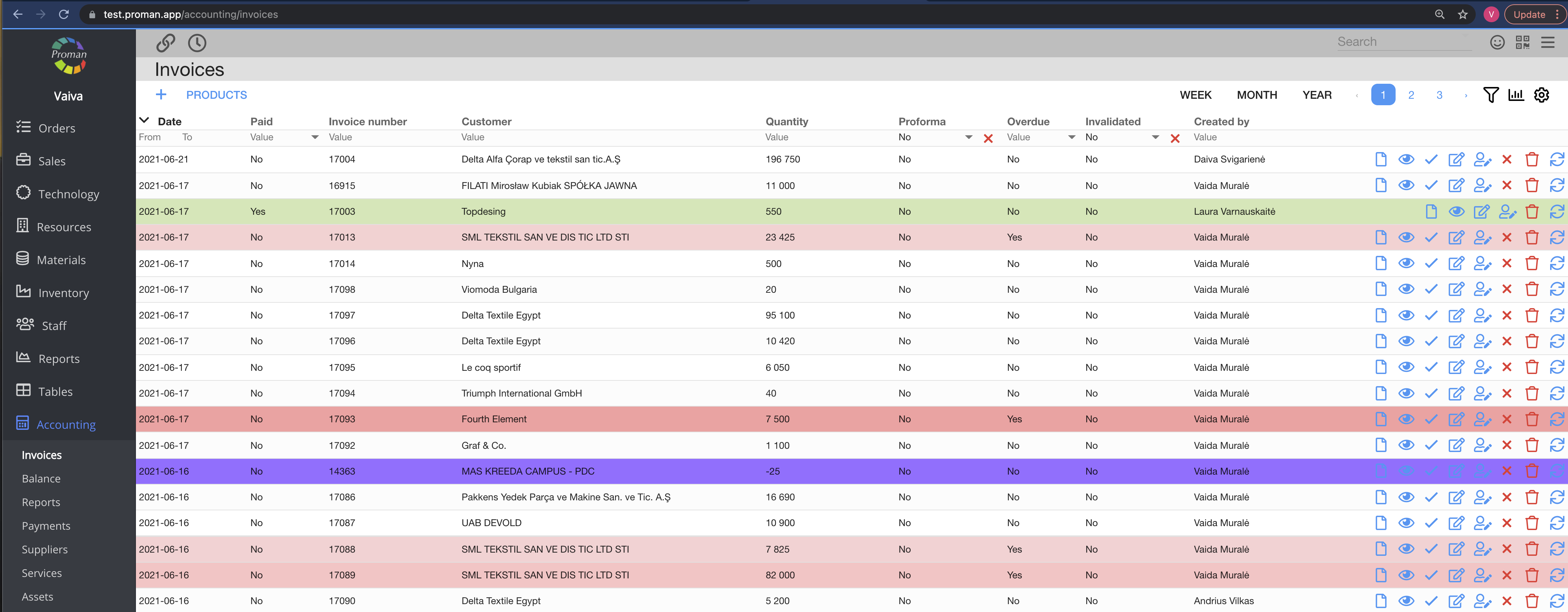
Here you can:
1. See the invoice status (Green color means that the invoice is paid, Purple color means that the invoice is overpaid, Red color means that the invoice is underpaid and White color means that PROMAN doesn't have any information about the invoice)
2. Manage accounting invoices with buttons:

| Button | What does it indicate? |
 | You can see the invoice |
 | You can see order name and number |
 | You can confirm that the invoice was paid |
 | You can enter partial pay |
 | You can manage invoice options (only for invoices, that don't have orders) |
 | You can invalidate invoices |
 | You can regenerate invoices (the same template, only the name changes) |
| How to check if the invoice is settled automatically? |
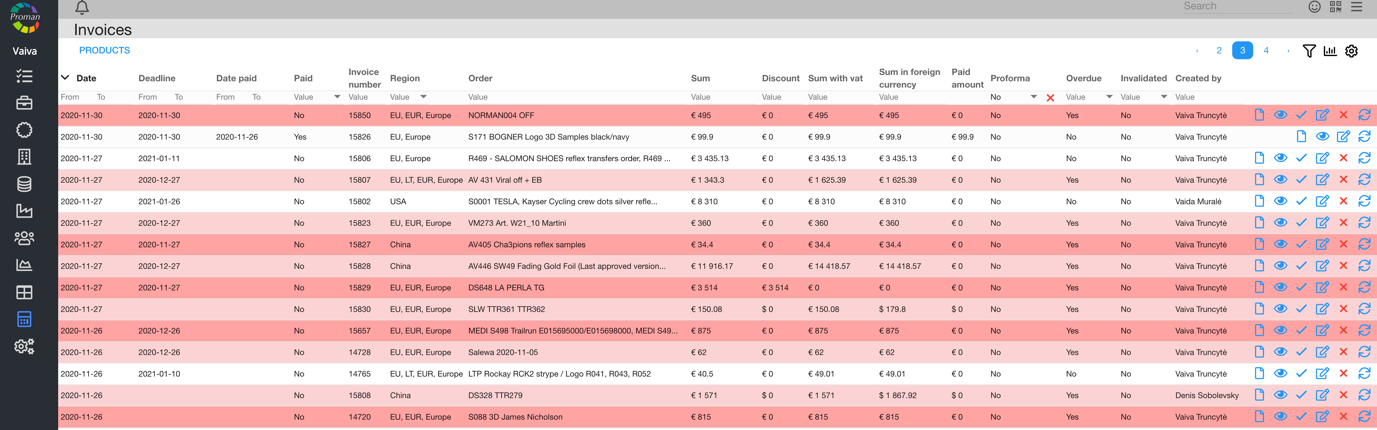
- Click on

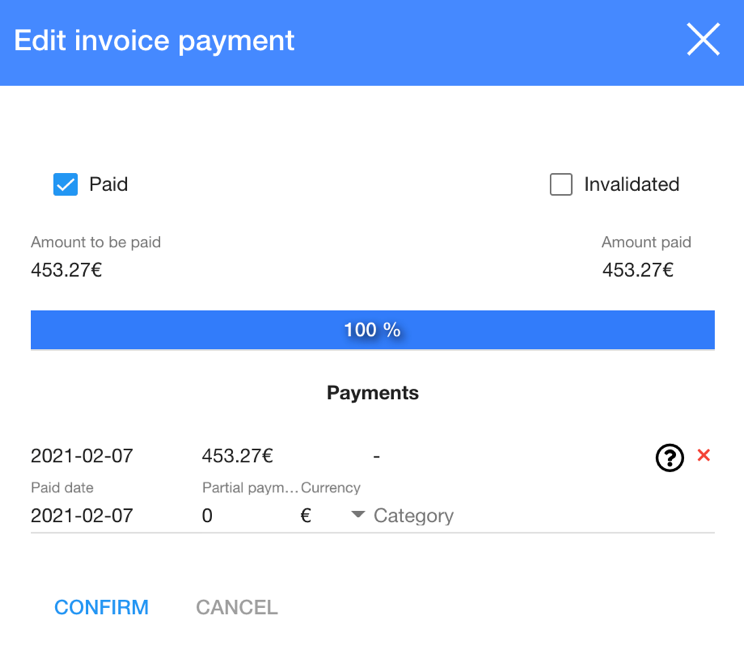
If you can see 