Tabel
The "tabel" is a document, containing all shifts and working hours of the company's employees. Here you can change working hours, causes of unemployment and holidays for all employees. This data is needed to calculate salaries.
How to change Work-shifts in particular day?
| How to find the "Tabel"? |
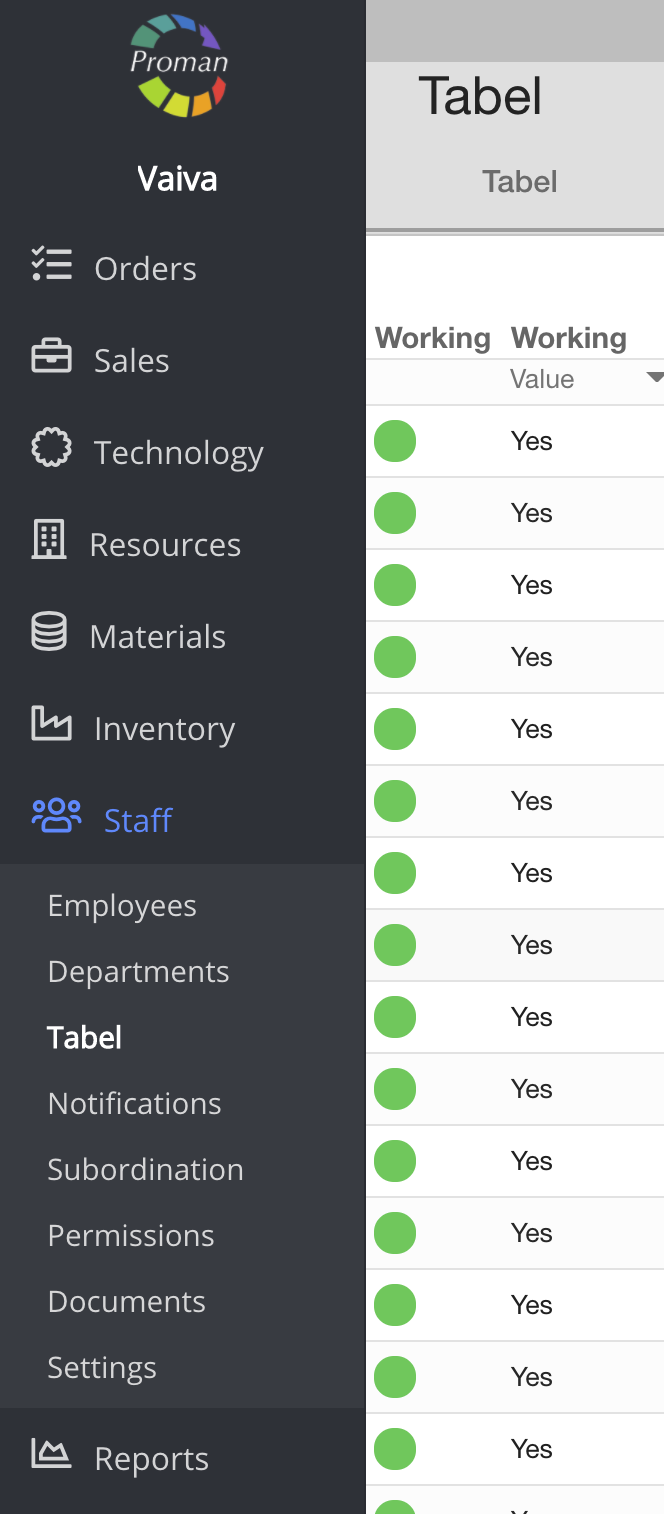
To find Tabel:
1. Go to 
2. Then-

Now you can see the "Tabel" list:
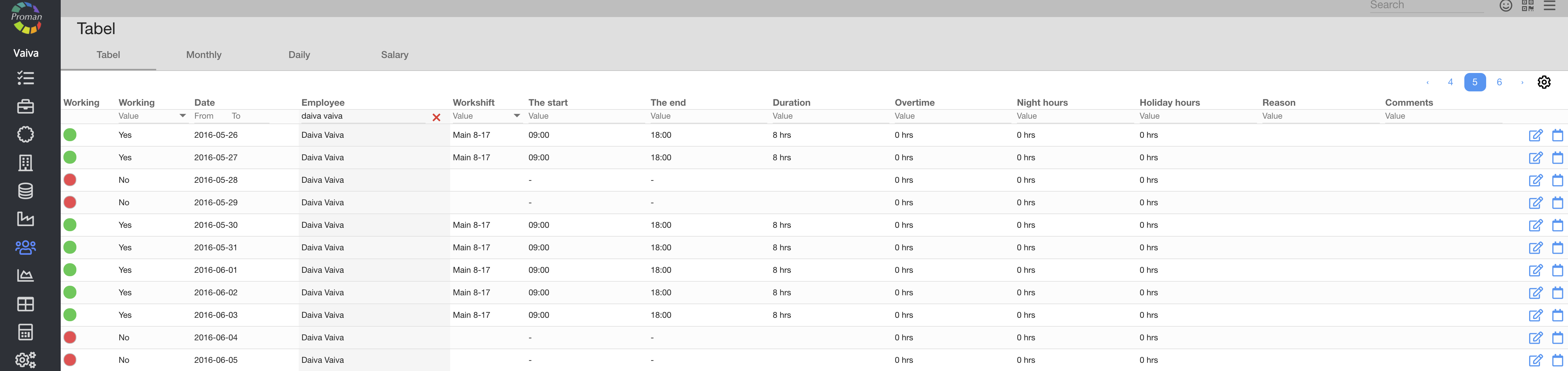
Here you can see, edit working time (

| How to get permission to see the "Tabel"? |
In order to see the "Tabel", you should get an employee master permission. For more information about permissions, visit here
| How to add an employee to the "Tabel"? |
In order to see employees in the "Tabel", you need to add them to it. To do it, go to "employee options". For more information, visit here
| How to set a day off for an employee? |
To to set day off:
1. Choose a day that the employee won't come in to work
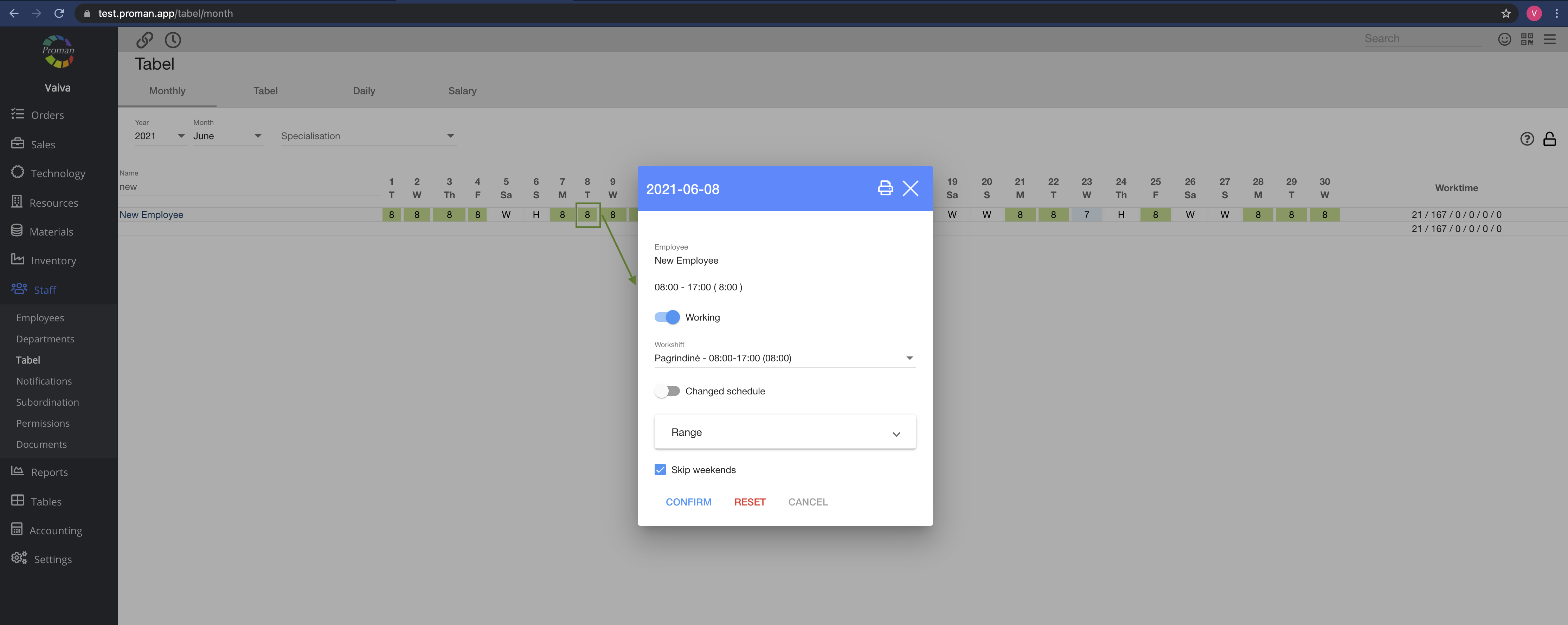
2. In dialog table:
2.1. Turn off "working" (
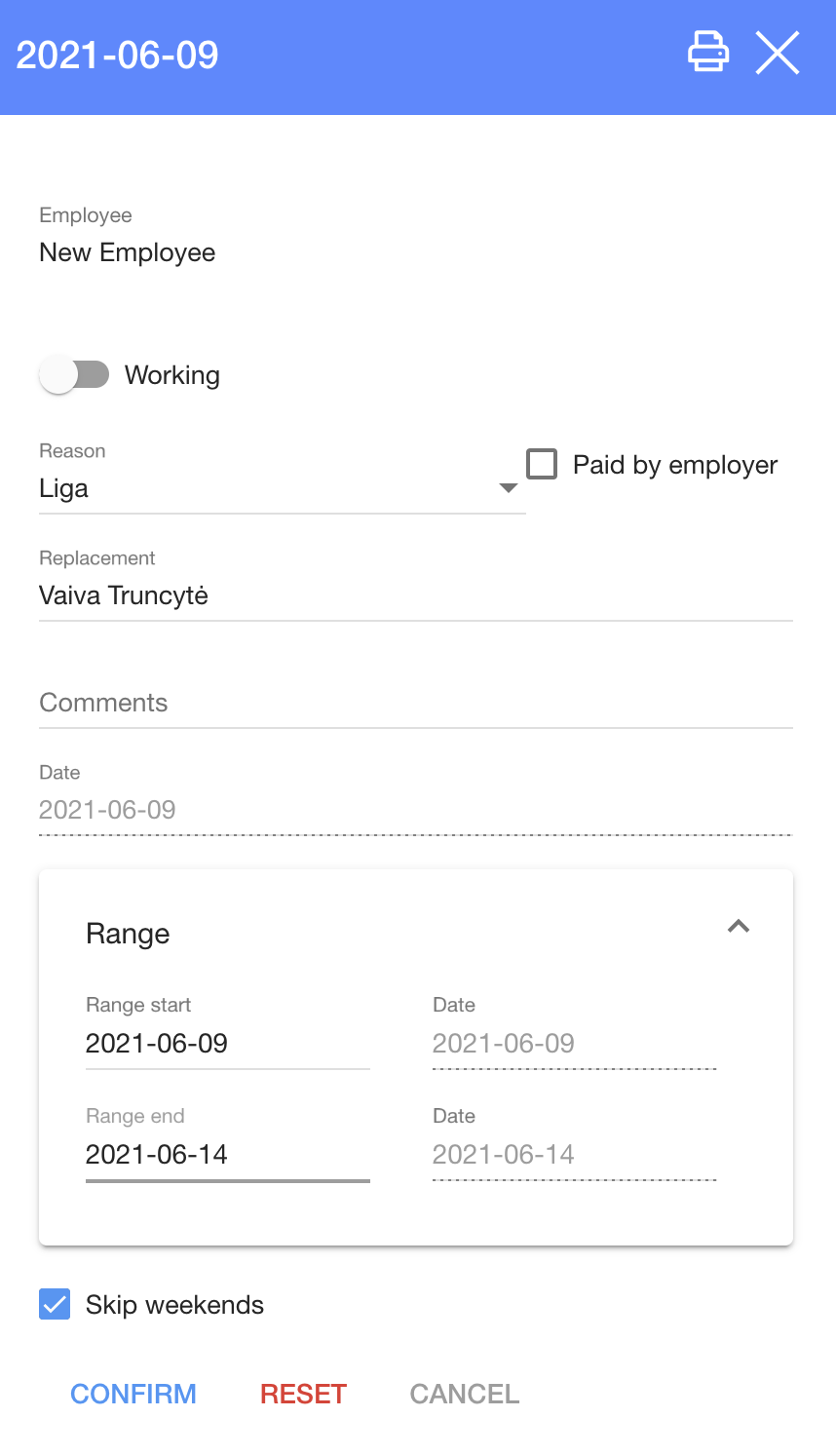
2.2. Choose a reason from the list;
2.3. Choose day off start and end day;
2.4. Choose a replacement (Another employee);
25. You can choose to skip weekends (
3. Click

| How to change work shifts for a particular day? |
To set a day off:
1. Choose a day, when you want to change the shift
2. In the dialog table:
2.1. Turn on "Working" (
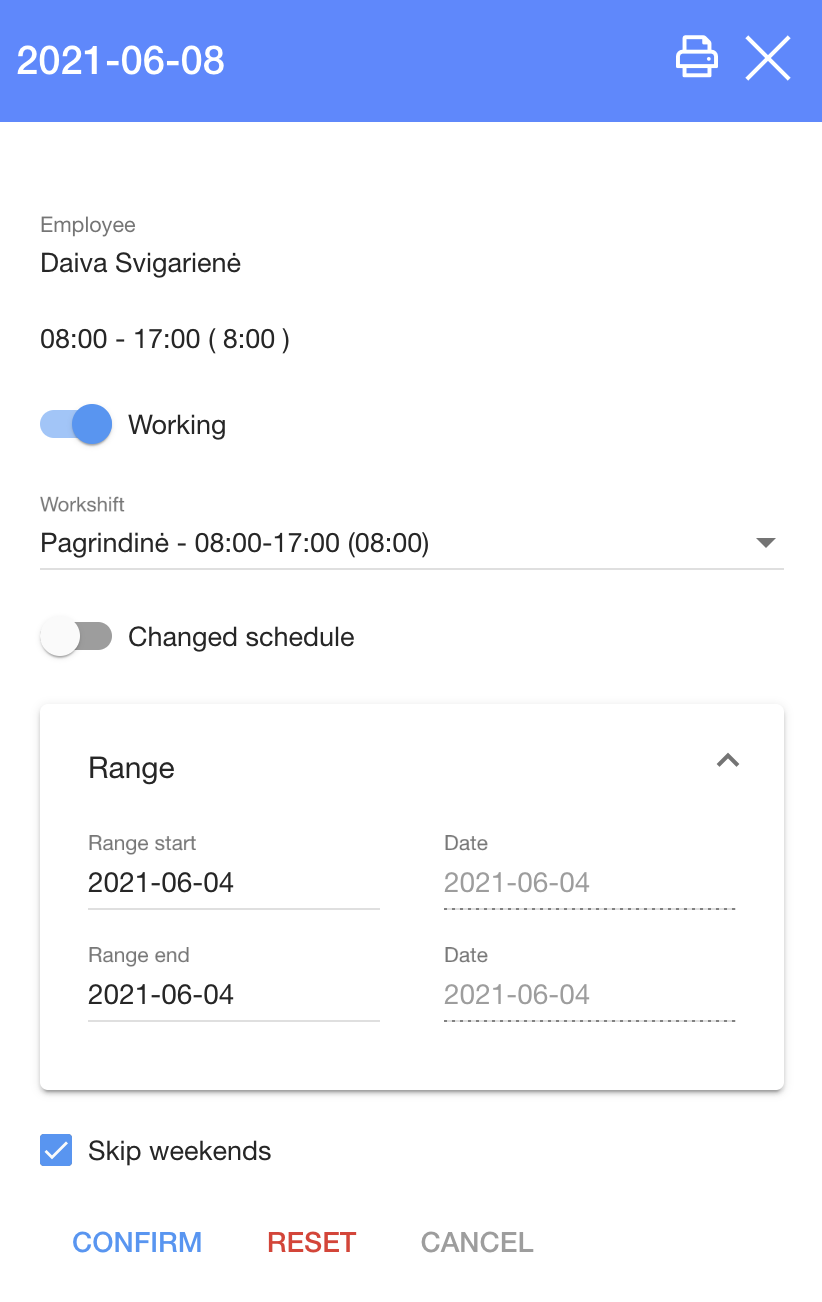
2.2. Choose a work shift;
2.3. Choose working day's start and end ;
2.4. Choose "change schedule" (
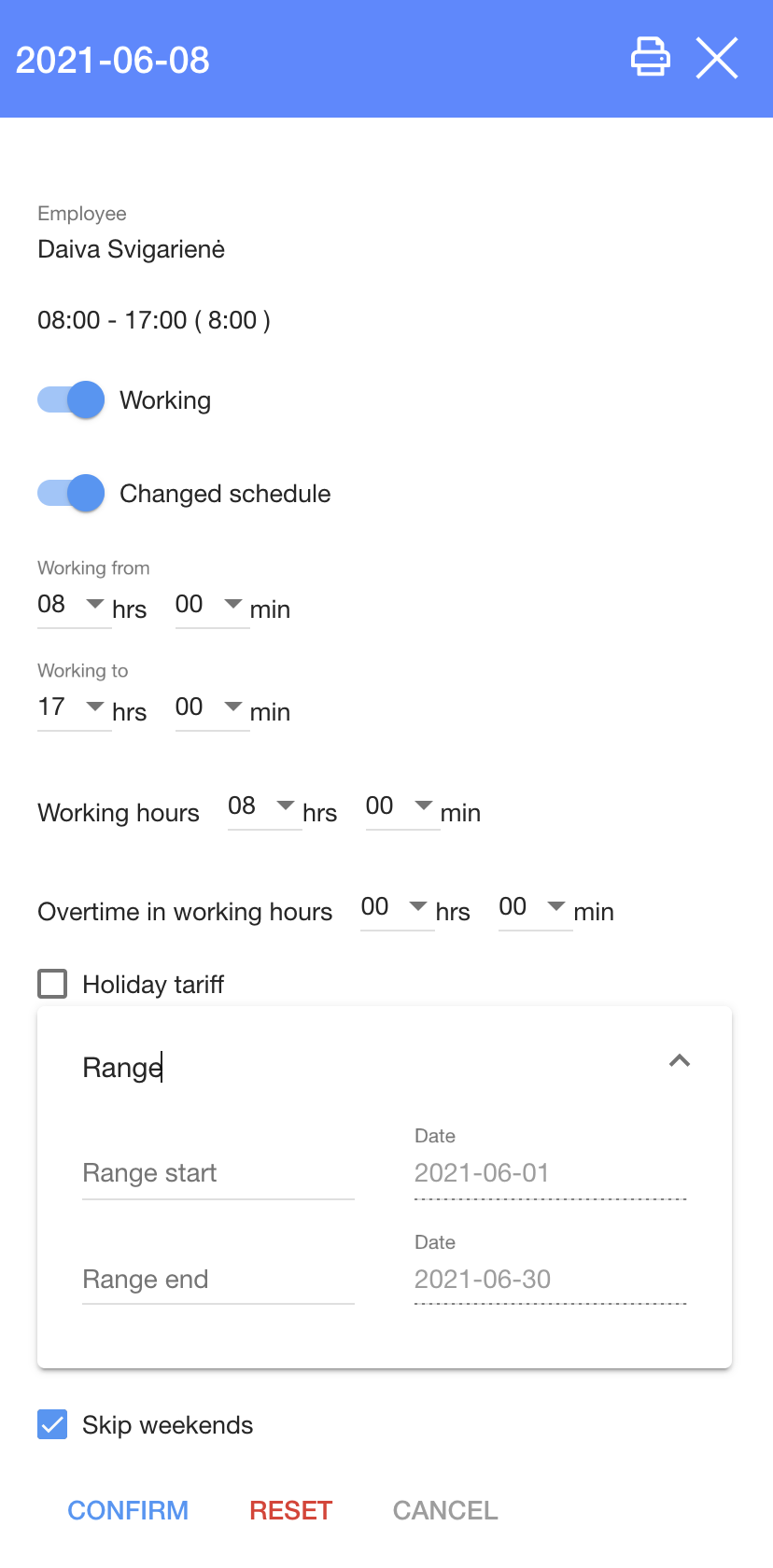
2.4.1. Enter start and end working hours:
2.4.2. Enter overtime in working hours (if needed);
2.4.3.. Choose if it is working in unsocial hours (if needed)
3. Click
How to manage Tabel? |
| Monthly |
Here you can see daily "Tabel" as well as you can choose a date (

| Daily |
Here you can see daily "Tabel", choose a date (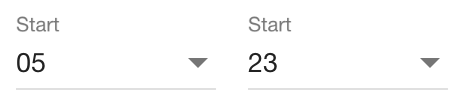
| Salary |
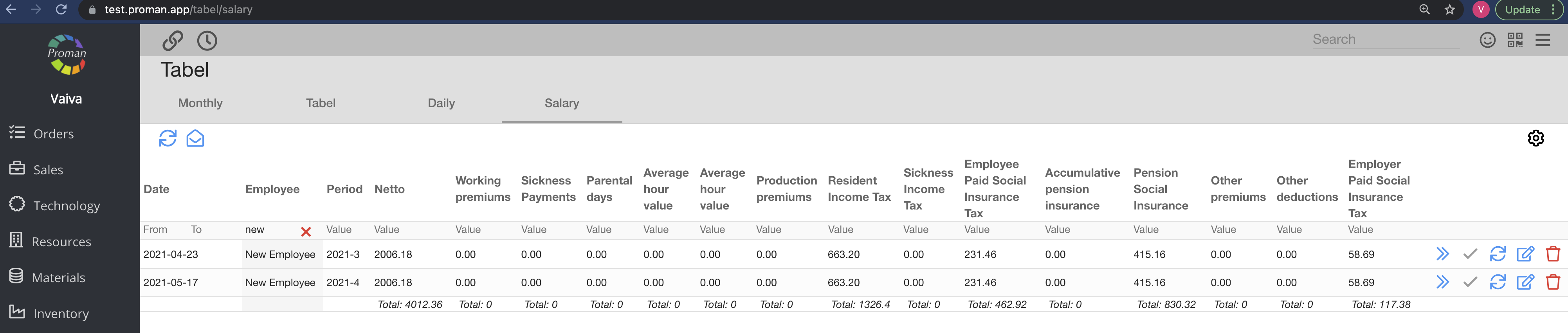
Here you can see all generated employee salaries
| Button | What does it indicate? |
| Buttons at the top | |
 | You can generate the salary for all employees |
 | You can send a template to the employee |
| Buttons in every line | |
 | You can go to employee's salary |
  | You can confirm the salary (confirmed salary button  ) or unconfirm the salary (unconfirmed salary button ) or unconfirm the salary (unconfirmed salary button  ) ) |
| You can generate the salary for particular employees |
| You can edit all taxes and salaries |
 | You can delete generated salary |
| How to confirm/delete multiple employees salaries ? |
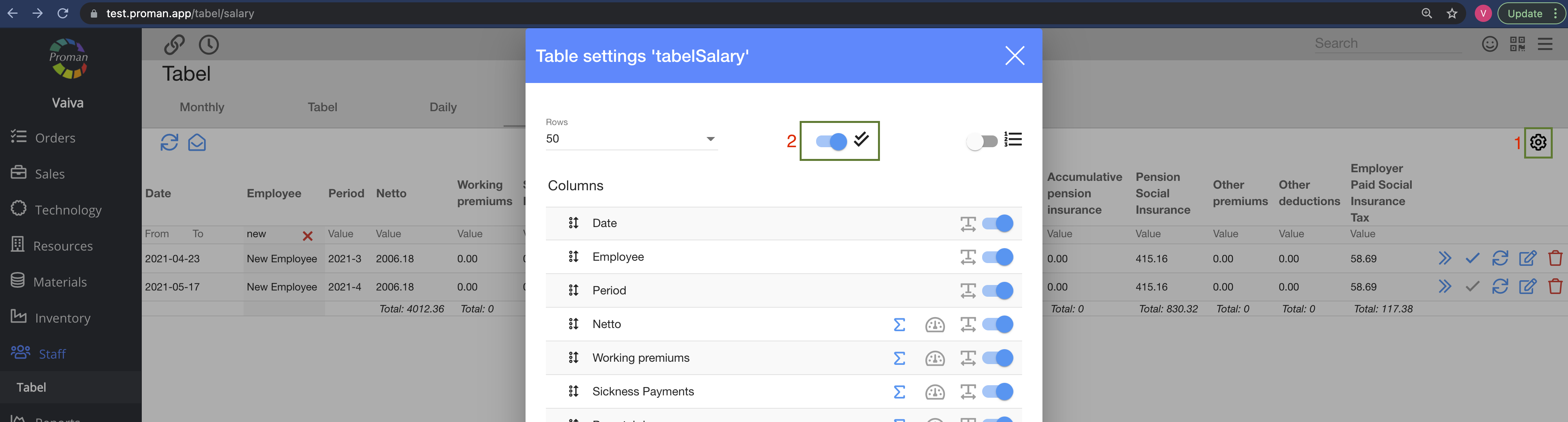
1. Click on 
2. In the dialog table, click 
Now you can see checkboxes:
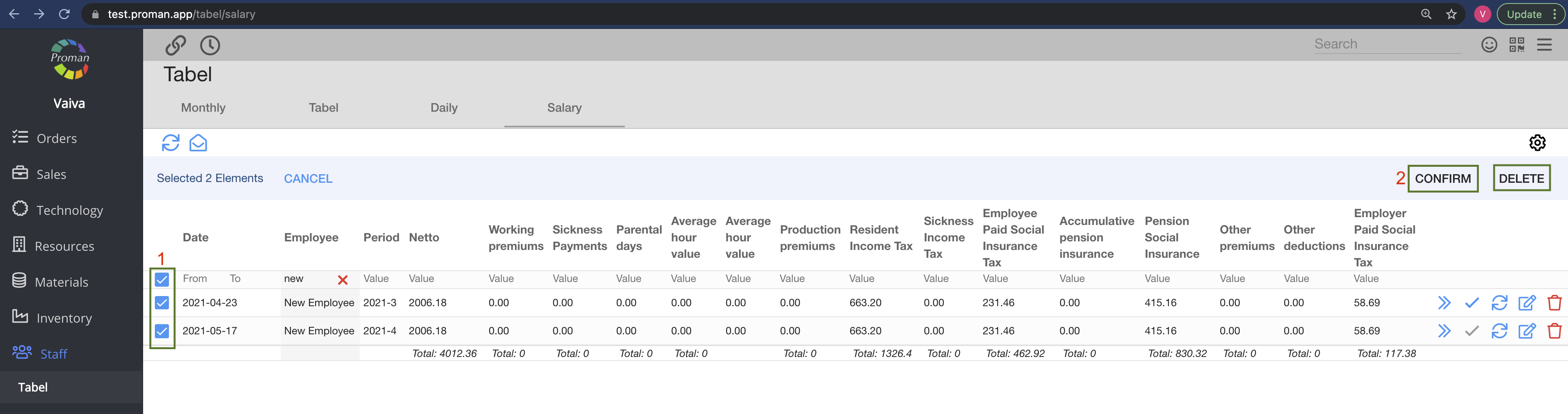
3. Click on
4. And then click CONFIRM or DELETE
| Vacations |
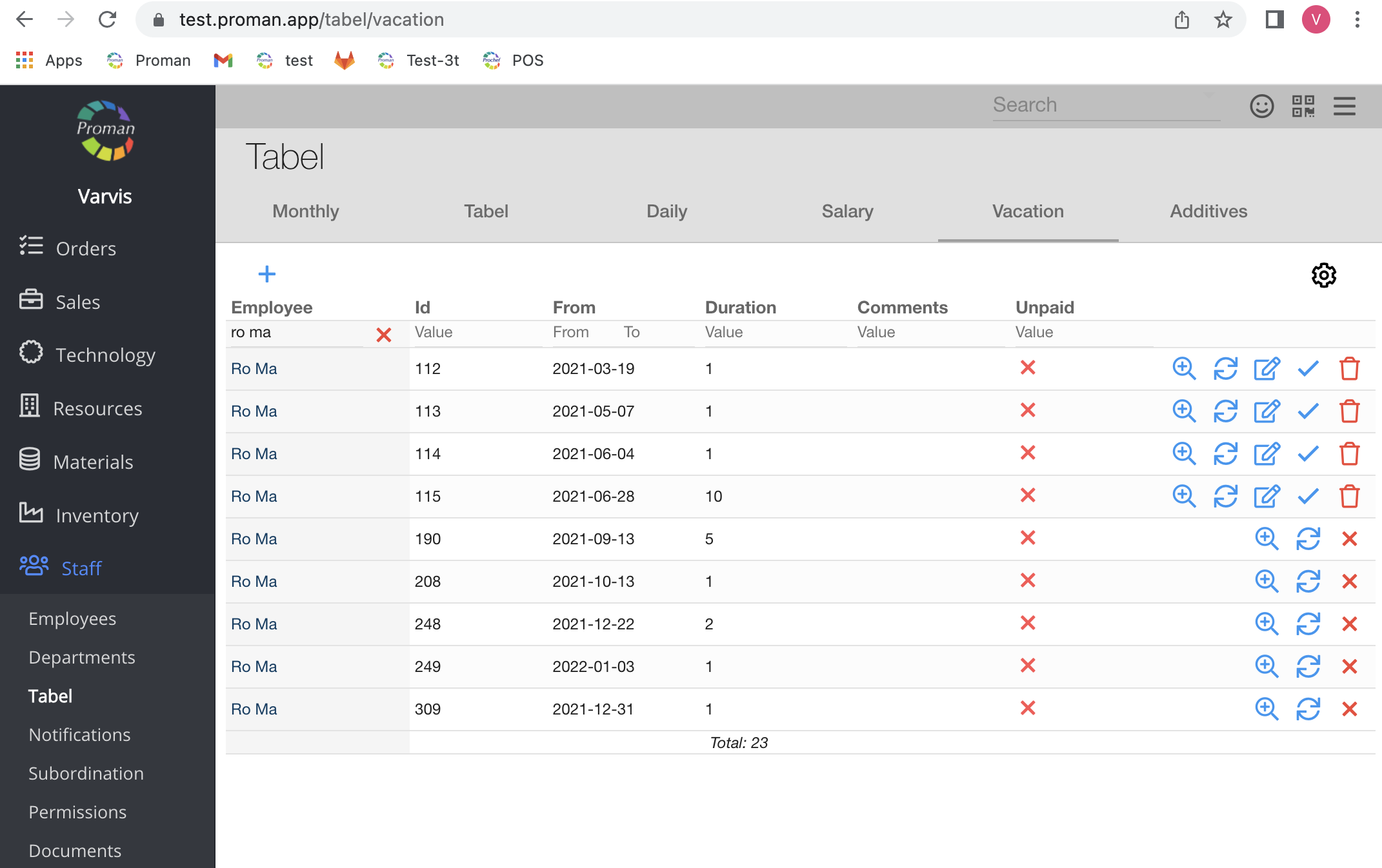
Here you can see and request to have vacations 


| Additives |
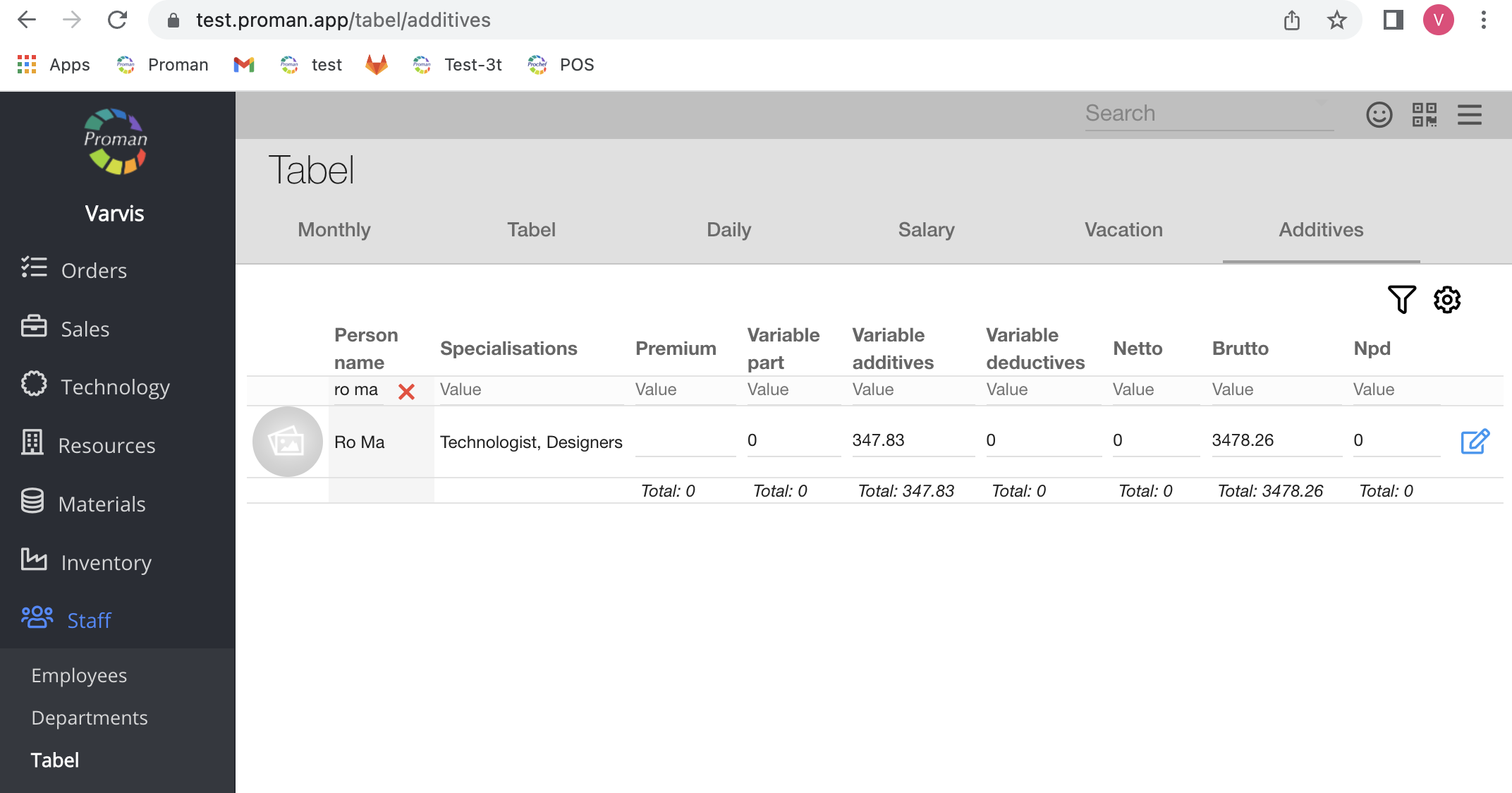
Here you can set up and edit