Customer manage
You can manage all information about the customer: Contact information, Customer Employees, Supervisors and etc.
How to create Customer Employee
How to create Customer Document
Customers Options |
Here you can see the customer options
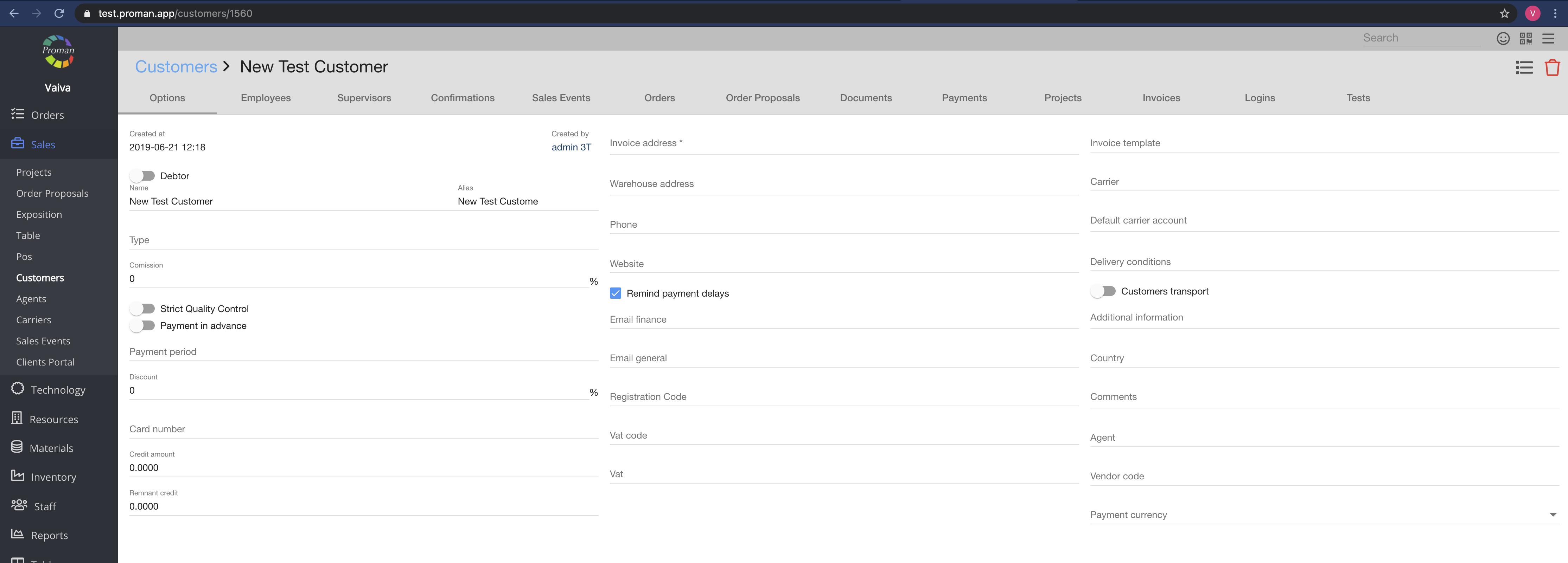
In this tab you can:
| Button | What does it indicate? |
 | You can set if a customer is Debtor |
 | You can set if a customer needs strict Quality control |
 | You can set if a customer pays in advance |
 | You can set if you'd like to remind customers about payment delays with a notification. If the checkbox is not checked ( ), this customer will not get notifications. For more information on how to create notifications for Payment delays, please visit here ), this customer will not get notifications. For more information on how to create notifications for Payment delays, please visit here |
Customers Employees |

Here you can see, add (


| How to create new Customer Employee? |
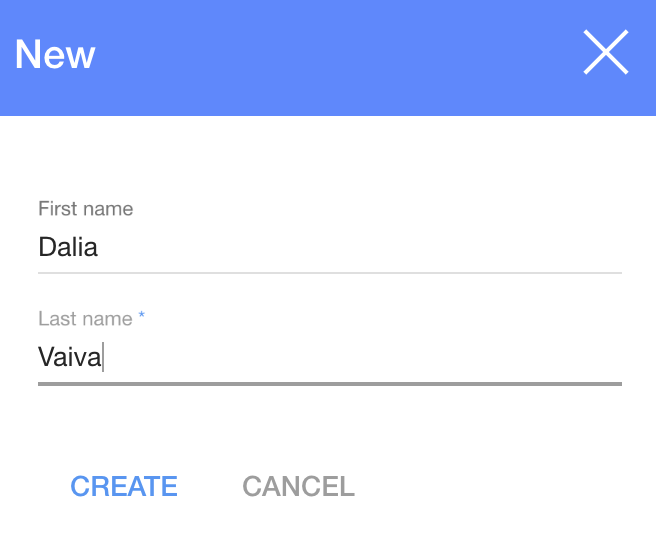
To create a new customer employee:
1. Click on "+"
2. In the dialog table enter the first and last names
3. Click "Create"
Now you can see the customer employee options
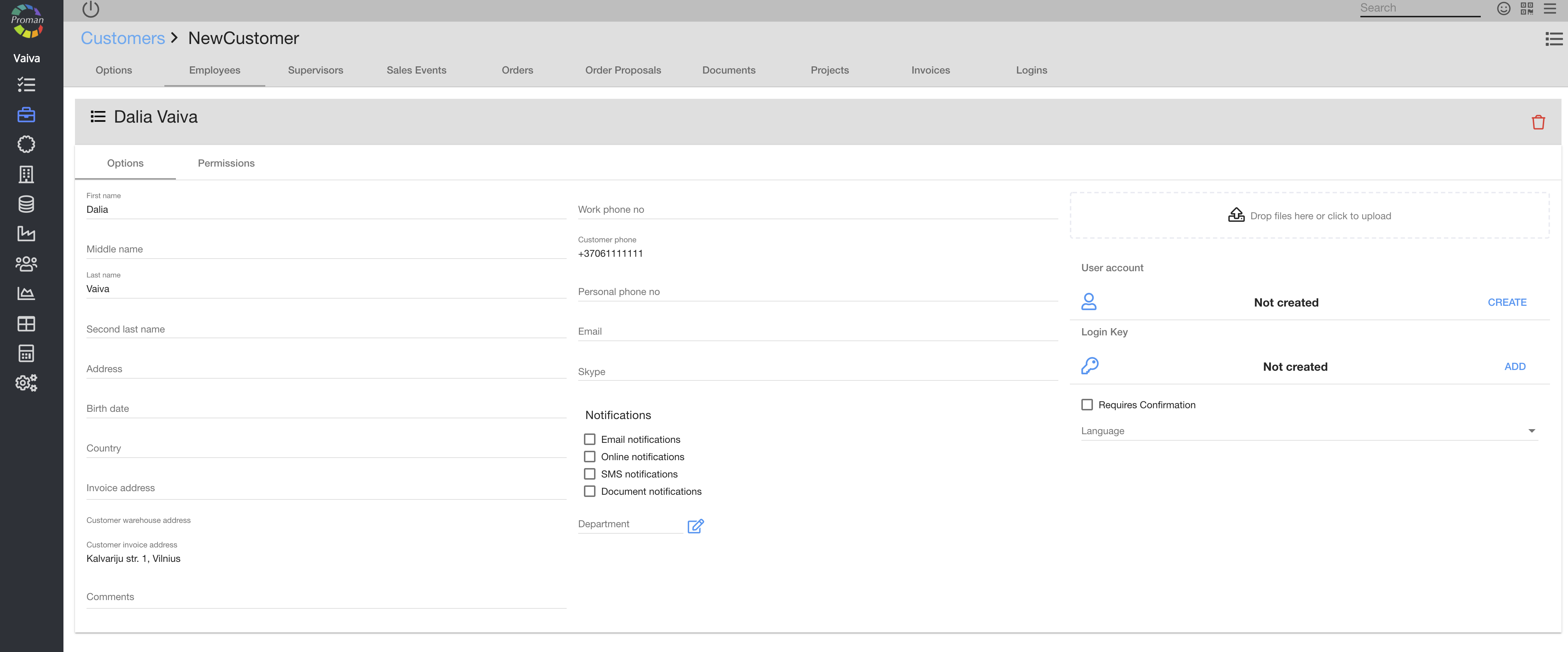
| Button | What does it indicate? |
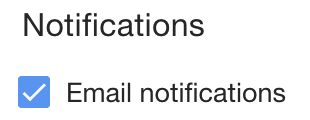 | You can choose how to contact the customer employee |
 | You can choose a department from the department list |
| How to create User account? |

1. To create a user account, click
2. Enter a username and password
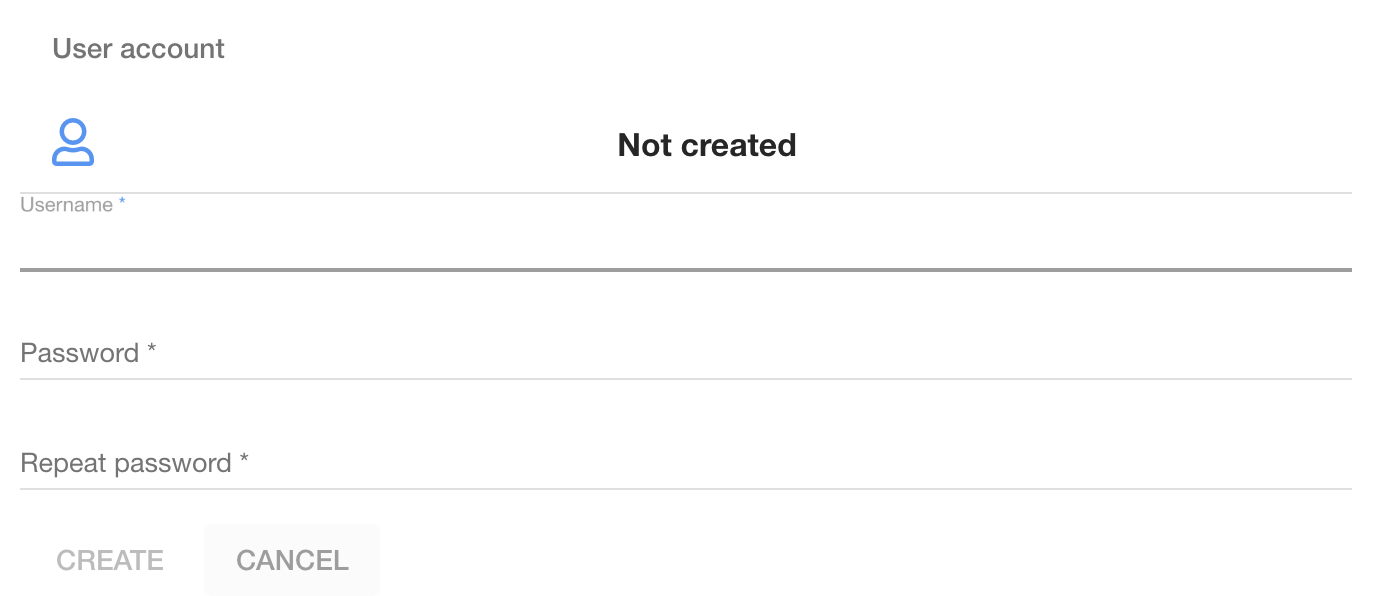
3. Click on 
Customers Supervisors |
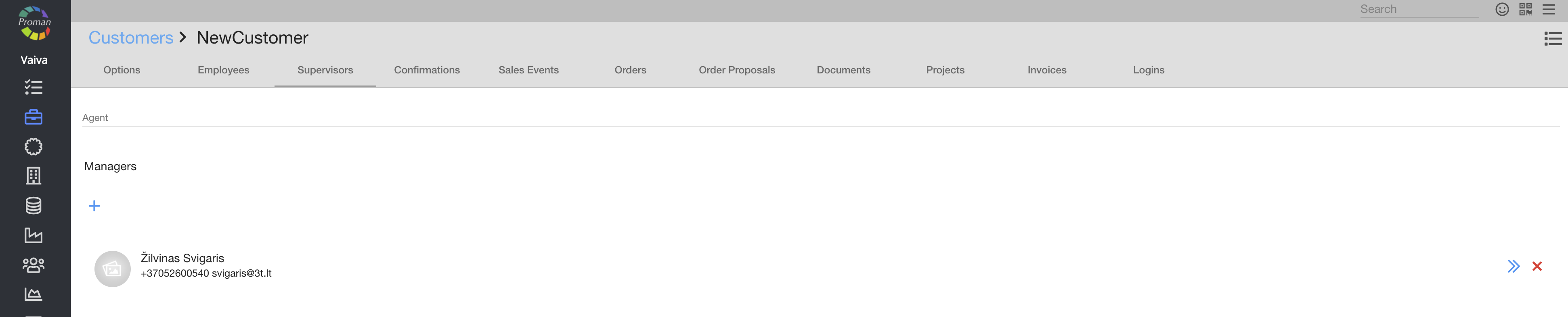
Here you can see, add (
Customers Confirmations |

Here you can see, create (

Customers Sales Event |
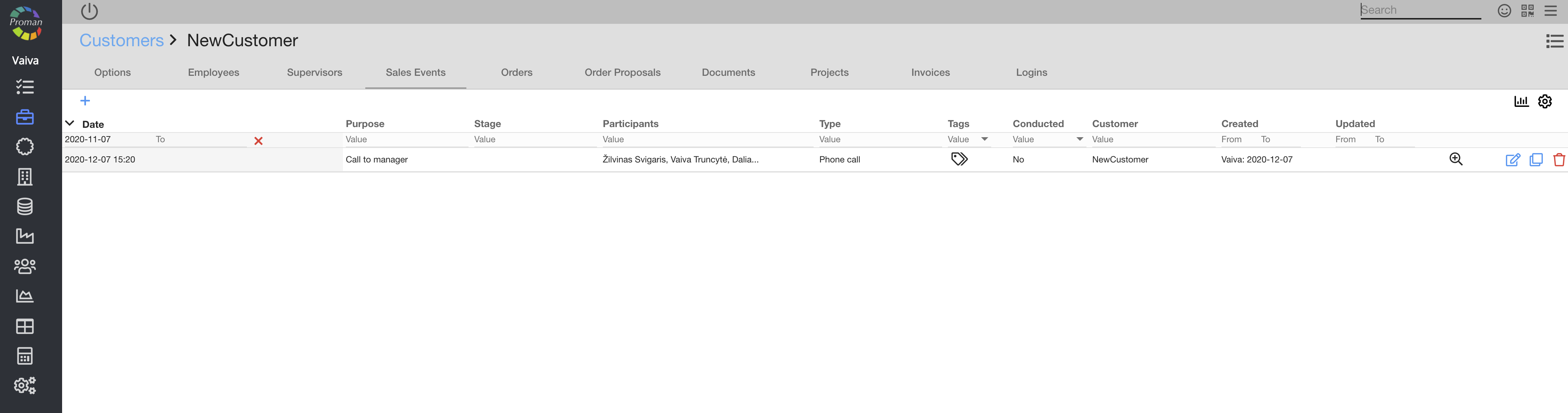
Here you can see, create (


For more information about sales events, you can see here
Customers Orders |
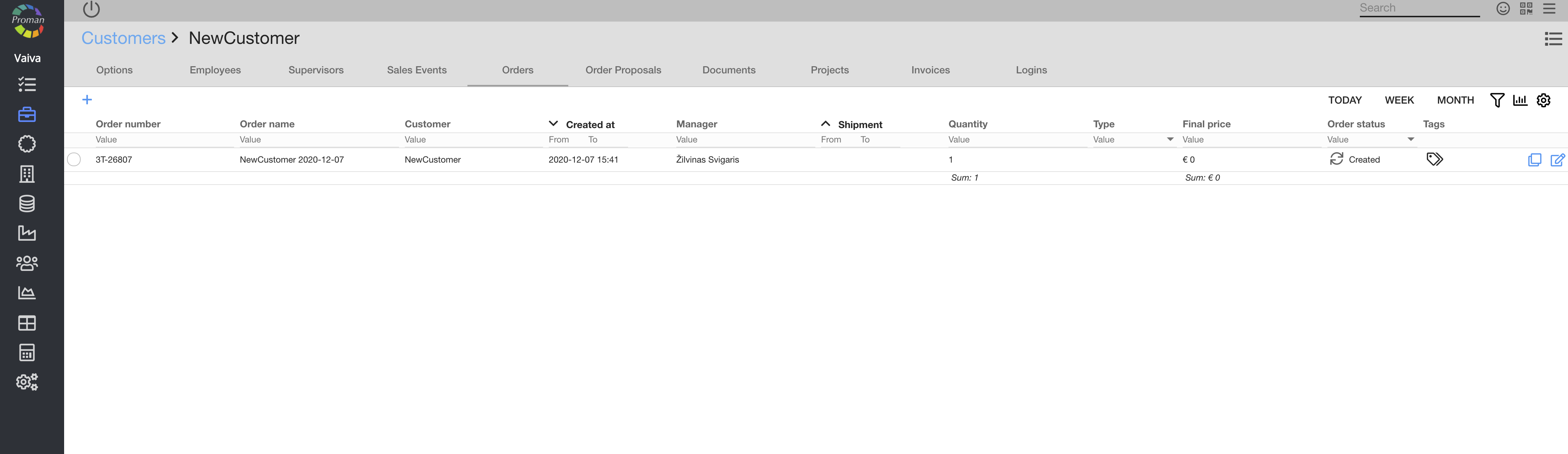
Here you can see, create (
Customers Order Proposal |
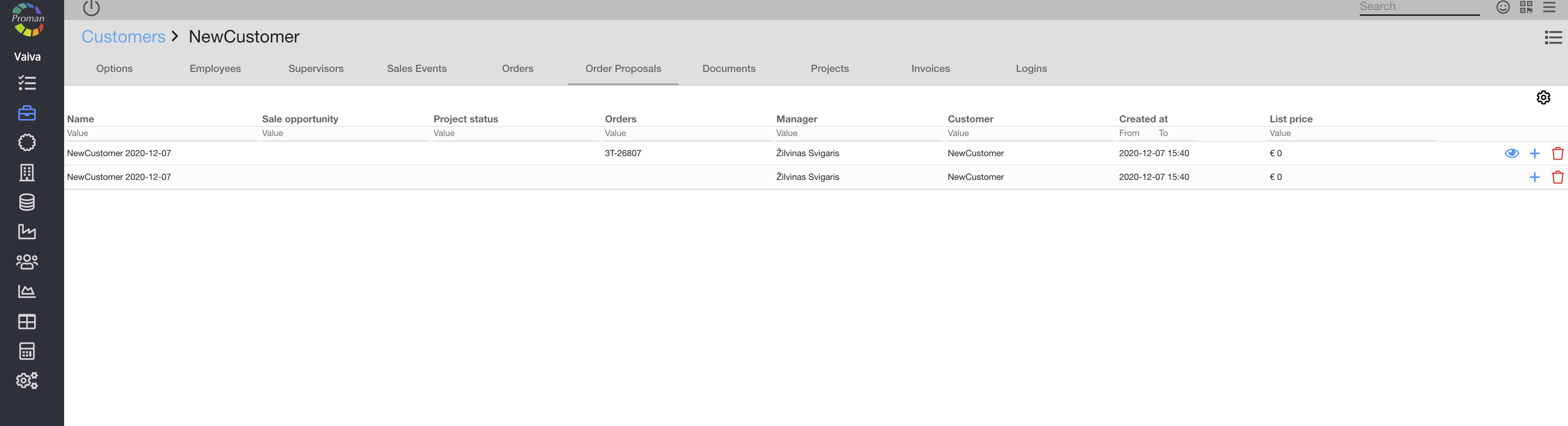
Here you can see, create (
Customers Documents |
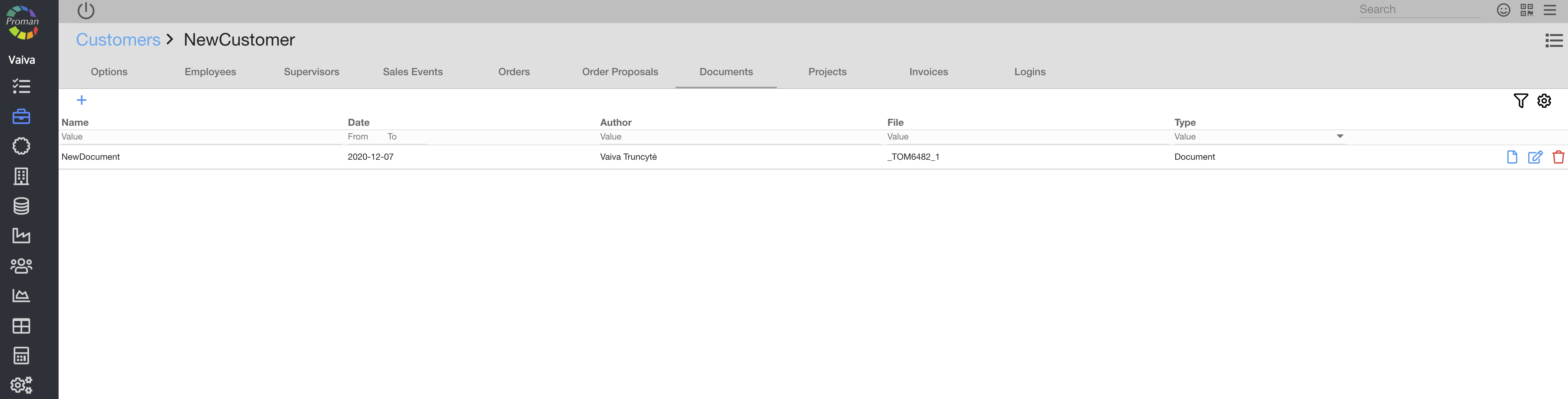
Here you can see, create (
| How to create a new customer document? |
1. To create a new customer document, click on "+"
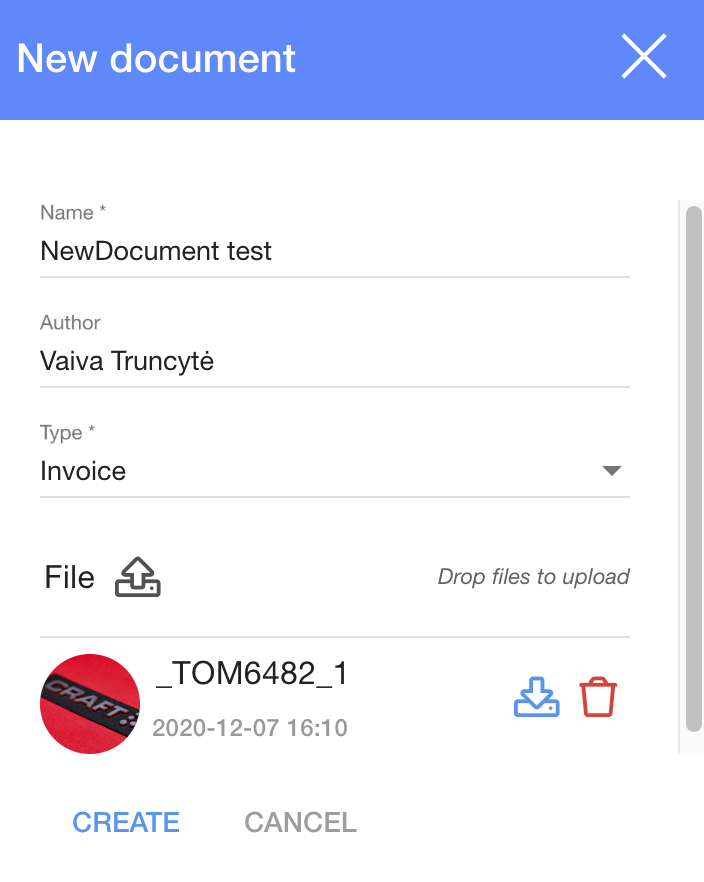
2. In the dialog table:
2.1. Enter a name;
2.2. Enter the author;
2.3. Choose a type:
- Document;
- Invoice;
- Bill of lading;
- Contract;
- Order Confirmation
3. Upload a file;
4. And click on
Customers Payments |
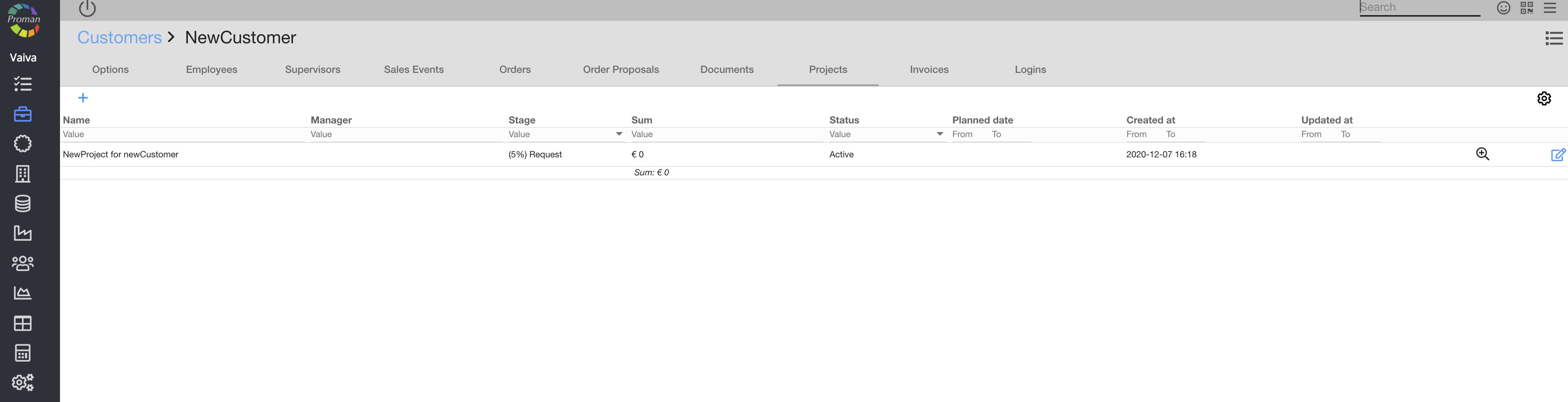
Here you can see, create (
To learn how to create a new project, see here
Customers Projects |
Here you can see, create (
To learn how to create new Project, you can see here
Customers Invoices |
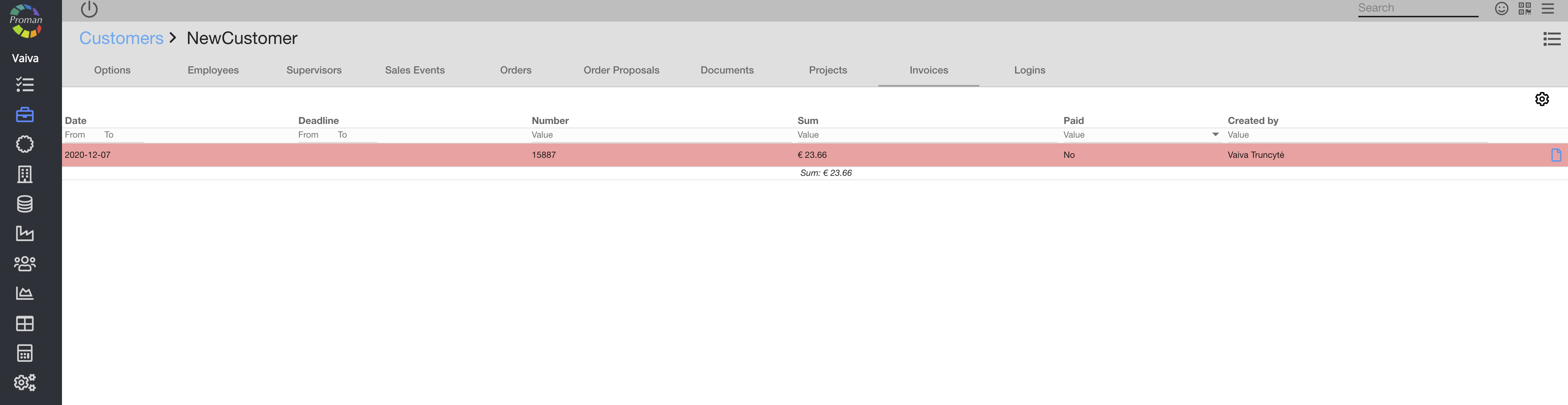
Here you can see (