Confirmations
| How to find customer confirmations? |
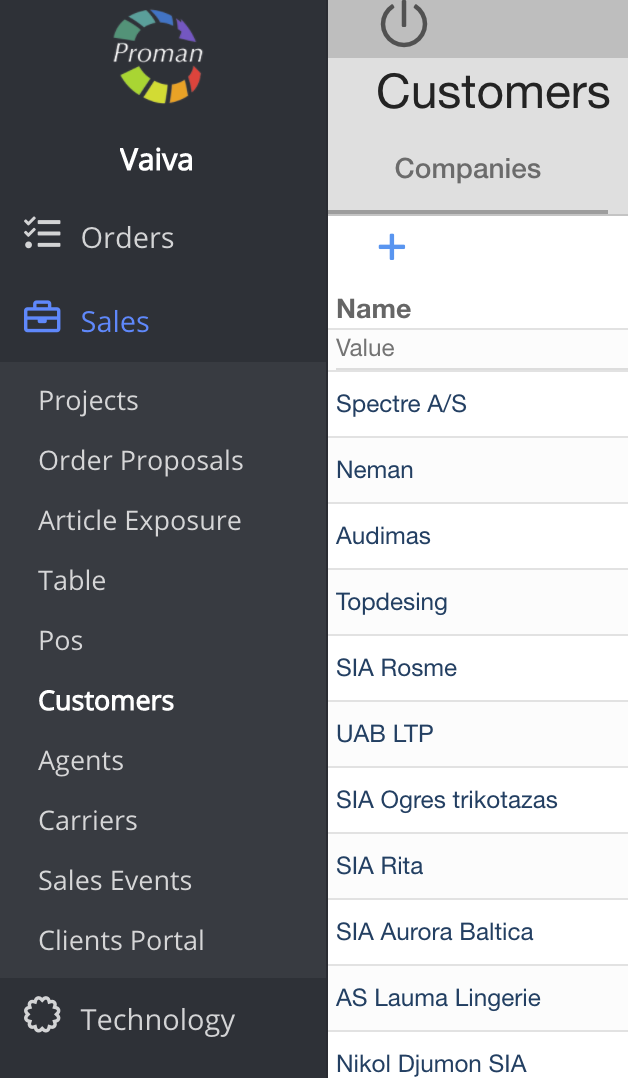
To find the customer confirmations, you should:
- Go to
- Then-


Now you can see the customer list
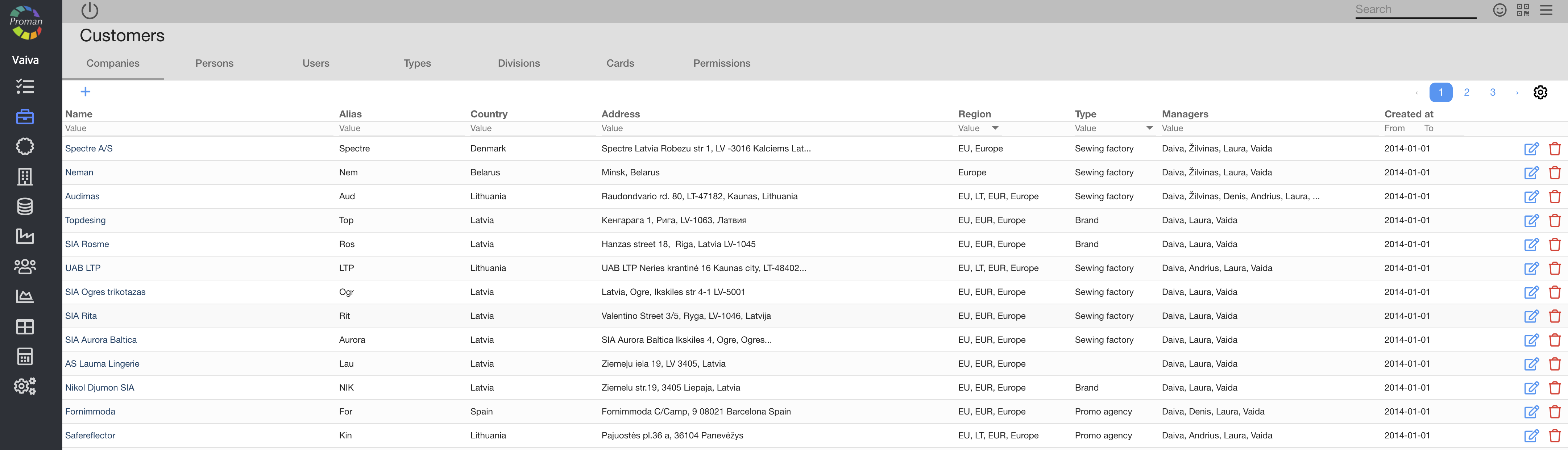
3. Choose a customer
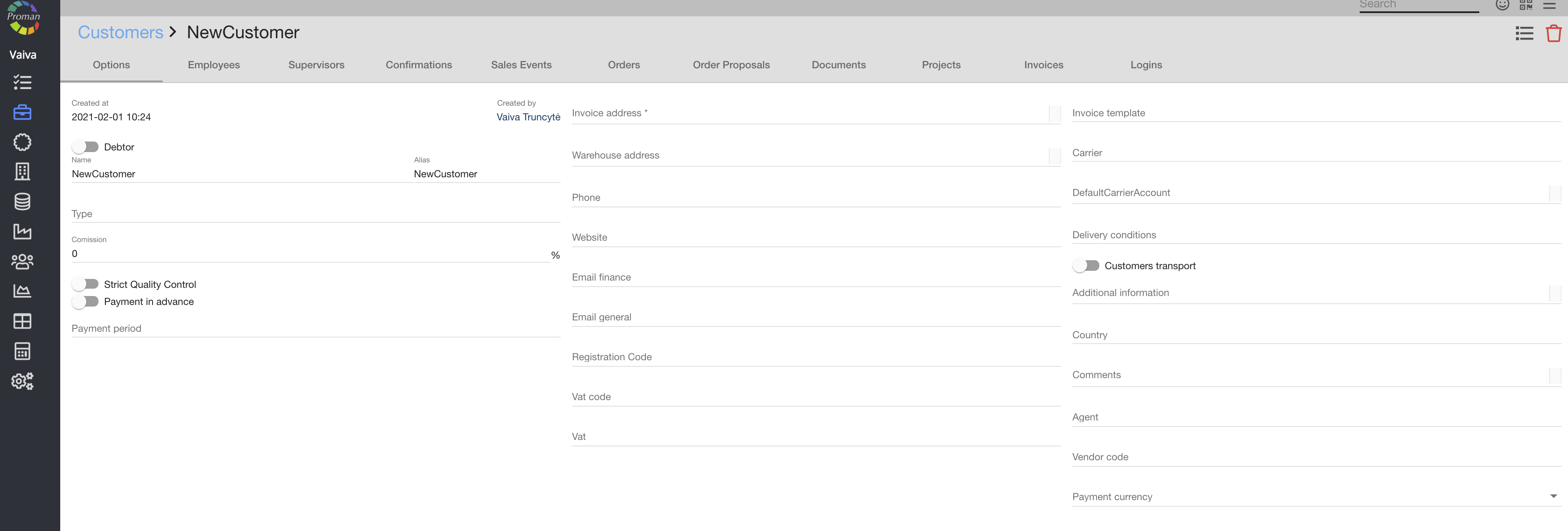
3. Go to


| How to create a confirmation template? |
For more information on how to create a template, please visit here
- Create new template:

2. Choose an xml Type
3. Leave the content empty
Now you can see the new template

4. Enter this code to the template body:
<?xml version="1.0" encoding="utf-8" standalone="yes"?>
<EBSDOC>
<EBSDOCTYPE>DOC03</EBSDOCTYPE>
<DATA>
<UST_BILGI>
{% set paletQuantity = 0 %}
{% for product in order.products %}
{% set paletQuantity = product.quantity + paletQuantity %}
{% endfor %}
<BelgeNo>{{ order.id }}</BelgeNo>
<Gorev_Tarihi>{{ 'now'|date('d.m.Y', 'Europe/Istanbul') }}</Gorev_Tarihi>
<Teslim_Tarihi>{{ order.dispatchDate|date('d.m.Y', 'Europe/Istanbul') }}</Teslim_Tarihi>
<Iade>-</Iade>
<paletsayisi>{{ (paletQuantity / 48)| round(0, 'ceil') }}</paletsayisi>
<DETAYLAR>
{% set no = 0 %}
{% for product in order.products %}
<DETAY>
<Firma_Kodu>{{ order.customer.alias }}</Firma_Kodu>
<Satir_No>{% set no = no + 1 %} {{ no }}</Satir_No>
<Stok_Kodu>{{ product.product.customerName }}</Stok_Kodu>
<Miktar>{{ product.quantity }}</Miktar>
<Birim>KOLI</Birim>
<lotno>{{ product.product.getLotNumber() }}</lotno>
</DETAY>
{% endfor %}
</DETAYLAR>
</UST_BILGI>
</DATA>
</EBSDOC>
Now you can see your template
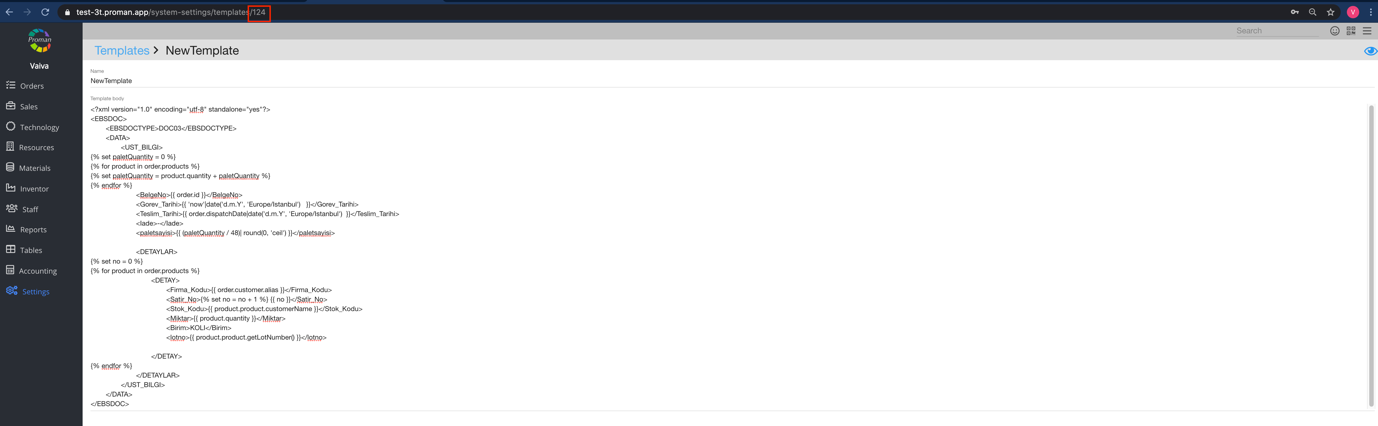
5. Remember the ID (in the browser address bar)
| How to create a customer confirmation? |
- Go to Customer’s confirmation
2. Click on

Now you can see the dialog table
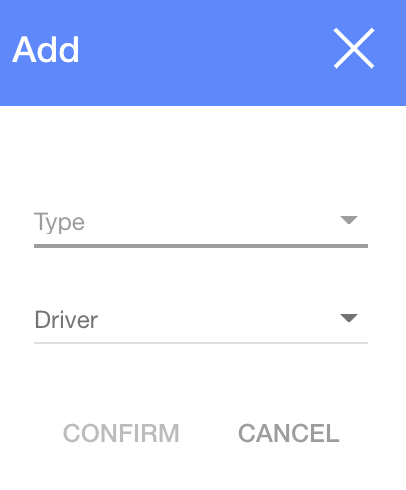
3. Enter needed information:
3.1. Choose an order type
3.2. Choose Ftp or an email driver
Now you can see a bigger dialog table
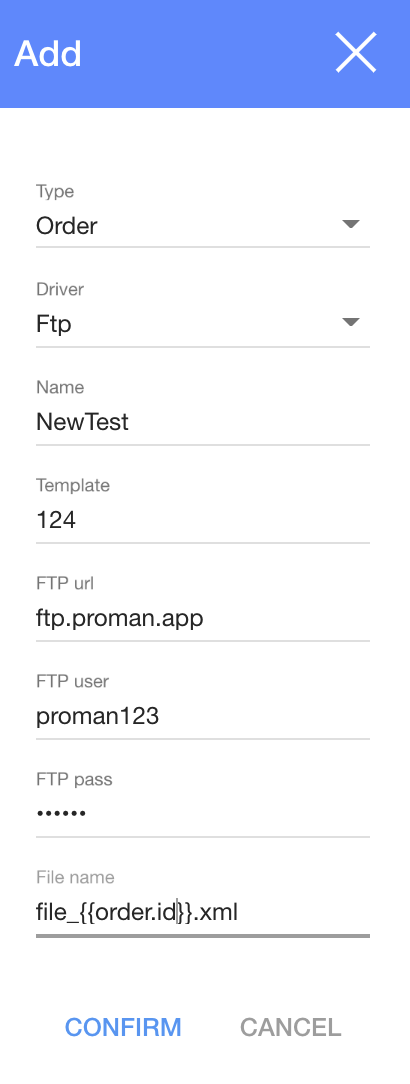
4. Enter data:
4.1. Ftp name (NewTest)
4.2. Template (Template id – 124)
4.3. Username (proman123)
5. Password (proman)
6. File name (Enter file name. which you want to create – file_{{order.id}}.xml Note: if you don’t write id, file overwrite in ftp server). You could also move files to INBOX this way: write this in Dialog table (File name: INBOX/file_{{order.id}}.xml)
7. Click

| Where are the files after an order confirmation? |
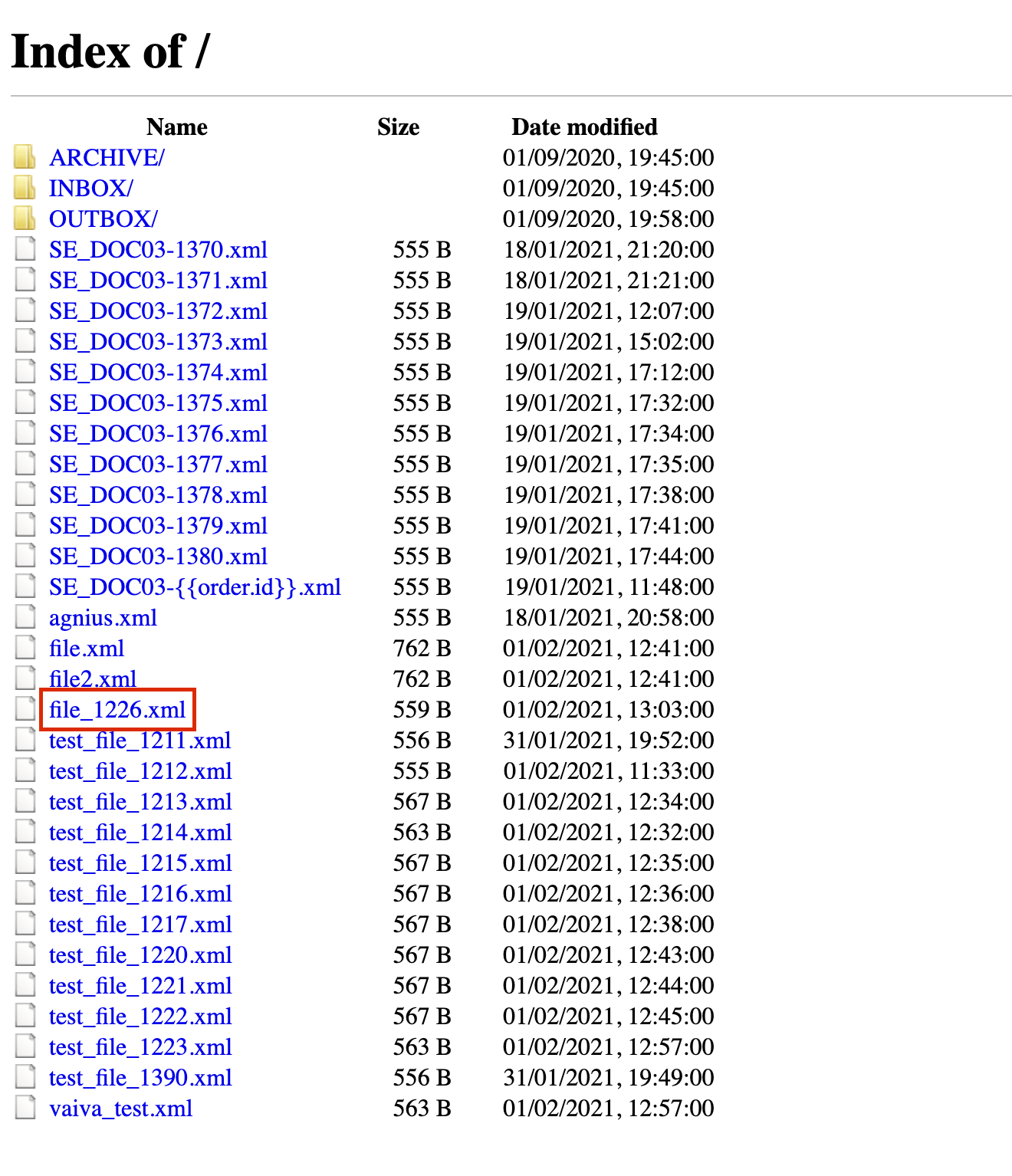
After the customer order confirmation you will get a file in the ftp server