Purchases
Here you can see, create, manage all purchases
| How to find "Purchases"? |
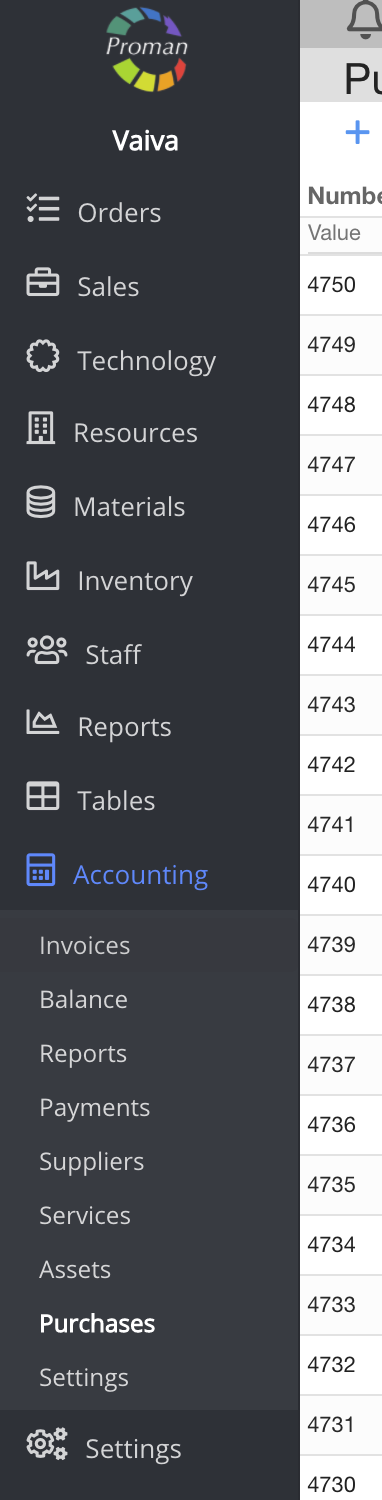
To find Purchases,:
1. Go to
2. Then-

Now you can see the purchase list:
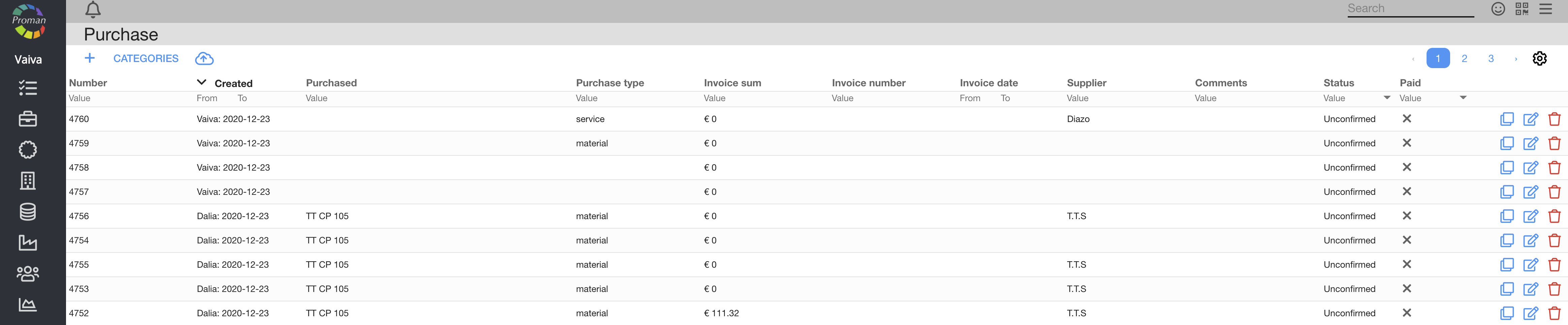
Here you can see, create (




| How to create a purchase? |
To create a new purchase:
1. Click on
Now you can see the purchase type dialog table:
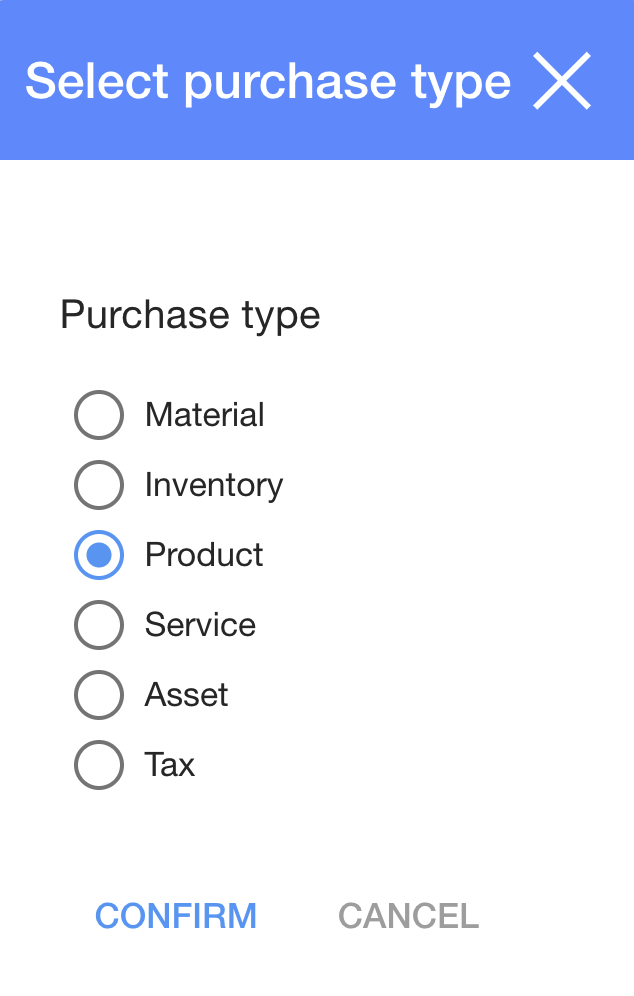
2. In the dialog table choose a purchase type;
3. Click on
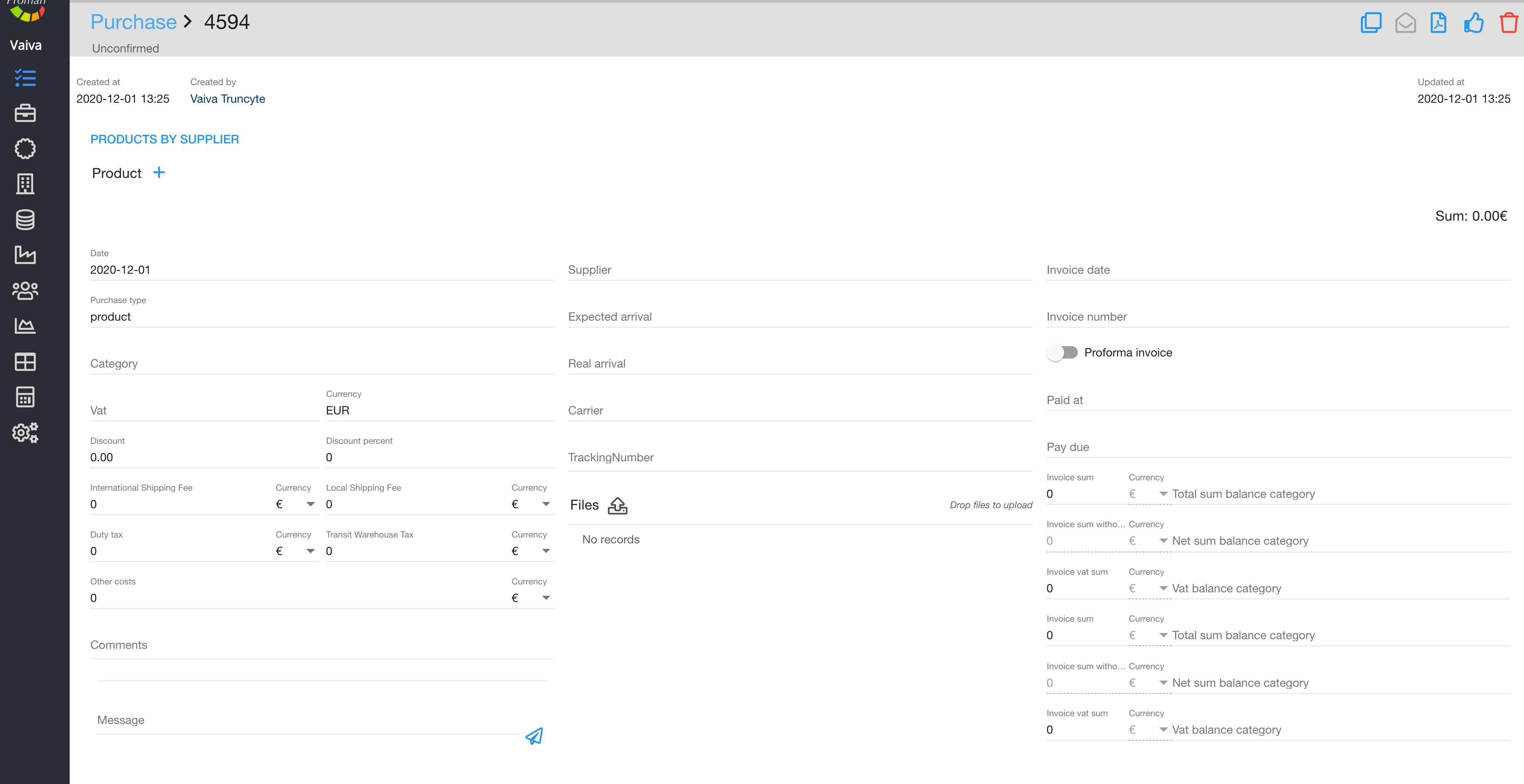
Now you can see the new purchase:
| How to add products, materials, services, assets, etc. by a supplier? |
1. Click on

Now you can see the purchase "by supplier" page:
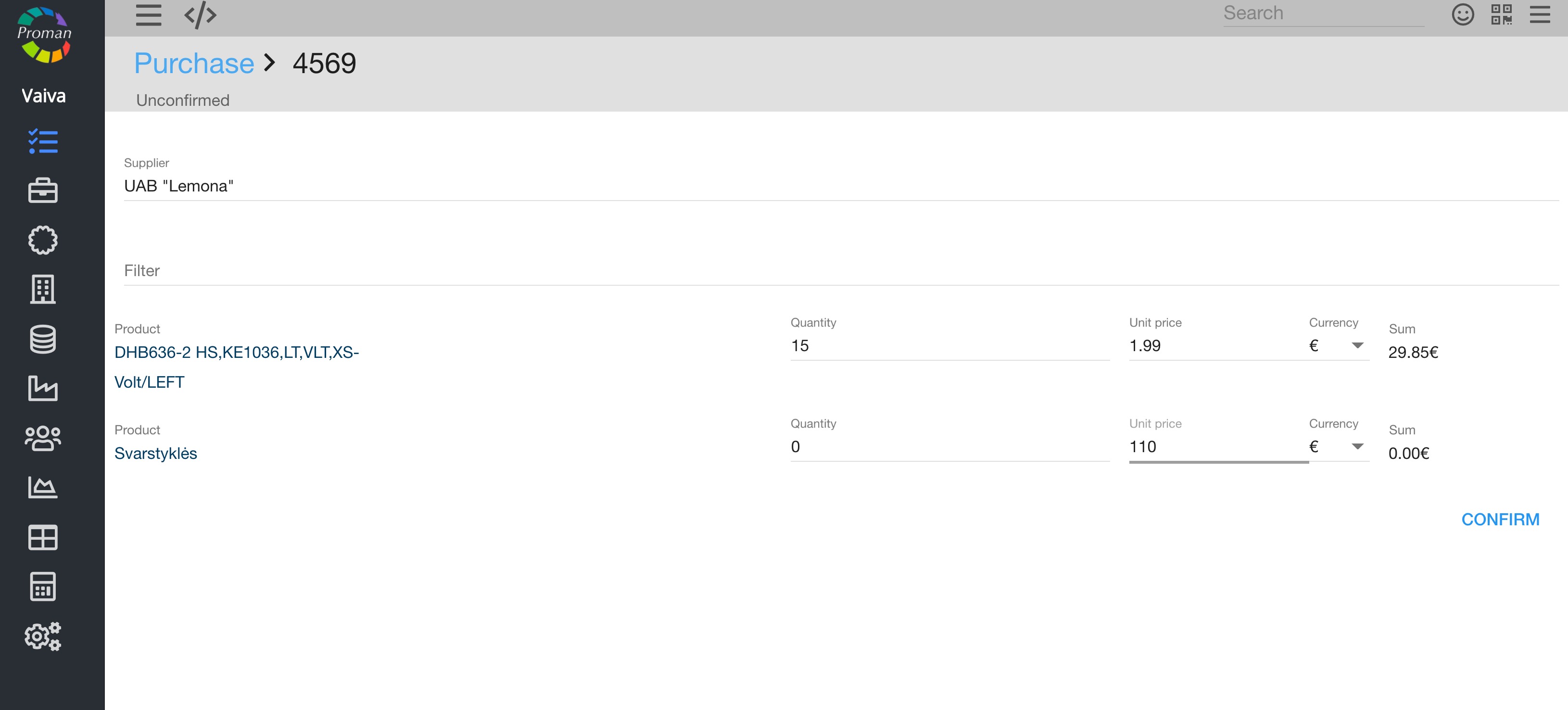
2. In dialog table:
2.1. Choose a supplier;
2.2. Choose a filter (if you need one);
2.3. Choose a product;
2.4. Enter quantity;
2.5. Unit price;
2.6. Currency
3. Click
| How to add a "product by product" name? |
1. Click on
Now you can see a new table:
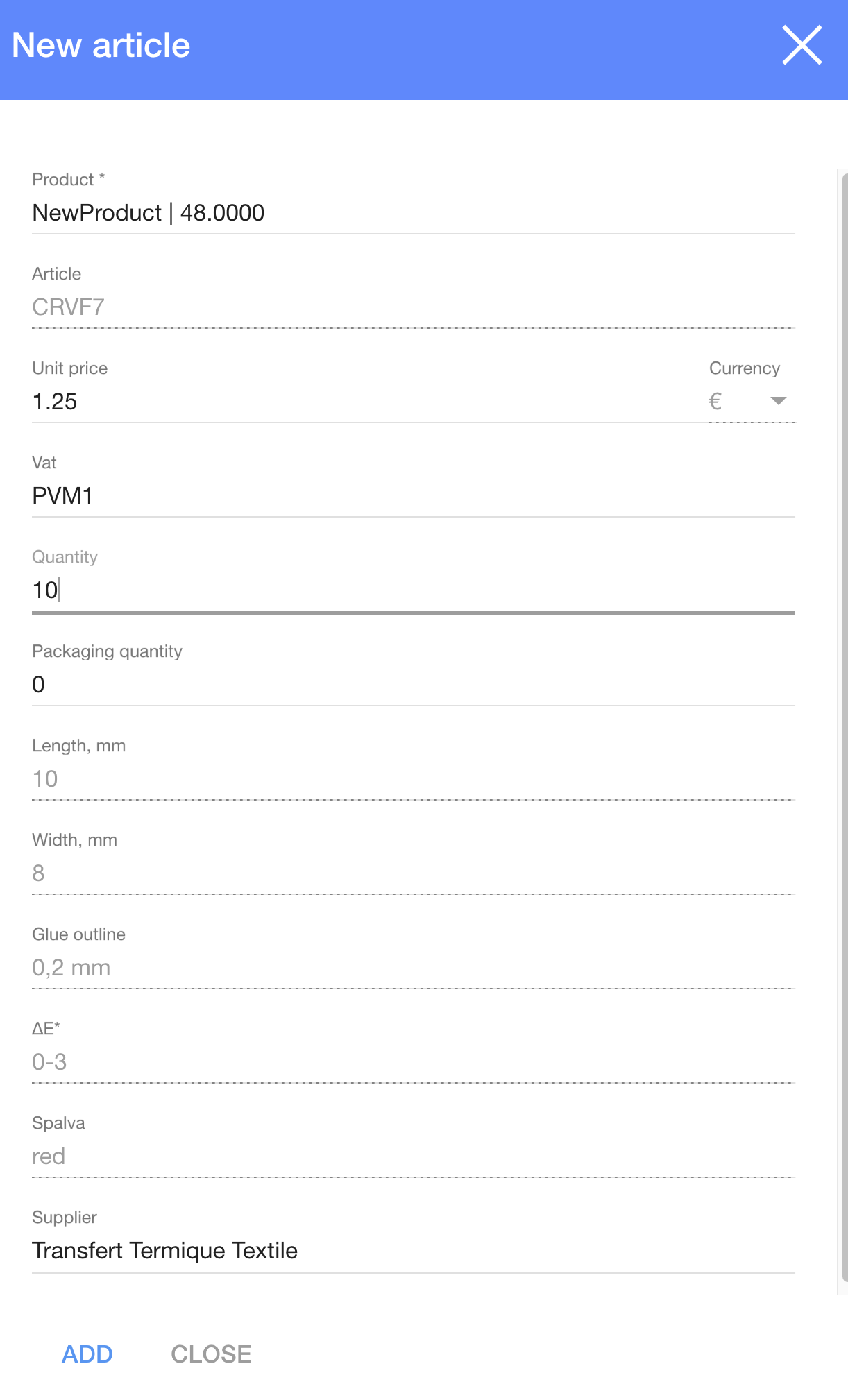
3. In the dialog table:
3.1. Choose a product from the product list;
3.2. Choose an article from the article list;
3.3. Choose VAT from the VAT list;
3.4. Enter quantity;
3.5. Packaging quantity;
3.6. Parameters
4. Click
| How to manage "purchases"? |
Now you can see products in the purchase page:
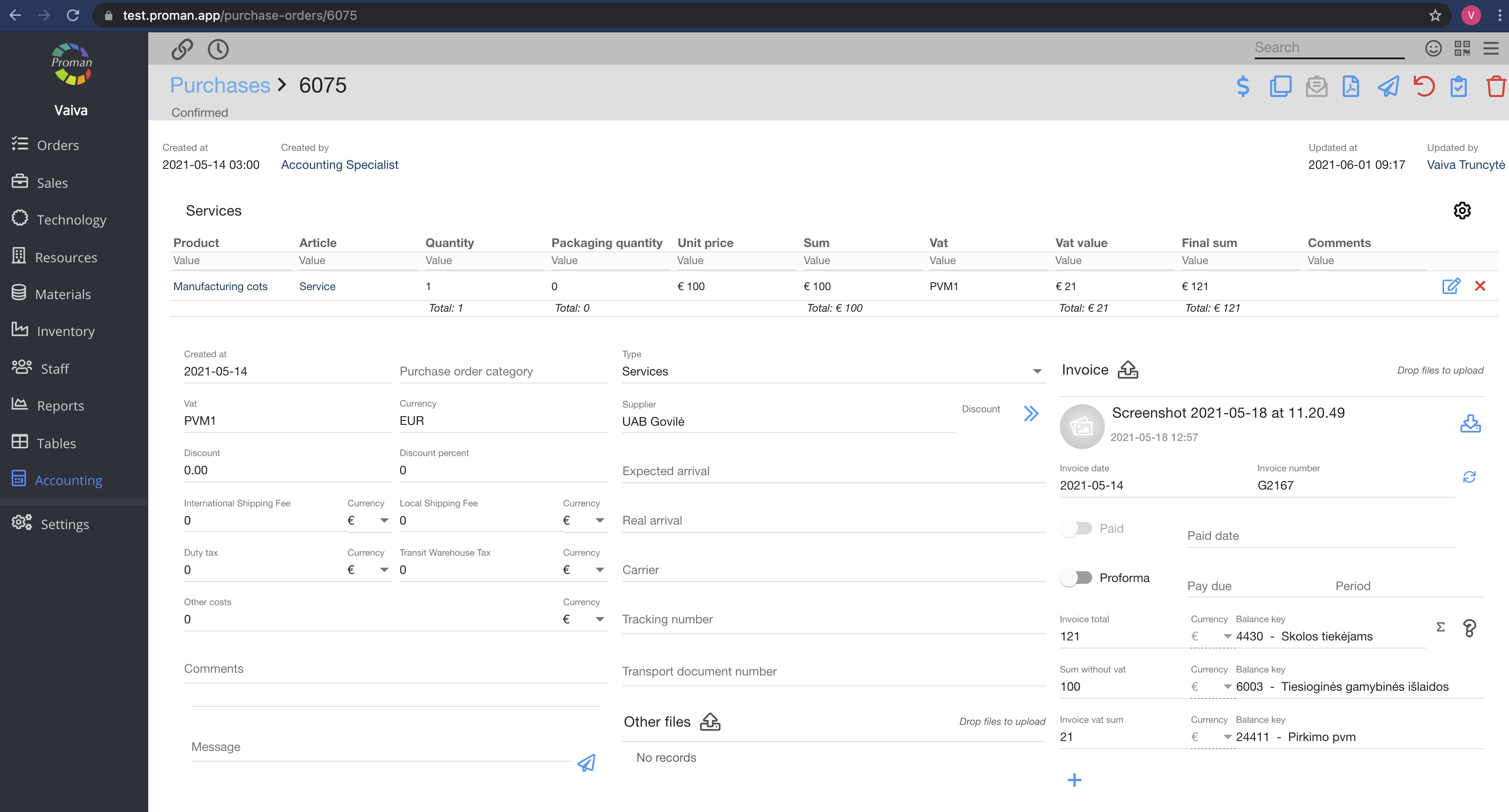
5. Here you can:
5.1. Edit the product (product, quantity, package quantity, Vat, Unit price - click 
5.2. Enter a date;
5.3. Purchase type;
5.4. Category (if necessary; here you can add a purchase's category in order to have information about the purchase. You can find purchase categories in the purchases table (at the top of the page
5.5. VAT;
5.6. Discount or Discount percent;
5.7. International shipping fee and currency;
5.8. Local shipping fee and currency;
5.9. Duty tax;
5.10. Transit Warehouse tax
5.11. Other costs;
5.12. Comments;
5.13. Messages;
5.14. Supplier;
5.15. Expected arrival
5.16. Carrier
5.17. Upload files
Fill in this data when you get an Invoice from the supplier:
- Invoice date;
- Invoice number (don't use empty spaces or short numbers if you want to use a bank transaction. Otherwise it might not work properly);
- Paid date;
- Check the invoice total sum with and without VAT

| Button | What does it indicate? |
 | You can copy the purchase |
 | You can send a generated template to a supplier |
 | You can generate a template from the purchase order content |
 | You can confirm the purchase |
 | You can delete the purchase |
Button after confirmation (

| Button | What does it indicate? |
 | You can confirm the payment |
 | You can copy the purchase |
 | You can generate a template from the purchase order content |
 | You can disapprove an unconfirmed purchase |
 | You can confirm you've gotten the purchase by clicking  |
 | You can delete a purchase |
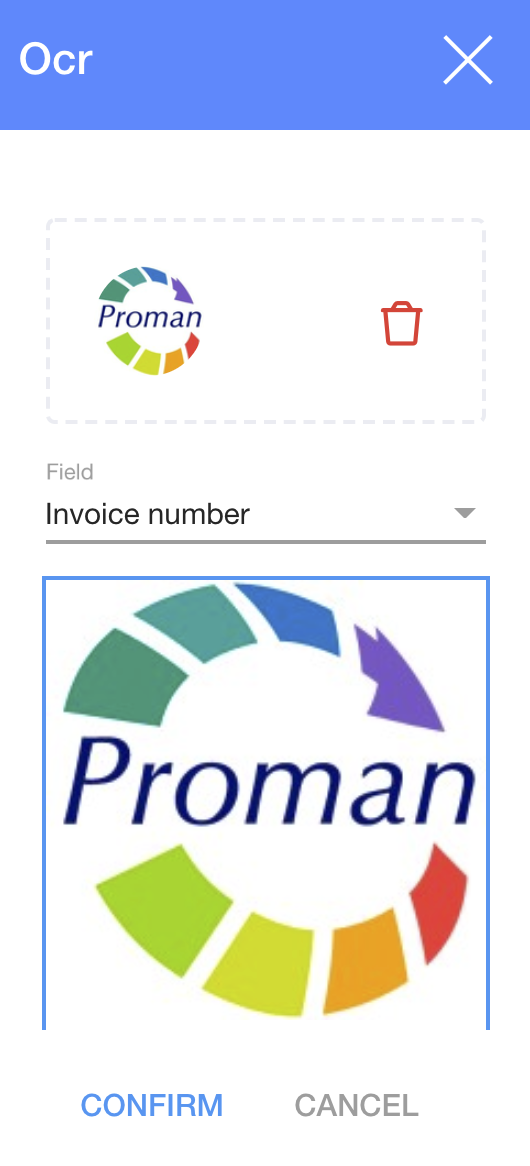
1. Click on

Choose a field:
- Invoice date;
- Invoice number;
- Supplier;
- Vat;
- Comment
| Notes you should know |
1. You can see the purchase's invoice VAT sum in the list of the purchase
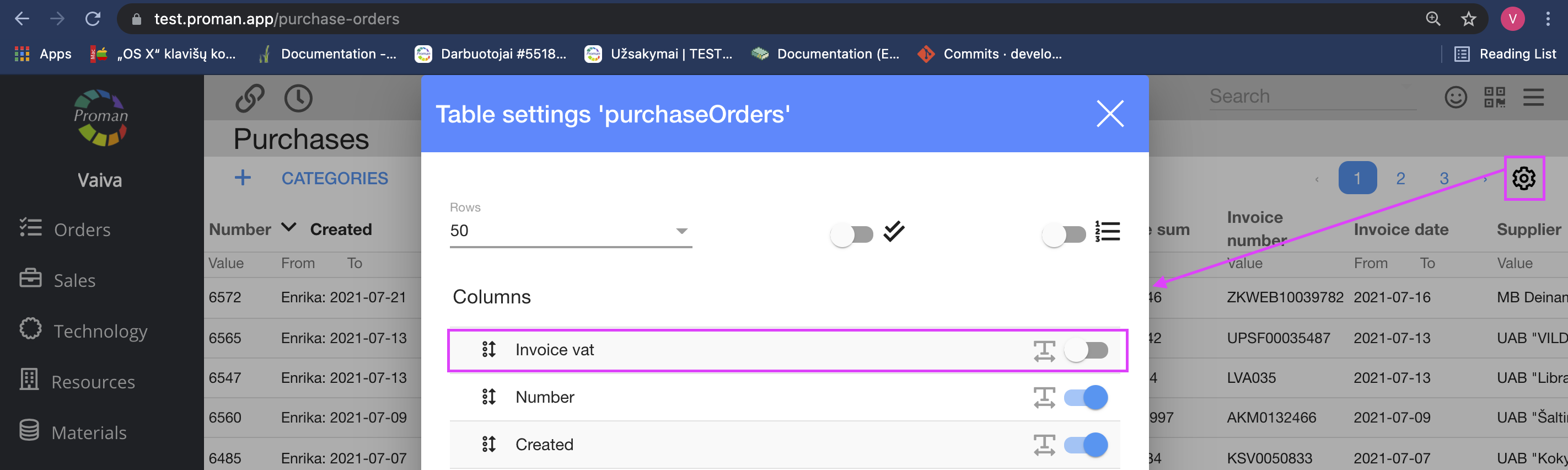
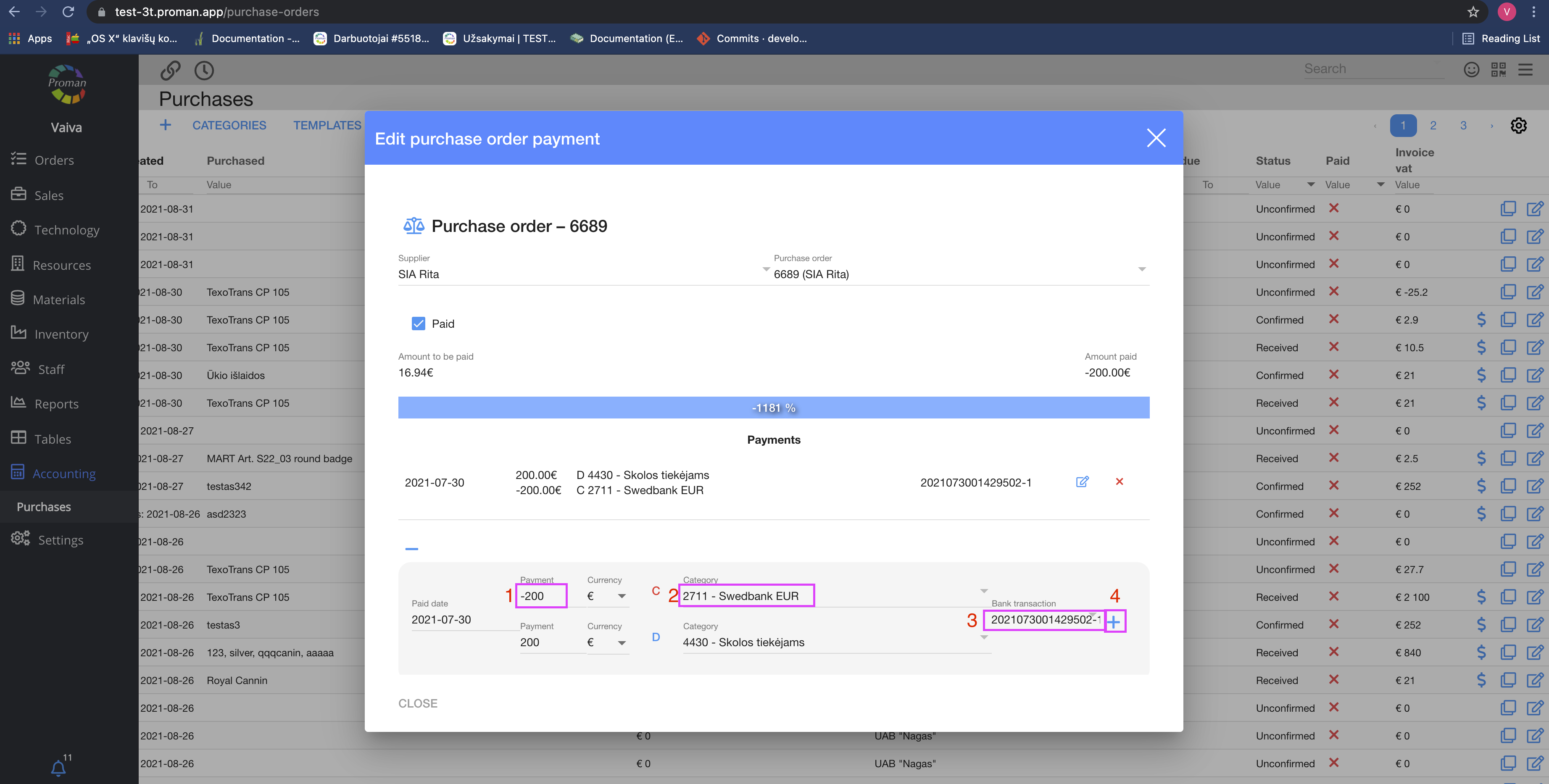
2. To see more information about the transactions, click on

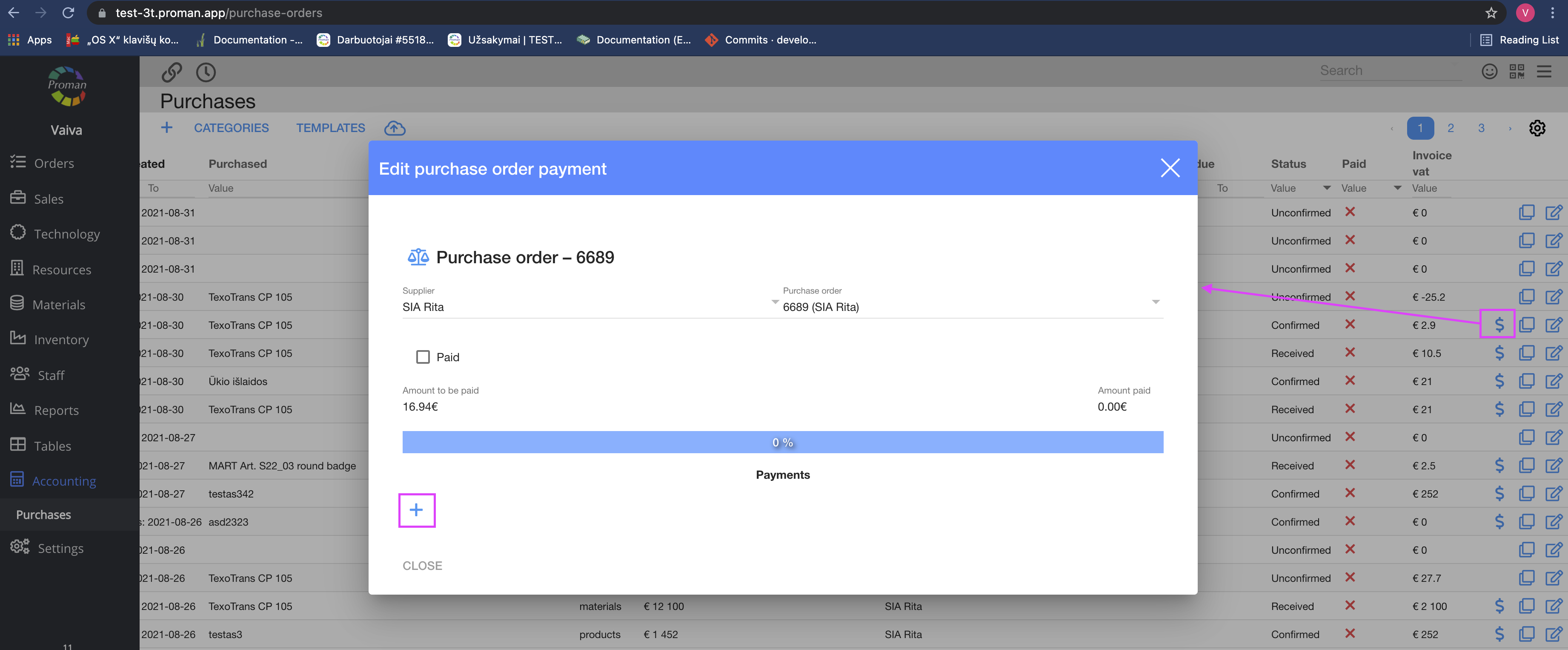
3. To confirm the transaction, click on
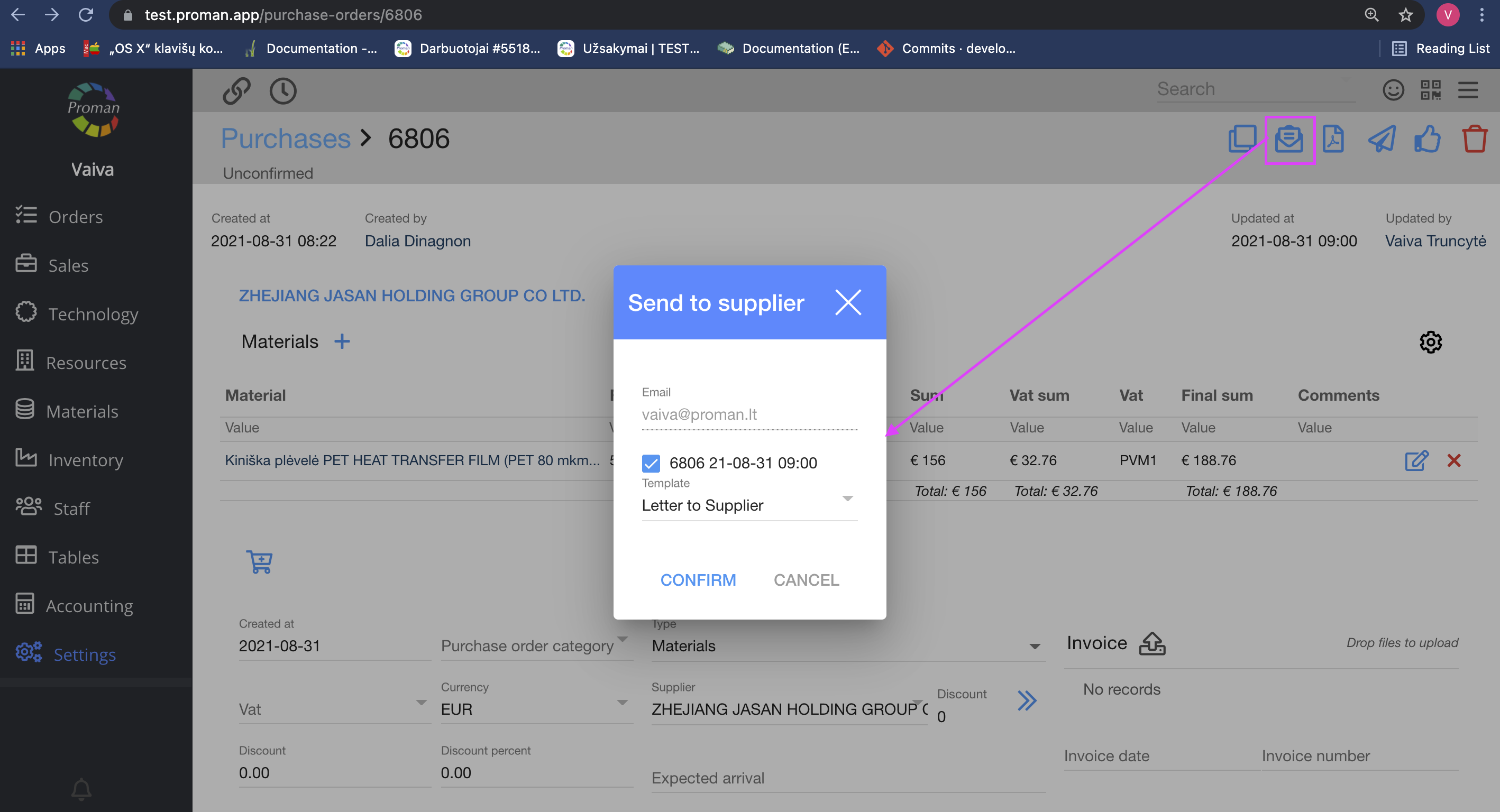
4. To send an email of a purchase to a supplier, click on 
5. Click on
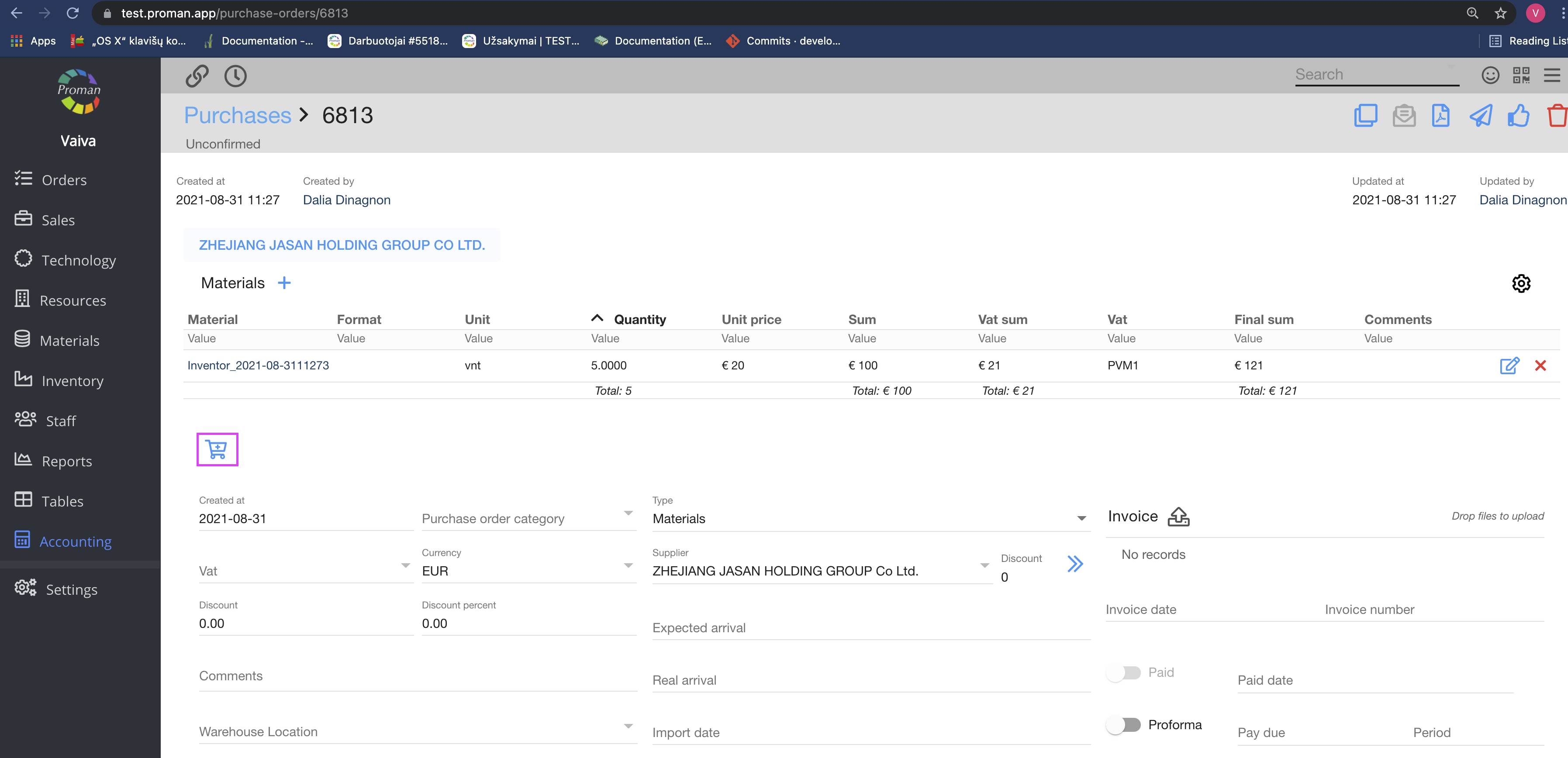
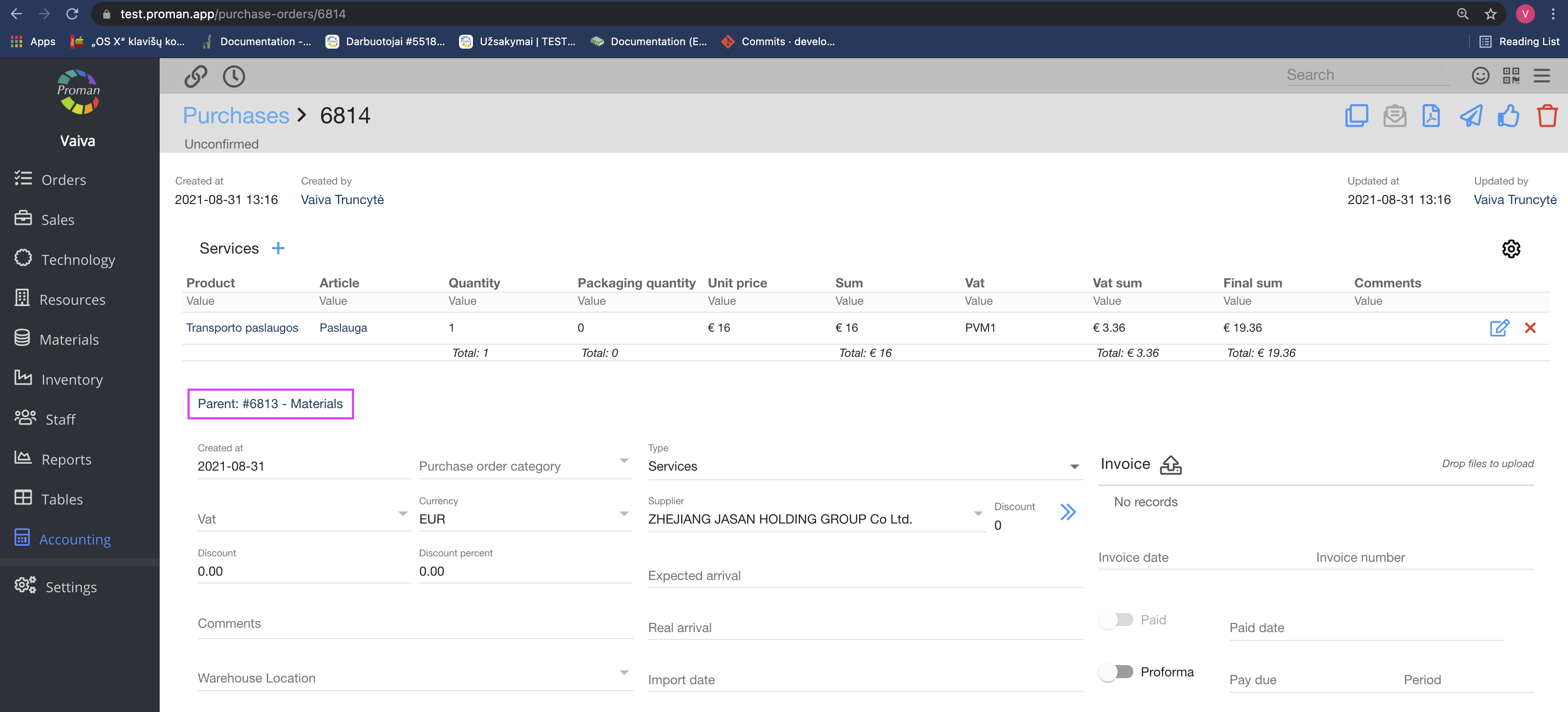
| How to credit a purchase? |
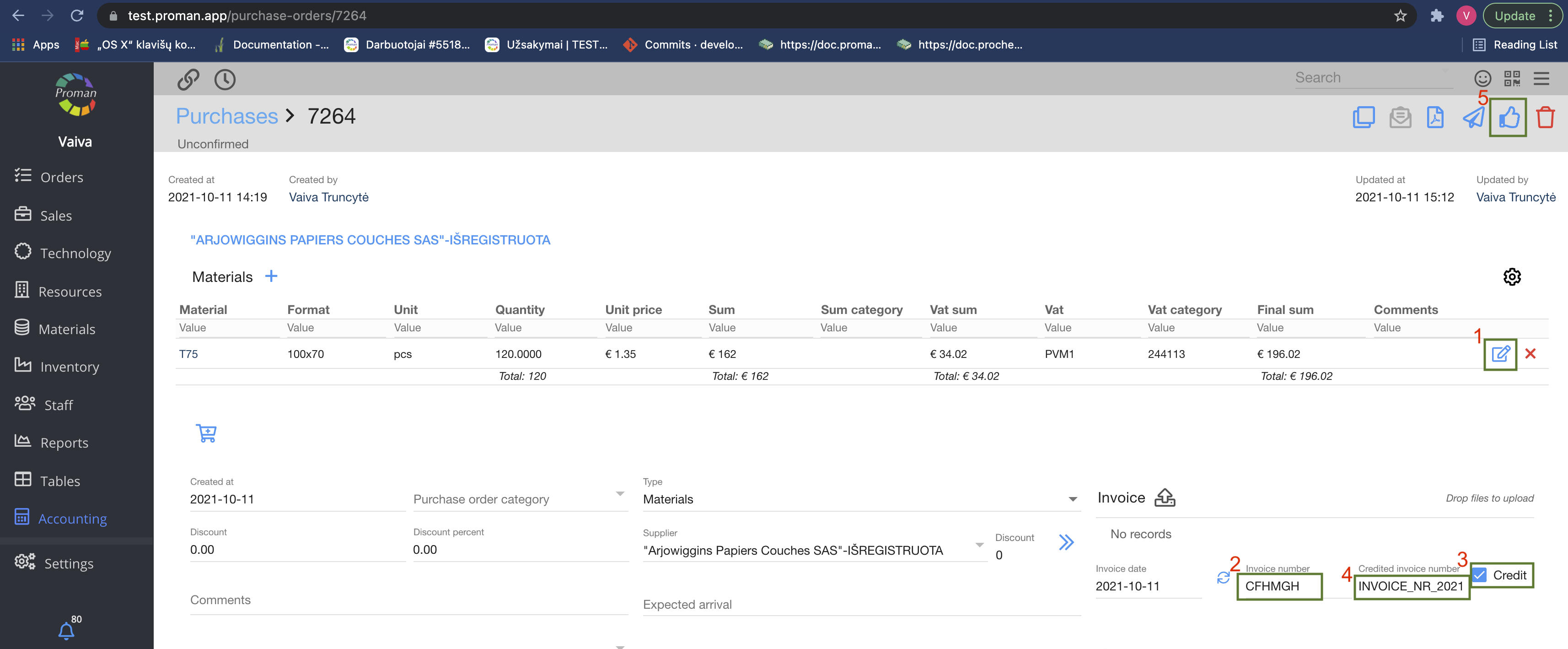
Copy the purchase you would like to credit:
1. Set up all products and quantities;
2. Enter an invoice number
3. Check that it's the credit nvoice
4. Enter the invoice number you would like to credit
5. Click