Quick Guide
How to start using SmartOn Step by Step?
2. Set up employee permissions;
3. Create employee user account;
8. Create Article Subcategories;
10. Change Article Category/SubCategory
12. How to add app to phone Display?
| 1. How to create an employee |
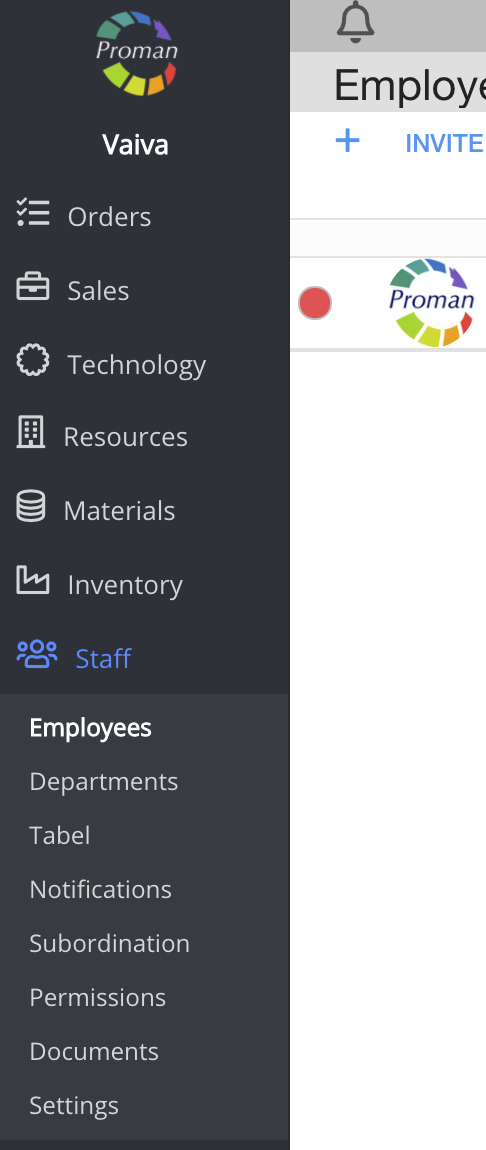
1. To find Employees:
1.1. Go to 
1.2. Then- 
Now you can see the employee list:

2. Click on
Now you can see a dialog table:
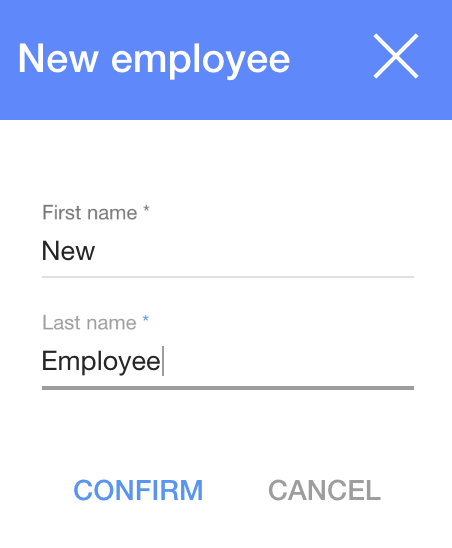
3. Enter the first and last names
4. Click on

| 2. How to set up employee permissions? |
Now you should set up employee permissions in order to create and close orders, see all products, customers and ect.
To find Employee Permissions:
1. Choose an employee
Now you can see your employee Information:
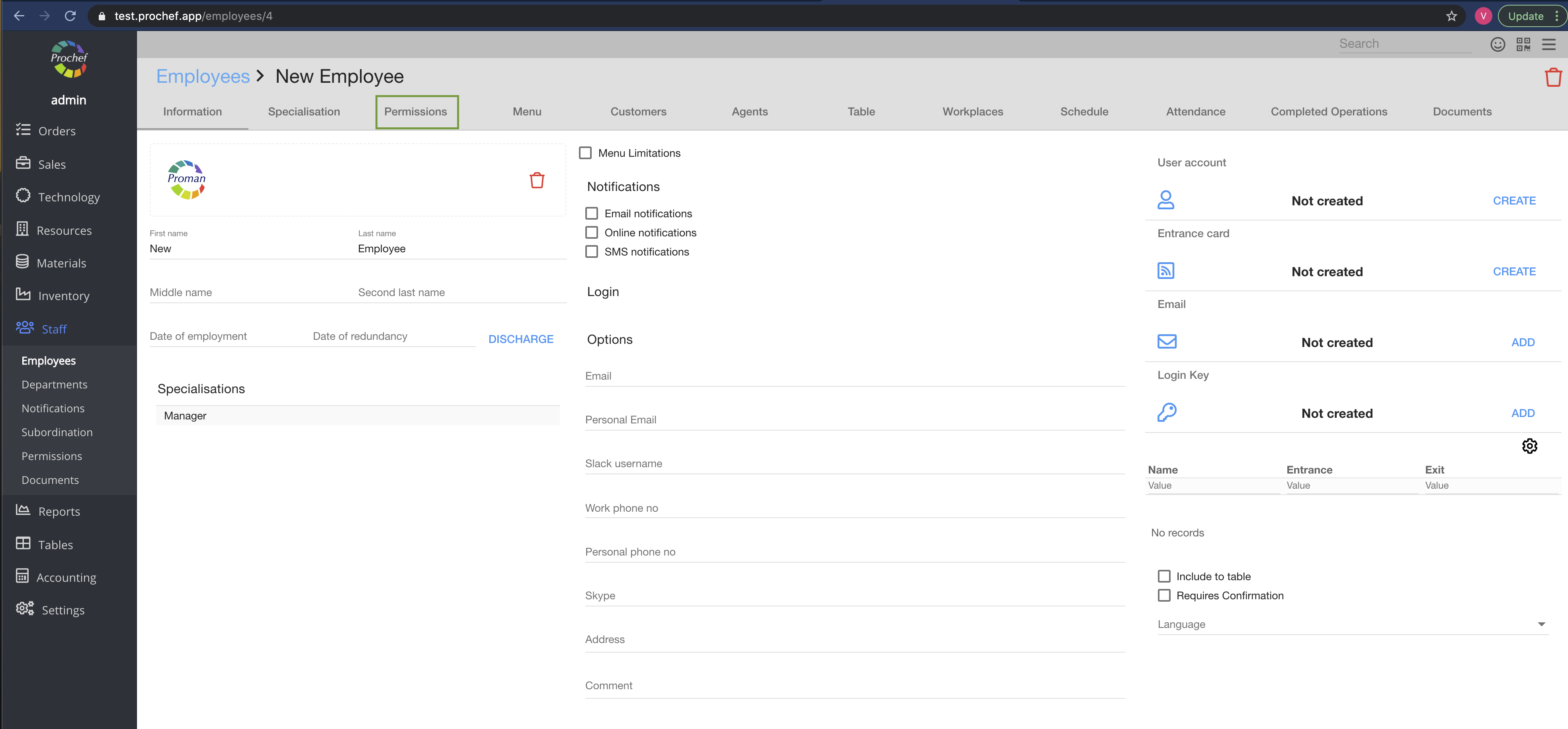
2. Click on

Now you can see the employee permissions:
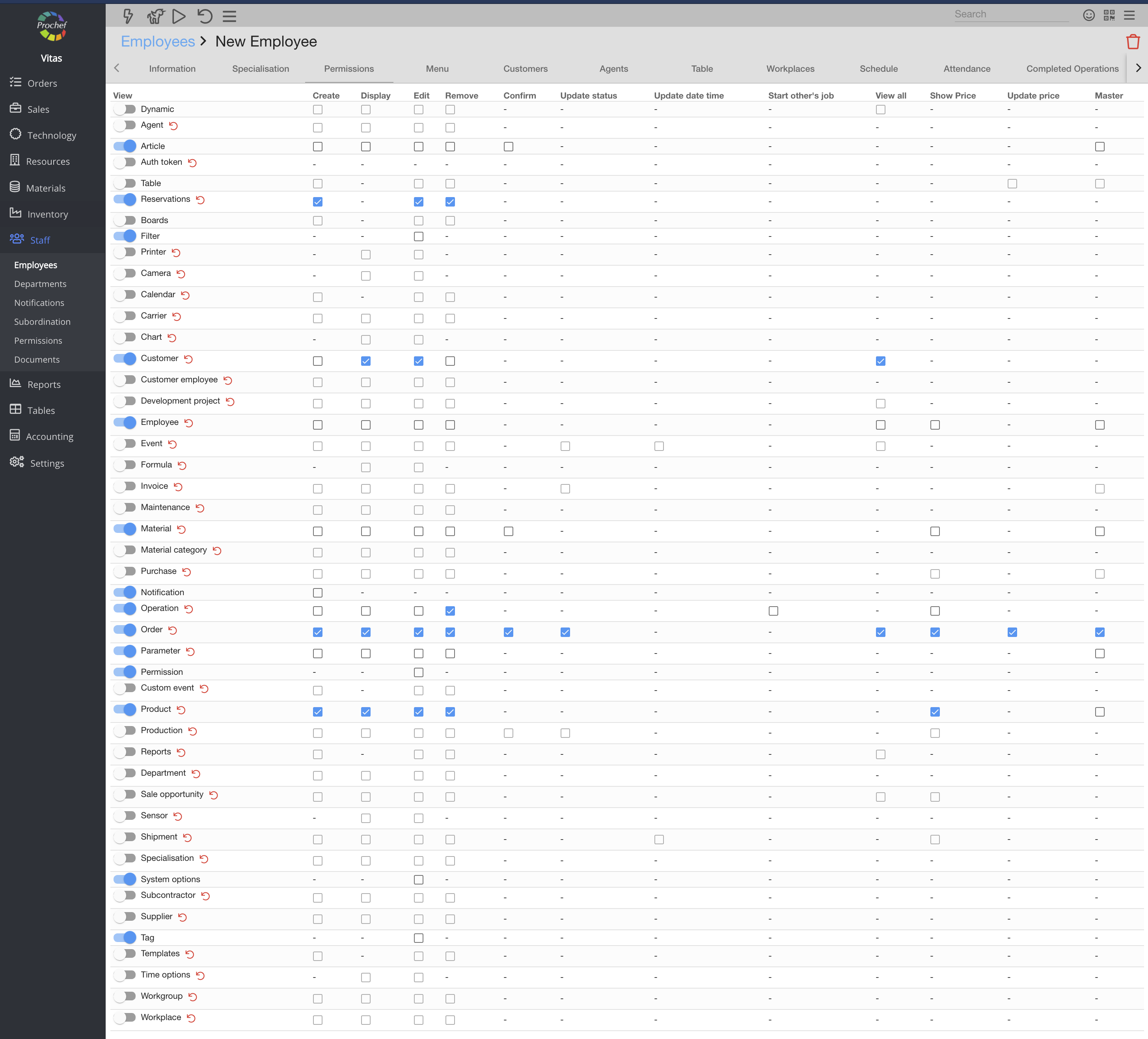
Switch on these permissions for the employee:
Switch on ( ) permission to view ) permission to view | Check ( ) permission to edit ) permission to edit |
| Article | Nothing (only "view" permission) |
| Reservations | All |
| Customer | Display Edit |
| Employee | Nothing (only "view" permission) |
| Material | Nothing (only "view" permission) |
| Notification | Nothing (only "view" permission) |
| Event | Remove, Master |
| Order | All |
| Order proposal | All |
| Parameter | Nothing (only "view" permission) |
| Permission | Nothing (only "view" permission) |
| Product | |
| System options | Nothing (only "view" permission) |
| Tag | Nothing (only "view" permission) |
| 3. How to create an employee ID? |
1. Choose an employee
Now you can see employee information:
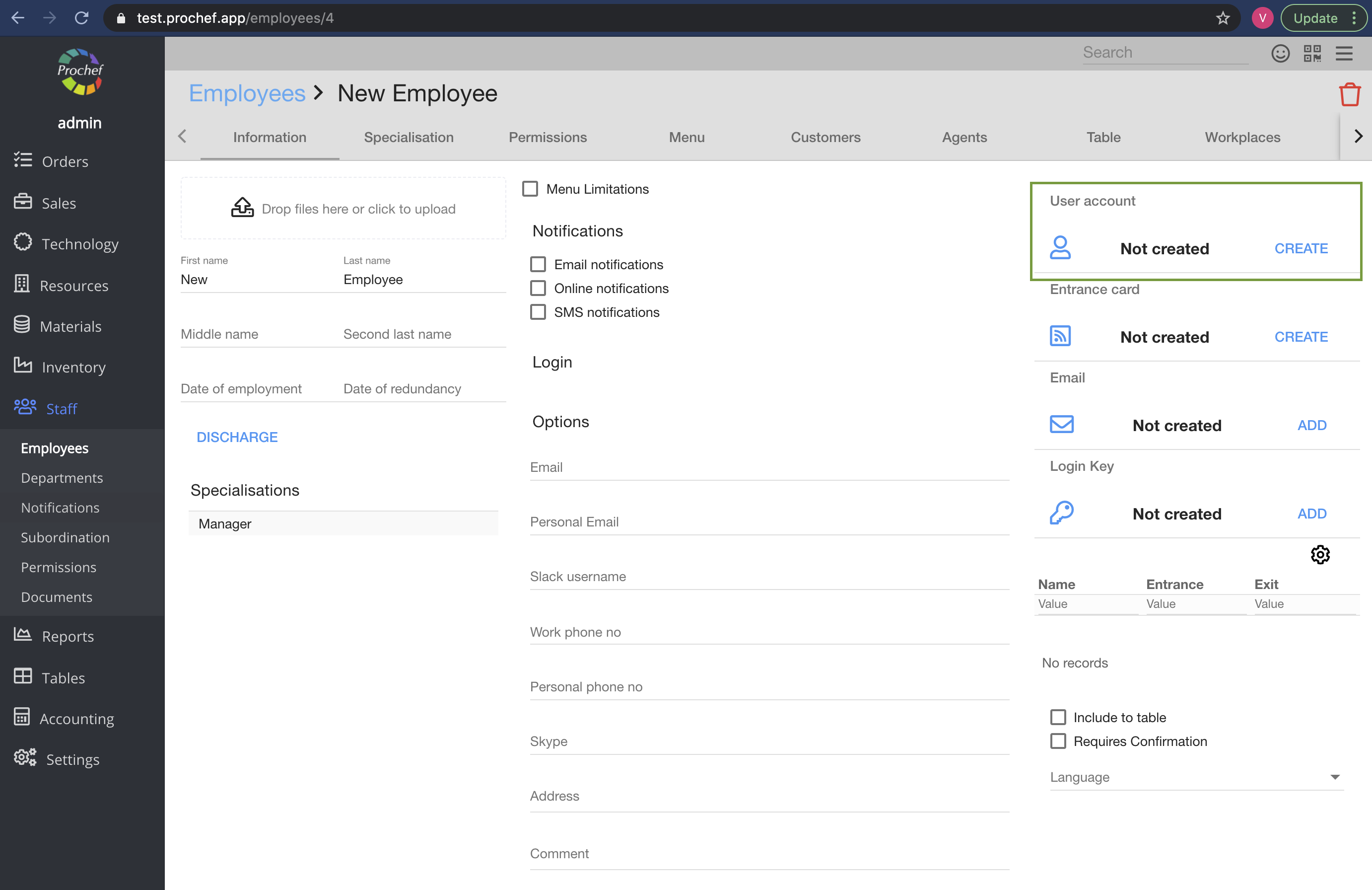
2. Find the user account table at top right side:

3. Click on

Now you can see fields for a username and a password:
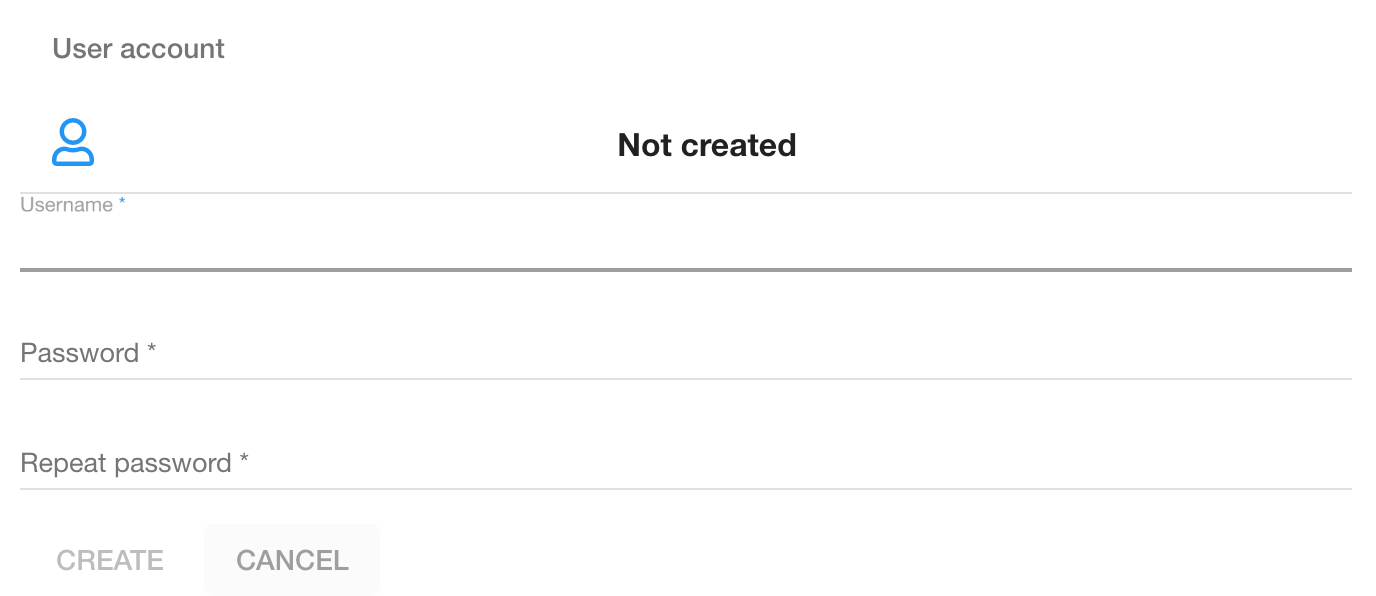
4. Enter a username (only numbers) and a password (only numbers)
5. Click on
| 4. How to log in to POS? |
1. Go to POS
Now you can see the login table:
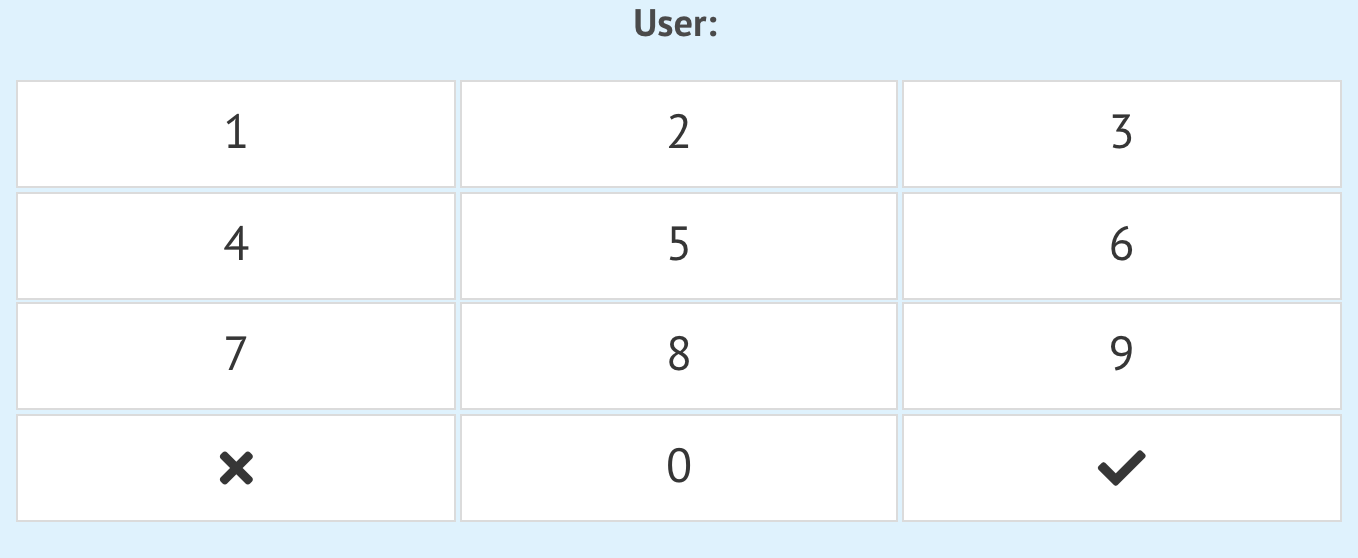
2. Enter the username, password and click

| 5. How to create VAT? |
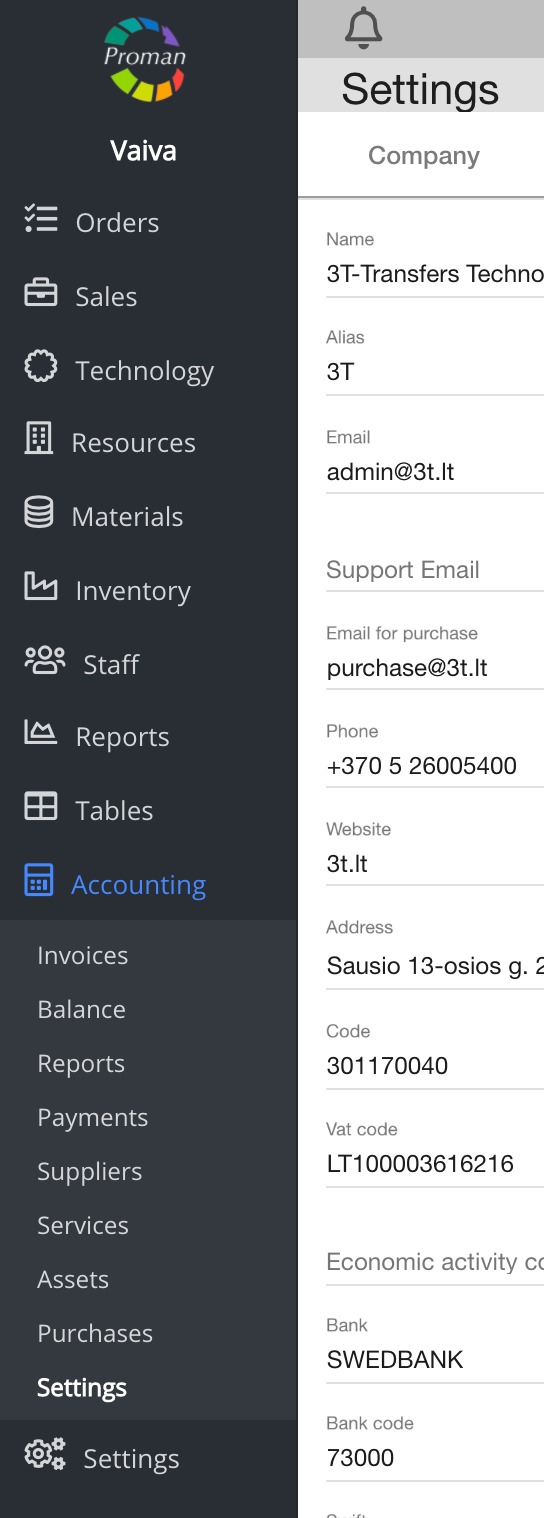
1. Go to Accounting:
1.1. Click on 
1.2. Then- 
Now you can see the company settings
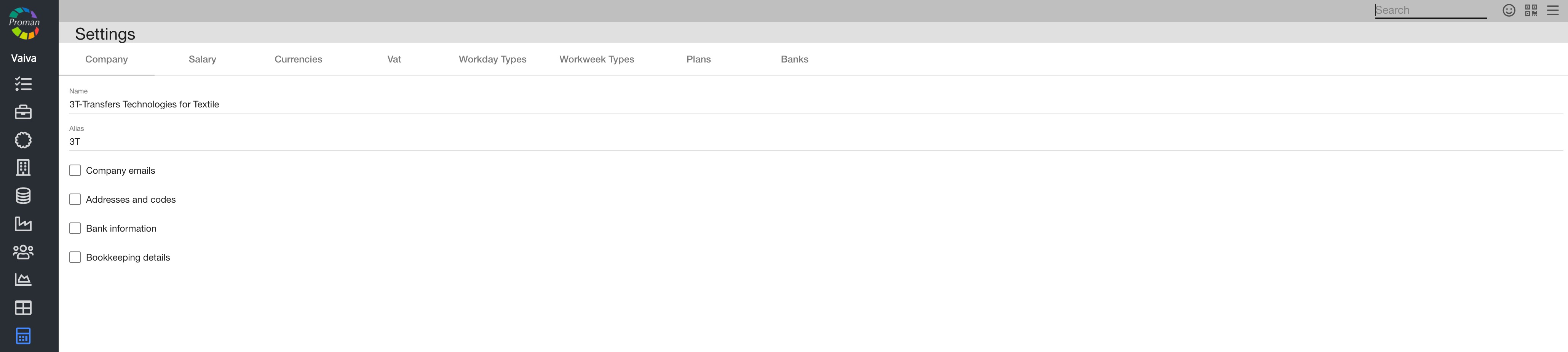
2. Click on

Now you can see the list of Vat
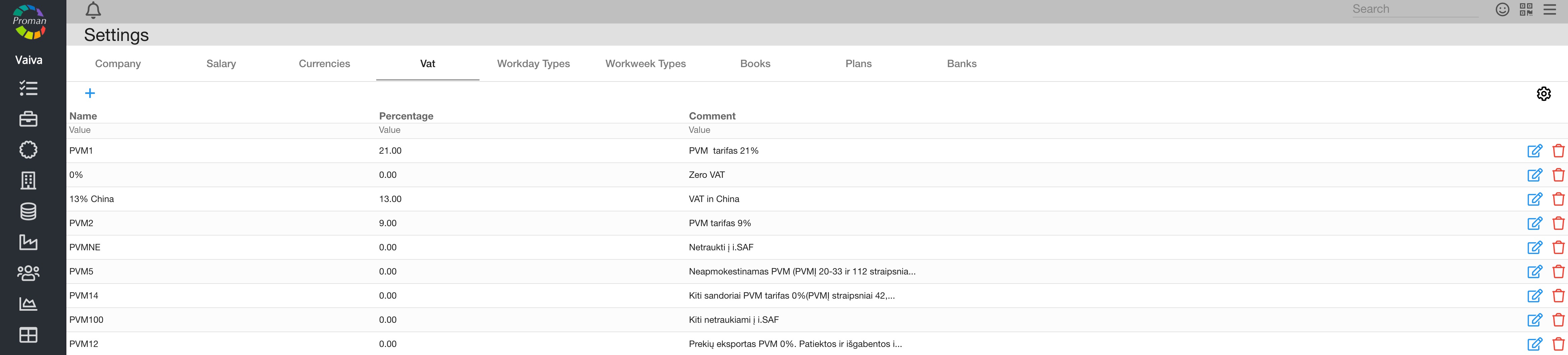
3. Click on
Now you can see a dialog table:
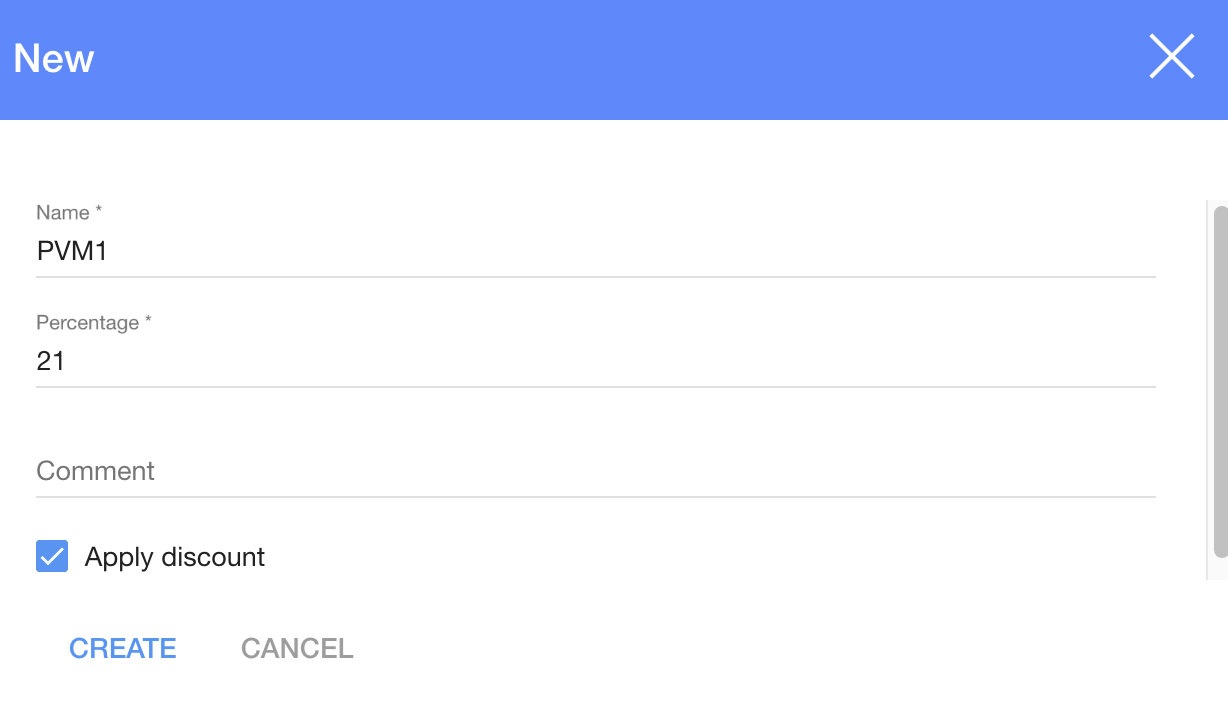
4. Enter a Vat name, percentage and click
| 6. How to create article types? |
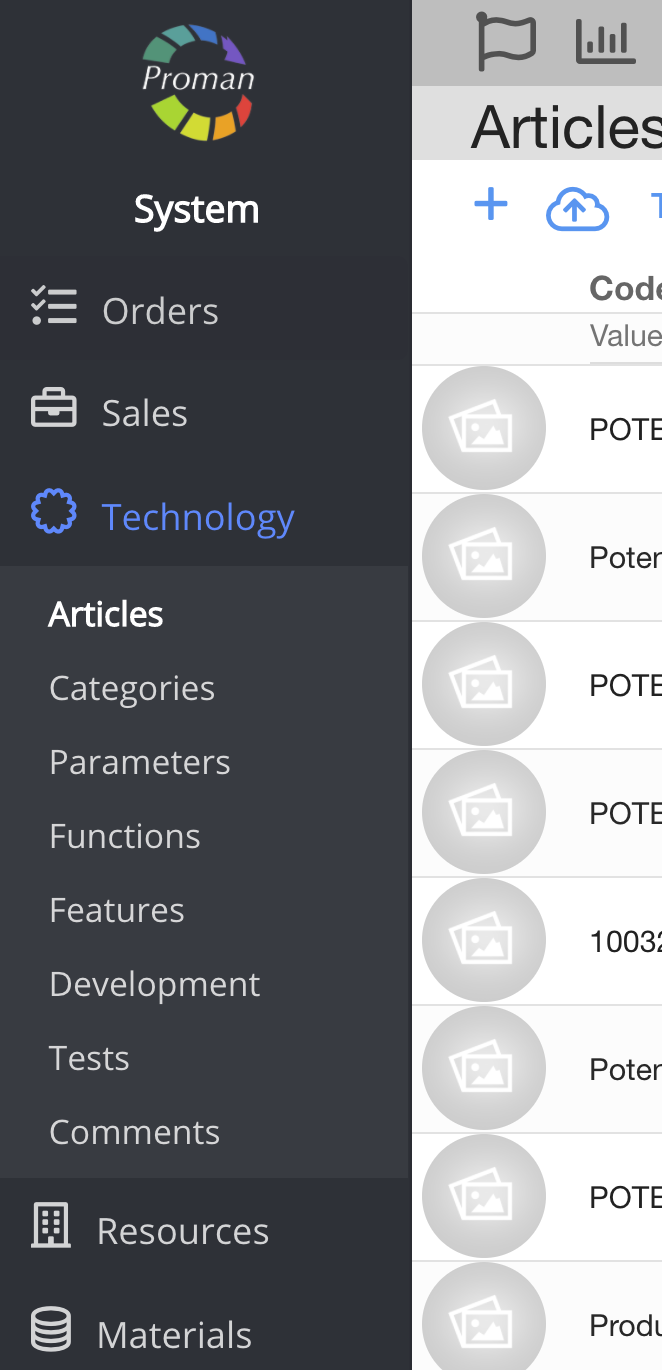
1. Go to Technology:
1.1. Go to- 
1.2. Then-
Now you can see the article list:
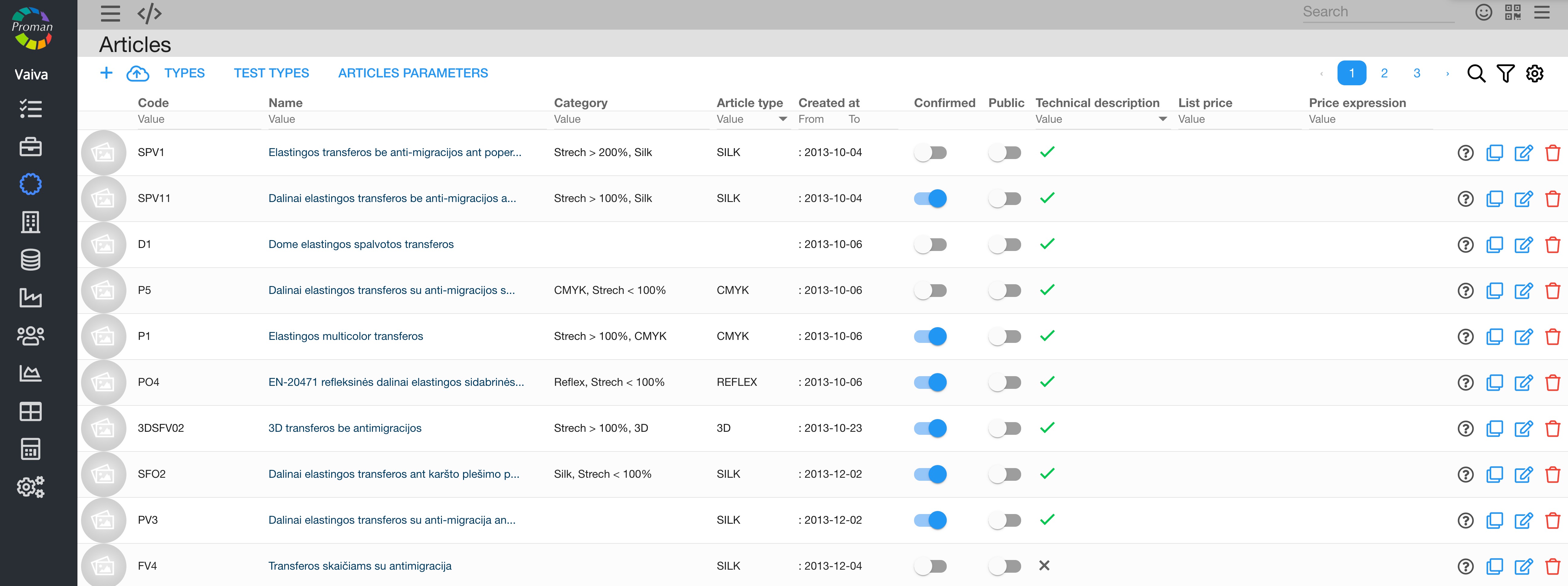
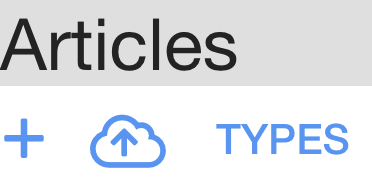
2. Click on
Now you can see the article type list:
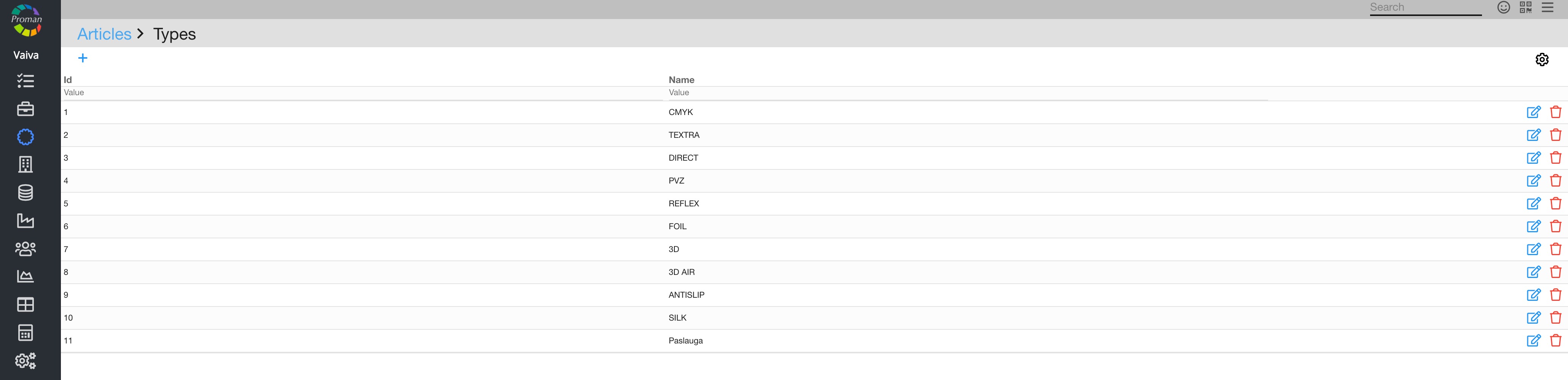
3. Click on
Now you can see the dialog table:
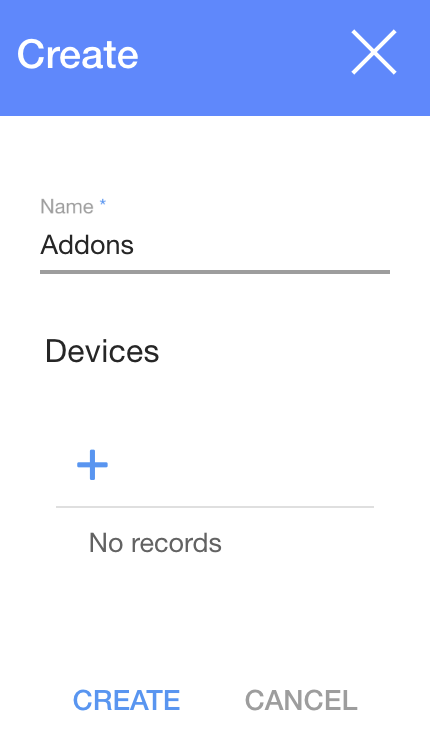
4. Enter a name, add devices (optional) and click

Now you can see it in the article type list:
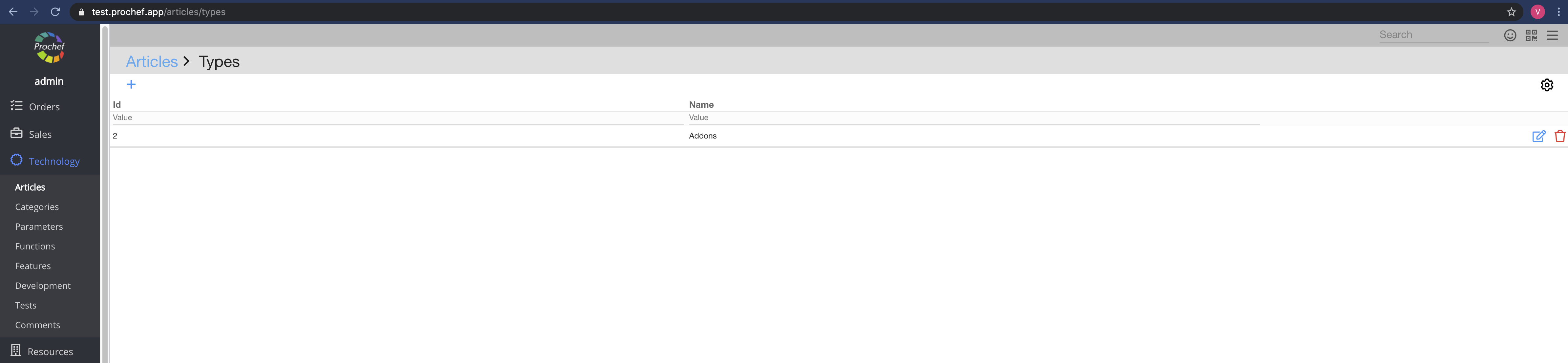
| 7. How to create article categories? |
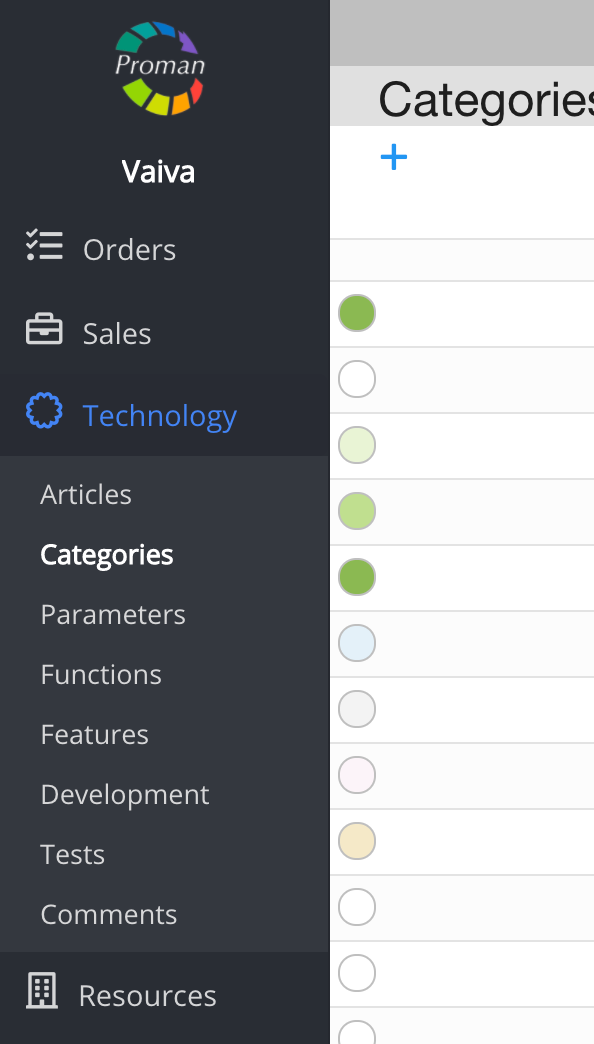
1. Go to Technology:
1.1. Click on 
1.2. Then 
Now you can see the article category list:
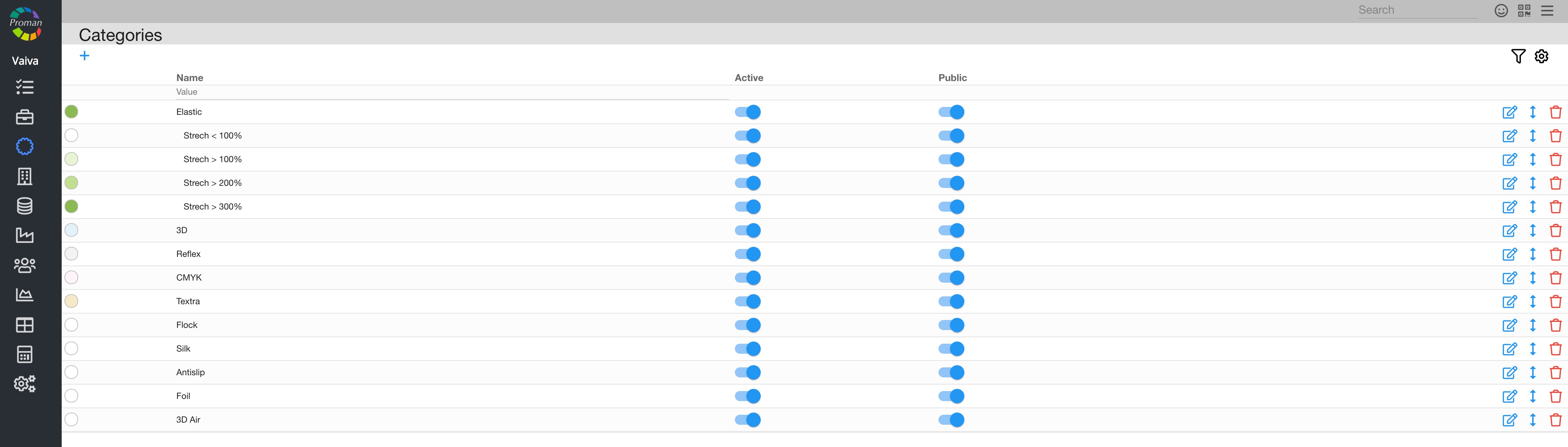
| Button | What does it indicate? |
  | The category can be used |
 | The category is seen by everyone |
2. Click on
Now you can see the dialog table
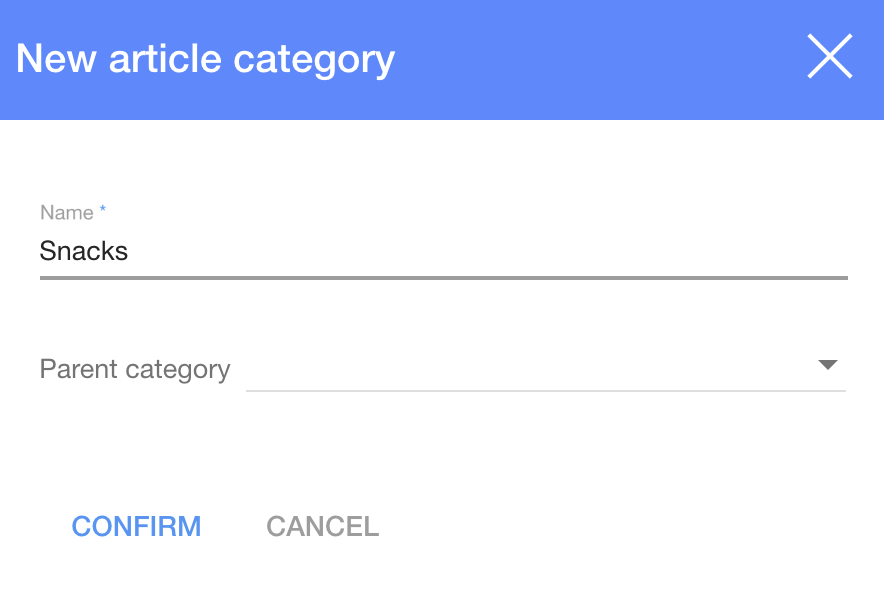
3. Enter a name and click
Now you can see the new article category
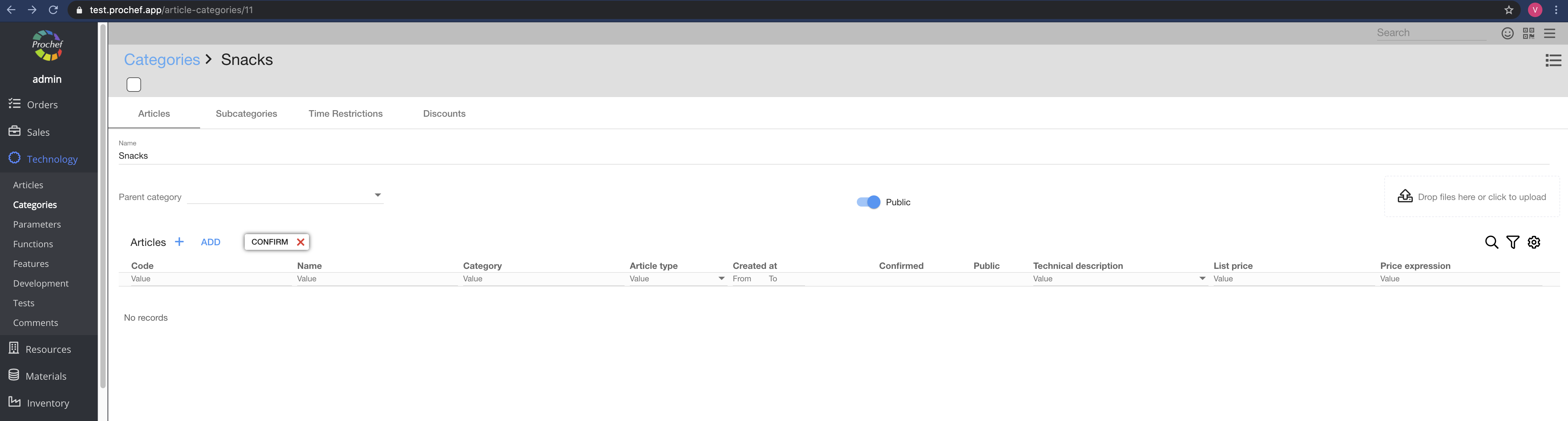
Here you can see, create (

| 8. How to create article subcategories? |
The article subcategories are created the same way as categories, but with a chosen parent category.
1. To create new Article Subcategory, click on
Now you can see a dialog table:
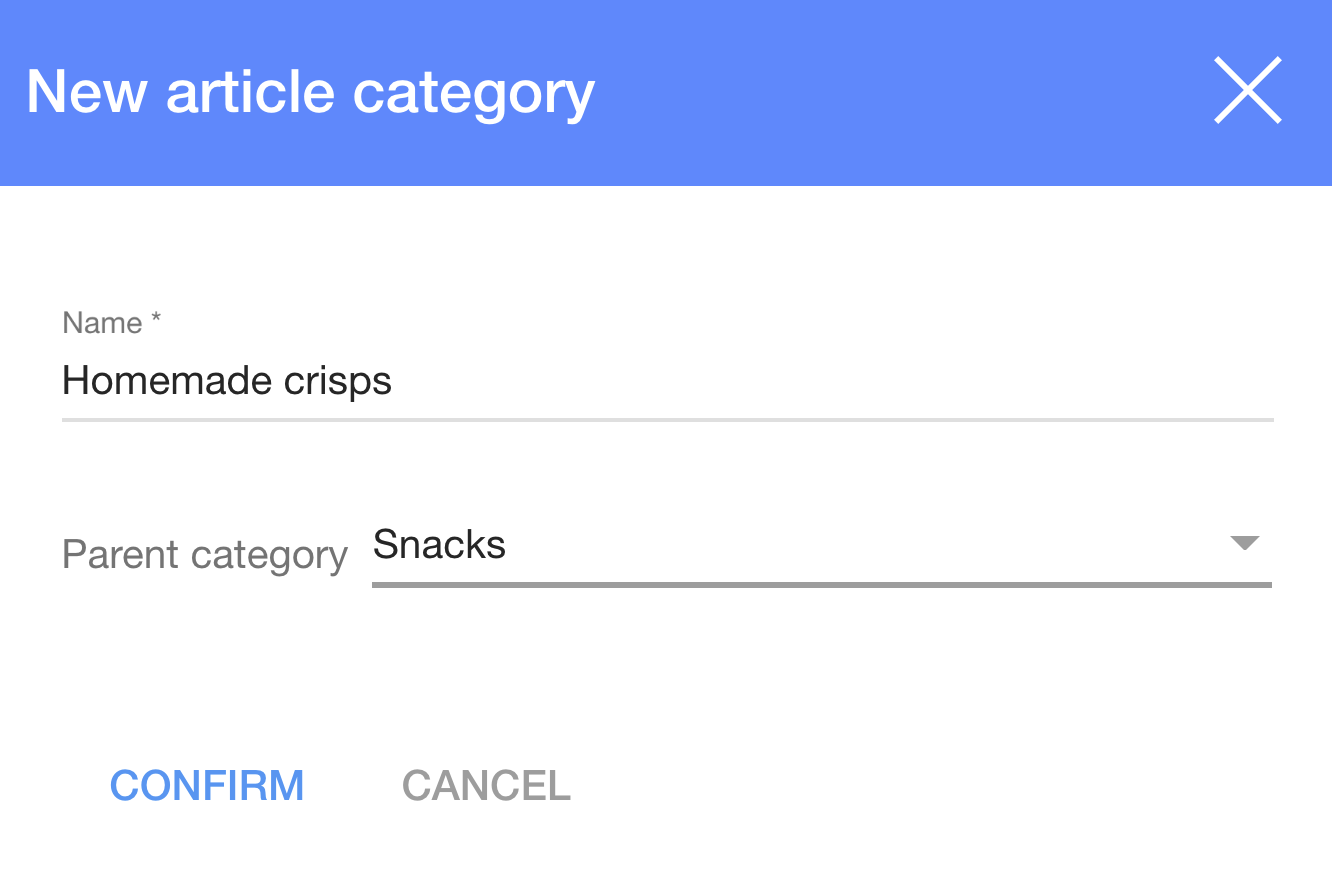
2. Enter a name and choose a parent category;
Now you can see the category and subcategory
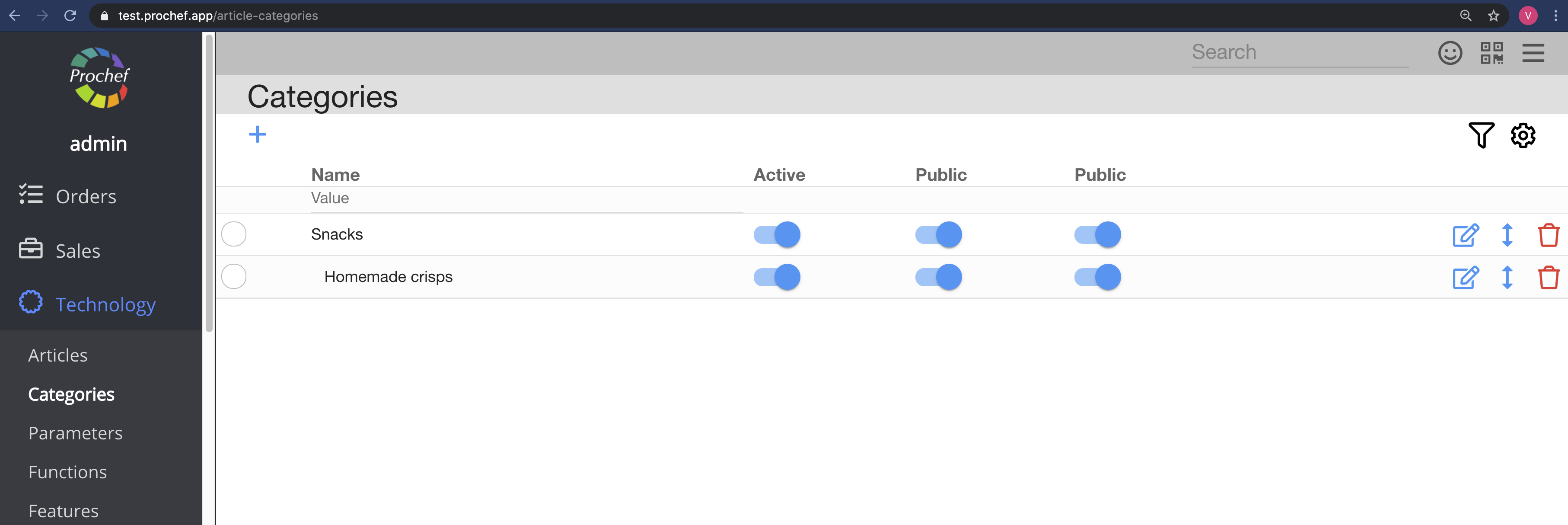
| 9. How to create an article? |
1.Go to a category
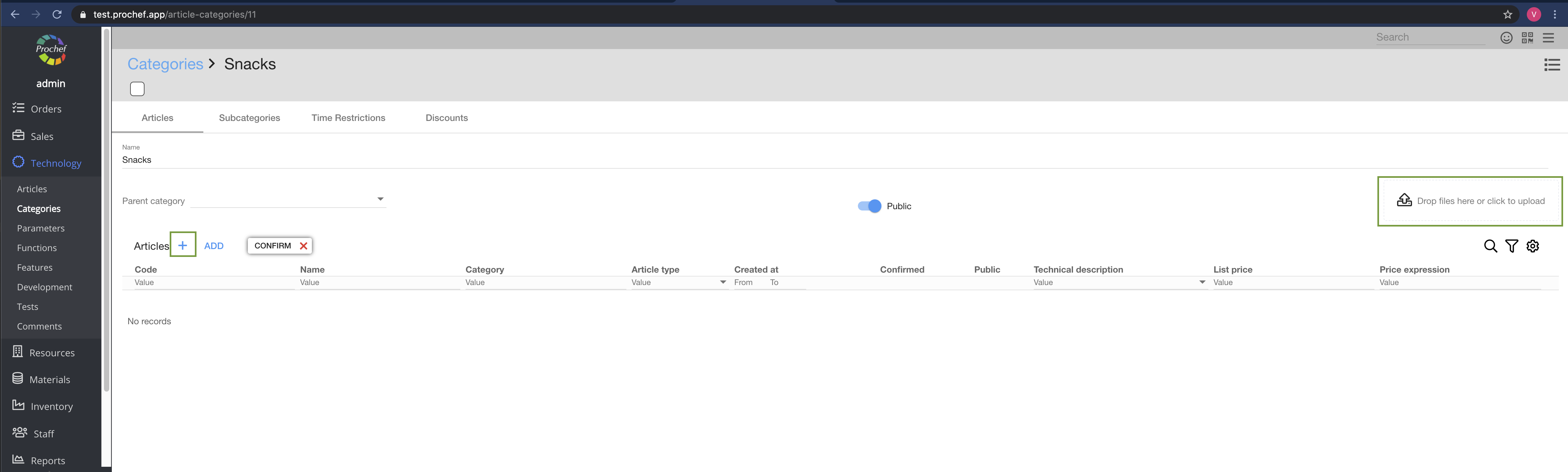
2. Click on
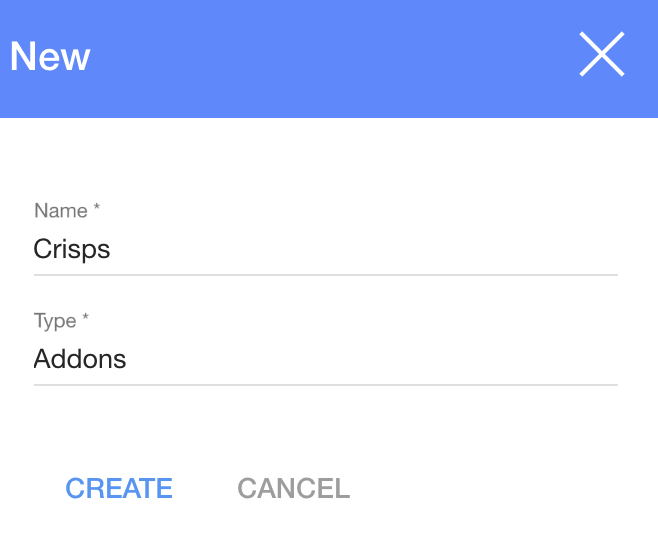
2. Enter an article name, choose a type and click

To be able to see the new article, you need to confirm it.
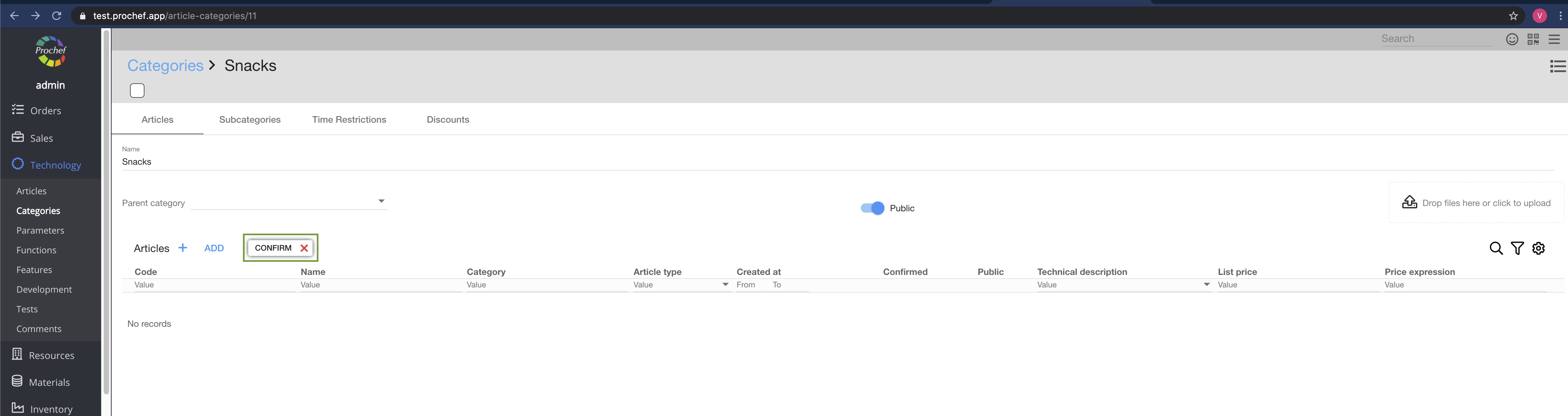
3. Click

Now you can see the article in the category:
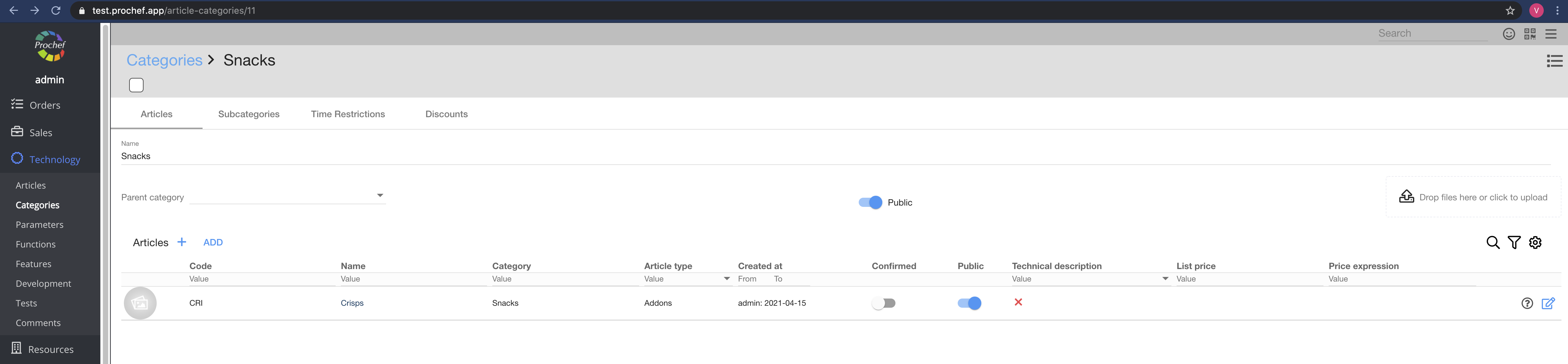
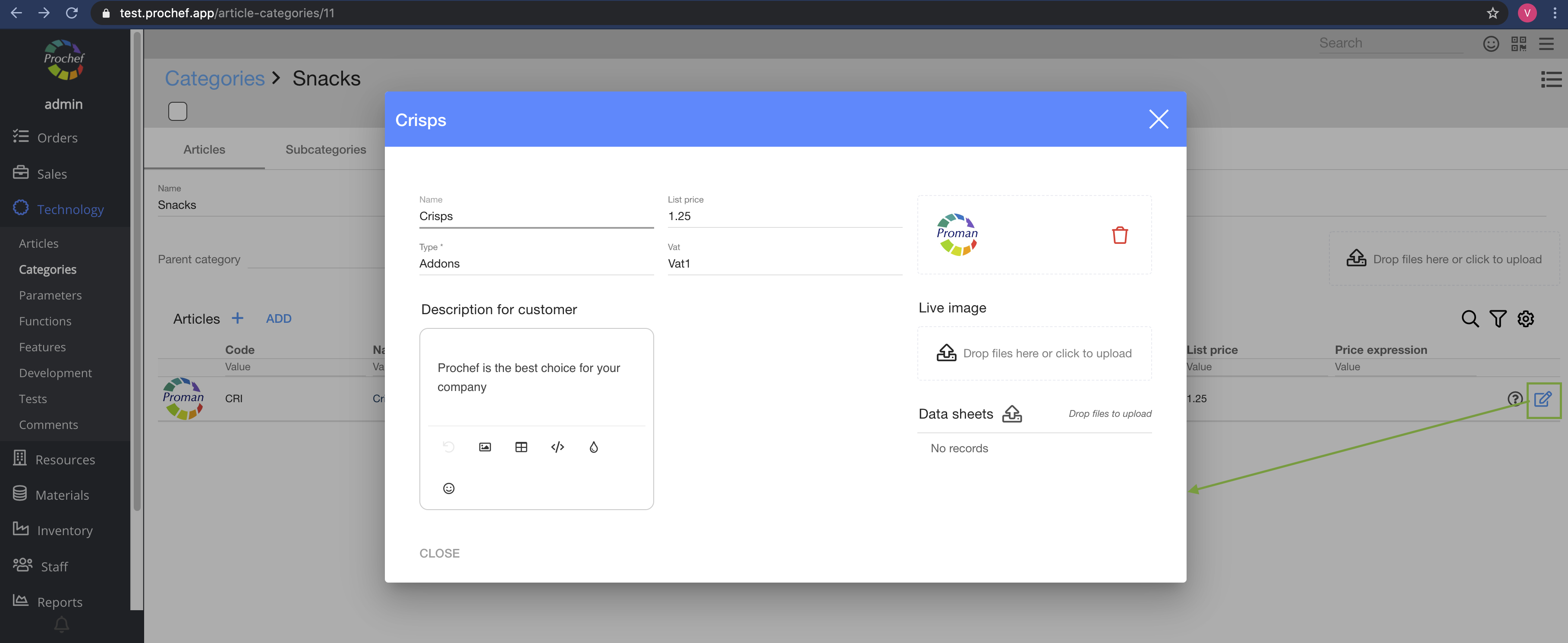
4. Click on

Here you can add information, price and photos about the article
| 10. How to change the article category? |
1. Go to "Technology":
1.1. Click on
1.2. Then-
Now you can see the article list:
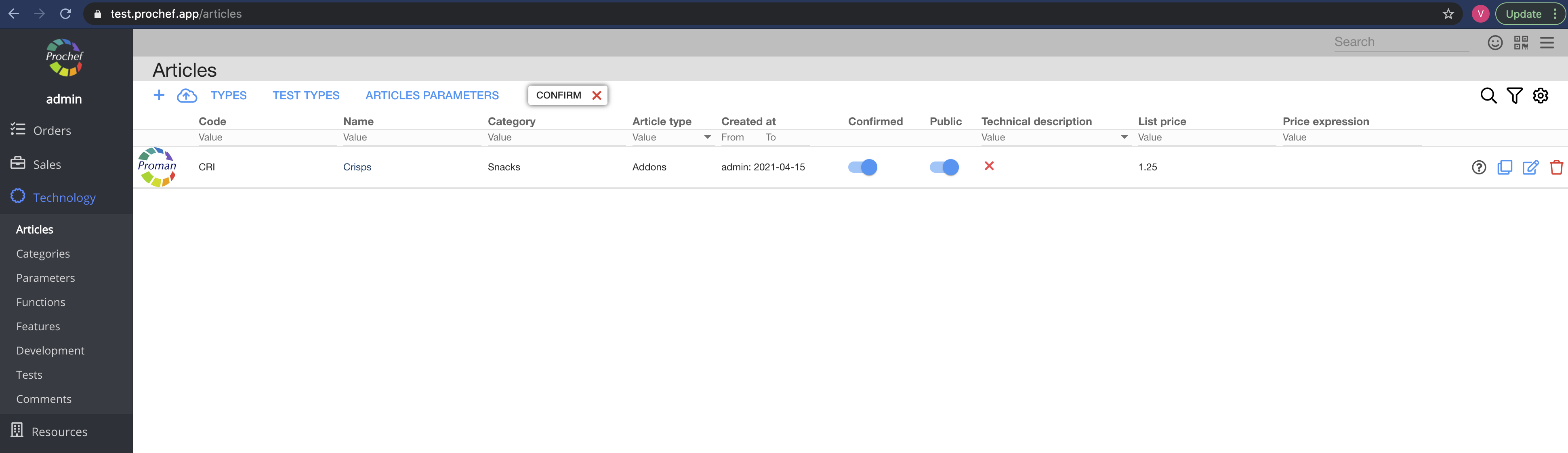
2. Choose an article
Now you can see the article options:
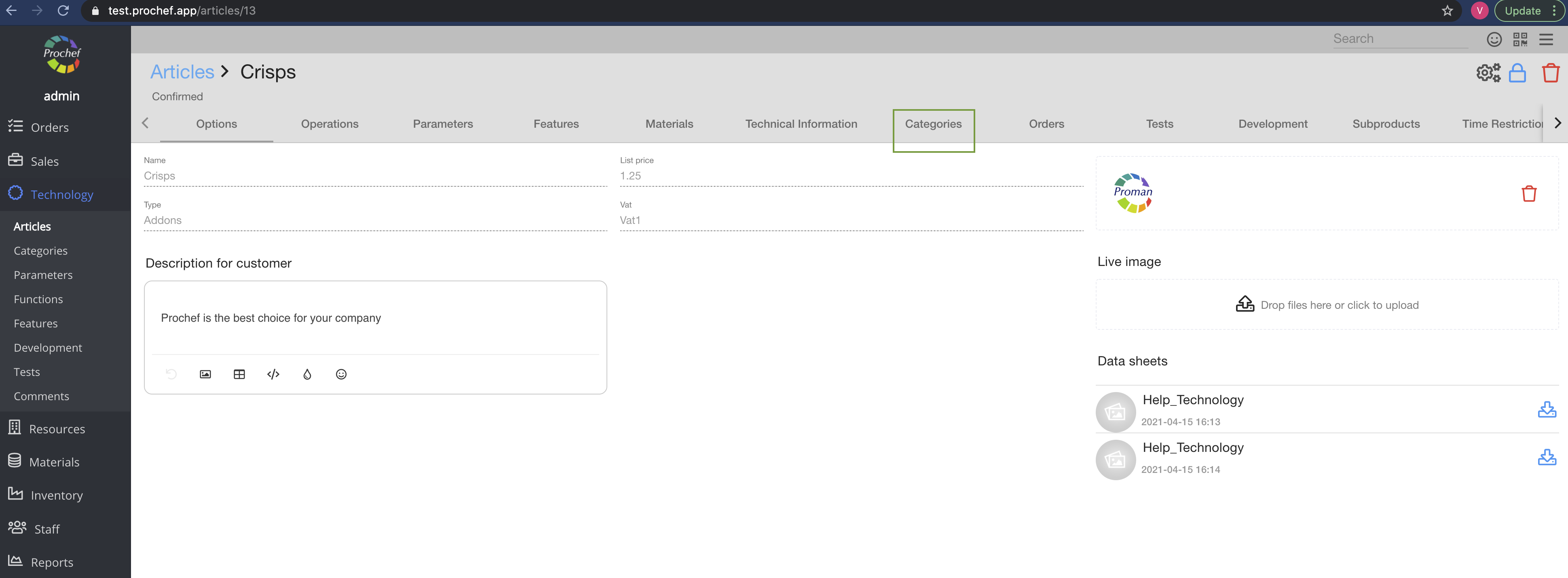
3. Click on 
Now you can see the article categories
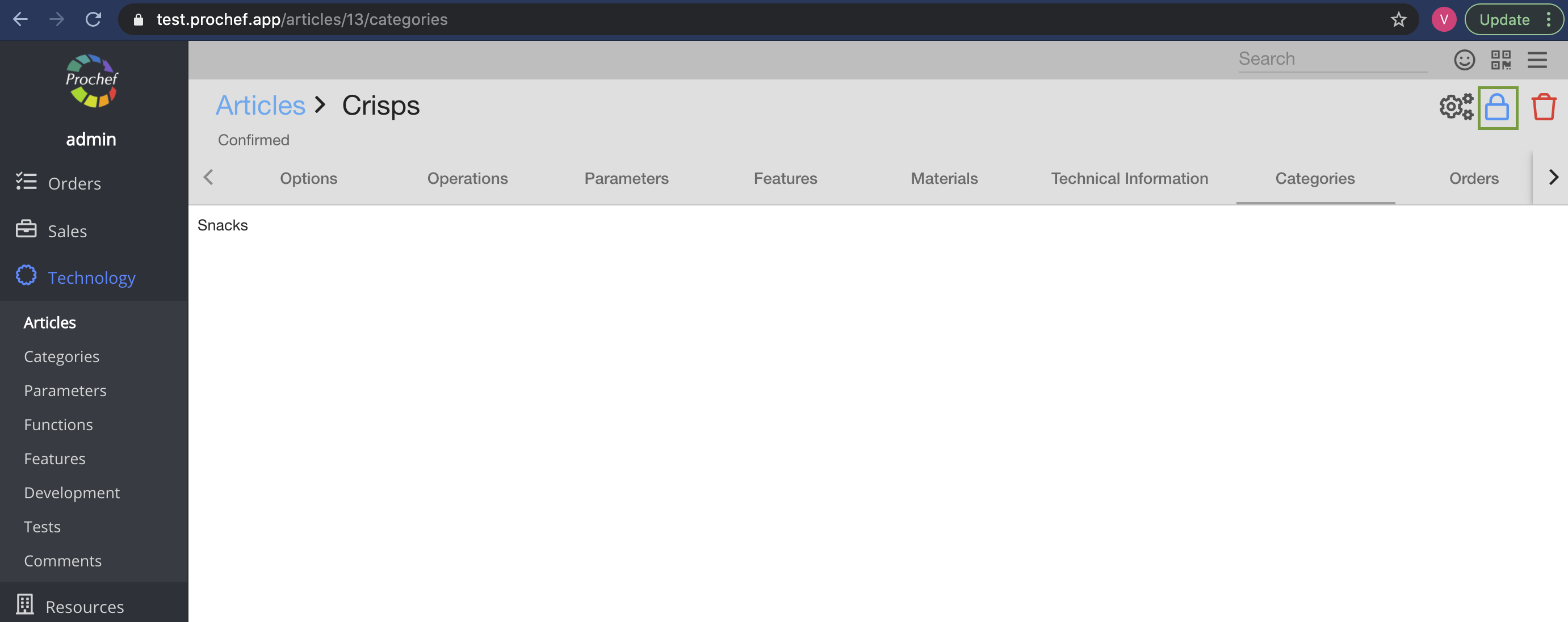
4. Unconfirm the article - Click on

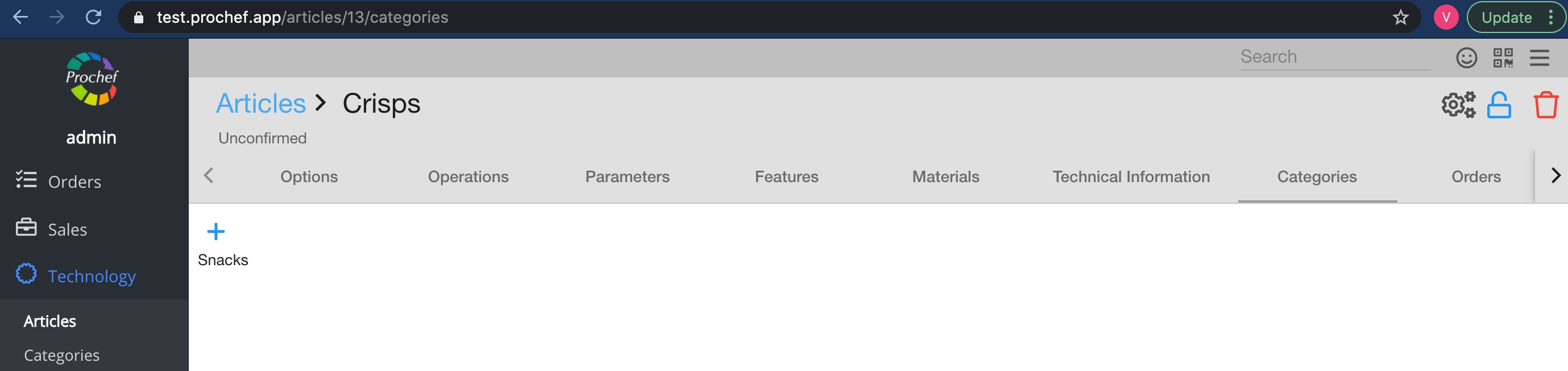
5. Click on
Now you can see all article categories:
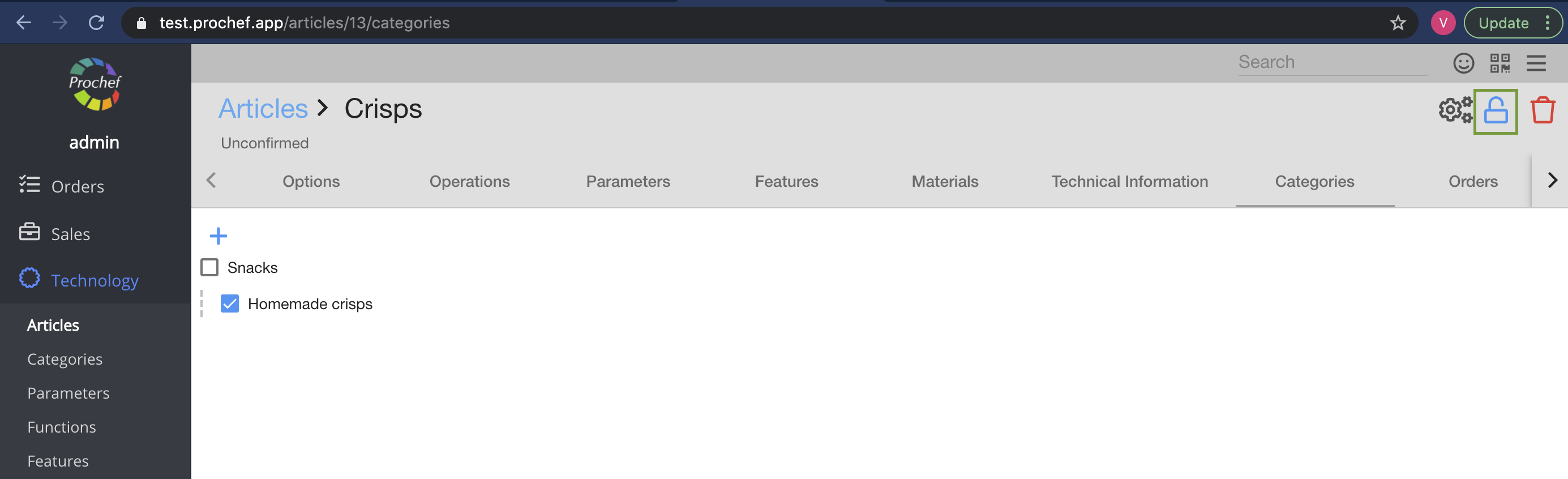
6. Check
7. Confirm the article - click on

| 11. How to create a customer? |
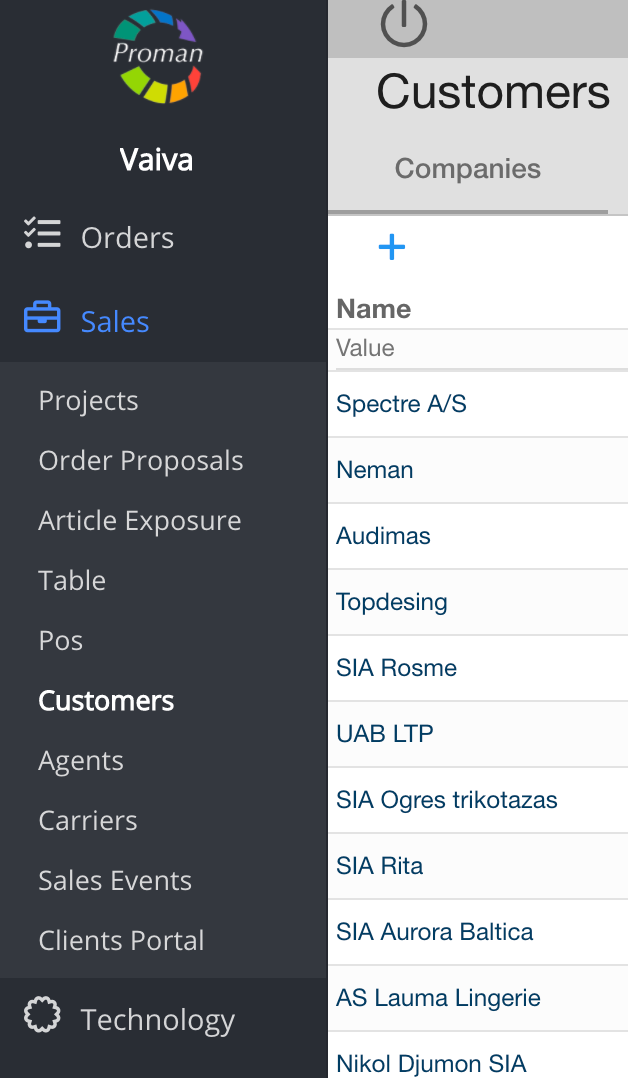
1. To find Customers:
1.1. Click on
1.2. Then- 
Now you can see the customer list:
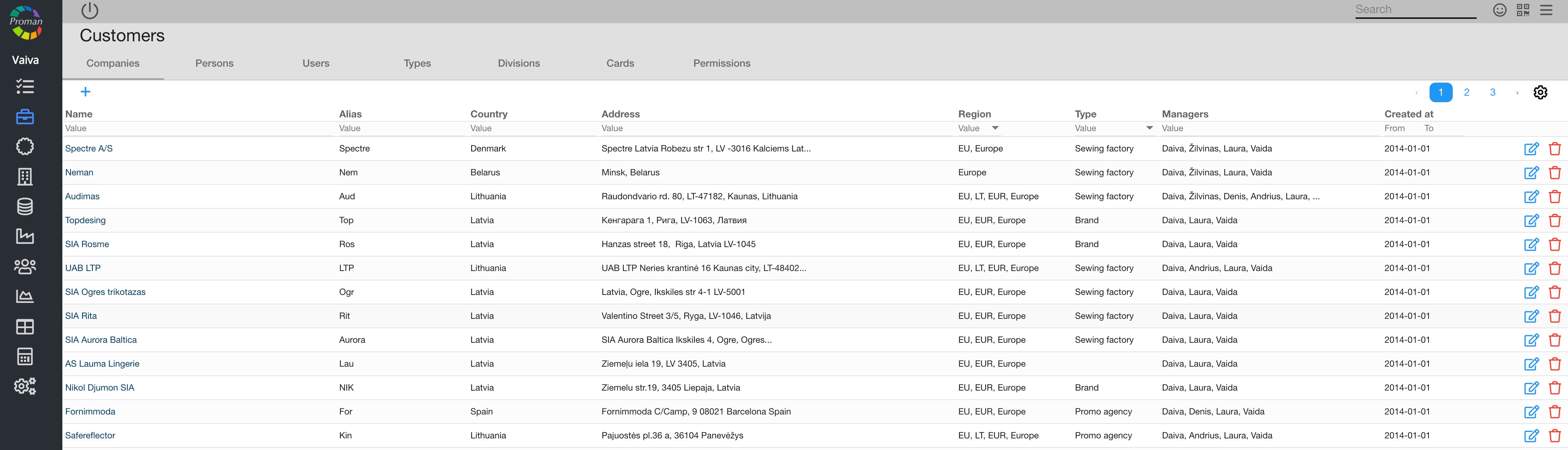
2. Click on
Now you can see the dialog table:
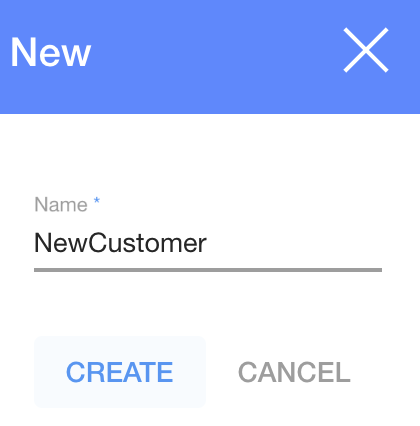
3. Enter a Customer's name and click
Now you can see Customer Options:
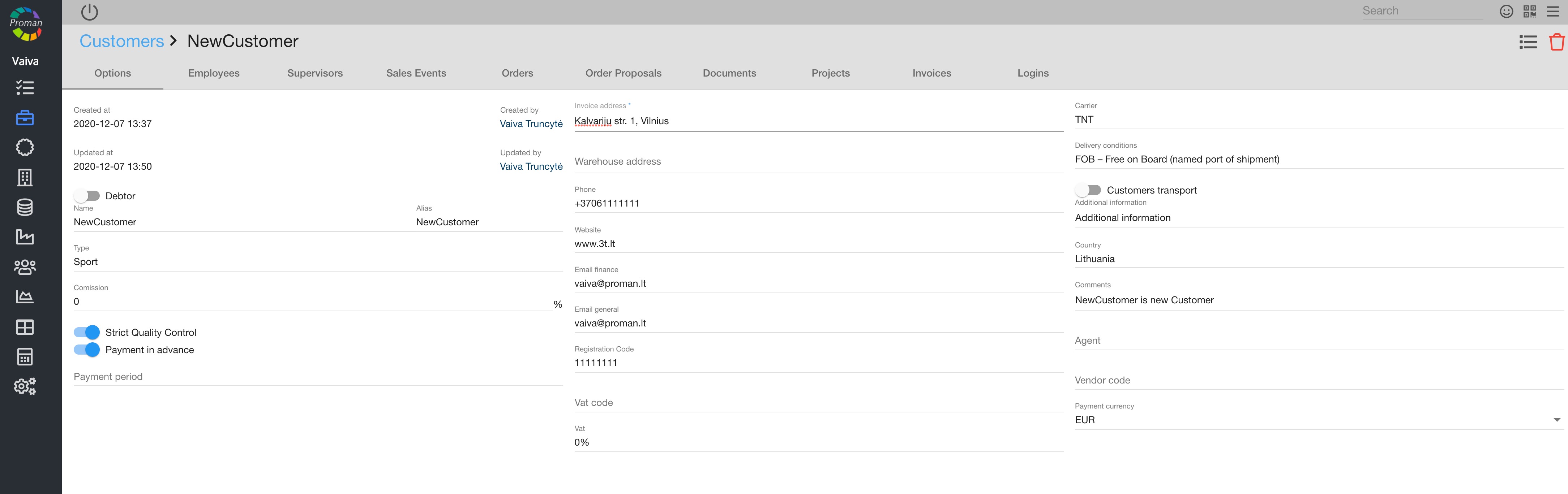
Here you can add information about the Customer.
| Button | What does it indicate? |
 | The customer is a debtor |
 | The customer requires strict quality control |
 | The customer pays in advance |
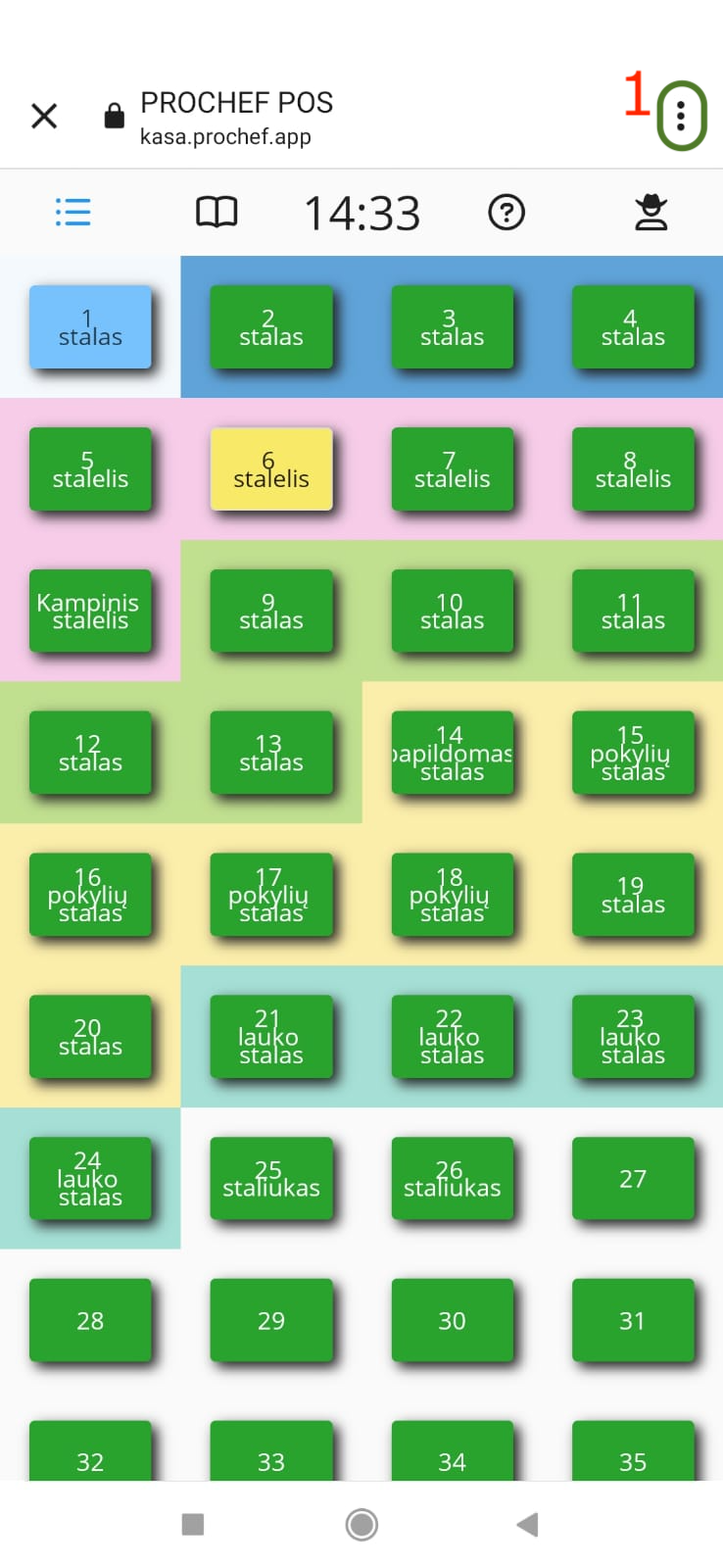
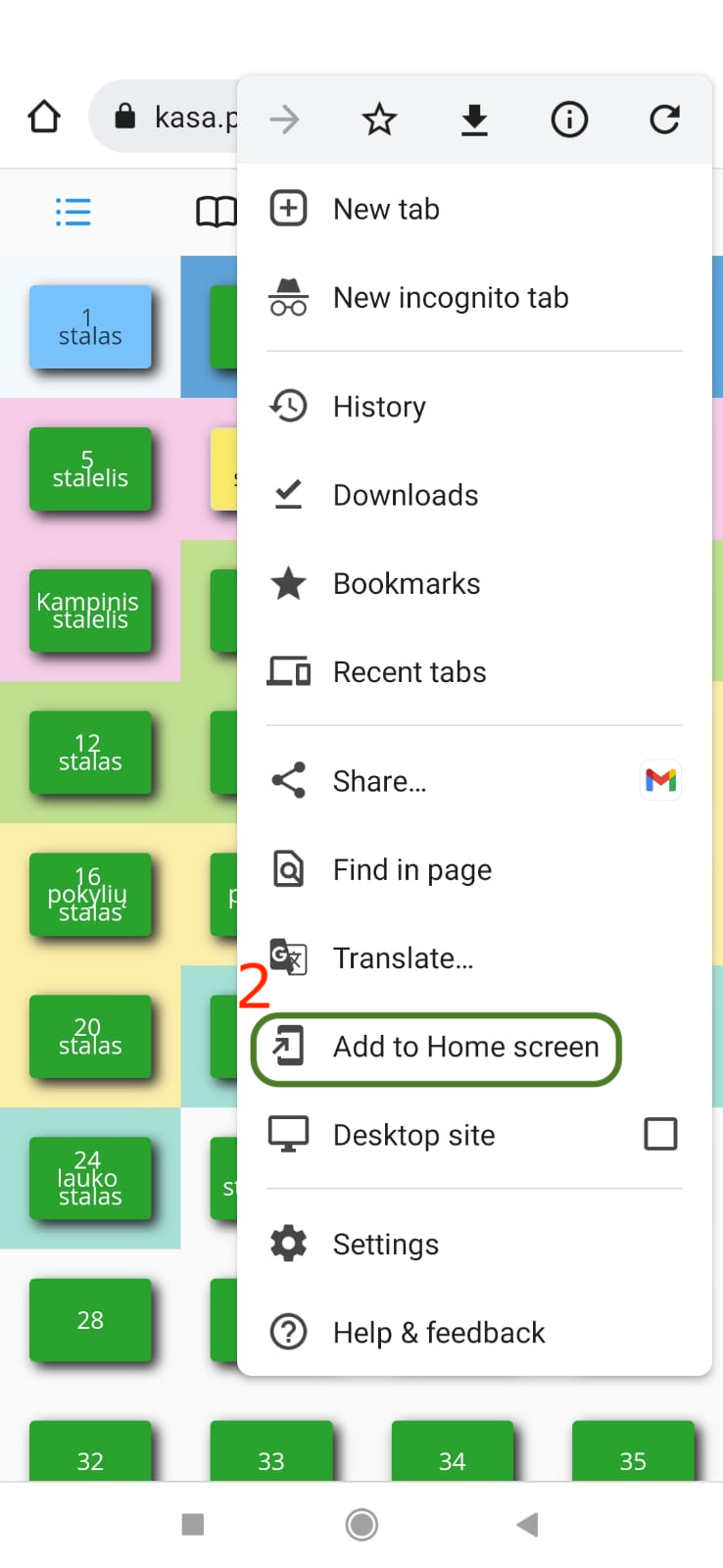
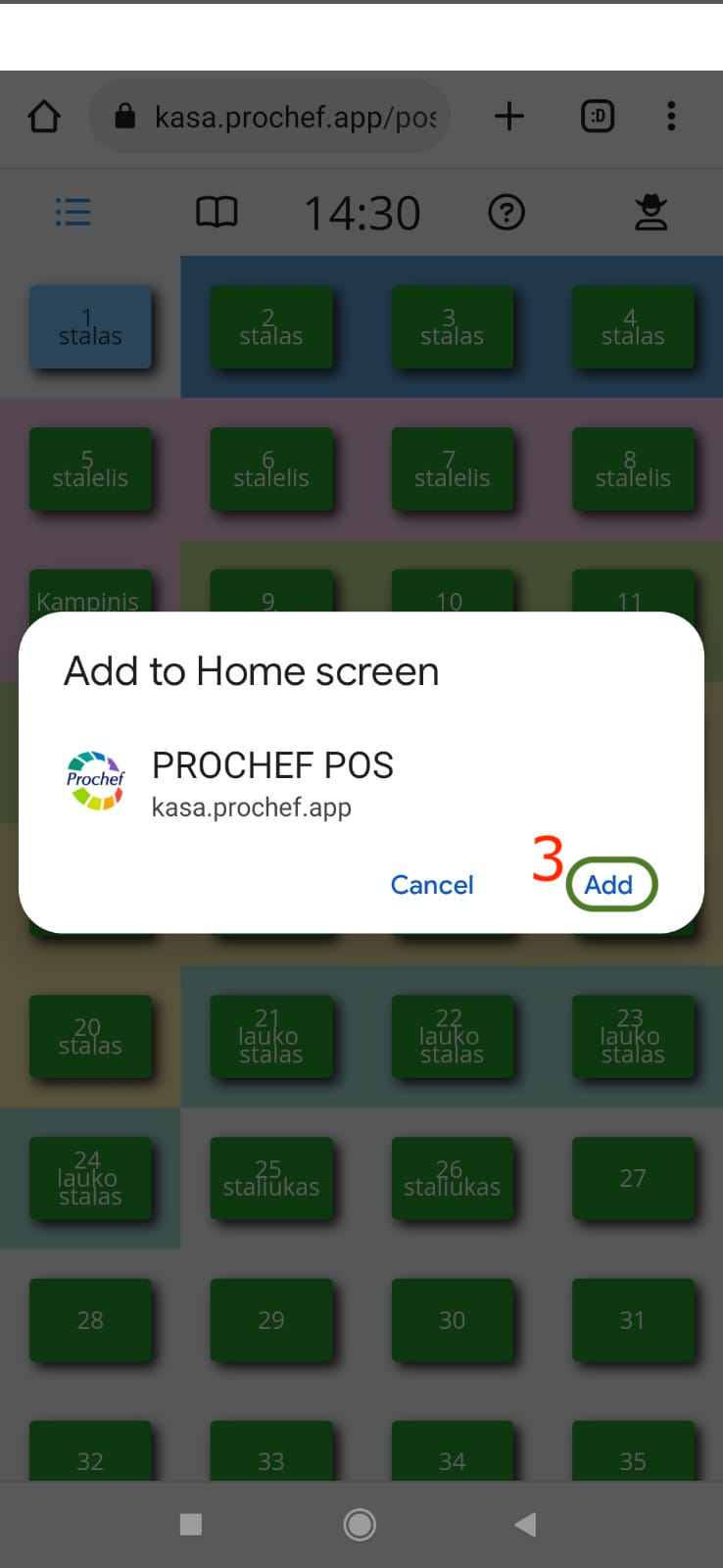
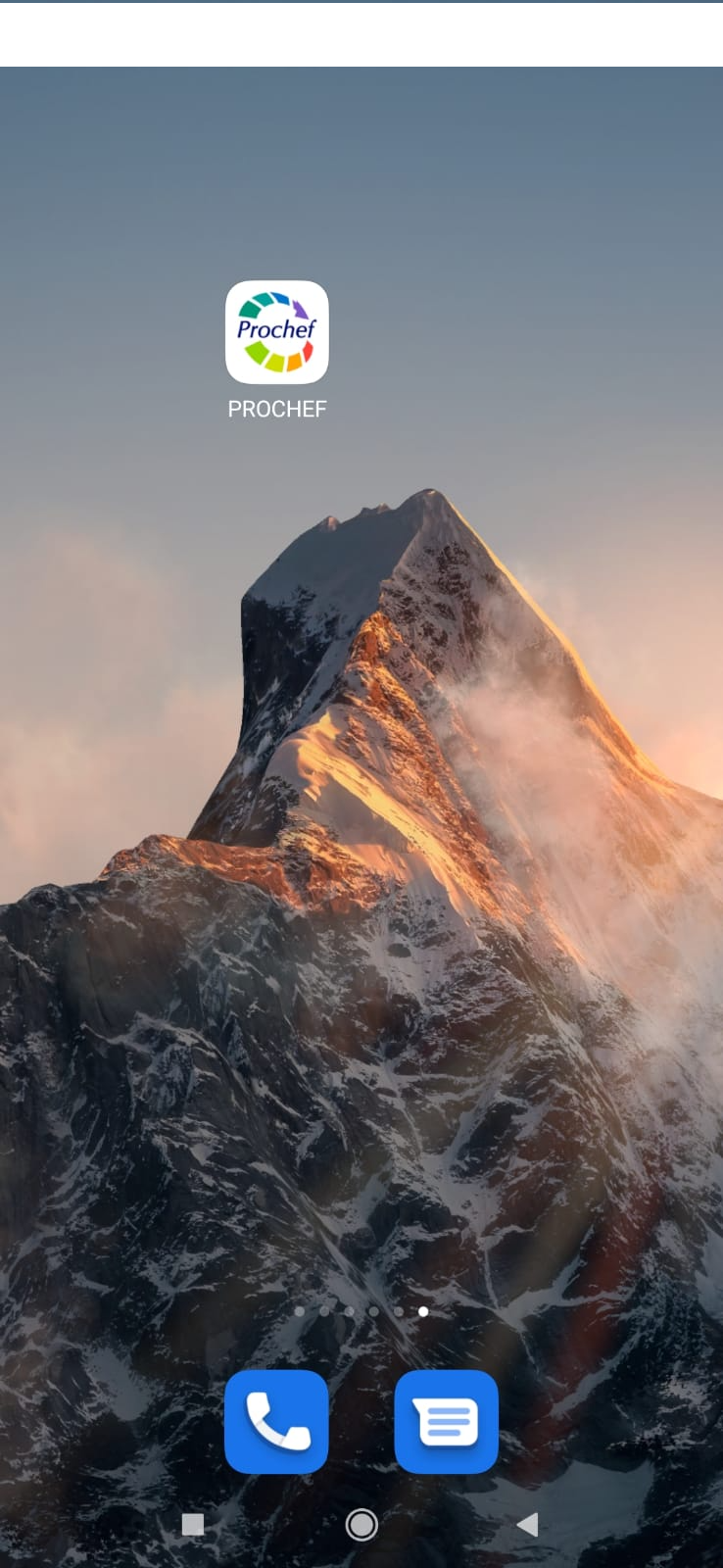
| 12. How to add the SmartOn app to a phone display? |