
 English
Orders
Orders represent "deals" in your business logic. Each order is a real order, received from the customer. Here you can create orders, catering to specific customer requirements, track its status and see other relevant information regarding its progress. Also, by entering as many details as possible, you enable yourself to accurately plan out order's processing.
Basic order functionality:
- to create a new order - click on
(for more information, visit here)
- to edit selected orders - click
(for more information, visit here)
- to copy selected orders - click
(for more information, visit here (in bottom))
By clicking this 
New order functionality:
- to print the order - click
- to read the contacts - click


 Keywords Order number – unique number for invoicing purposes. Order name – name that represents given order information as a summary what must be done. Customer code – unique number which identifies the customer. |
 Filtering objects in the list |
You can choose how you want to filter objects
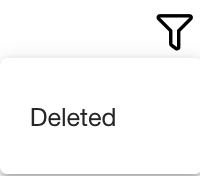

 Manage what do you want to see |
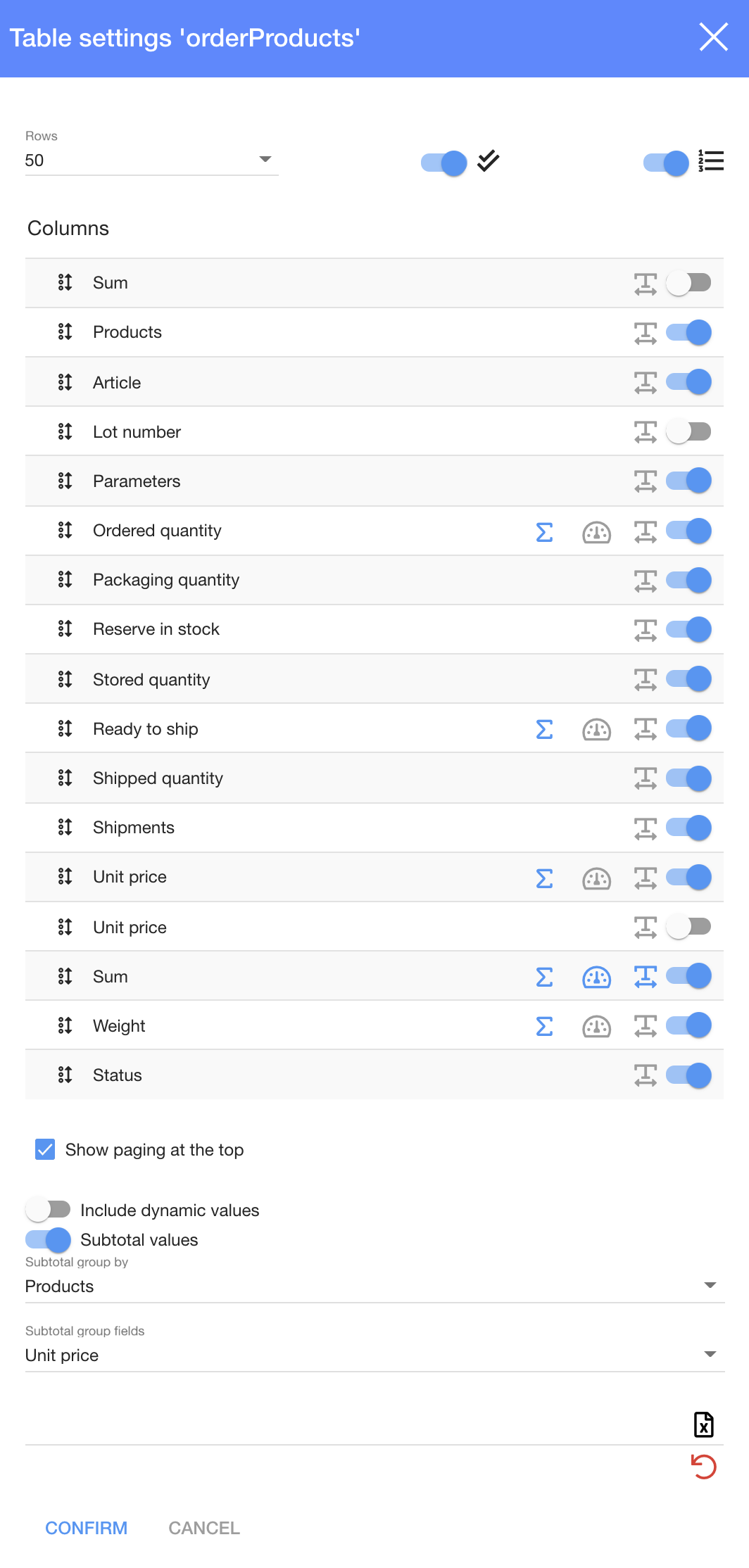 |
You can manage what you want to see in tables
| Button | What does it indicate? |
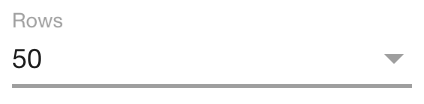 | You can choose and set how many rows you want to see in this table |
 | You can add a check box in the column (you will see in each column) |
 | You can add numbers in the column (you will see 1, 2, 3, ... in each column) |
 | You can change the row order |
 | You can count the sum of all values at the bottom |
 | You can count the average of all values at the bottom |
 | You can see all text in the row |
 | You can enable to see the row |
 | You can disable to see the row |
 | You can show paging at the top |
 | You can include dynamic values |
 | You can add subtotal values |
 | You can download the list of products |
 | You can reset table settings |
 How to add subtotal values? |
To add subtotal values:
1. Click on 
2. Choose subtotal values and how you want to group.
3. Click 
4. And choose what fields you want to see
| Order status |
Created
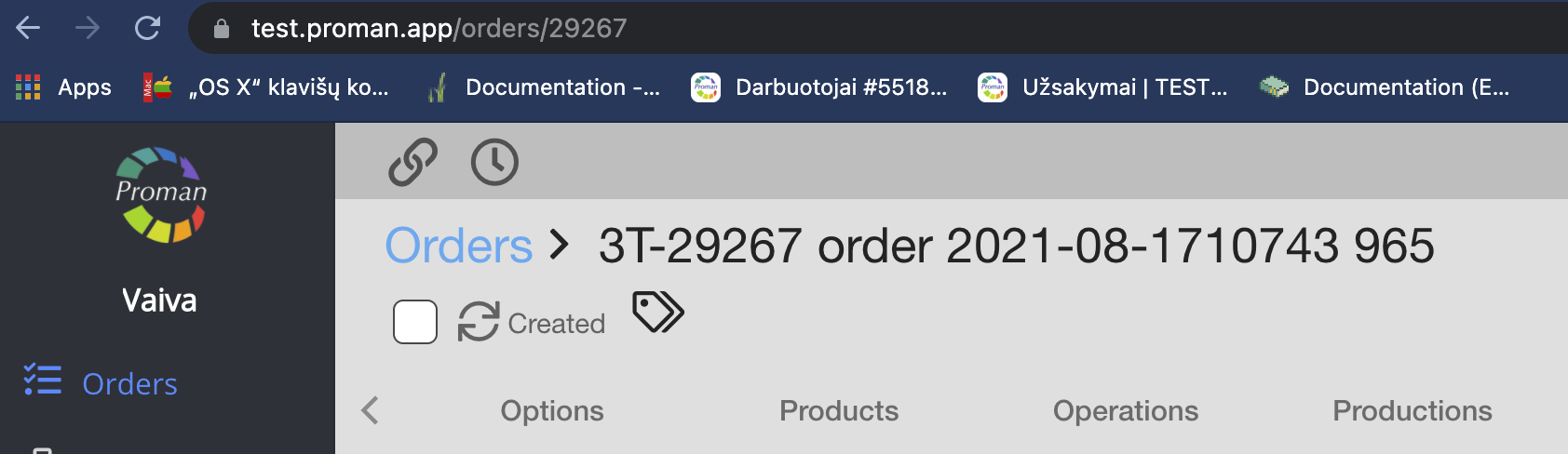
Confirmed by customer
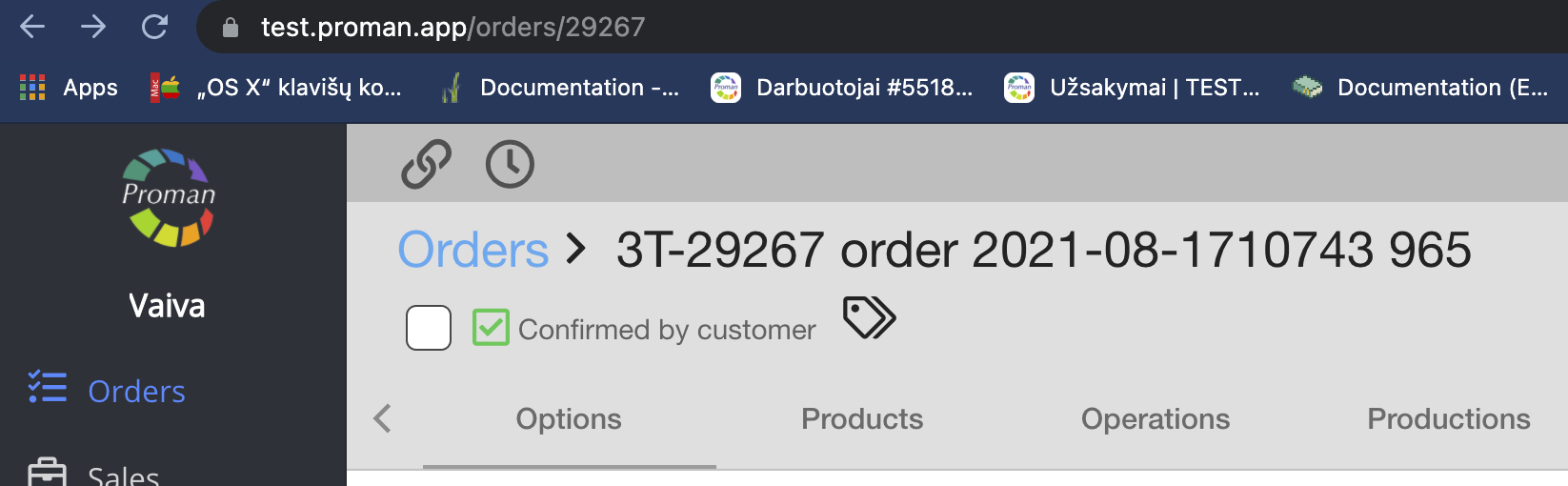
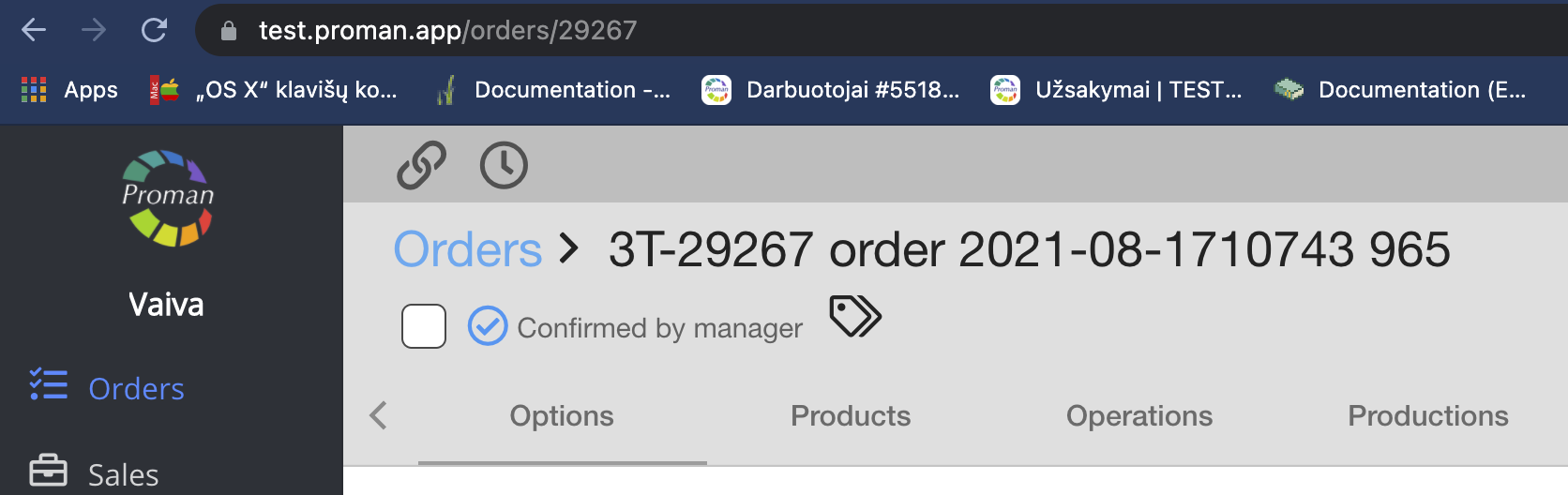
Confirmed by manager
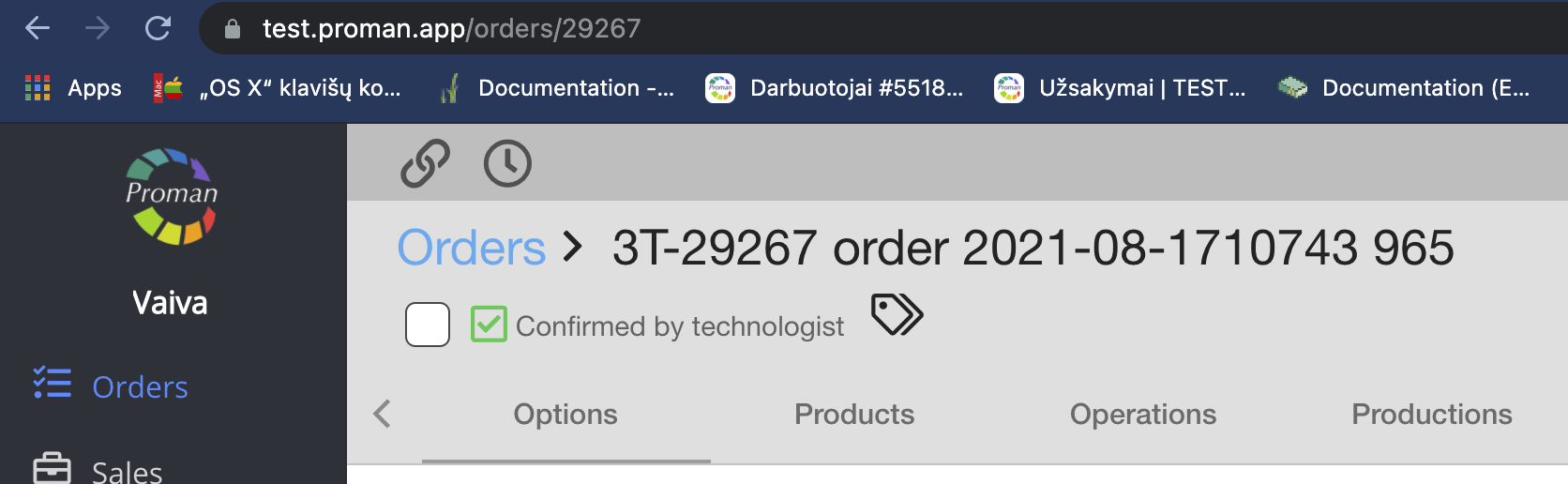
Confirmed by technologist
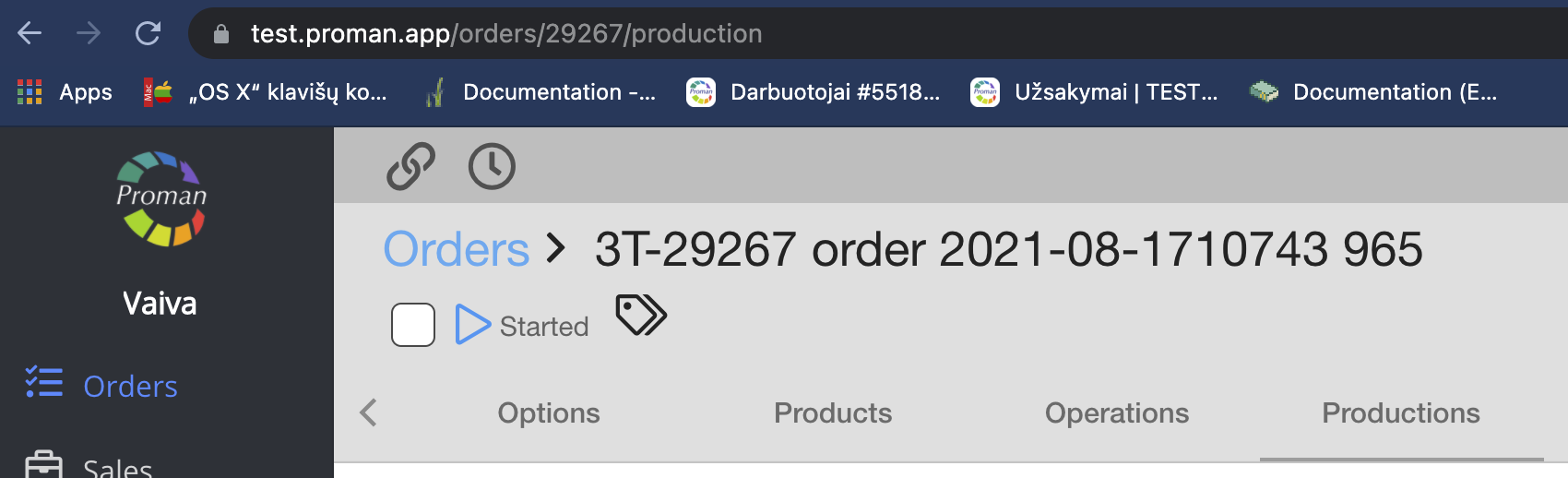
Started
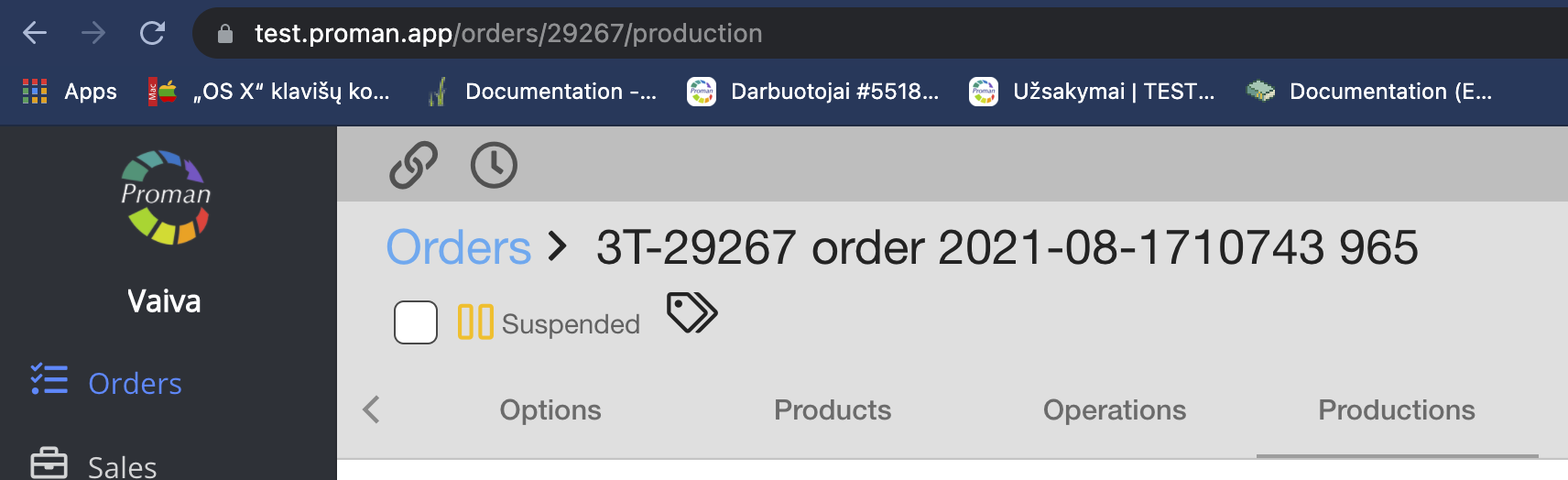
Suspended
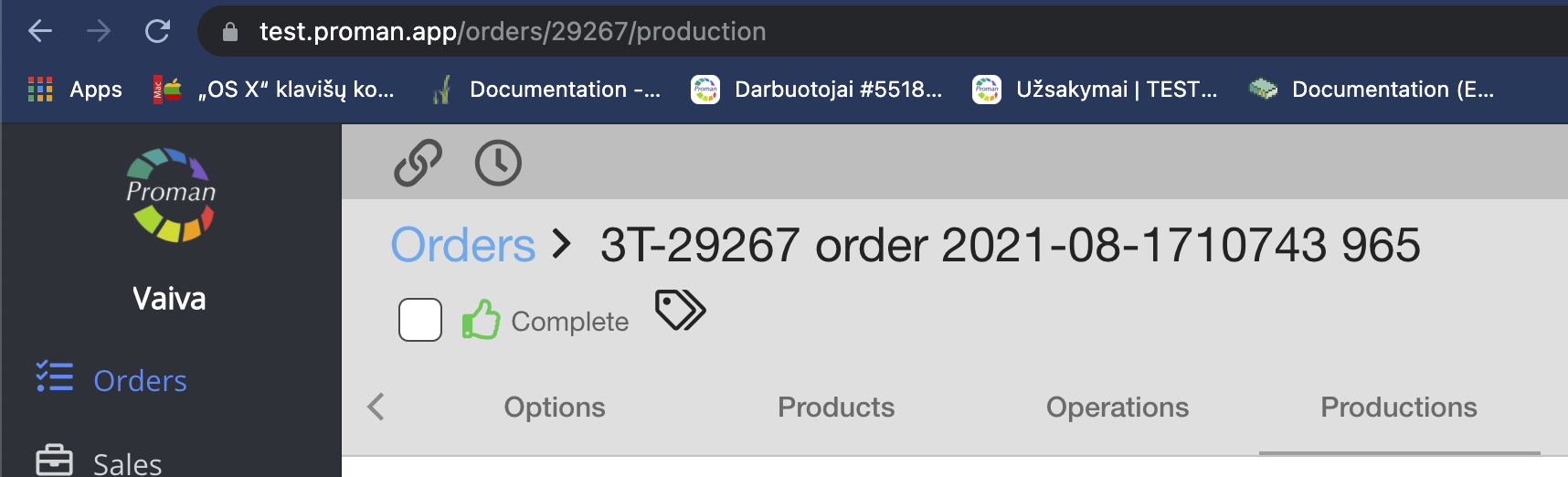
Complete
| Status | What does it indicate? |
| Created | Order was created, but not confirmed by a manager |
| Confirmed by customer | Order was confirmed by customer, but a manager has not confirmed it yet |
| Confirmed by manager | Order was confirmed by a manager, operations have started and you can start the production |
| Confirmed by technologist | Production was created, but not yet started |
| Started | Production was started |
| Suspended | Order and all processes are suspended |
| Complete | Order and all processes are completed |