Order with QR
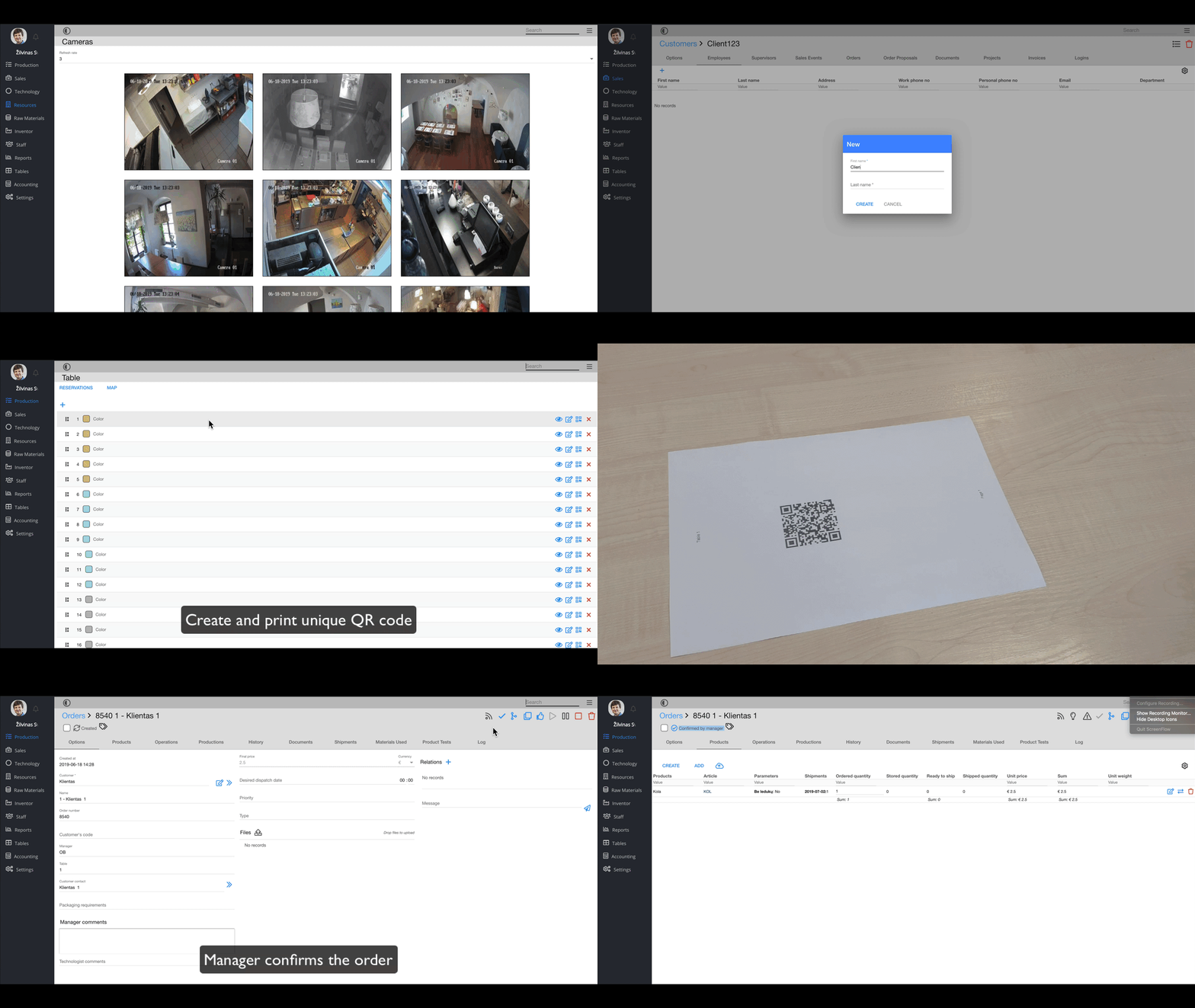
In order to use this feature:
1. Create a customer (for more information how create new customer, visit here)
2. Create customer's employees (for more information on how to create a new customer employee, visit here )
3. Create customer's user account (for more information on how to create a new user account, visit here )
4. And set up customer employee's login key (for more information on how to set up a key login, visit here)
1. Go to the SmartOn app
2. Click on

3. Then-

Now you can see the table list:
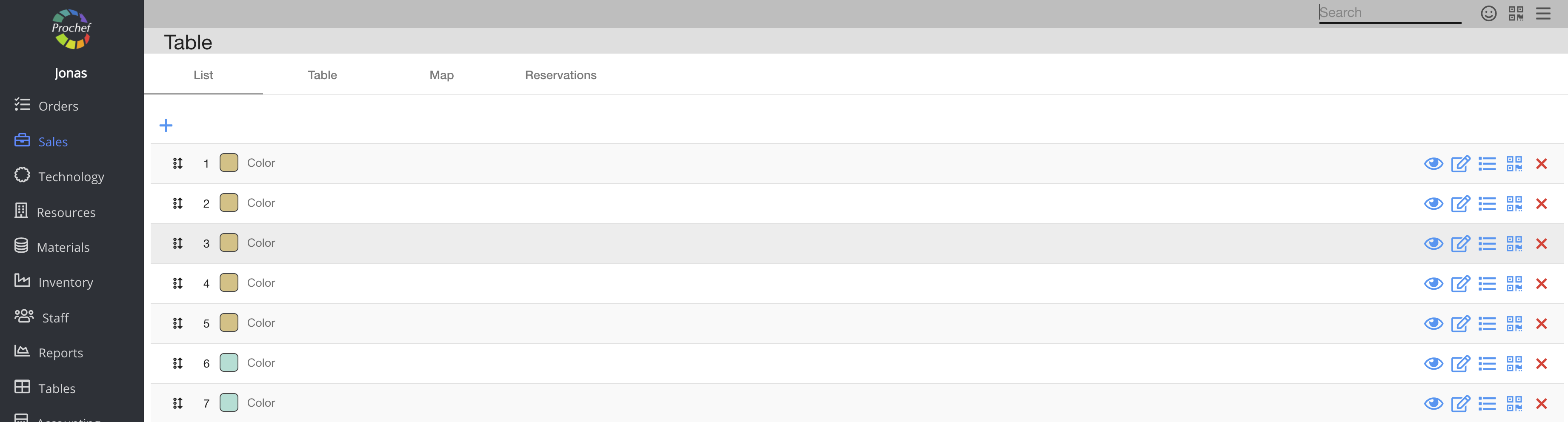
4. Choose a table and click on the QR code icon

Now you can see another dialog table:
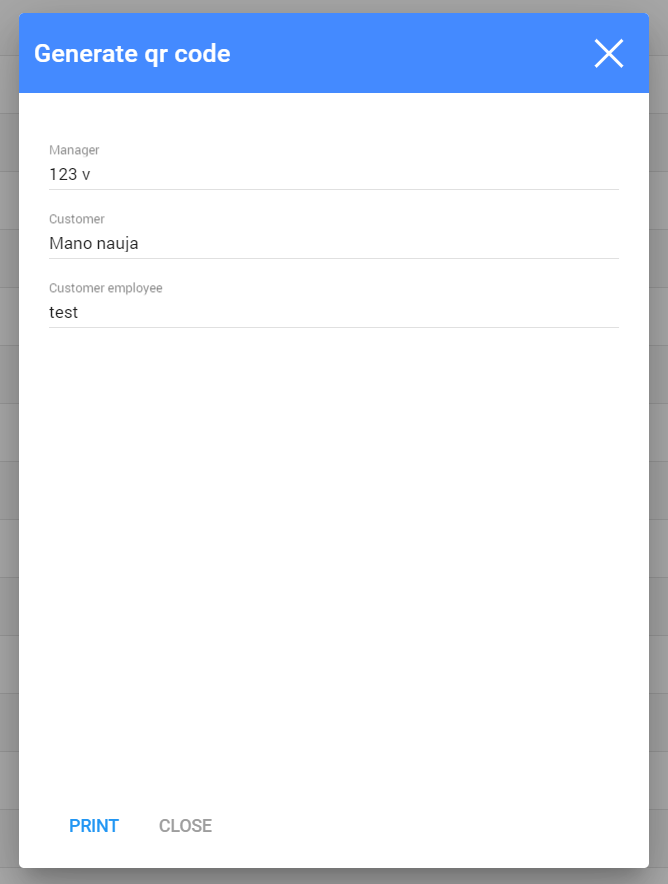
5. Choose a manager, a customer and a customer employee
6. Click on

| How can a customer use the QR code? |
1. A customer scans a QR code and is redirected to the SmartOn app
Now the customer can see the menu on their phone:
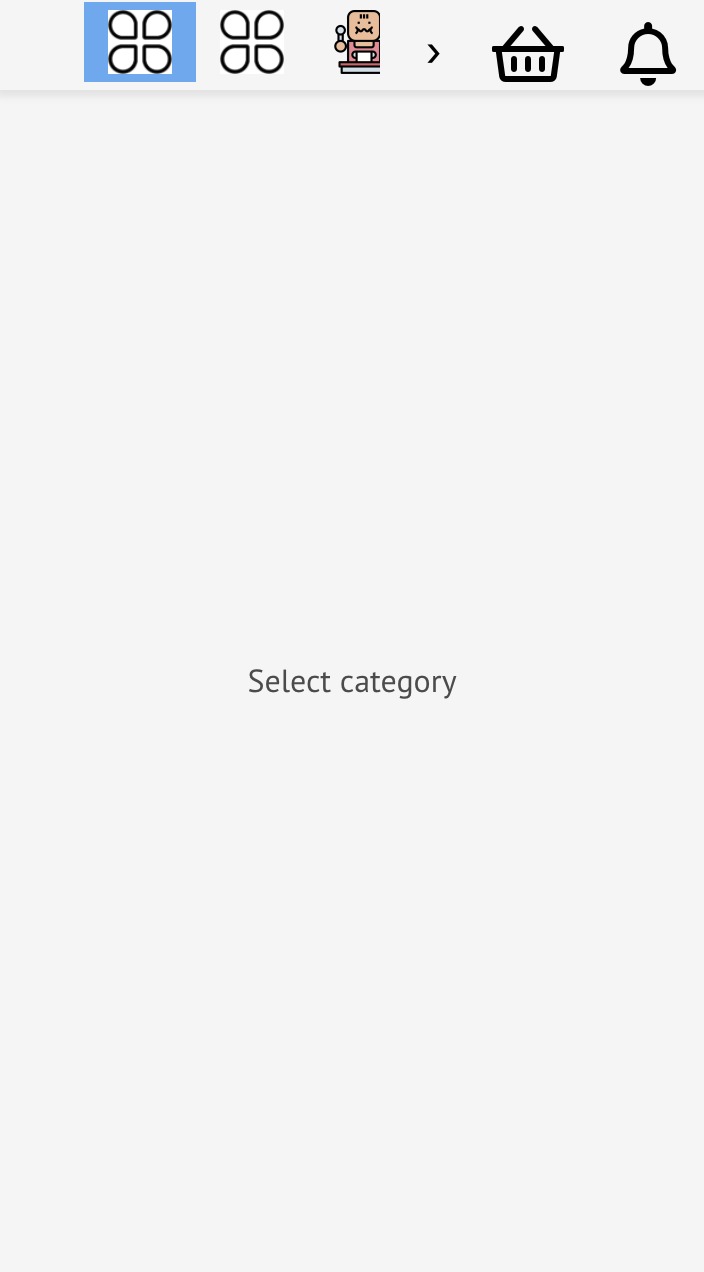
2. Then the customer clicks on the category at the top (
The customer is able to see the product categories with photos on their phone:
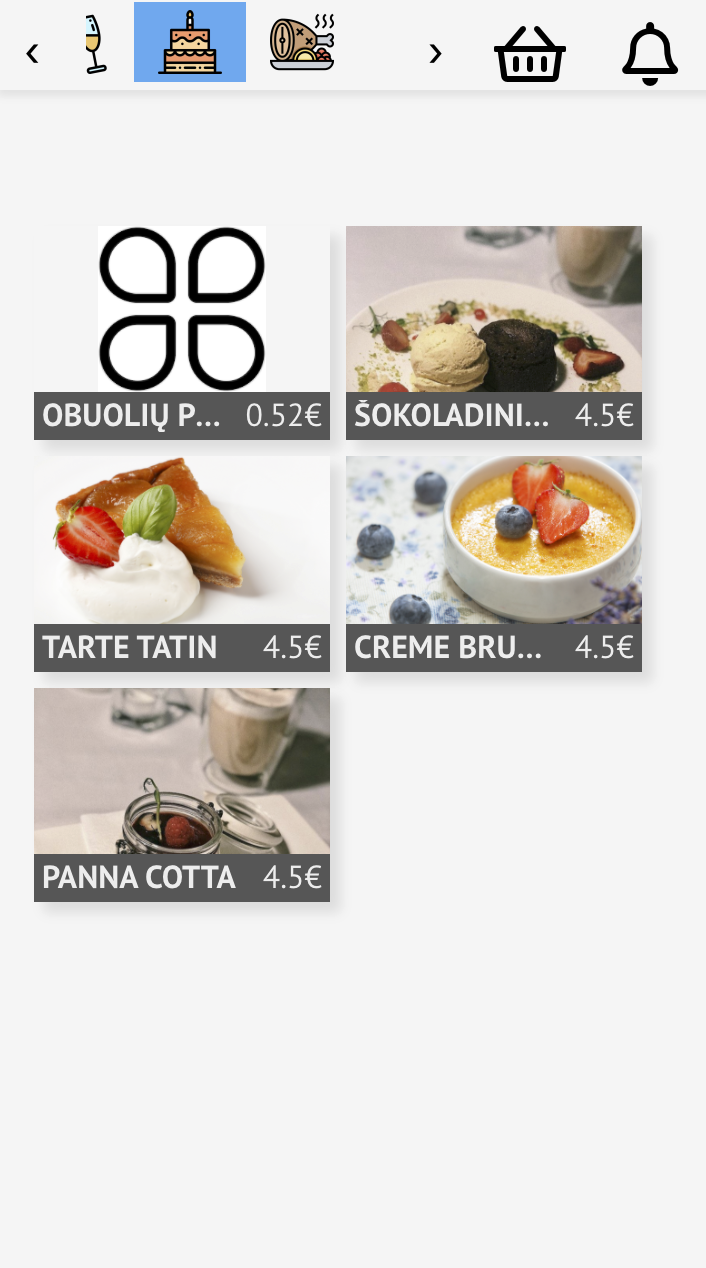
3. Then customer chooses a dish
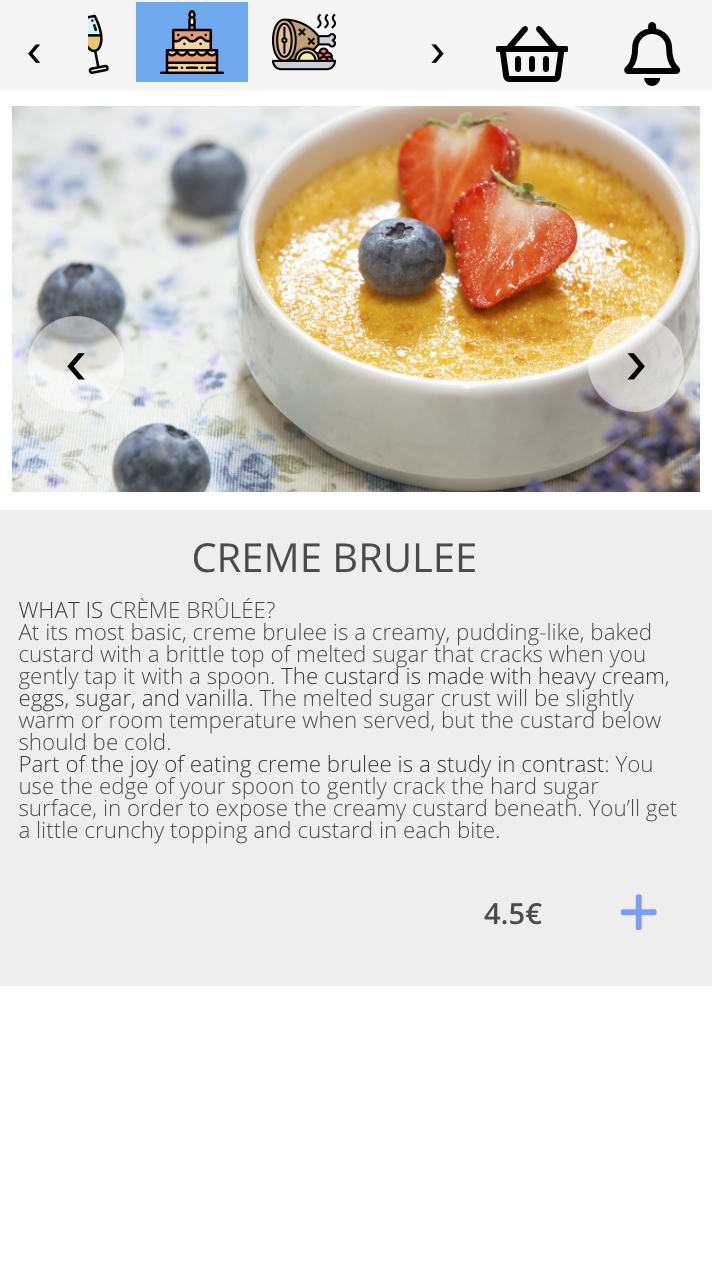
4. To order something, the customer clicks on

The customer can also add comments:
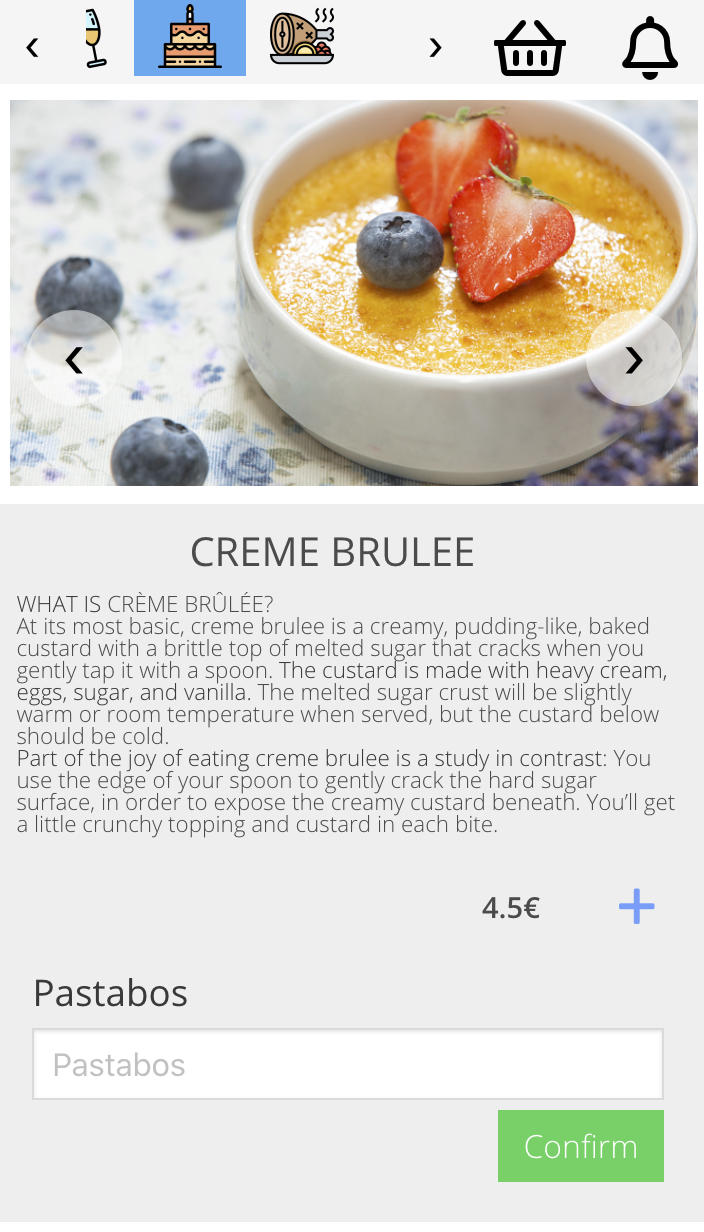
5. Click
Now the customer can see a shopping cart with the number of ordered dishes:
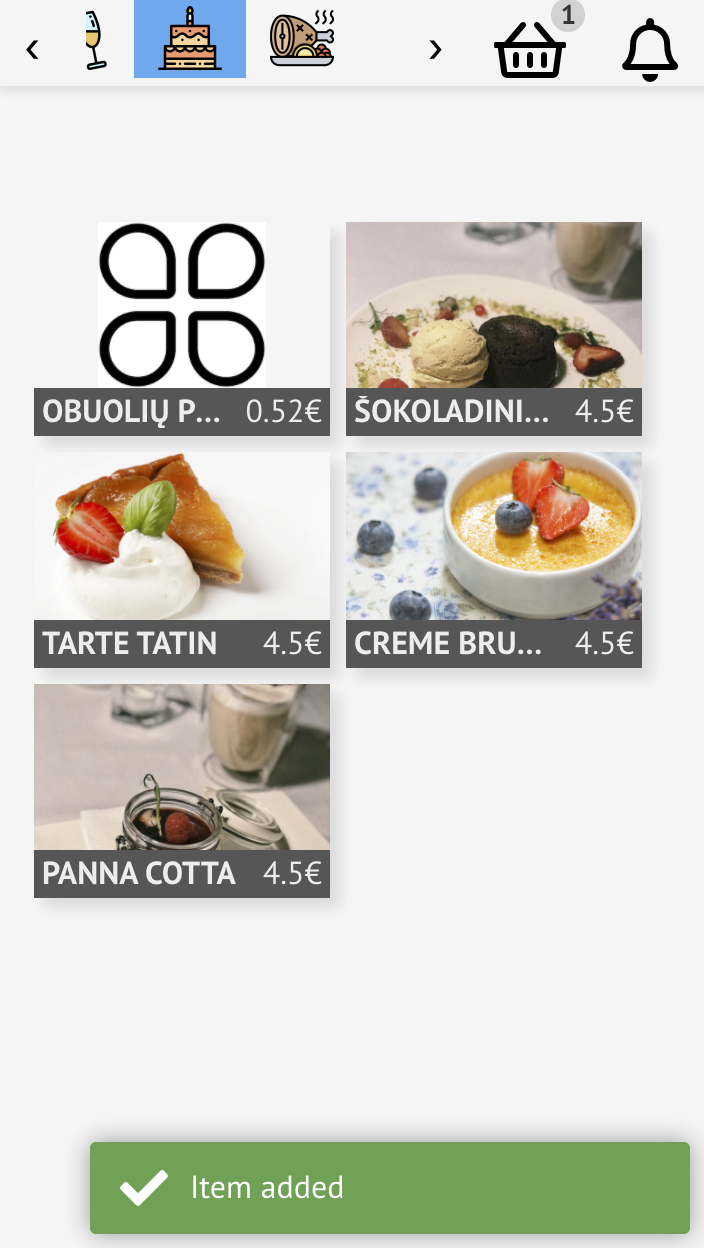
6. Click on

Now the customer can see the order list:
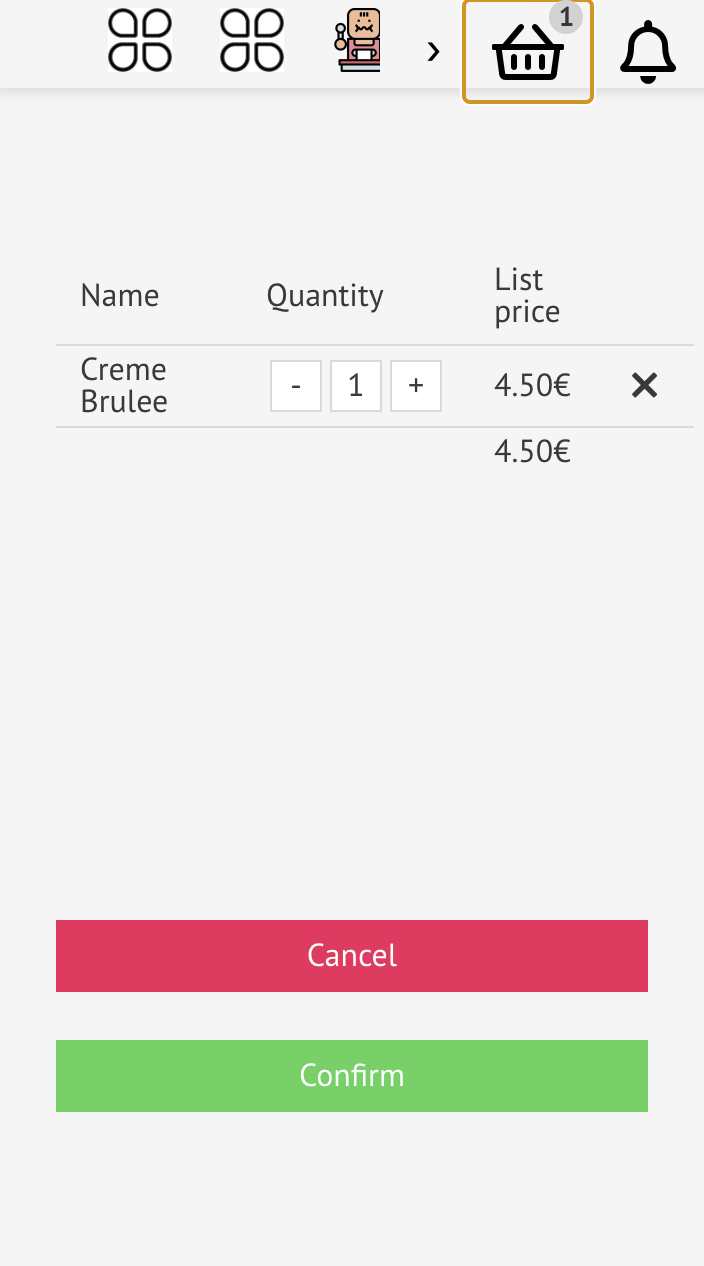
Here the customer can choose quantity (




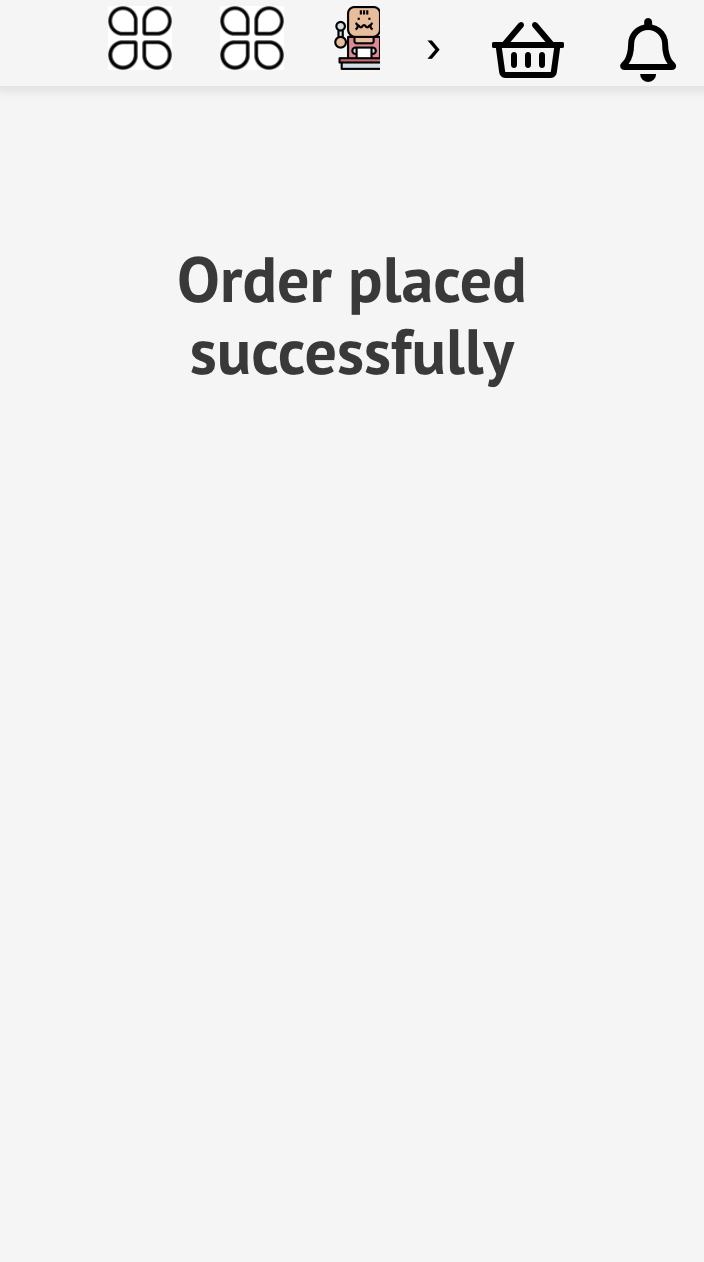
Now the customer can see if the order is placed successfully:
For more information on how to add icons to article categories, visit here
| What does the waiter do then? |
After the customer places an order, the waiter can see it:
1. Click on "orders"
2. Then- "products"

3. Go to the SmartOn POS app (Click on the white button)
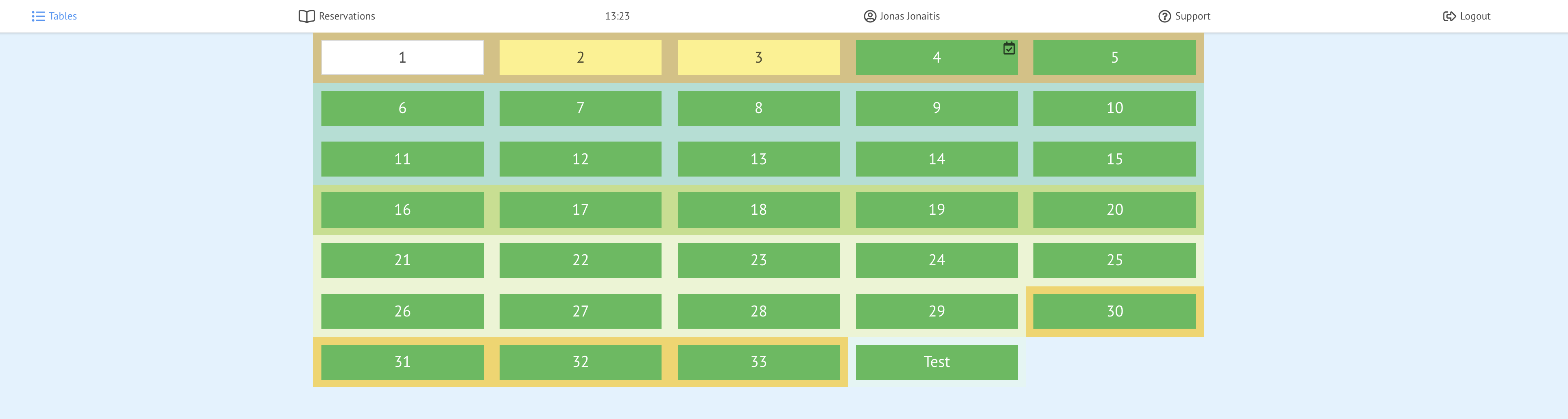
Here you can see the order in the POS app as well:

After receiving the order, the waiter should confirm it (Click on