Article categories
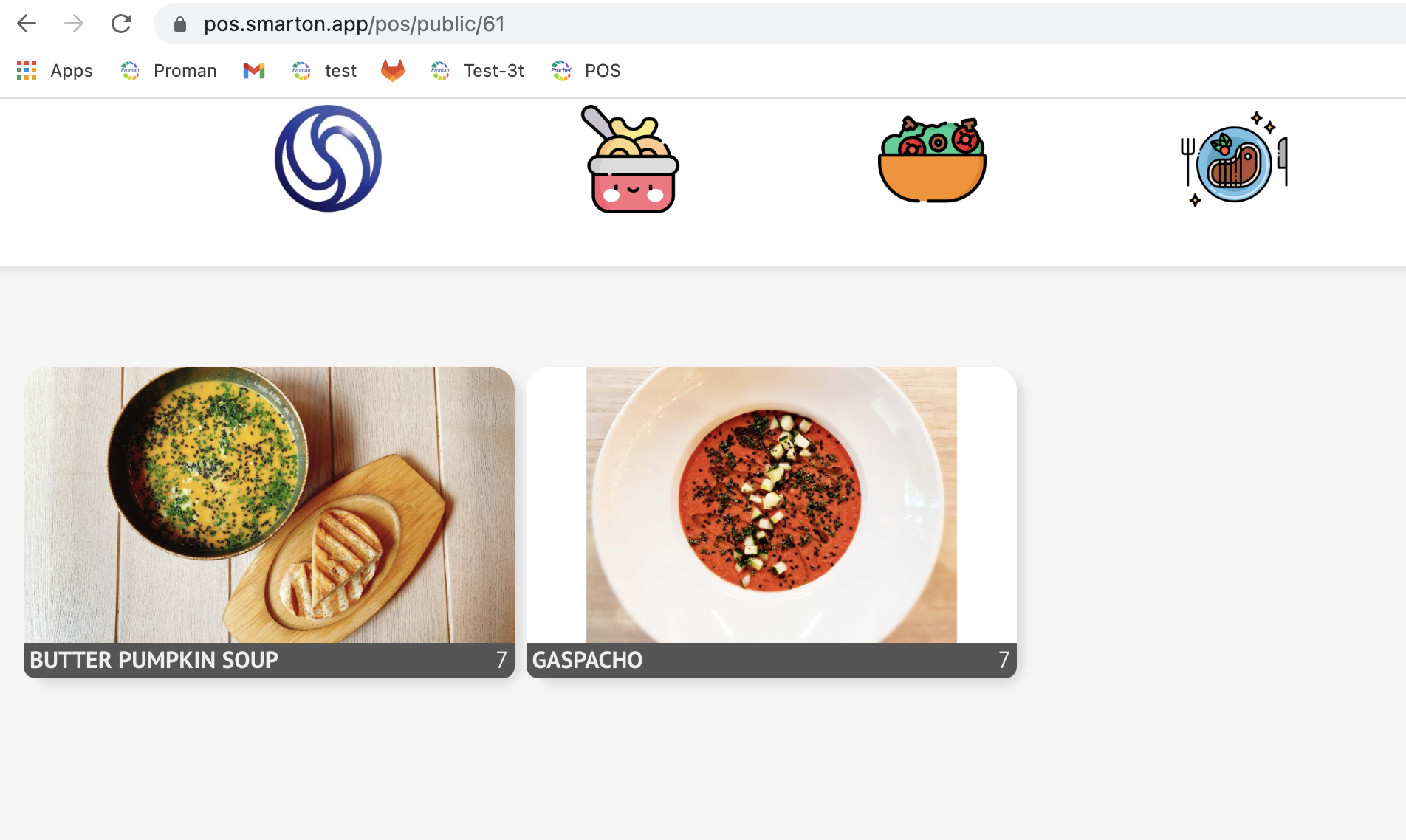
Article Categories indicate different types of articles which we can see in the POS system and in the ERP system.
How to create new article category?
How to change the color of article category?
How to change the order of article category?
How to add article category discount?
| How to find the Article categories? |
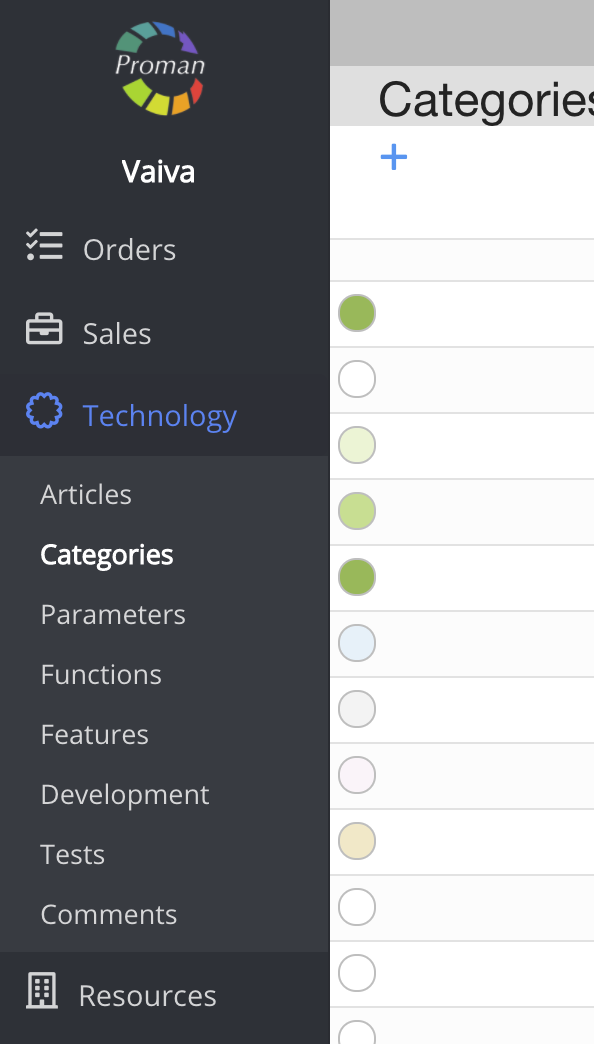
To find the article categories, you should:
1. Go to Technology:
1.1. Click on

1.2. Then-

Now you can see the article category list
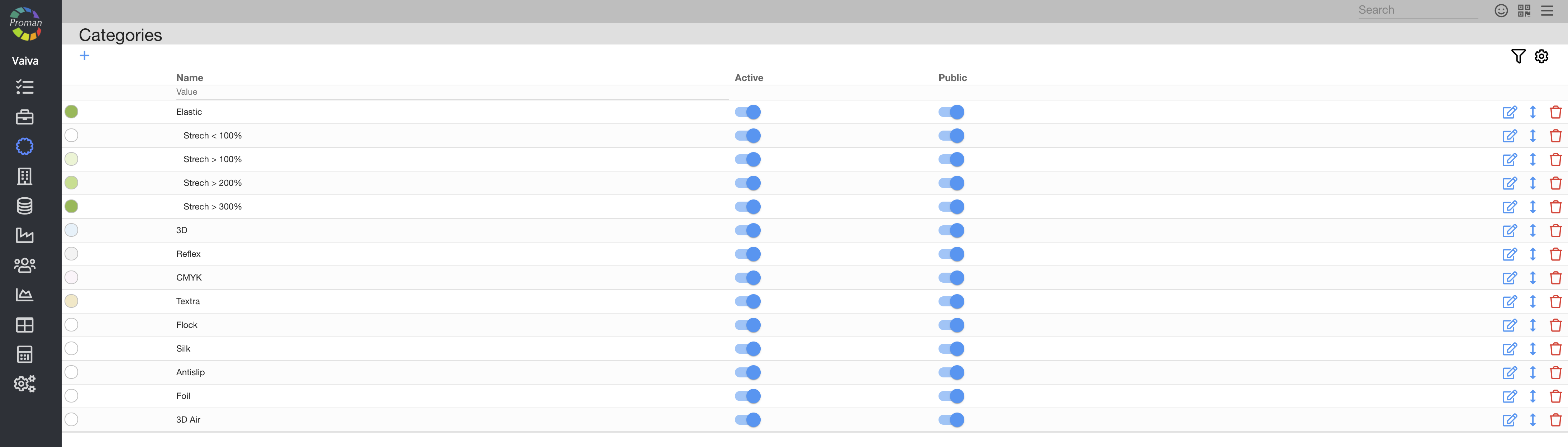
Here you can see, create (


| Button | What does it indicate? |
  | When the "Active" button is on, the category can be added to an article |
 | When the "Public" button is on, the article category will be seen by everybody |
| How to create a new category? |
To create a new category:
1. Click on "+"
2. In the dialog table, enter a name and choose a parental category (If needed)
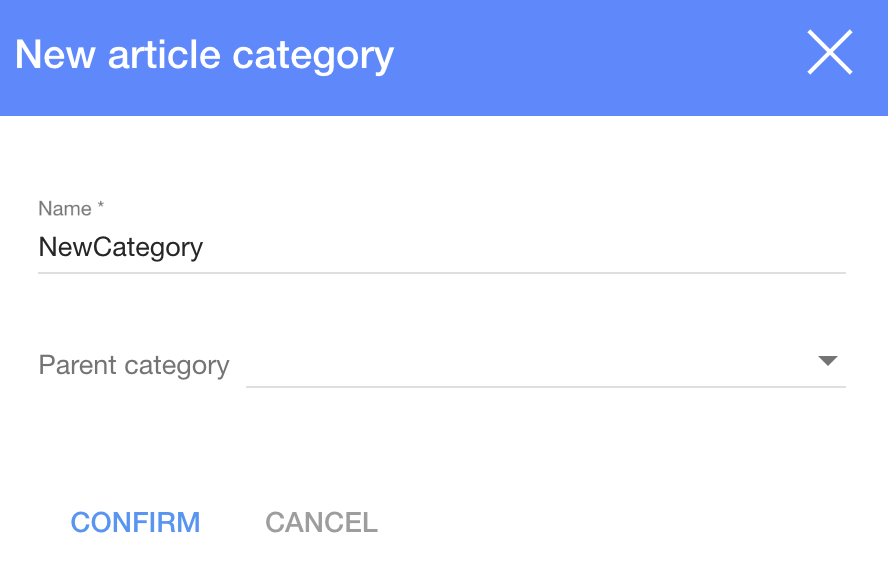
3. And click "Create"
Now you can see the new article category
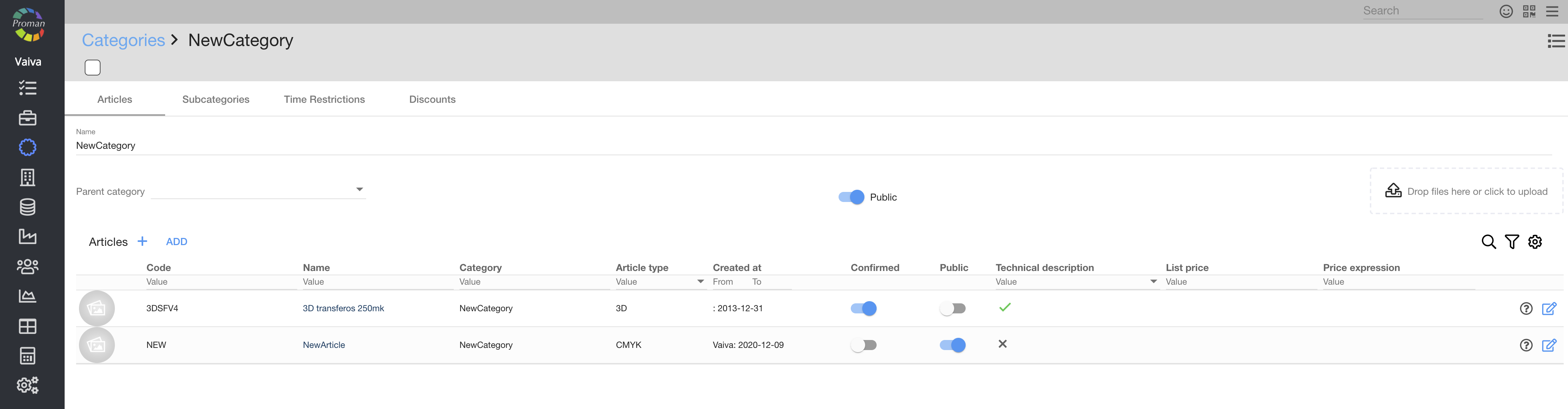
Here you can see, create (

| Button | What does it indicate? |
 | You can confirm the article (customers will be able to buy it) |
| You can choose if the article will be seen publicly for customers or not |
| Categories Subcategories |

Here you can see, create (
| How to change the order of categories? |
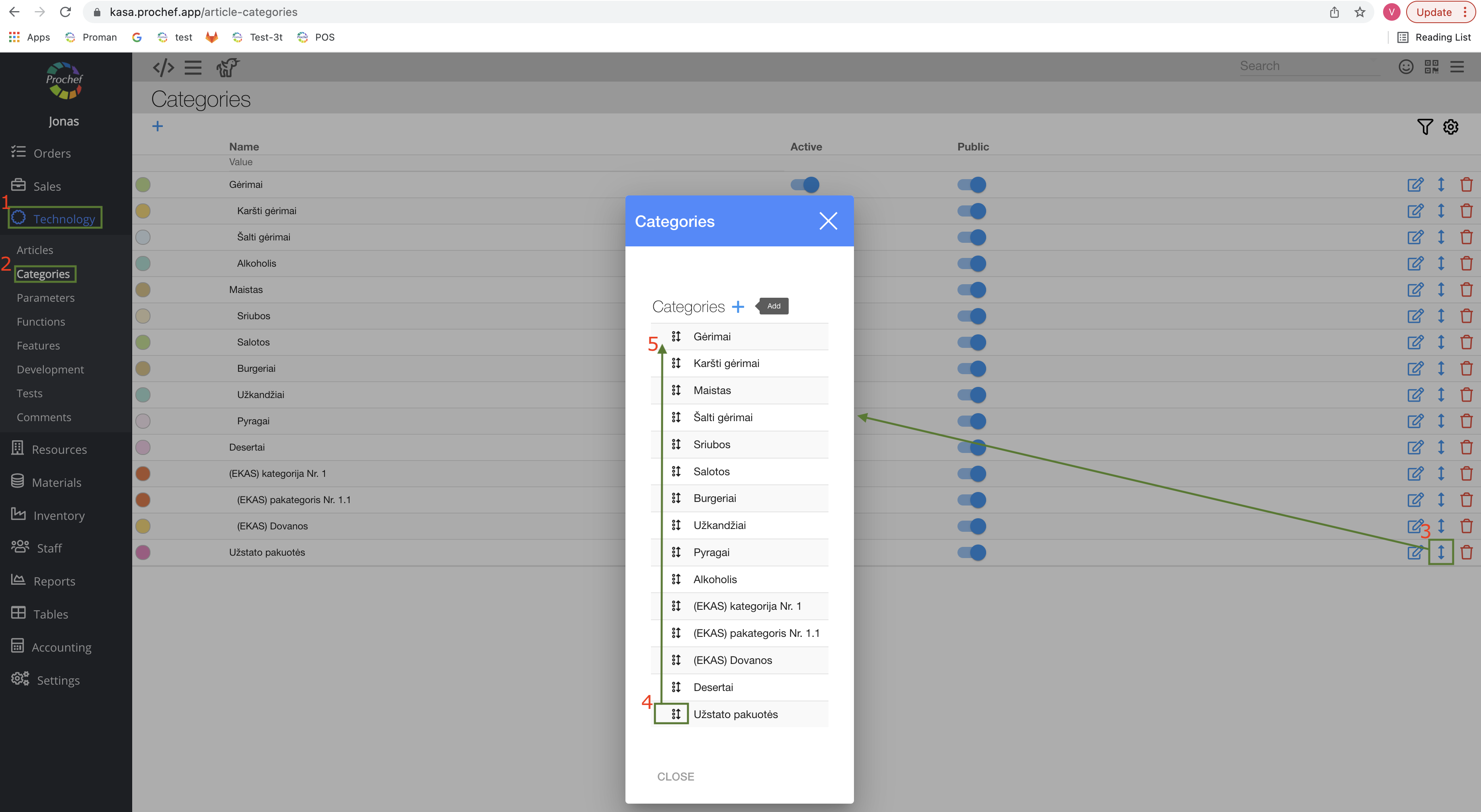
1. Go to
2. Then-
3. Click on
4. And click on

5. Move it to the top (or to other places you would like to)
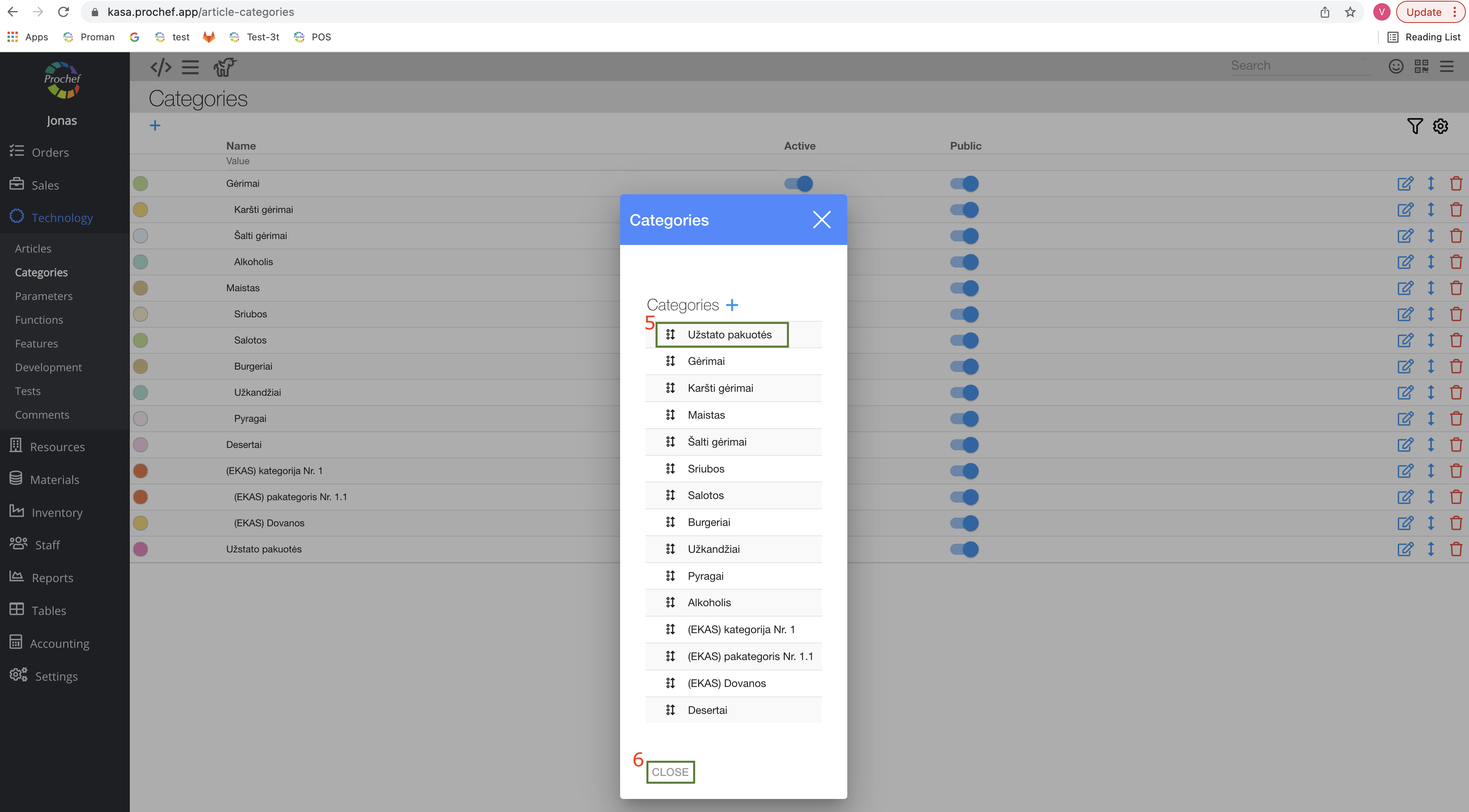
6. Click on

Now you can see your category as first in POS

| Categories Time Restrictions |

Here you can see, add (
For more information about Time restrictions, you can see here.
| Categories Discounts |

Here you can see, create (
| How to add a discount? |
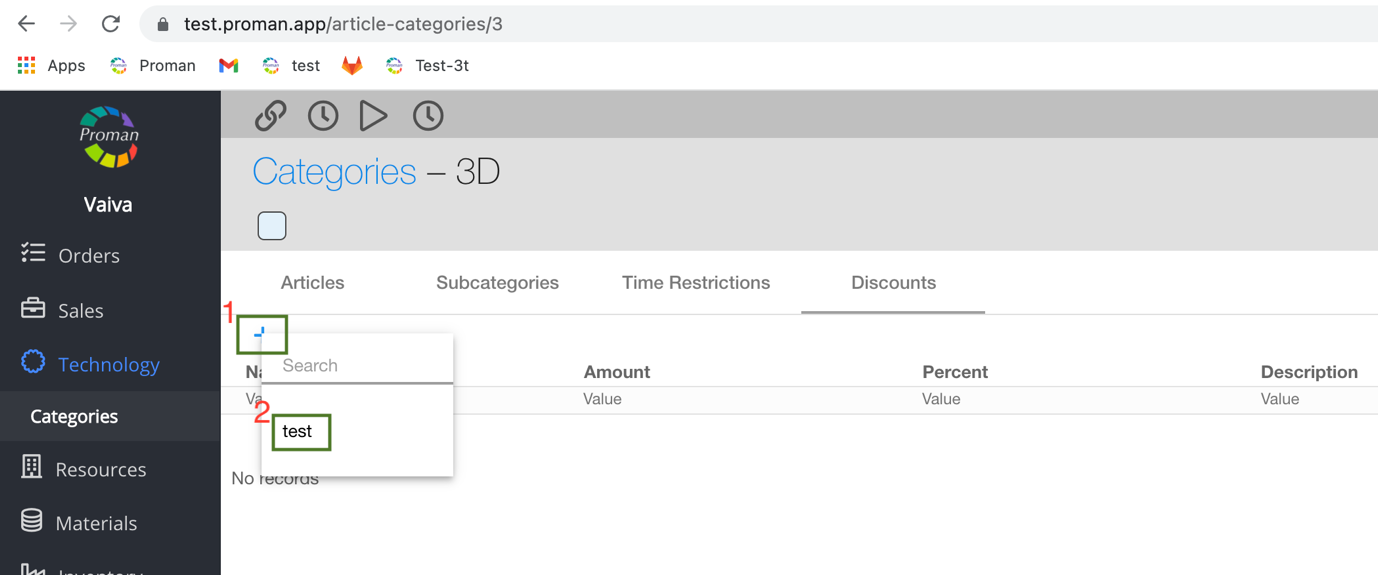
1. Click on
2. Choose a Discount
For more information about Discounts, you can see here.
How to change the color of a category?
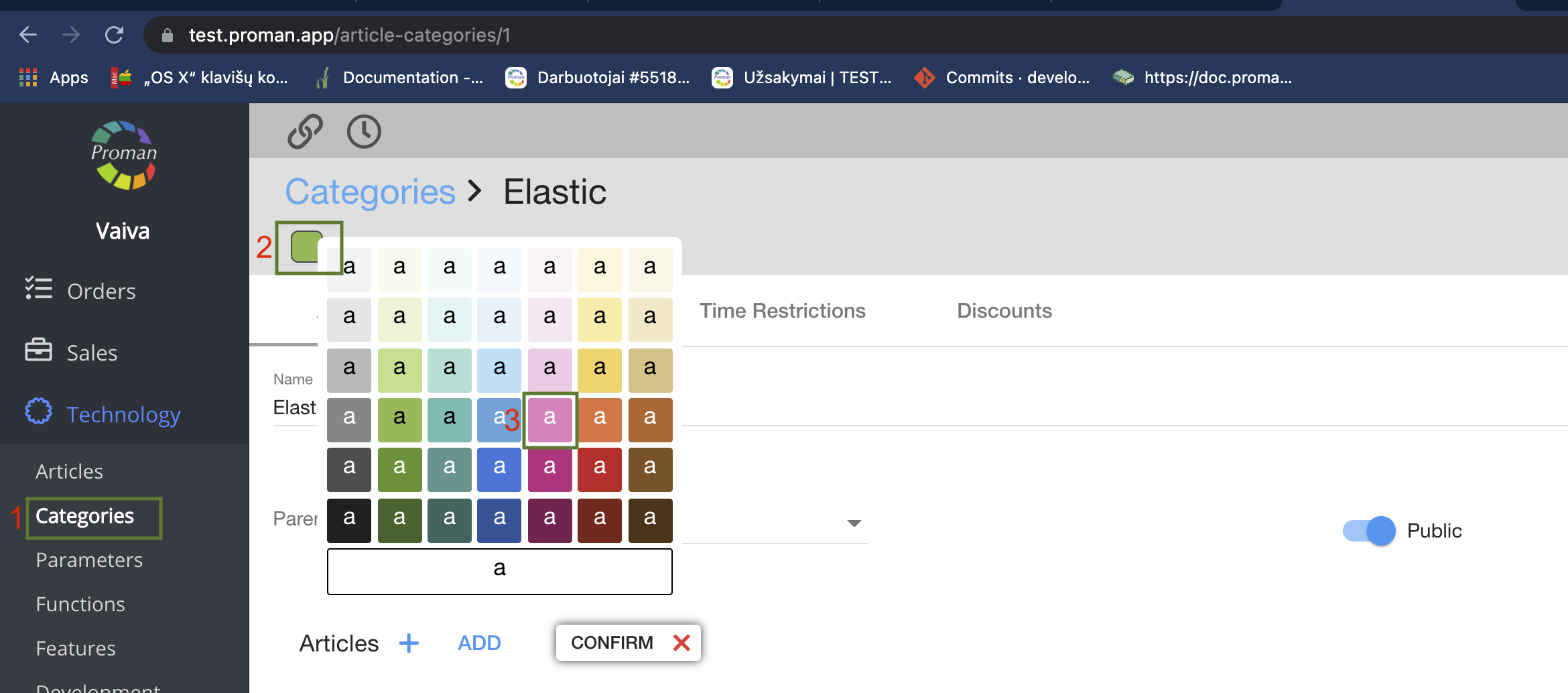
1. Go to 
2. Then- 
2. Click on the square;
3. And choose a color.
Now you can see the new category color in POS

| How to add a category icon? |
To add an icon:
1. Go to a category
2. Click on the "Click/drop" button
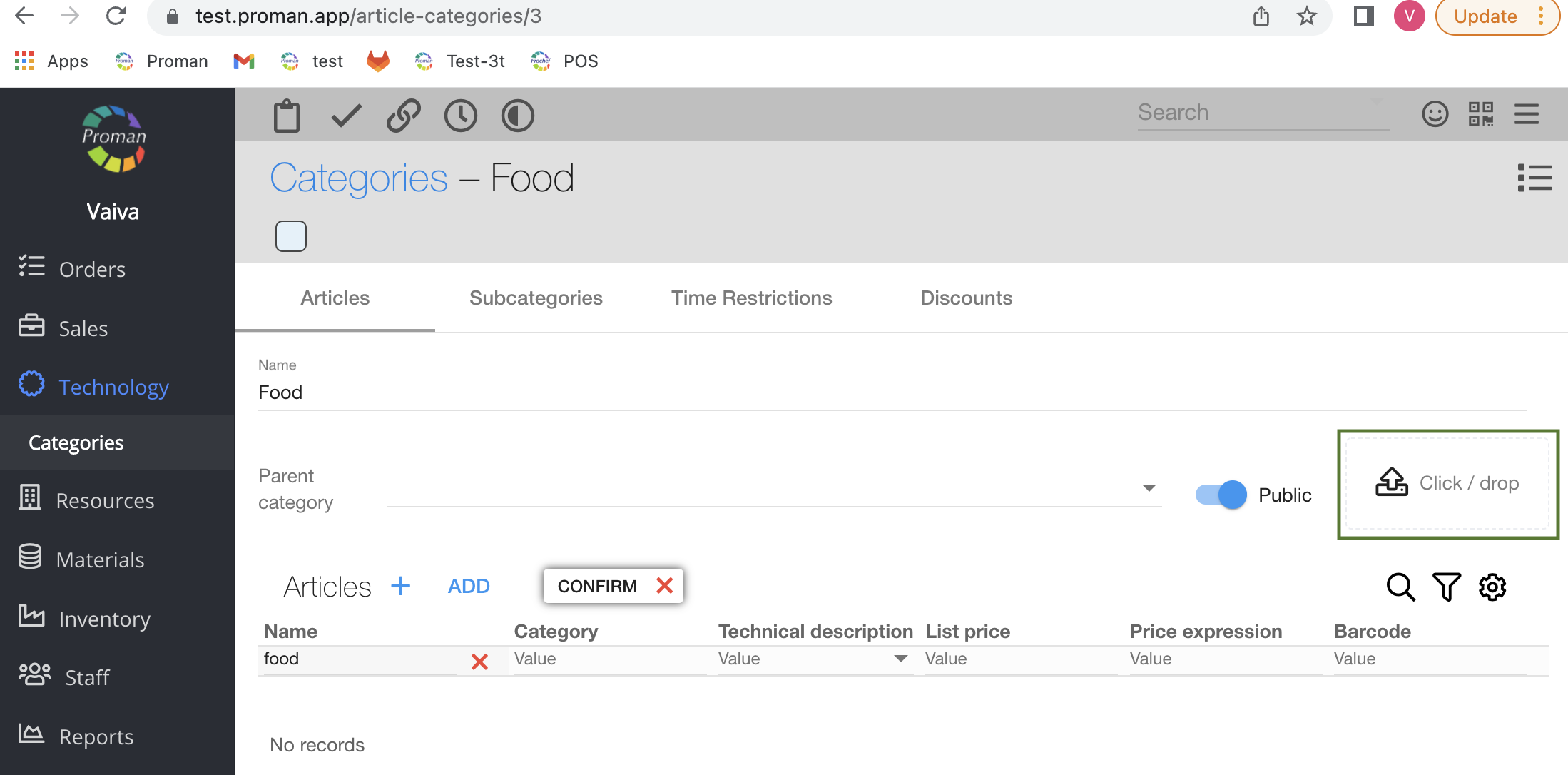
Now, you can see your icon uploaded to the category
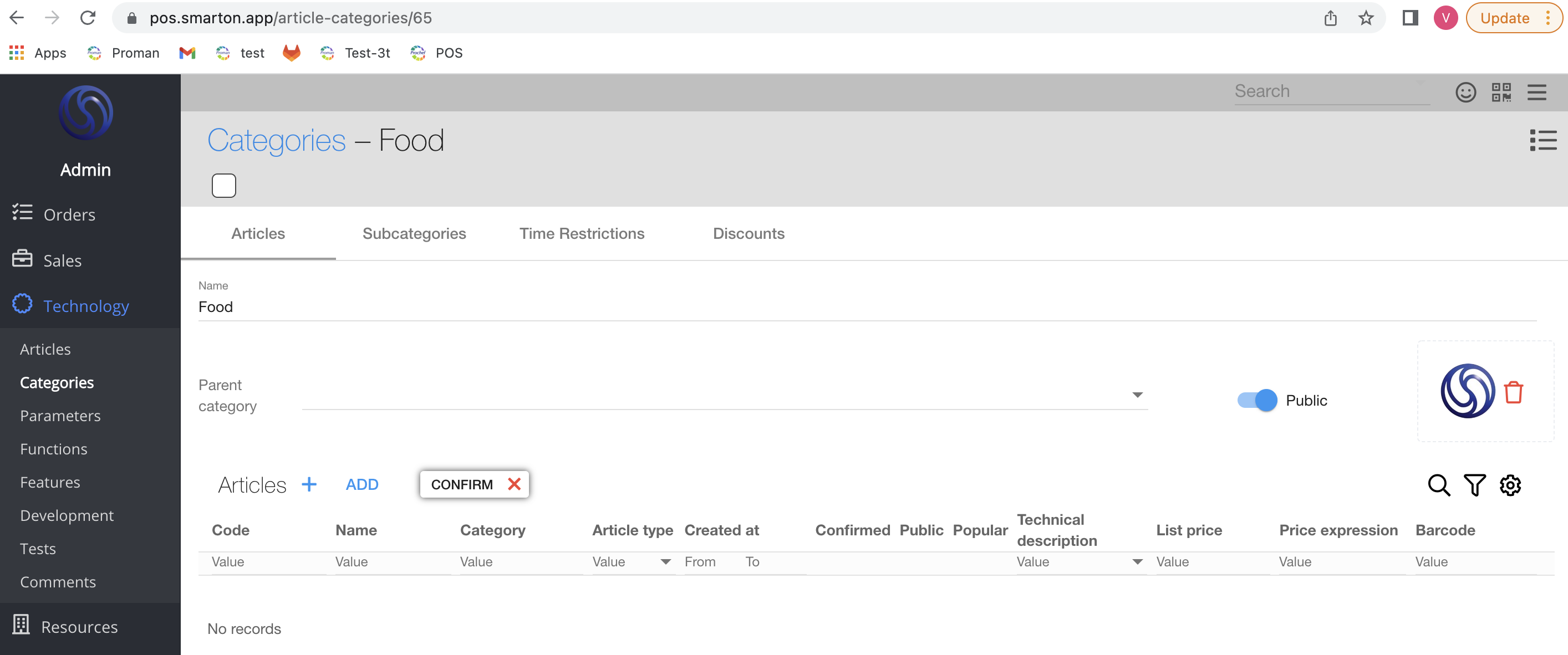
And you can also see it in the POS public app