English
Parameters
Parameter
Parameters are the way we simulate clients business logic. Parameters, in fact, are customers' information which will be used in further product construction or system "processing". Parameters can have the different field of application and parameter type. Each different set of field and type affects various parts of the system. Information which is entered to the parameter helps to define the result depending on the selected field of use.
When creating the parameter, you must have the field of use and type.
| How to find Parameters? |
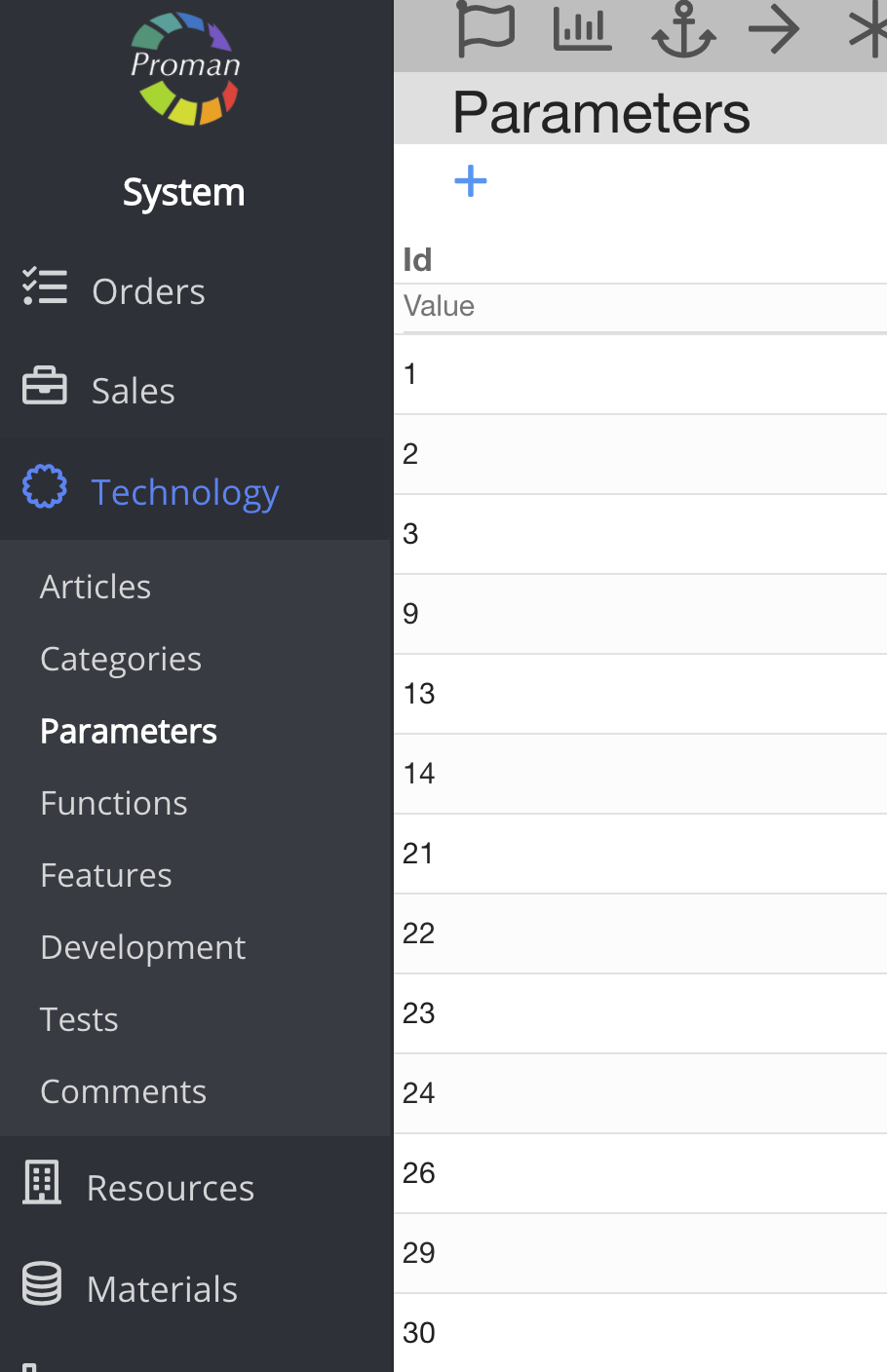
1. To get Parameters, you should:
1.1. Press 
1.2. Press 
Now you can see Parameters list:
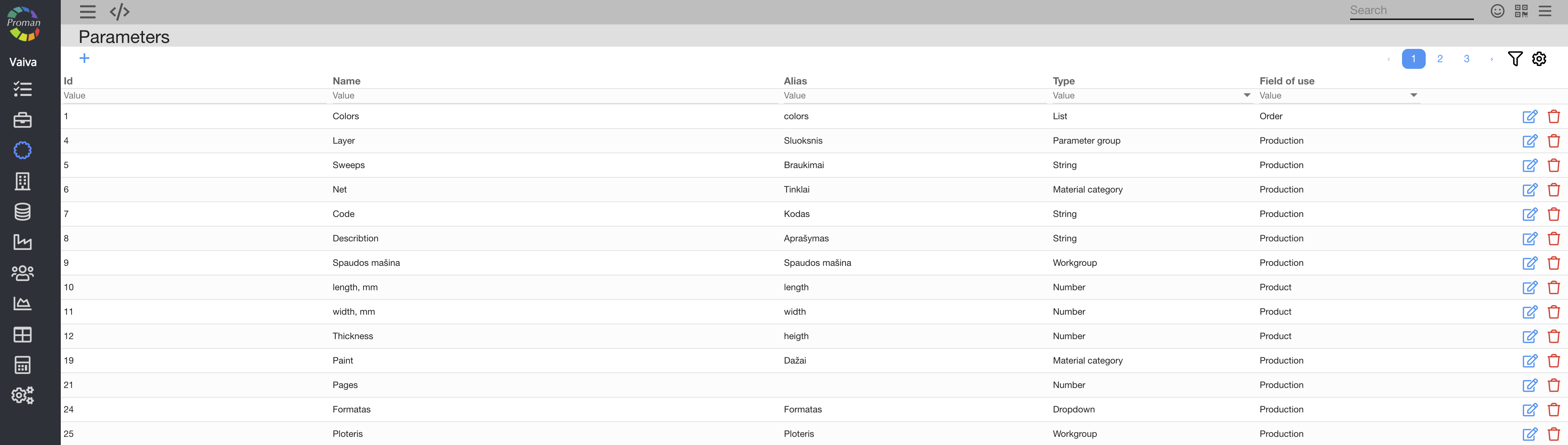
Basic parameter functionality: | |

| Button | What does it indicate? |
 | You could edit Parameter |
 | You could delete Parameter |
There is a lot hidden by
| How to create new Parameter? |
If you would like to create new Parameters, you could press
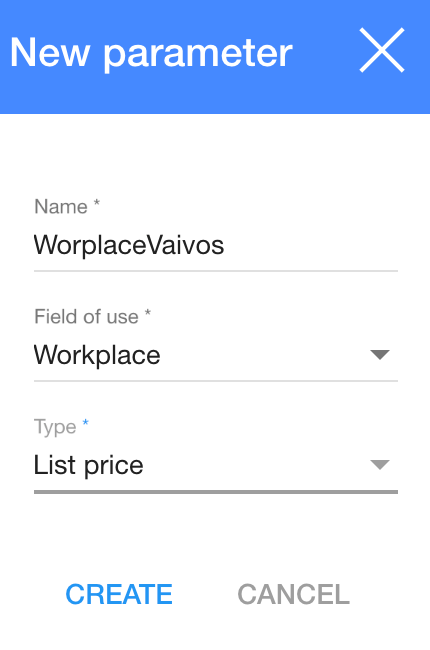
1. To merge the order you need to press 
2. In dialog table:
2.1. Enter name,
2.2. Choose Field of use form list,
2.3. Choose Parameters type.
3. Press

Now you can see your Parameter

You can set Parameters value (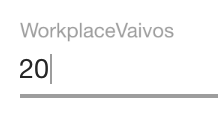
| Parameters types |
You can choose parameters type:
| Type | What does it indicate? |
| Number | You could choose enter only numbers |
| String | You could choose enter text till 256 symbols |
| Multiple lines | You could choose enter long text |
| Yes/no | You could choose enter 'Yes' or 'No" |
| List | You could choose enter list (text till 256 symbols each) |
| Dropdown | You could choose enter list (text till 256 symbols each) |
| Datetime | You could choose enter date and time |
| Duration | You could choose enter duration by hours, minutes and seconds |
| Parameter group | You could choose enter different/same types parameters in one group |
| Resources | You could choose enter workplaces which has resources parameter default operation. If you want use resources parameter in the article need to add resources parameter default operation in the article operations. |
| Material | You could choose enter materials from the store |
| Material Category | You could choose enter parent material categories which has sub categories |
| Subcontractors | You could choose enter list of operations |
| List price | You could choose enter currency |
| Parameters fields of use |
You can use parameters in these fields:
| Field | How to set and where you can see Parameters? |
| Order parameters | You can set it in Article --> Parameters --> Order Parameters You can see it in Order Proposal |
| Product parameters | You can set it in Article --> Parameters --> Product Parameters You can see it in Order Proposal (Product field) |
| Production parameters | You can set it in Article --> Parameters ---> Production Parameters You can see it in Production --> Choose product --> Parameters |
| Workplace | You can set and see it in Resources --> Workplace --> Choose Workplace --> Parameters |
| Operation | You can set it in Article --> Operations --> Choose Operation --> Parameters You can see it in Operation (press  ) |
| Material format | You can set it in Material --> Type --> Choose Type --> Press and add Material format Parameters You can see it in Materials --> Materials --> Overview (Format) You can select only Number, String or Dropdown data type |
| Global | You can set and see it everywhere |
ToBeTranslate
| Button | What does it indicate? |
| You could add parameter |
 | You could update data (add or delete parameters) in all products |
 | You could search expression. For more information about expressions, please visit here |
 | You could add expression. For more information about expressions, please visit here |
 | You could add Material filter (only if parameter type is Material). For more information about Material filter, please visit here |
 | You could set that other can change parameter value |
 | You could set that other can't change parameter value |
 | You could set that other can see that parameter |
 | You could set that other can't see that parameter |
 | You could delete parameter |
 | You could delete parameters value and leave it empty |
 | You could go to parameter |
 | You could set up parameter for Operation ( ) or for every employee (  ) |
| Parameters fields |
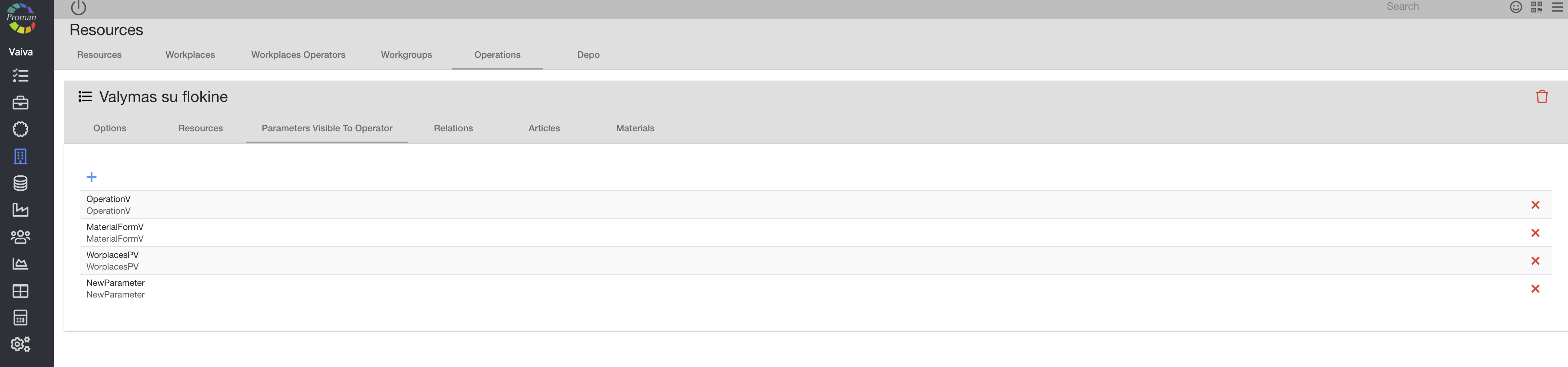
1. To set which parameters could be visible for other, at first you should go to Resources Operation Parameters:
1.1. Go to 
1.2. Go to 
1.3. Go to 
1.4. Choose particular operation
Now you can see Operation Options
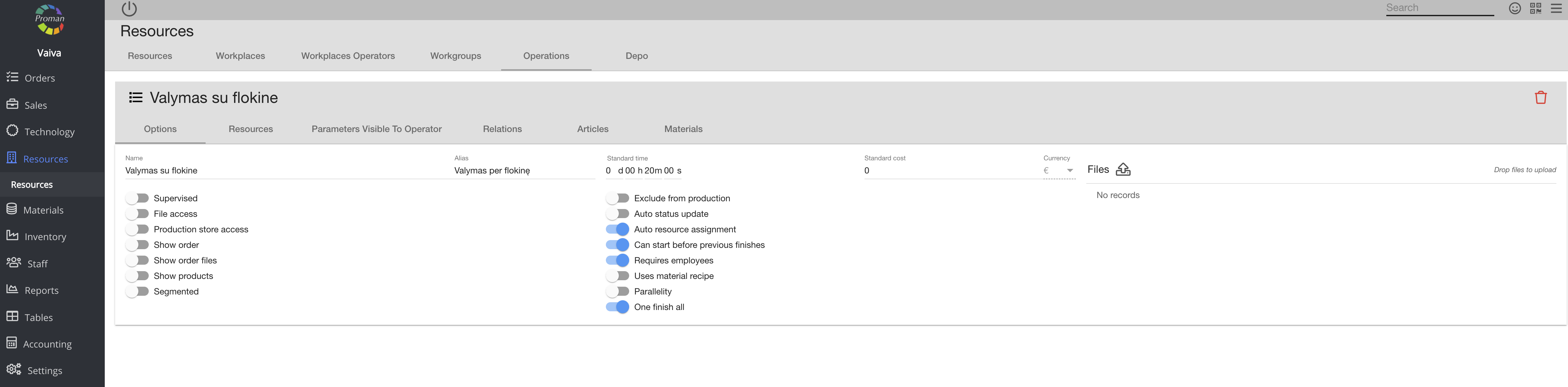
2. Now you should choose

3. Press
4. Choose parameter from Parameters list
Now you can see Parameters, which will be visible to others (place depends on Parameter fields)