Article Operation
How to add Workplace to several articles?
How to add Article Operation Parameters to several Articles?
Article Operations Resource expression
In the article operation tab you can create and edit new operations.
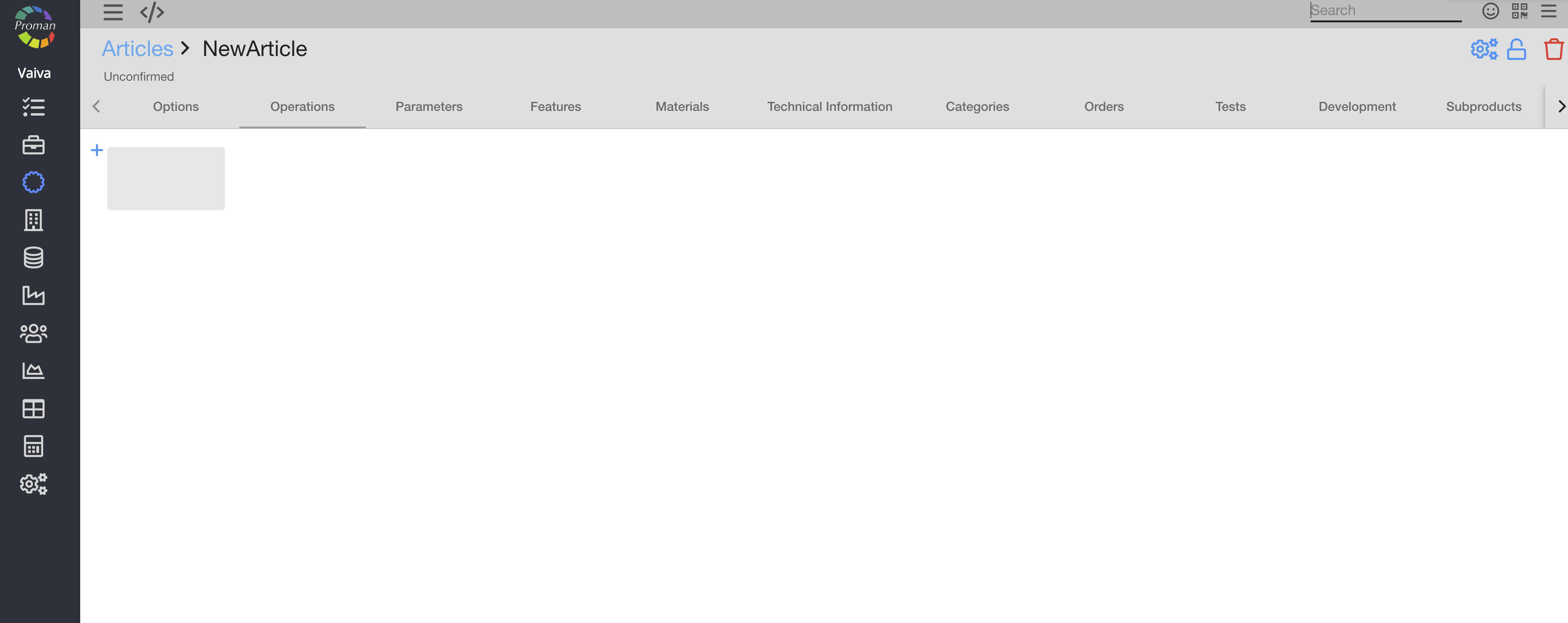
1. To create a new Operation:
1.1. Click on the grey area;
1.2. Choose an Operation from the list;
1.3. Repeat these actions until you have enough operations
Now you can see your article operations
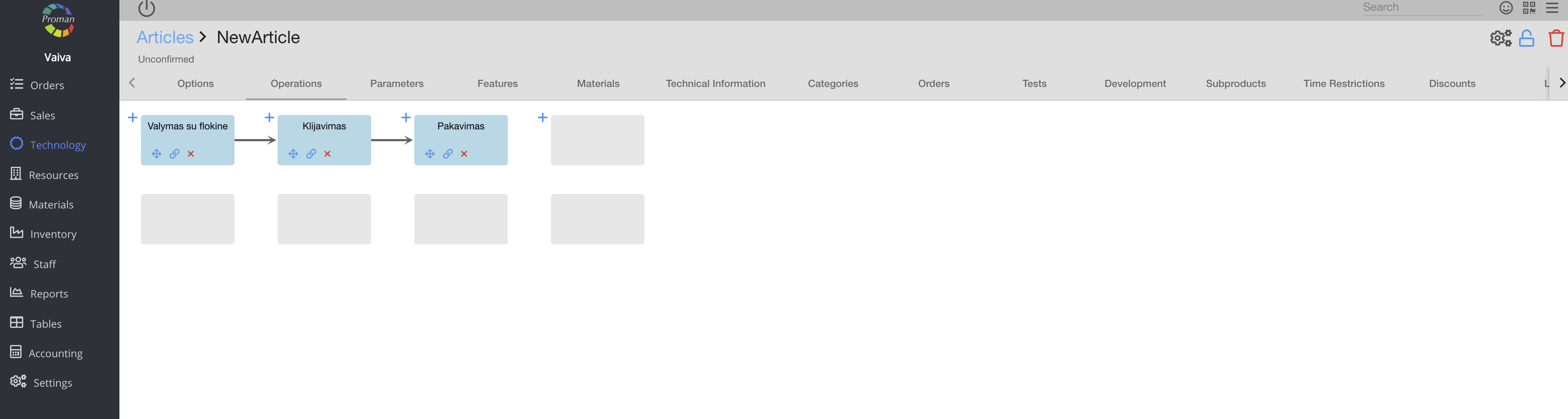
2. If Production is segmented:
2.1. Click on the grey area below;
2.2. Choose a production.
Now you can see your article operations with segmented productions
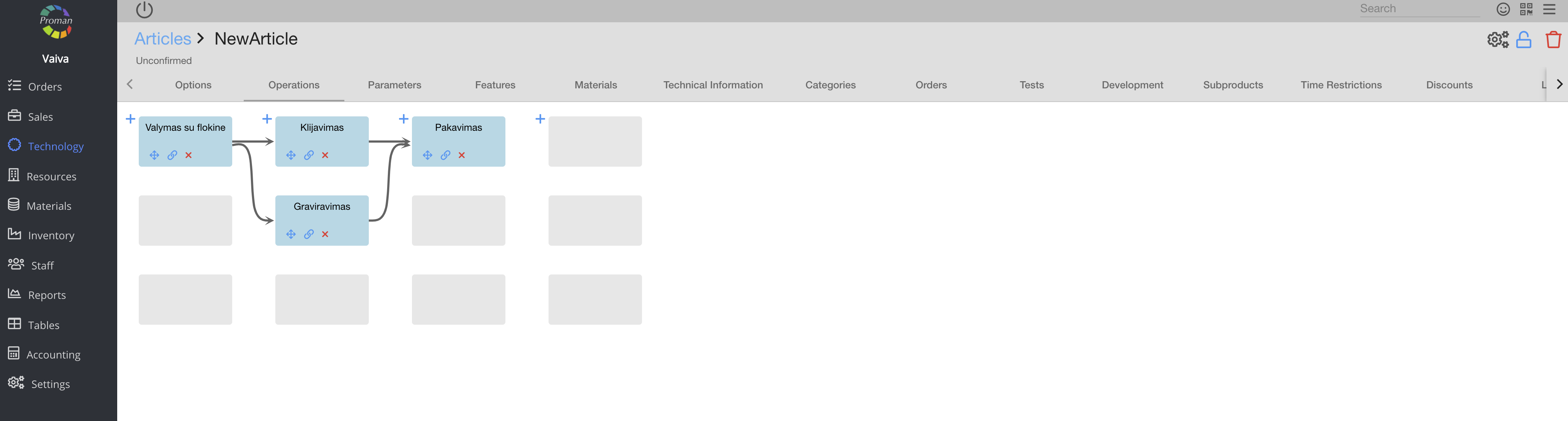
3. If you want to change the order:
3.1 Click on an arrow;
3.2. Click

4. If you want to add an arrow:
4.1. Click on 
4.2. Click on the next Operation.
Now you can see operations with your chosen order
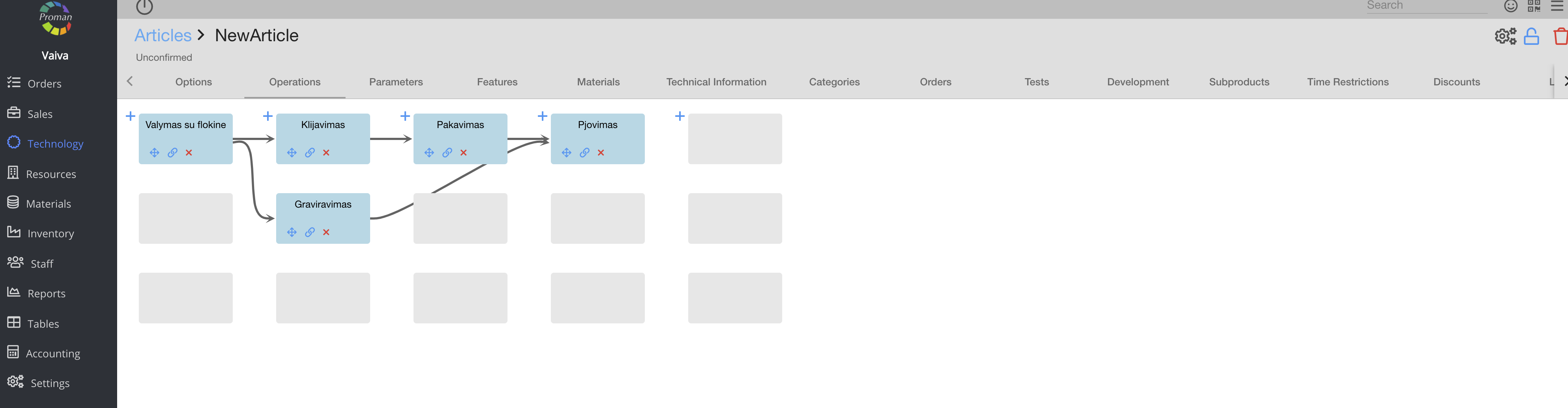
You can also manage these operations with buttons:
| Button | What does it indicate? |
 | You can add a new field for an operation |
 | You can change operation's position |
 | You can link operations together |
 | You can delete the operation |
How to manage the article operations? |
| Article Operations Options |
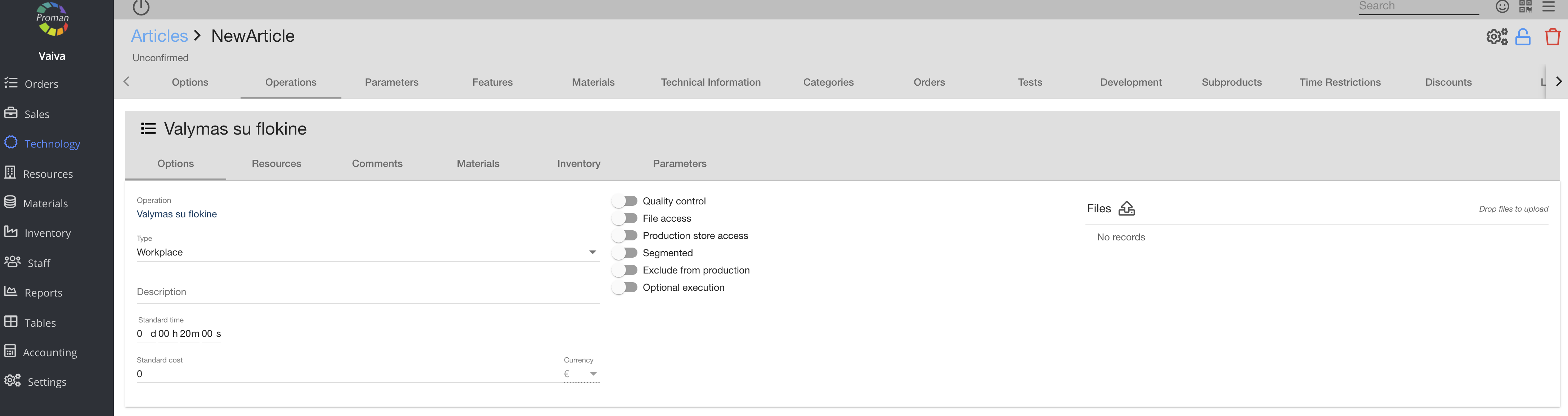
Here you can manage particular operations within an Article:
1. Enter a description (You can see it in the Operation Event)
2. Choose an operation type:
- Workplace;
- Specialization;
- Subcontractor
2. Enter a Standard time and cost of the Operation
3. Set up additional details regarding the operation
4. Upload files
| Button | What does it indicate? |
 | You can claim quality control |
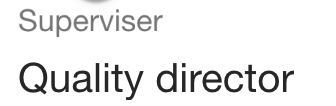 | You can choose a supervisor |
 | You can access files in an operation Event |
 | You can access production store |
 | You can choose segmentation (only if the article production is segmented and you add it) |
 | You can choose operations, which are in the article production (segmented) |
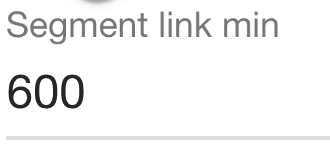
| You can set a minimum time (seconds) between two operations | |
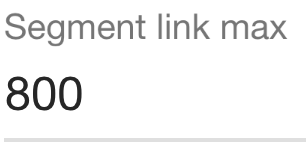 | You can set a maximum time (seconds) between two operations |
 | You can choose if it is a production operation or not |
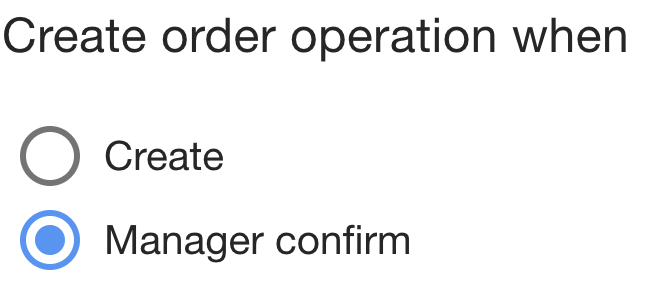 | You can choose when to create the order operation (when order is created or when it is confirmed by a manager) |
 | You can choose when to create an operation |
 | You can search or add an expression. For more information about the expressions, find here |
| How to use the optional execution? |
In this example, the order type with an ID named "2'" should have an operation named "Surinkimas pvz" and every other type should have an operation named "Surinkimas".
1. Create alternative operations (In this case "Surinkimas pvz" and "Surinkimas")
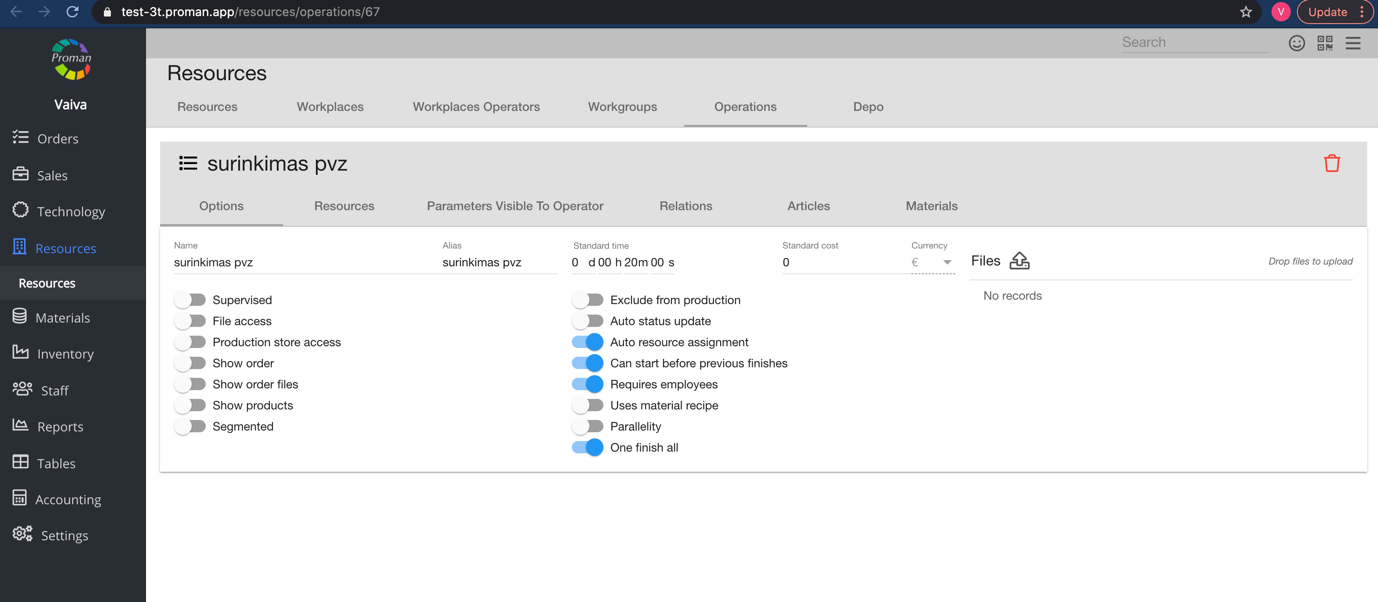
2. Go to an article and add both operations
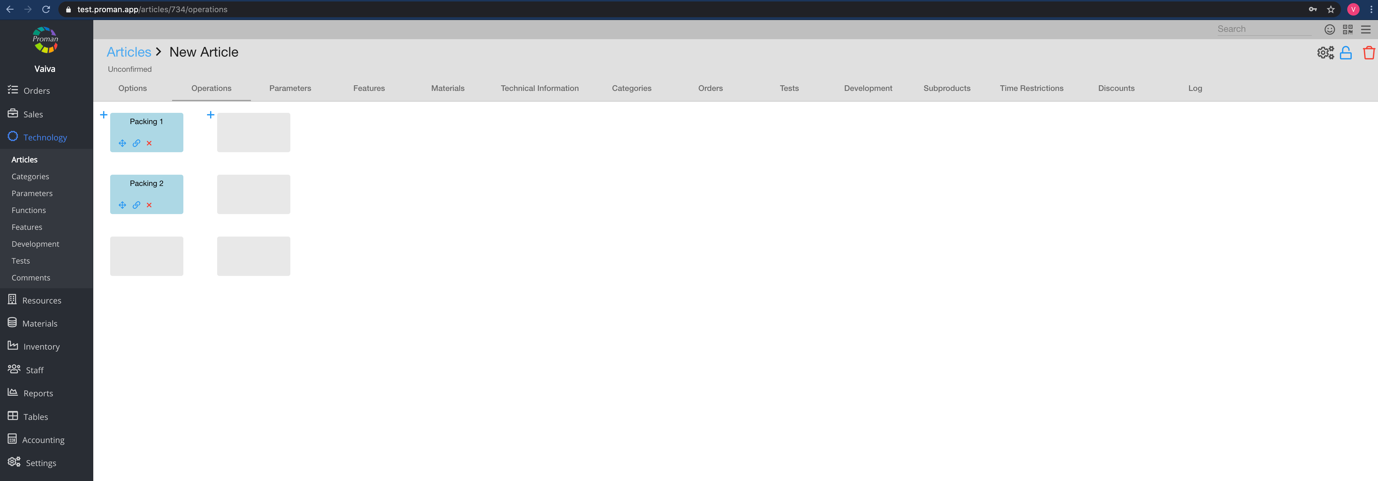
3. Go to the first article operation
Now you can see the article operation options
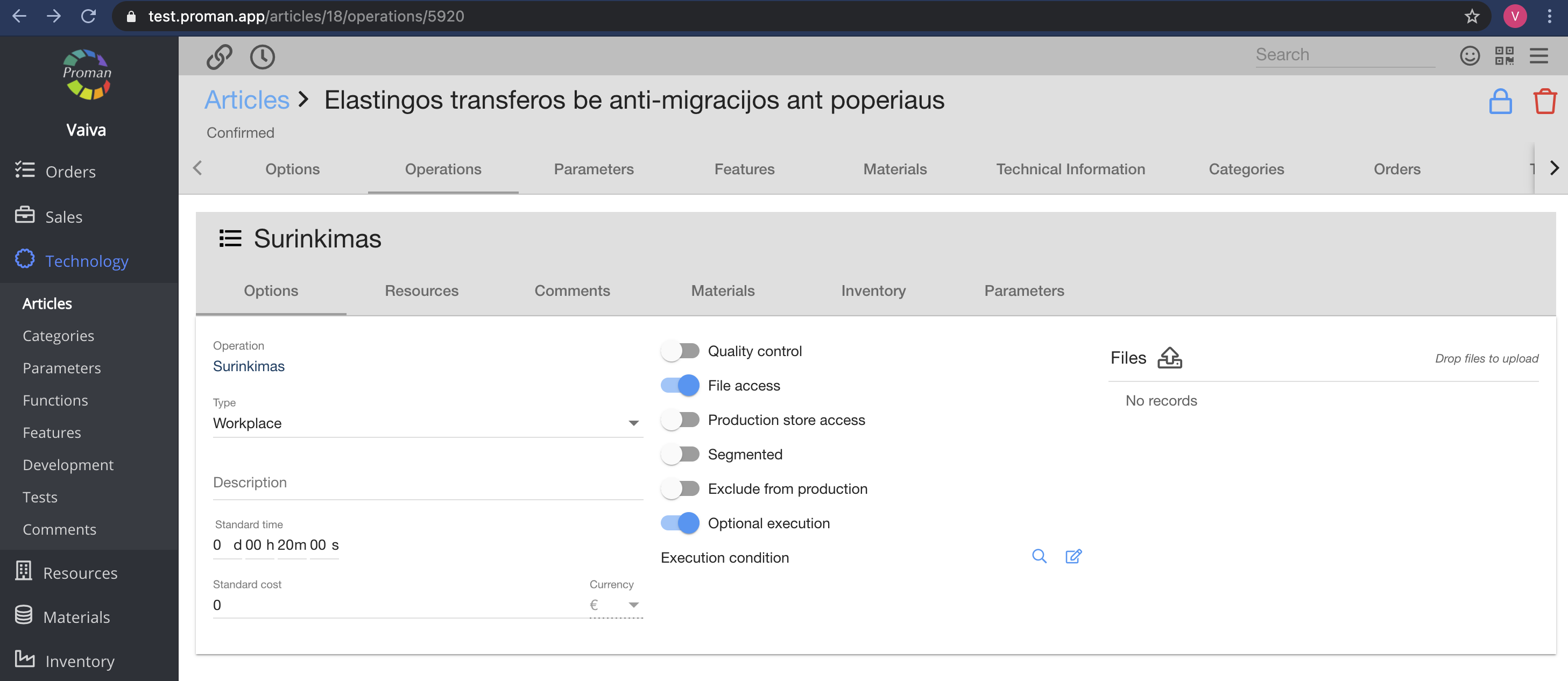
4. Switch on

Now you will be able to see additional line- “Execution condition”
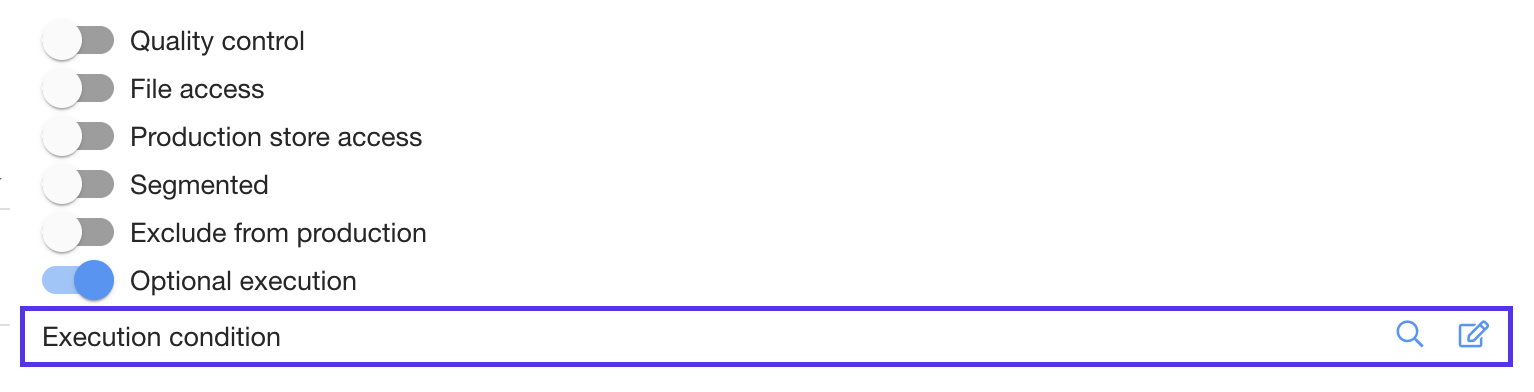
5. Click on 
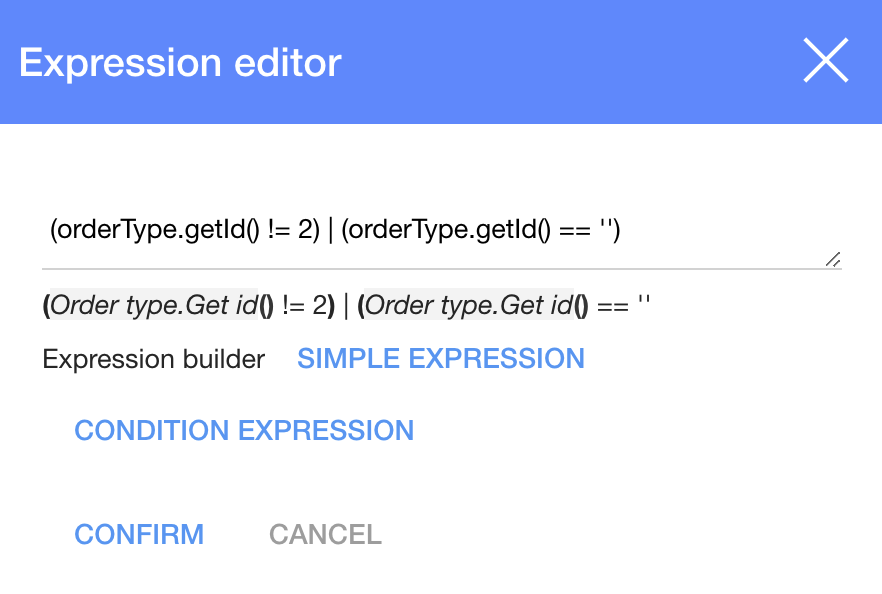
6. Click

7. Go to the alternative Article Operation and do the same steps, except enter a different expression ( ‘(orderType.getId() == 2)‘ )
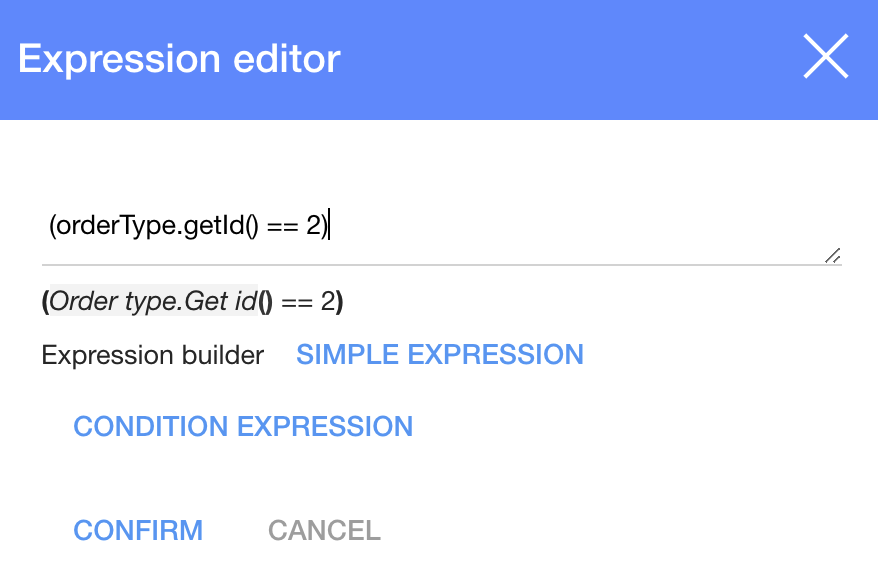
8. Click
If you want to create an operation and the dynamic field is not empty, you should add another expression:
( df(order,'fabric') != '' )
| Button | What does it indicate? |
| df( ) | Dynamic field |
| order | Place where Dynamic field is |
| fabric | Dynamic field alias |
| != '' | Value is not empty |
| Article Operation Resources |
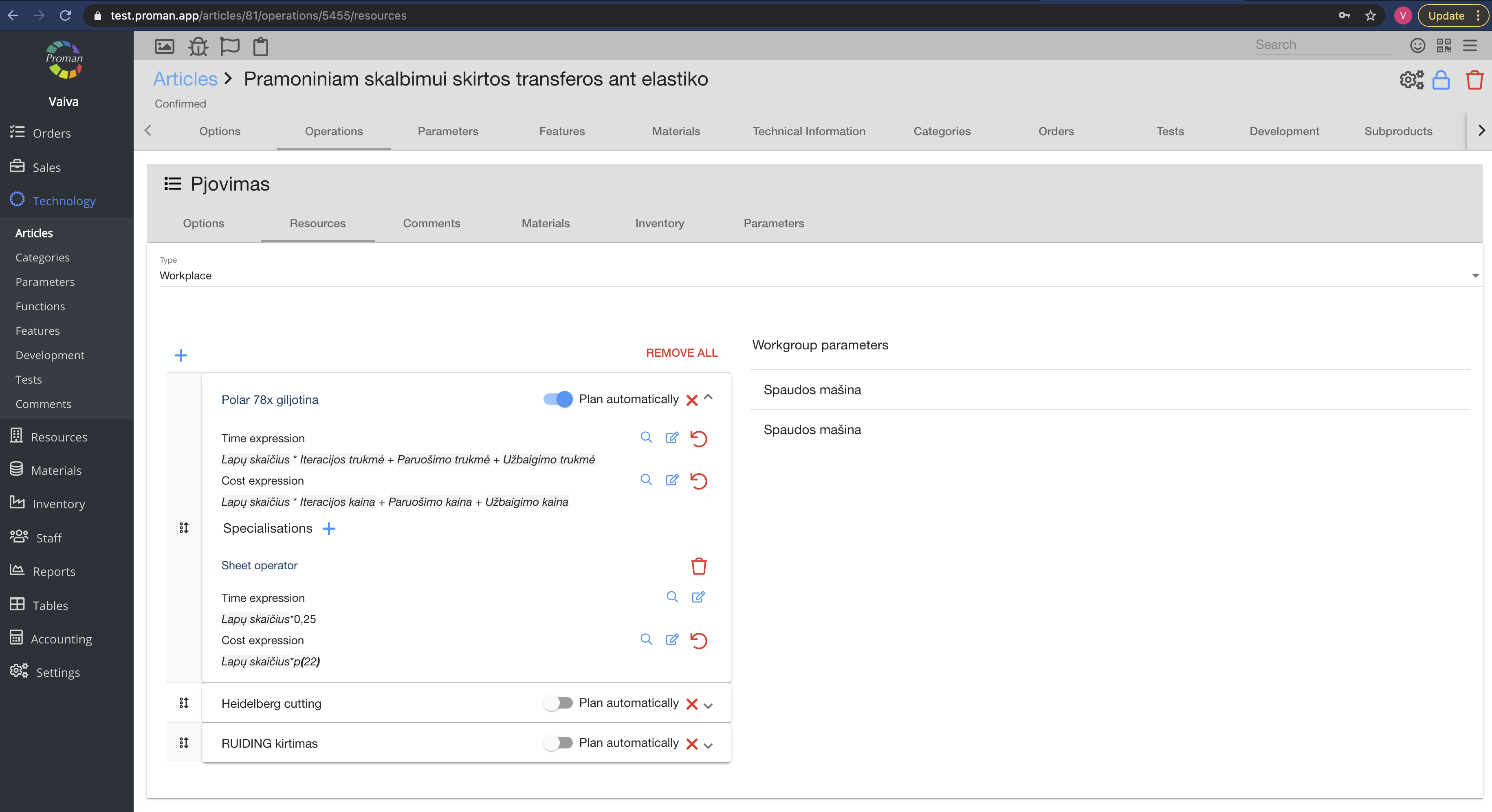
Here you can choose a Type of Resource (Workplace, Specialization or Subcontractor) and add them (
| Button | What does it indicate? |
 | You can plan Workplace automatically in Production |
 | You can plan Workplace manually in Production |
 | You can delete a Workplace |
 | You can add Specialization to an article workplace (you could do it only if there's Specialization in Resource --> Workgroup) |
  | You can add and edit expressions of Time and Cost |
Note:
If you turn off automatic planning for just one operation, you will turn off only that workstation. However, there could be other workstations turned on at the same time, which will be planned automatically.
| Article Operations Comments |
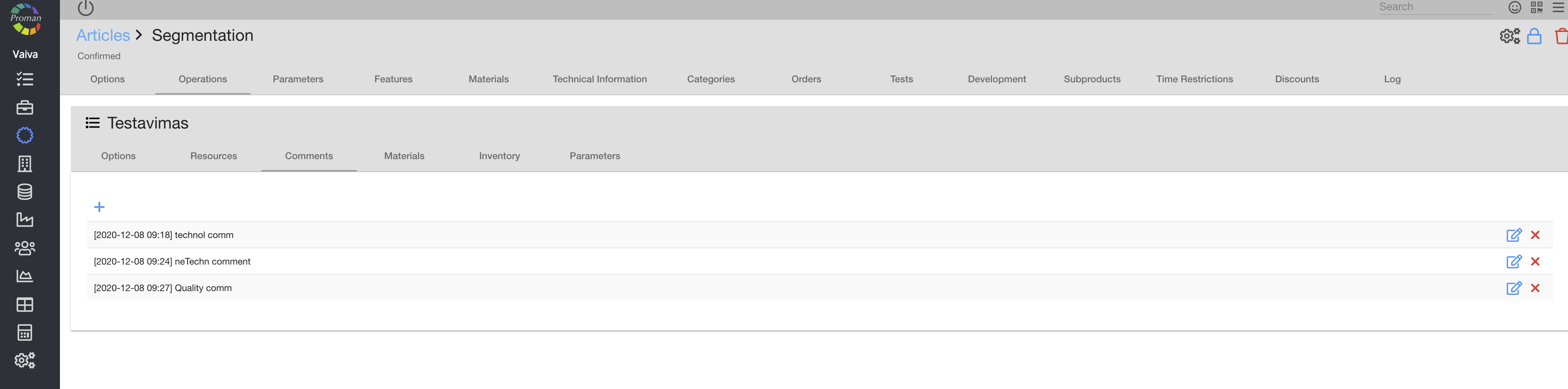
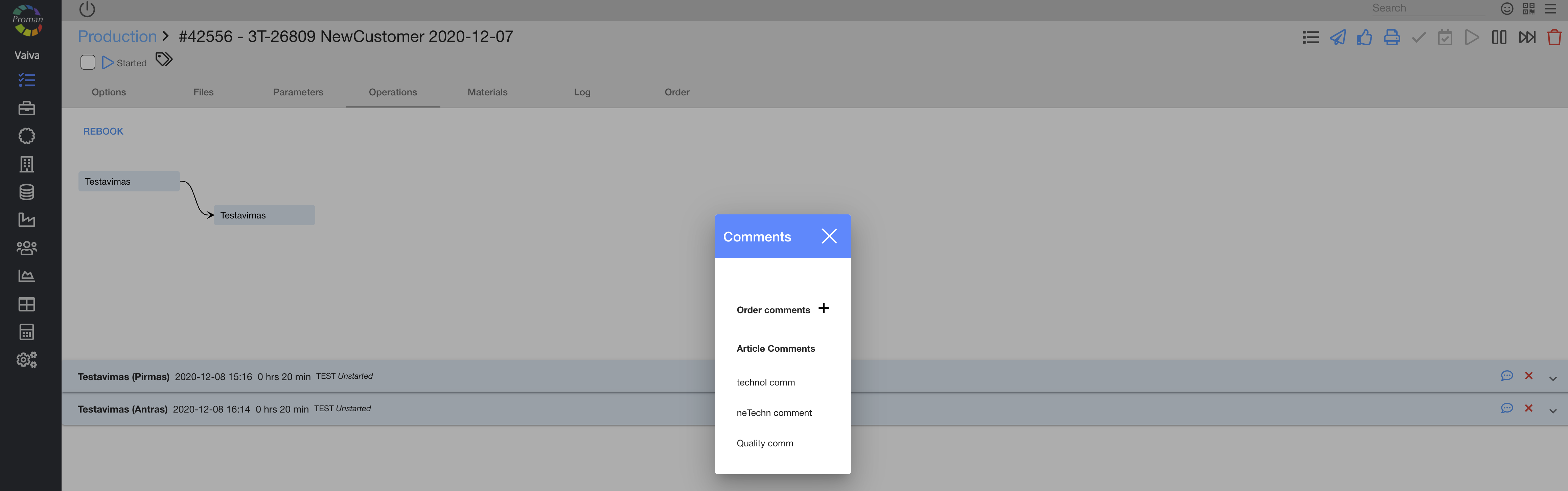
Here you can add (


| Article Operation Parameters |
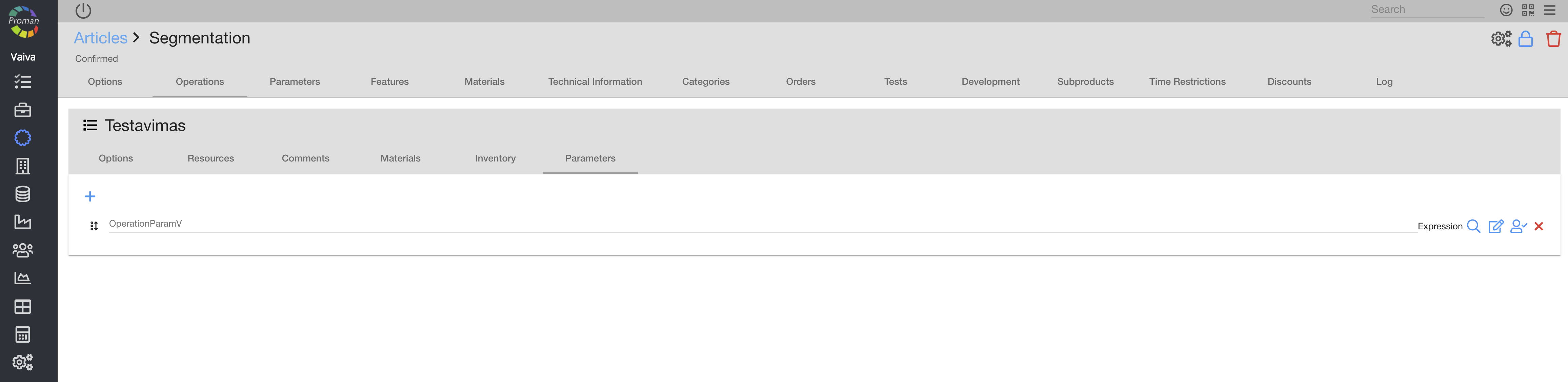
Here you can add and edit Parameters
To add a new article parameter, which is used for operations:
1. Click on
2. Choose an operation parameter from the list
You can also manage parameters with buttons:
| Button | What does it indicate? |
| You can add a parameter |
 | You can update data (add or delete parameters) in all products |
| You can look for an expression. For more information about expressions, please visit here |
 | You can add an expression. For more information about expressions, please visit here |
 | You can add a material filter (only if parameter's type is Material). For more information about Material filters, please visit here |
 | You can set for everyone to be able to change parameter's value |
 | You can set that others can't change parameter's value |
 | You can choose to have the parameter visible to everyone |
 | You can choose to have the parameter only visible to you |
 | You can delete the parameter |
 | You could delete parameters value and leave it empty |
 | You can go to the parameter |
 | You can set up a parameter for an Operation ( ) or for every employee ( ) or for every employee ( ) ) |
How to add a workplace to several articles? |
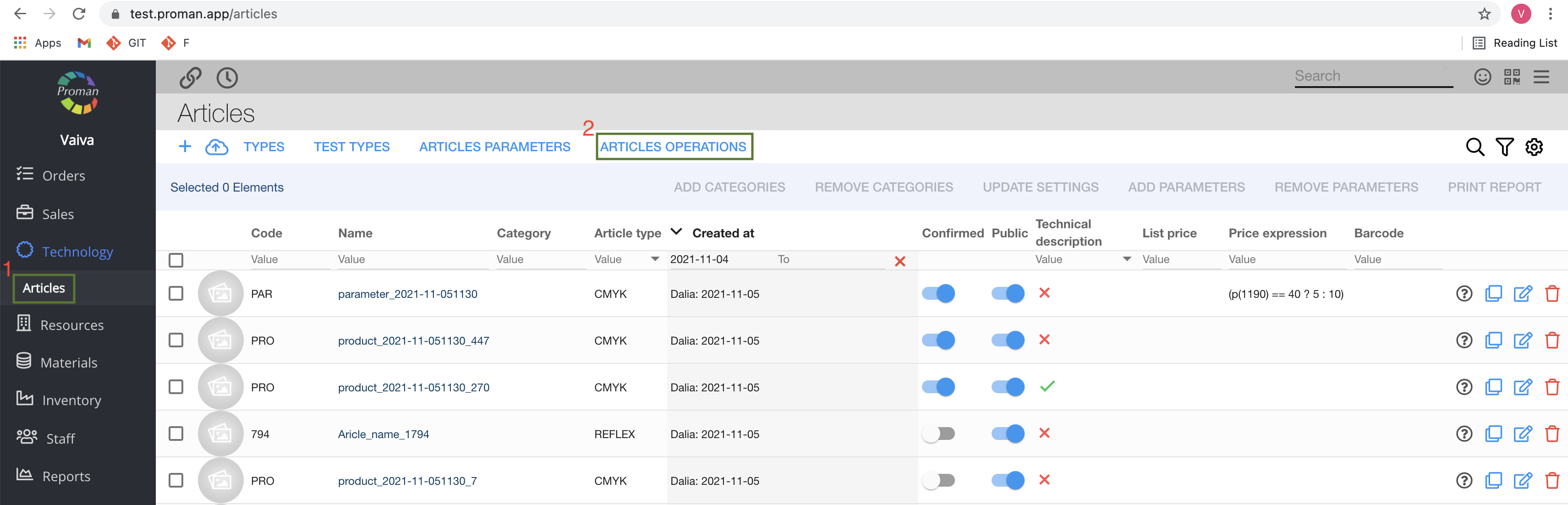
1. Click 

2. Click 
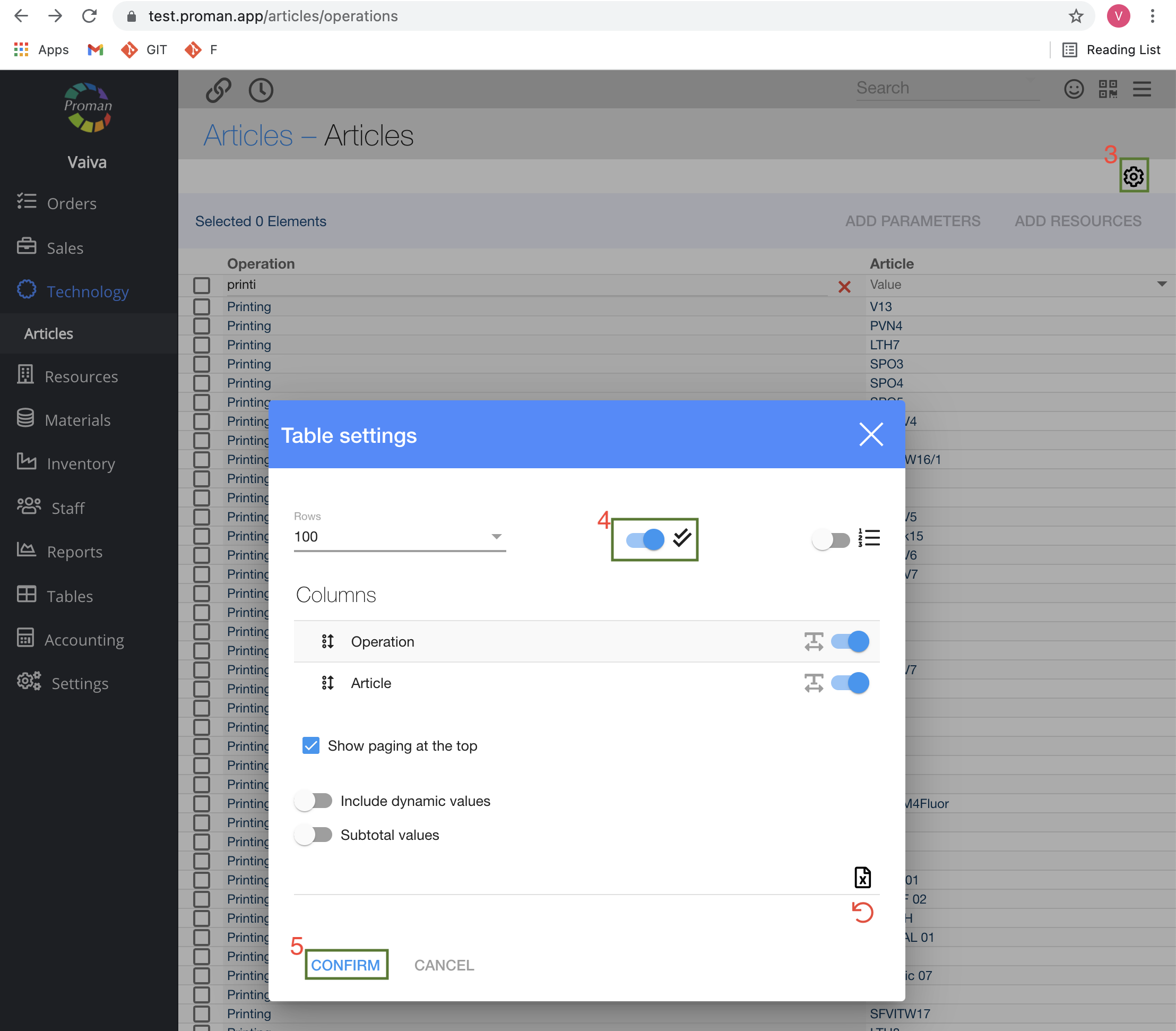
3. Click 
4. Select multi-selection (
5. Click

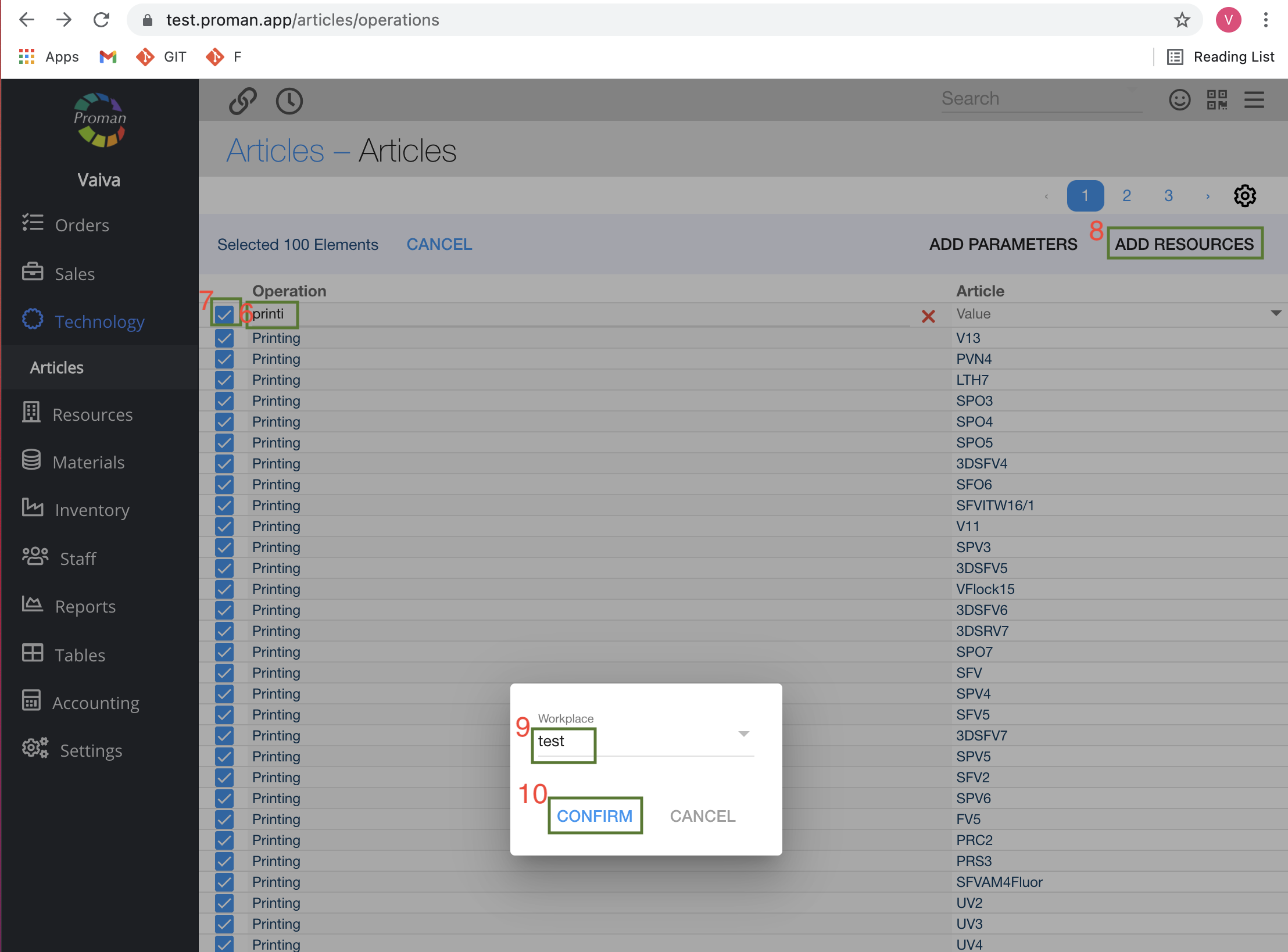
6. Enter Operation's name
7. Select an article, where you would like to add resources
8. Click 
9. Select a workplace from the list of workplaces
10. Click
How to add article operation parameters to several Articles? |
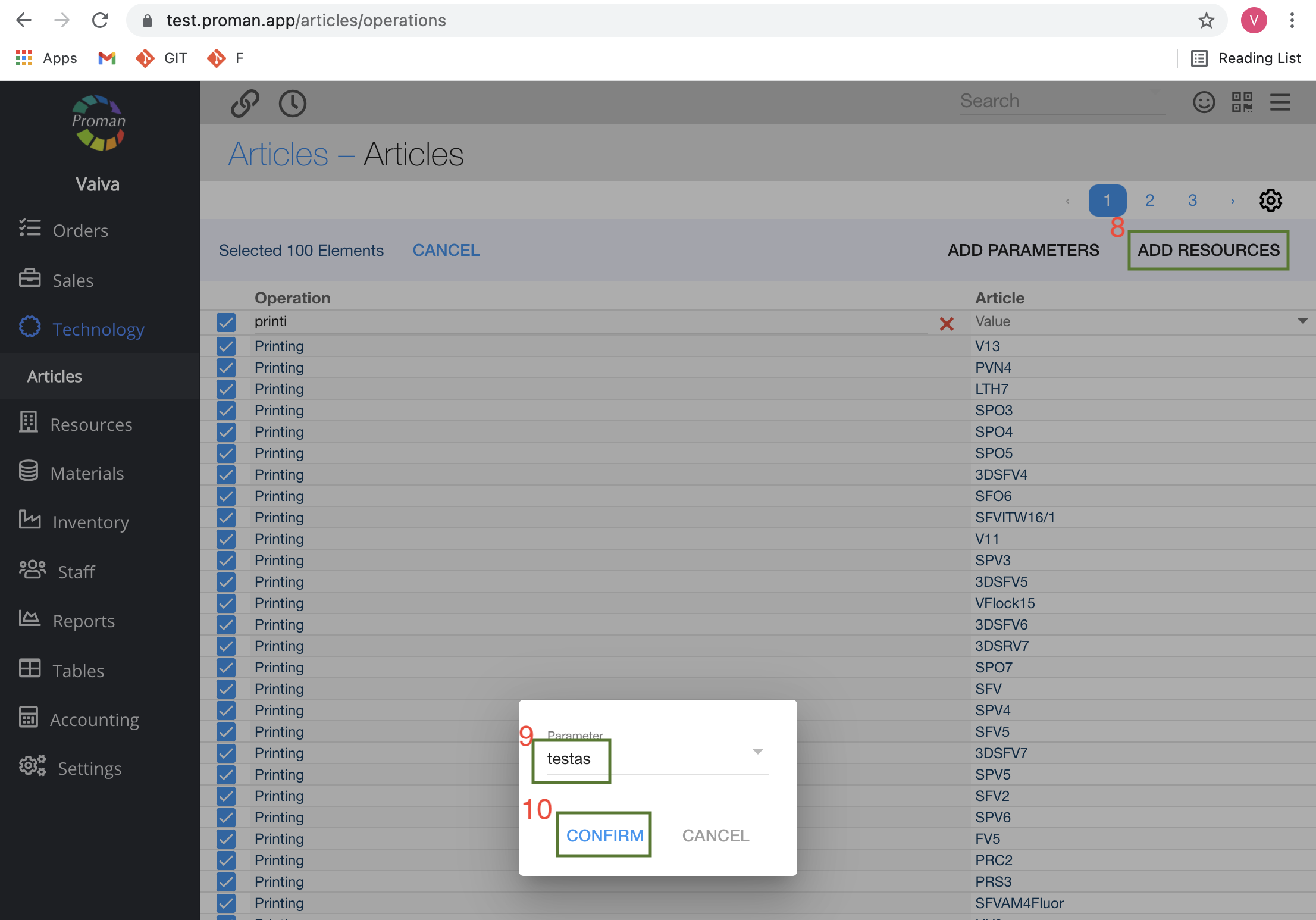
Steps from 1 to 7, please see here
8. Click 
9. Select a parameter from the list of parameters
10. Click
| Article Operations Resource expression |
| Button | What does it indicate? |
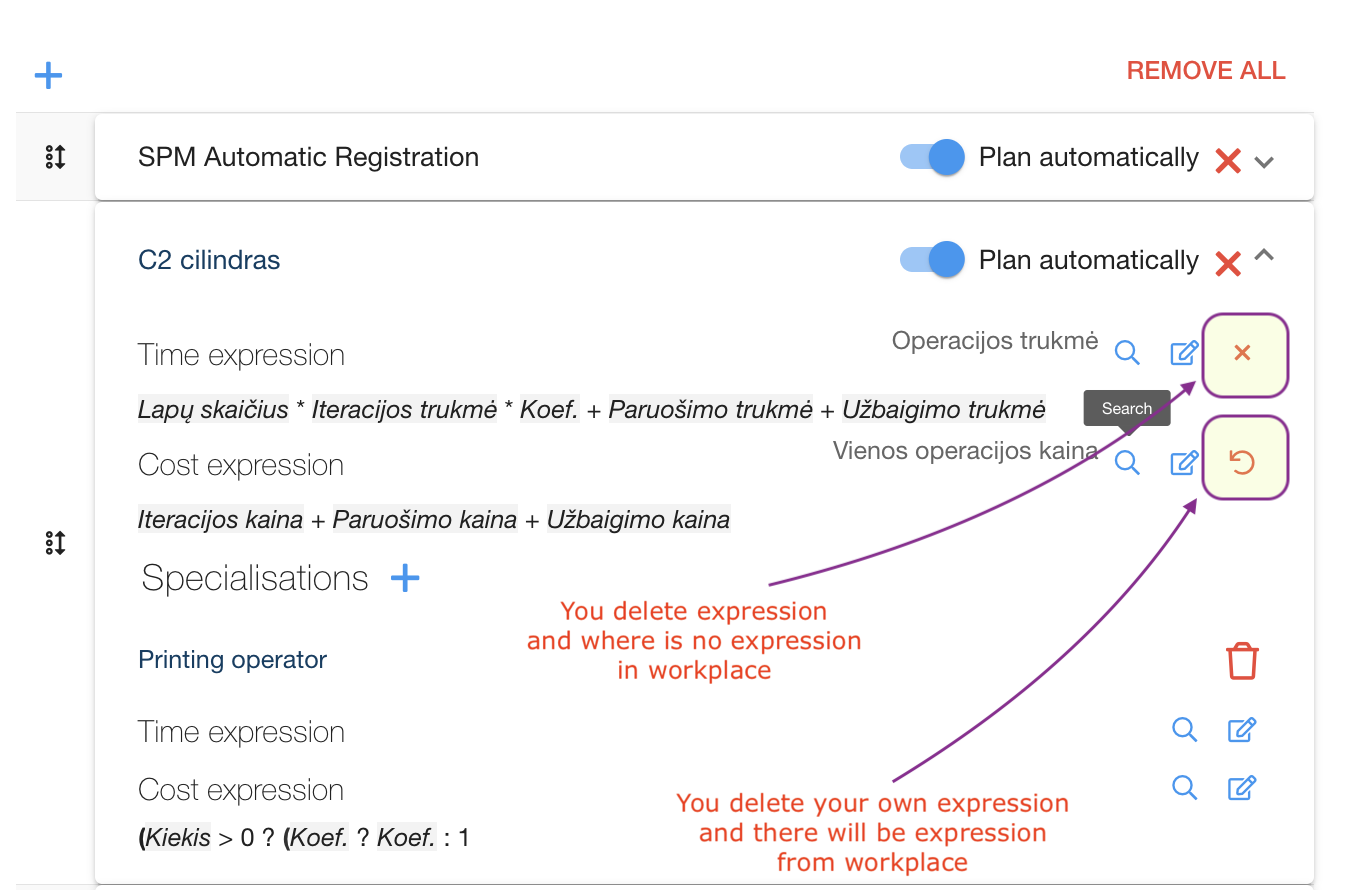
| You delete your own expression and there will be expression from workplace |
 | You delete expression and where is no expression in workplace |