Operation manage
To see how to create a new operation click here.
After creating an operation:
1. Go to "Orders"
2. Choose an order
3. Click on "Operations"
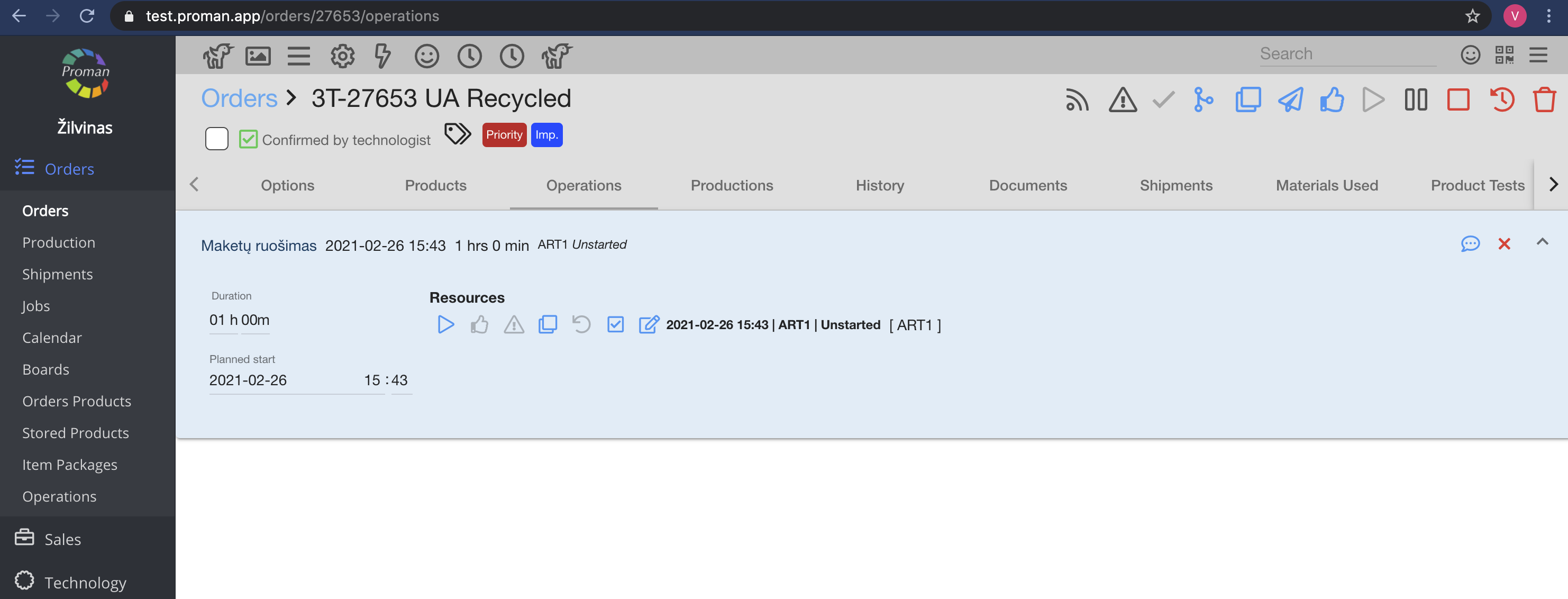
4. Choose an operation;
5. Click on 
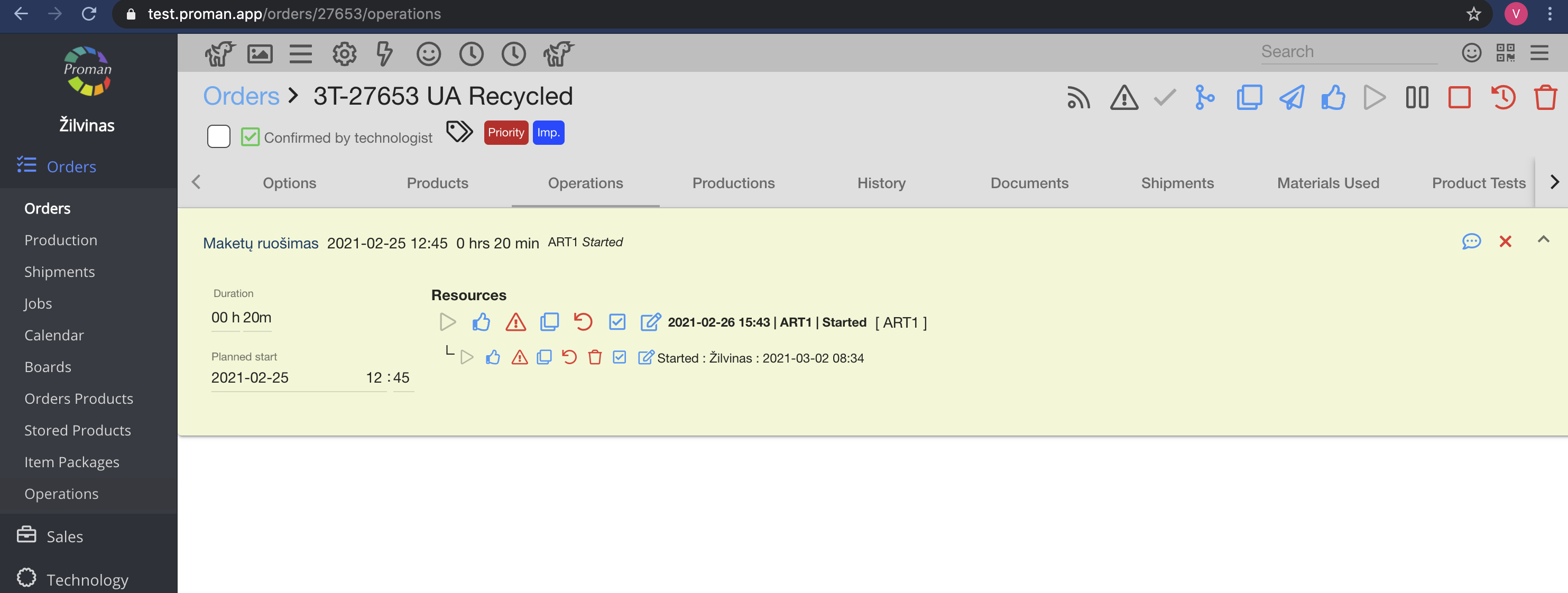
6. Here you can see two lines of buttons (only if a workplace is set):
6.1. Main operation
6.2. Personal operation
| How to manage an operation? |
After creating the operations, you can manage them with buttons.
| Button | What does it indicate? |
| You can start an operation |
 | You can finish an operation |
 | You can cancel an operation |
 | When you finish the operation, click on , you can then confirm |
 | You can add a new operation |
 | You can revert your previous actions |
 | You can add materials to a production |
 | You can edit the operation |
 | You can see all comments about the order as well as add them |
| How to add materials to an operation? |
To add the materials:
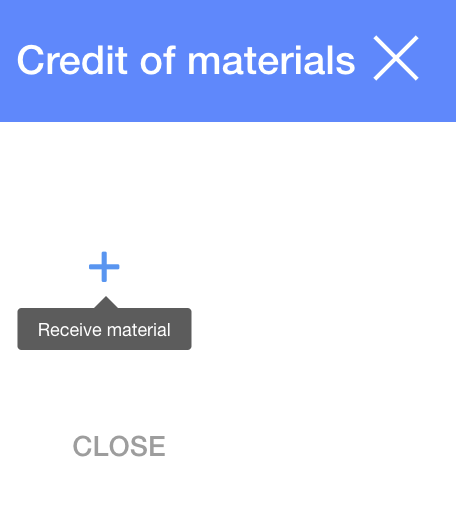
1. Click on
2. In the dialog table:
2.1. Click on

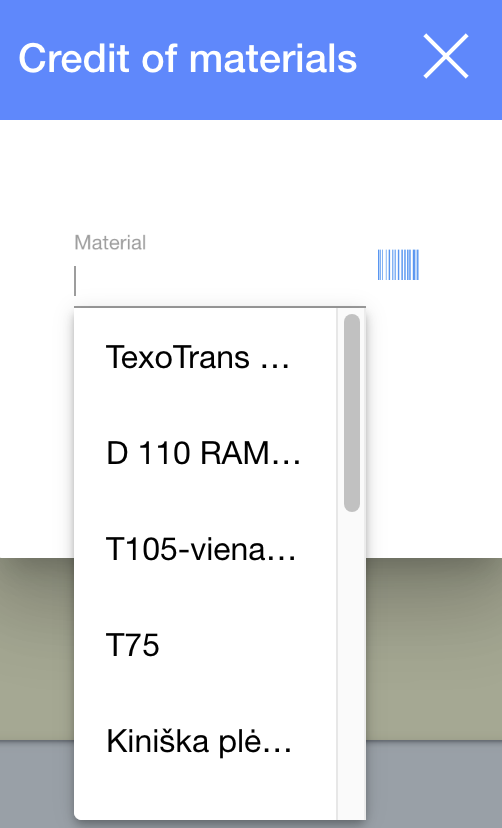
2.2. Choose materials (from templates or enter a barcode), enter a remnant and quantity;
2.3. Click

3. And click

| How to find the operation settings? |
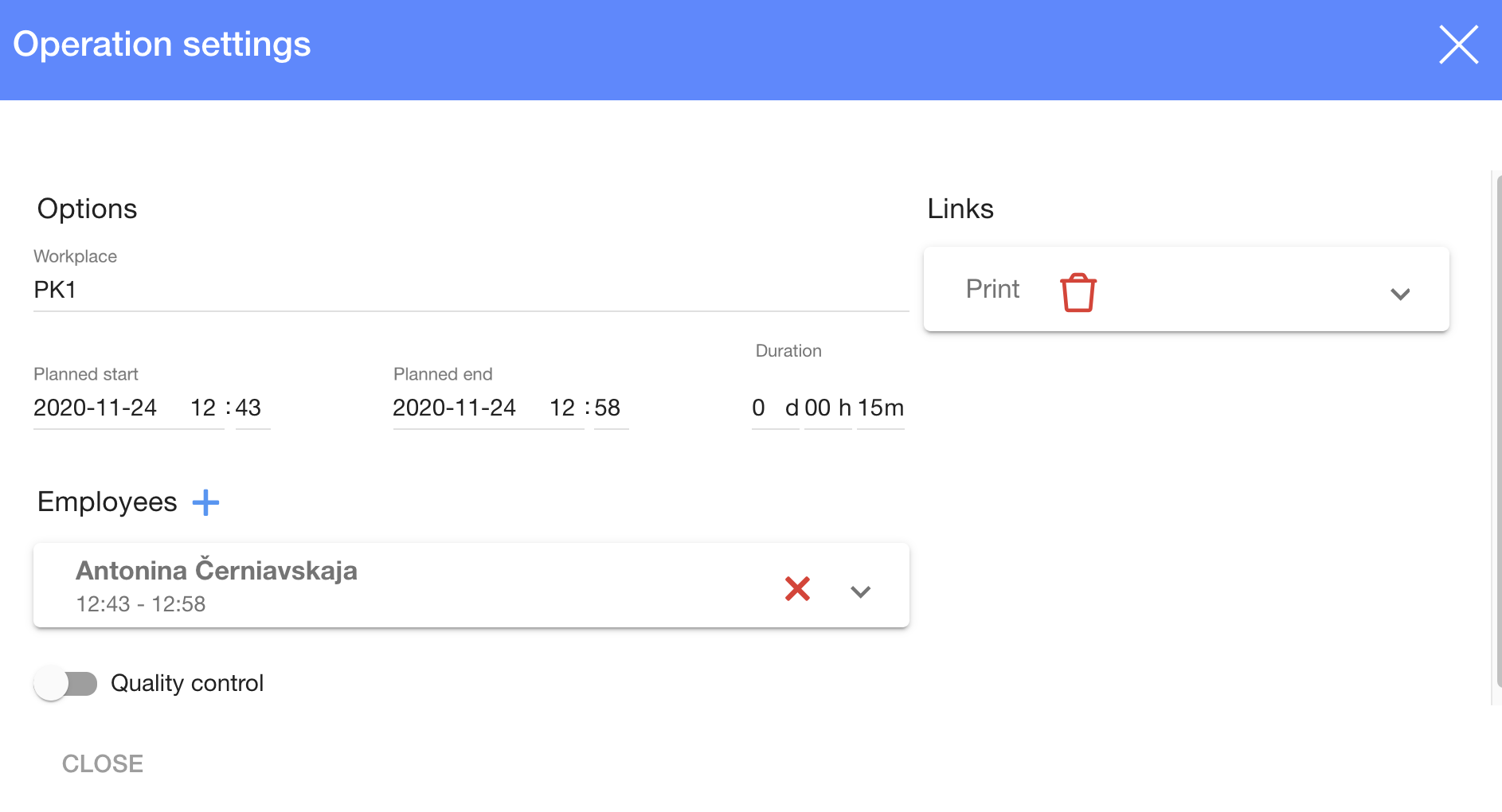
1. To enter the operation settings, click on
2. In the dialog table choose:
2.1. A workplace
2.2. Links
2.3. A planned start and planed end
2.4. Duration
2.5. Employees
2.6. Quality control (on or off)
3. Click