English
表
| How to find Tables? |
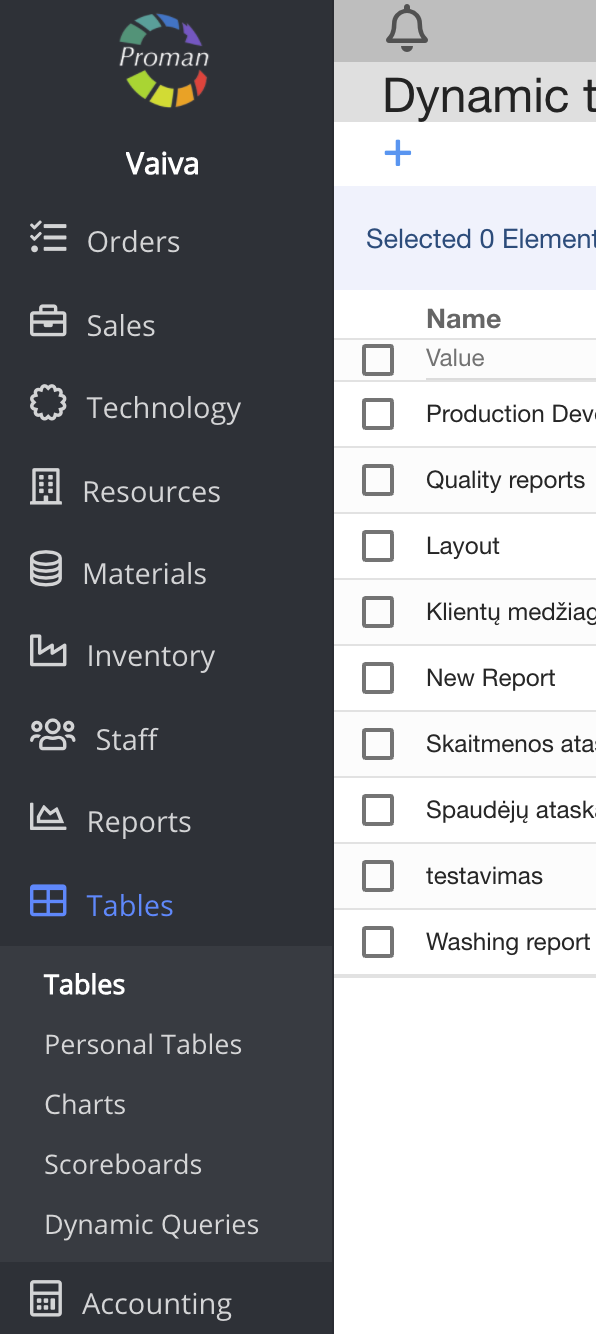
1. To find Tables, you should:
1. Go to Tables:
1.1. Press

1.2. Press

Now you can see Dynamic Tables list

Here you can see, create (


| How to create new Dynamic Table? |
If you would like to create new Dynamic Table, you could press 
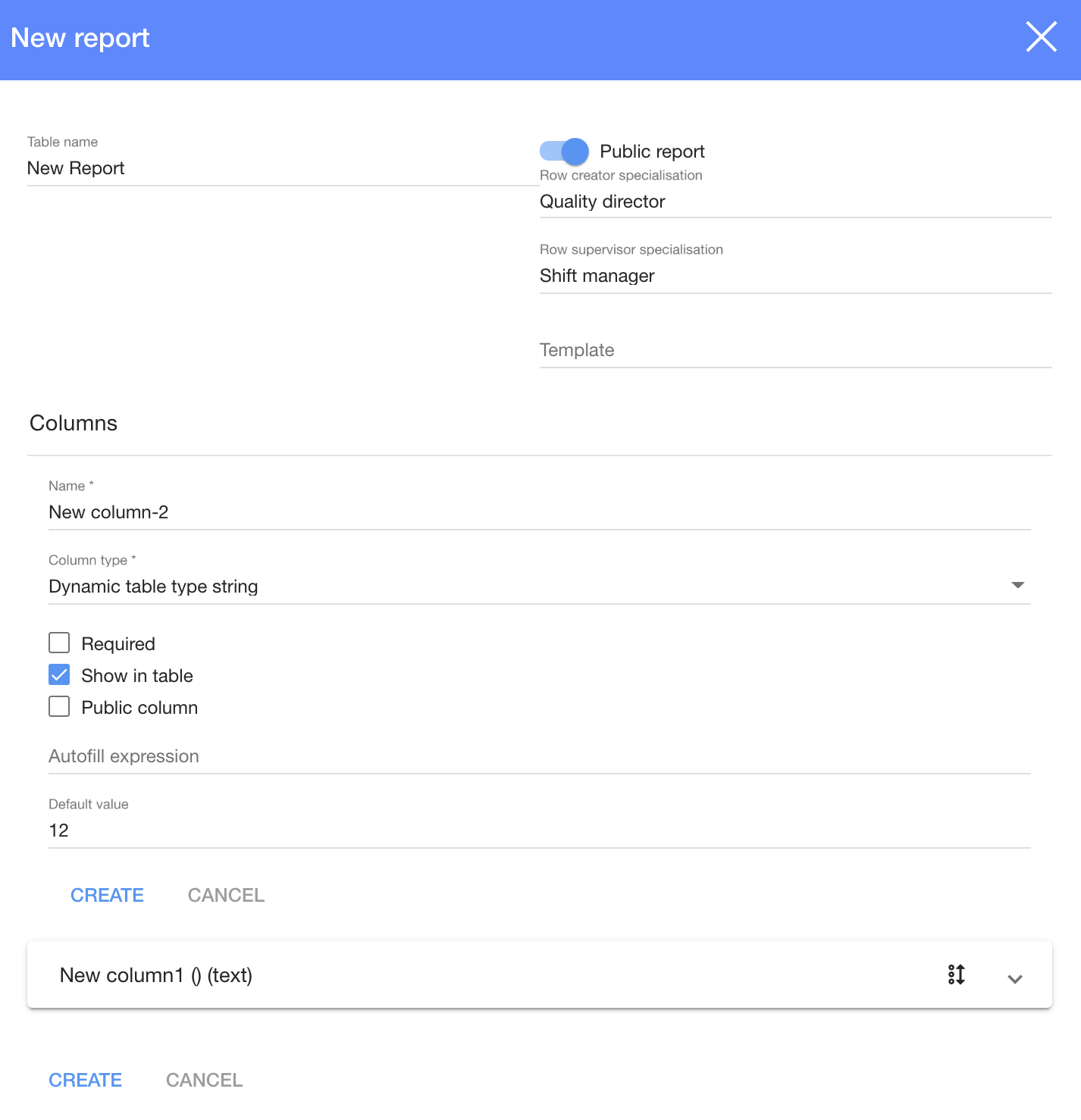
1. To create new Dynamic Table, you need to press
2. In dialog table:
2.1. Enter Table name;
2.2. Select it is Public (

2.3. Choose row creator specialisation from list;
2.4. Choose row supervisor specialisation from list;
2.5. Choose template;
2.6. To create column press

2.6.1. Enter Column name;
2.6.2. Choose column type
2.6.3. Select it is Required, Show in table, Public Column (

2.6.4. Enter Autofill expression (if you need it)
2.6.5. Enter Default value (if you need it)
2.6.6. Press

2.7. You can change Column order (
3. Press
Now you can see New Table data

| Column types |
| Column type | |
Dynamic table type integer | You could choose enter only numbers |
Dynamic table type string | You could choose enter text till 256 symbols |
Dynamic table type text | You could choose enter long text |
Dynamic table type entity | |
Dynamic table type date | You could choose enter date |
Dynamic table type price | You could choose enter price |
Dynamic table type duration | You could choose enter duration |
Dynamic table type dropdown | You could choose enter list (text till 256 symbols each) |
Dynamic table type boolean | You could choose enter 'Yes' or 'No" |
Dynamic table type entity field |
| How to enter data in Dynamic Table? |
You should have permission to enter data. You could see who could enter data in table "Row creator specialisation".
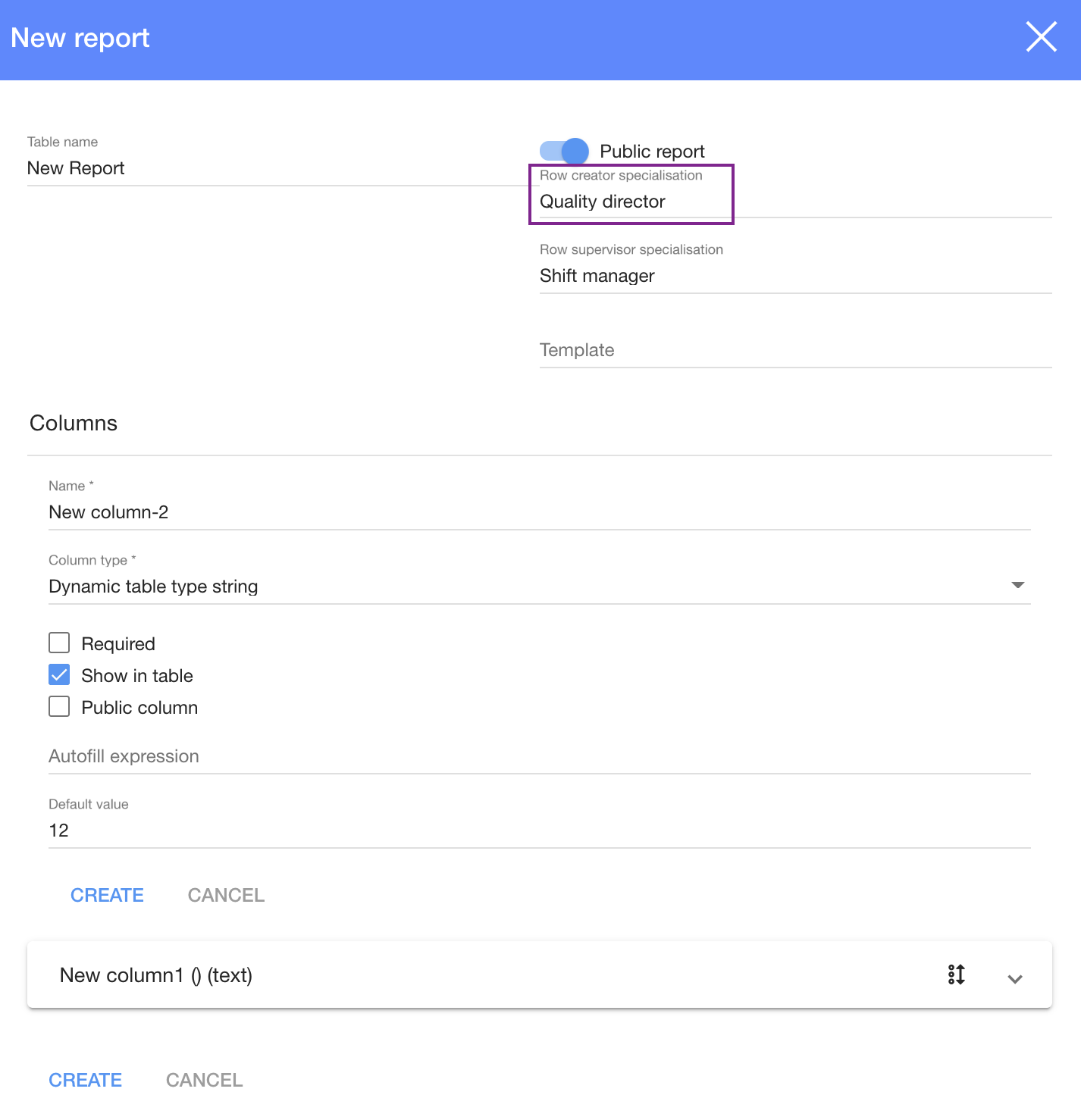
If you have permission and you would like to enter data in Dynamic Table, you should:
1. Choose Dynamic Table
2. Press
2. In dialog table:
2.1. Upload documents;
2.2. Enter values;
3. Press