
 English
How to create new project from email?
Note:
Before creating a new project from an email, you need to have confirmed emails in the proman (both of email sender and recipient). For more information about Employee email confirmation, please visit here
How to create a new project from an email? |
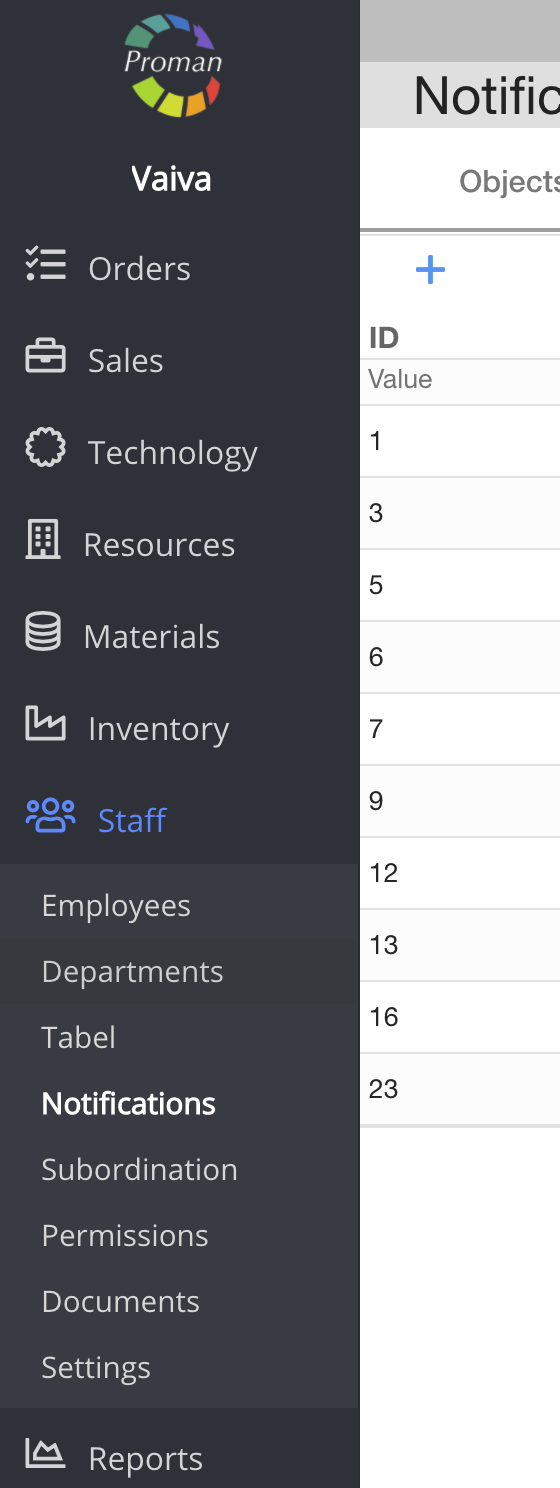
To find employees notifications:
1. Click on 
2. Then- 
Now you can see the notification list (Objects):
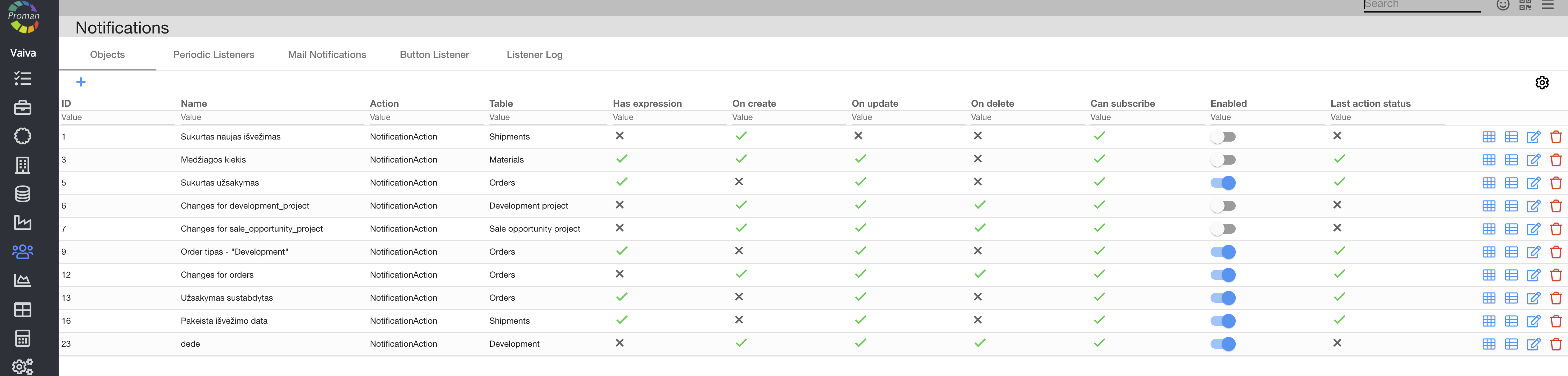
3. Go to

Now you can see the mail notification list:

4. Click on 

5. In the dialog table:
5.1. Enter a notification name;
5.2. Choose the "CreateNewProjectFromEmail" Action;
5.3. Enable the notification;
5.4. Enter the filter key
6. Click on

Now you can see new Notification in Mail notifications list

7. Go to your email application and create a new email:

8. In the email subject:
8.1. Choose a project type:
- Sale if you want to create a new Sales project;
- Development if you want to create a new development project
8.2. Enter # (without spaces)
8.3. Enter the filter key (without spaces)
8.4. Enter the title of the project (AFTER a space)
8. You can write comments in the email body
9. Send the email
10. Go to 


Now you can see the new "All Projects" list:

Note: It could take up to 20 min
For more information about Sales Projects, visit here.
Note:
Employee, who gets the email is the project creator and manager.