English
Add an employee
There are three ways to add employees: one at a time, from a file, or by letting the employee fill in their own details.
Add one employee |
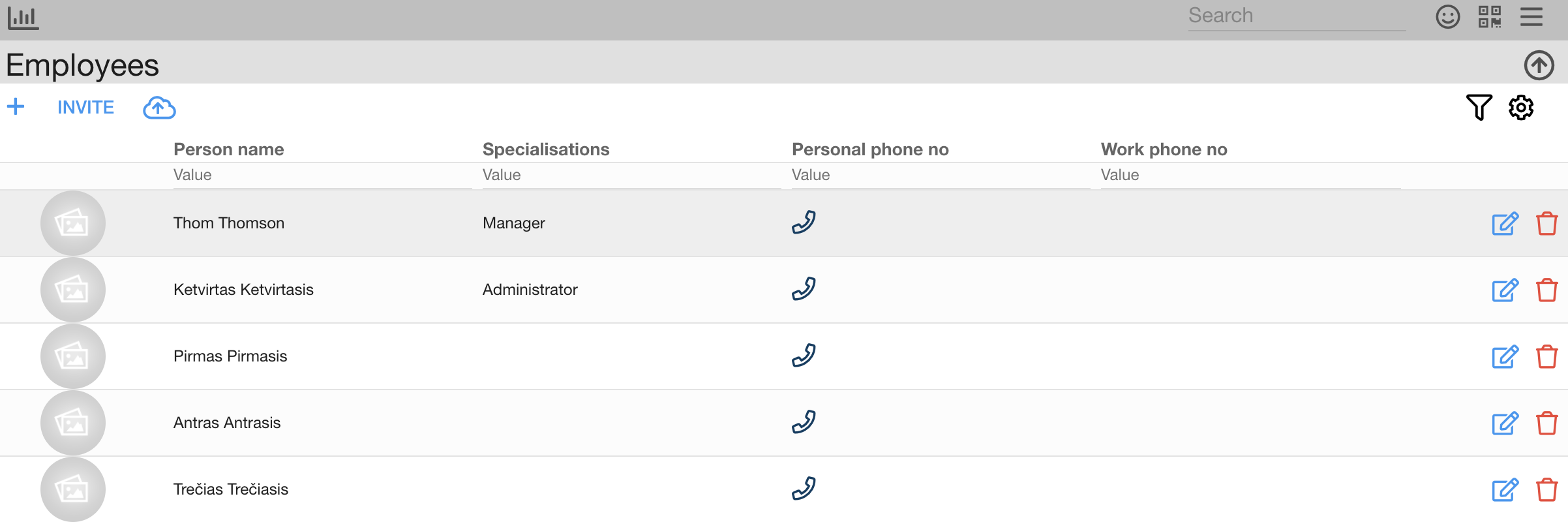
- Click STAFF, then EMPLOYEES.
- Click + above the list.
- Enter the First name and Last name. The last name is required.
- Leave Include to tabel ticked if the person should appear in the Tabel (this is the default). Untick it for people who do not work on a schedule.
- Optional: set the Date of recruitment.
- Confirm. The employee card opens.
A new person cannot log in yet and has no rights. Continue with these steps:
- Open the Information tab and fill in the contact details, the Date of employment and the email. See Employee login and access.
- Create the user account, so that the person can log in.
- Open the Specialisation tab and tick the specialisations of the person. The specialisation gives the permissions. See Organization.
- Add a contract in the Documents tab. See Employee contracts.
- Check the working days in the Schedule tab. See Work shifts and days off.
Add many employees from a file |
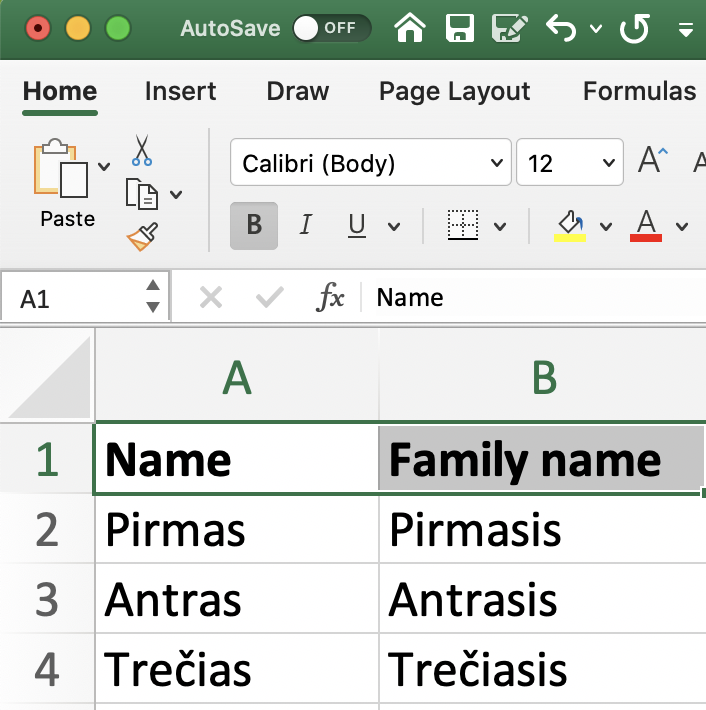
See Import employees from a file.
Let the employee fill in their own details |
SmartOn can create the user account and email the person a link to a questionnaire. See Employee questionnaire.