
 English
Subcontractors
Subcontractors represent your relations with other businesses, that are able to provide additional resources when needed. These subcontractors should be tracked and managed by the supervisor for a better resource management.
How to find Subcontractors? |

1. To find Subcontractors, you should:
1. Go to Resources:
1.1. Click on
1.2. Then-

Now you can see the subcontractor list:

Here you can see, create (


| How to create new Subcontractor? |

1. To create a new Subcontractor you need to click on
2. In the dialog table, enter a name and click
Now you can see the subcontractor options:

Here you can enter information about the Subcontractor
| Employee |

Here you can see, create (
| How to create a new Subcontractor Employee? |
To create a new subcontractor employee:
1. Click on "+"
2. In the dialog table enter a name and a last name
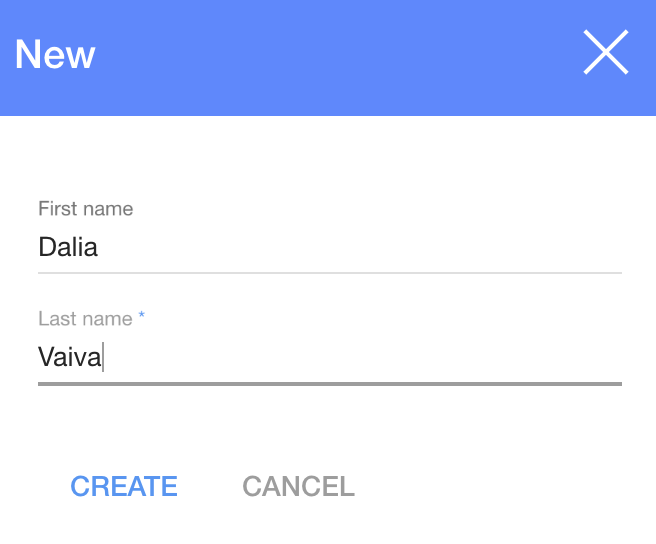
3. And click on
Now you can see the subcontractor employee options

| Button | What does it indicate? |
 | After clicking on this icon, you will come back to the employee list |
| Supervisors |

Here you can see, add (

| Parameters |

Here you can see, add (
| How to add a subcontractor to an operation? |
To add a subcontractor:
1. Go to 
2. Then-  again
3. Click on
4. Choose an operation
5. Go to 
5. Click on "+" to add a subcontractor

Now you can see the added Subcontractor

Now, you can create an operation for a subcontractor:
1. Go to 
2. Then-
3. Click on 

6. Click on

7. Choose operation

8. Click on


9. Choose a type - Subcontractor
Now you can create a production for the Article and see the auto planned operation for a subcontractor
