
 English
How to create, manage Shipments?
| How to create a new shipment? |
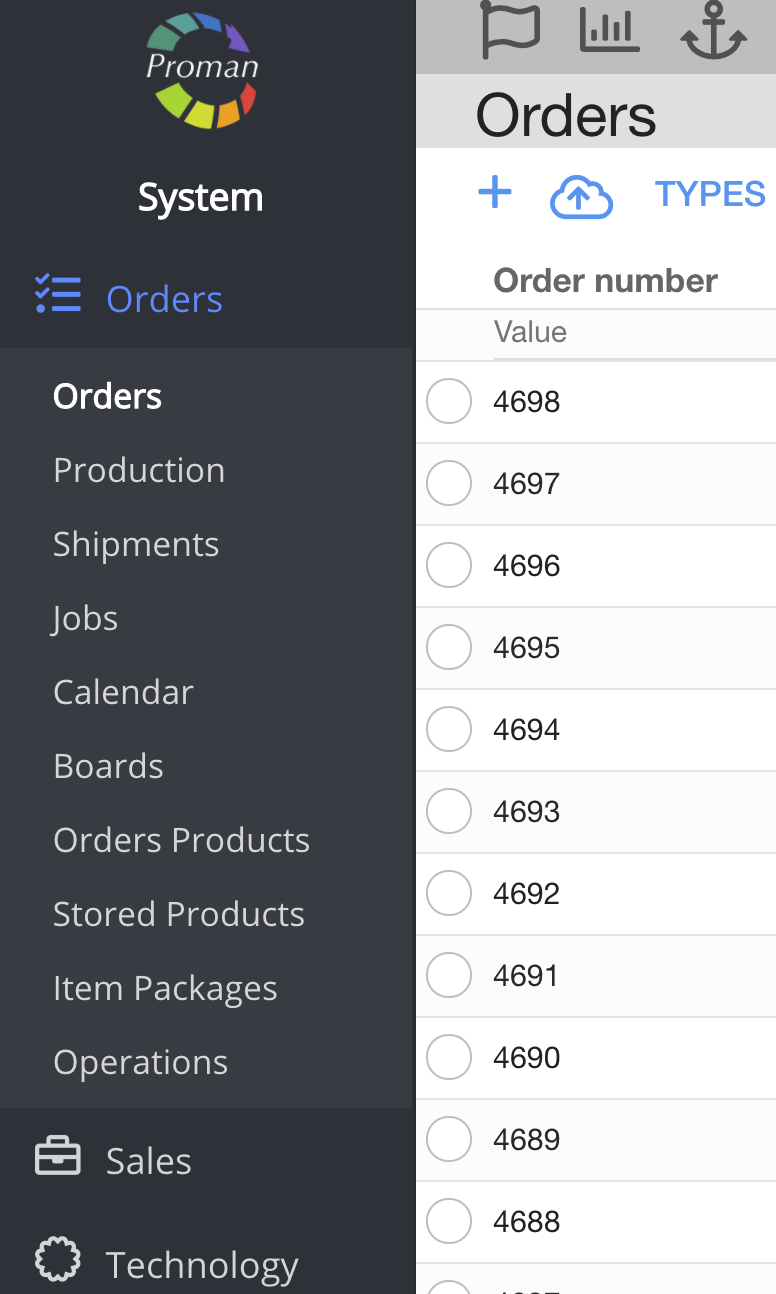
To create a new shipment, you should:
1. Go to Orders:
1.1. Click on 
1.2. Then- 
1.3. Choose an order;
Now you can see order options

2. In the the grey menu tab choose

Note: Do not use dots in the name of a shipment as it may cause issues

1. Click on

2. In the dialog table :
2.1. Enter a shipment date (2020-11-19 15:45);
2.2. And a name of the current shipment
3. Click
Now you can see the new Shipment table

Now you should enter:
1. Invoice date and number,
2. Invoice quantity,
3. Carrier,
4. Delivery method,
5. Deliver conditions,
6. Shipping fee
7. Currency
8. Upload shipments files (
9. Leave a message
10. Tracking number.
| How to create shipment barcode for a package? |

1. To create a new barcode - click on

2. In the dialog table enter:
2.1. a production;
2.2. product quantity;
2.3. quantity of containers;
2.4. choose a printer;
2.5 and a barcode template.
3. Click
| How to move products to a shipment container manually? |

1. To put products to a shipment container, click on

2. In the dialog table enter:
2.1. Quantity;
2.2. Packaging quantity (only if you have it)
3. And click

4. Now you should click on


5. In the dialog table enter:
5.1. Quantity;
5.2. Packaging quantity (only if you have it)
6. Click

Now you can send the shipment container

| How to move products to a shipment container with barcode? |

1. To create a new barcode - click on
2. In the dialog table enter:
2.1. A name;
2.2. Netto;
2.3. Brutto;
2.4. Package (you can use a template or leave it empty);
3. Click

Notes:
You can use 