
 English
Creating a new order
How to sell product by Barcode?
How to sell product by Barcode Known Technology?
How to create a new order? |
To create a new order:
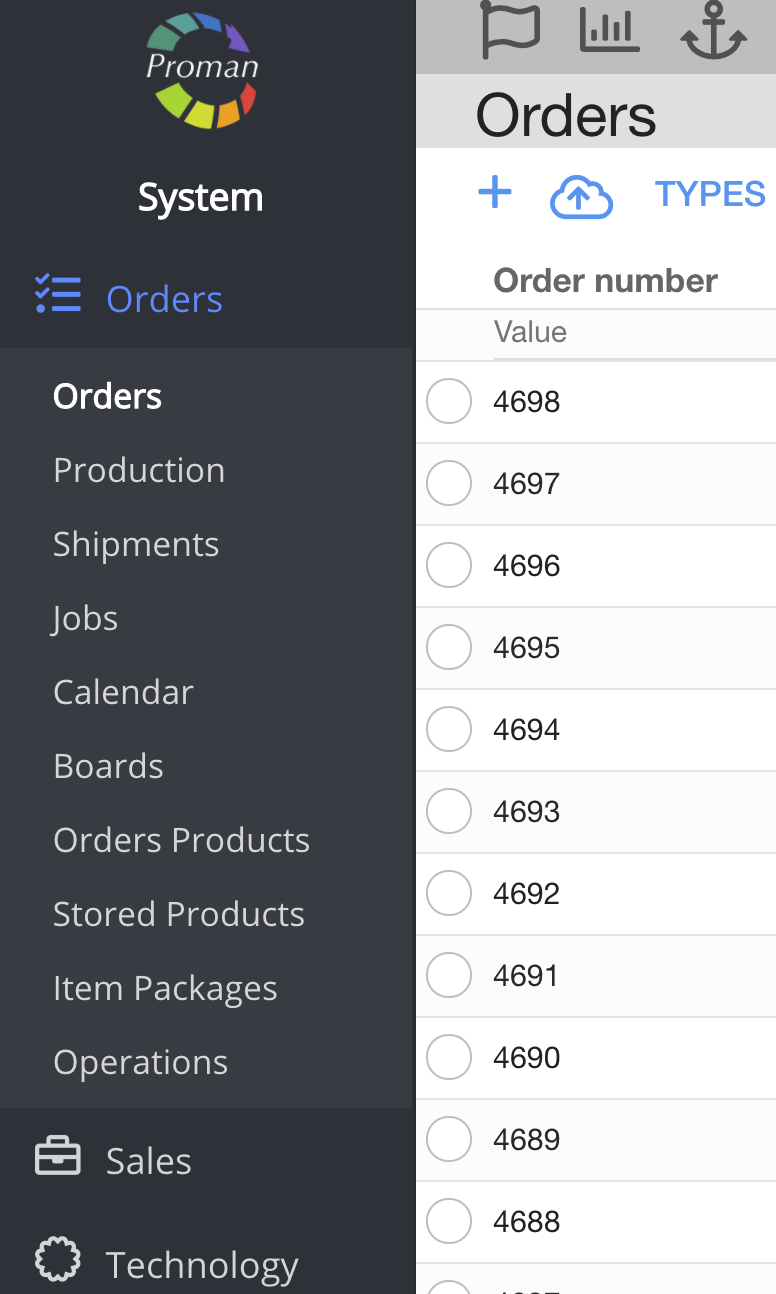
1. Go to Orders:
1.1. Click on 
1.2. Then- 
Now you can see the order list:

2. Click on

Now you can see the order proposal:

Enter all needed information:
1. Create a new template or choose an already existing one (in top right side):

Create a new template:
1. Click on
Edit order template:
1. Click on 


1. Enter all needed fields:
Name* (Order2020_11_15b), Customer's code (1514445), Manager* (Vaida Muralė), Type (Production), Customer* (Topdesing), Customer contact (Topdesing), Shipping Address (Кенгарага 1, Рига, LV-1063, Латвия), Planned dispatch date (2020-11-18), Exw date, Manager comments (Need pink boxes for order)
* Field is required
2. Choose a product (If you can't remember what product you need, click on
3. Enter product information:
Quantity (225), Packaging quantity (4), Unit price (1,6), currency (€) and order parameters (red; green)
4. Click on

How to sell products with a barcode? |
- Add a product price expression in "Articles" and confirm it
("orderProposalProduct.getProduct().getSalePrice().getAmount()")

2. Add a barcode in the product options

Note: Product warehouse location should be "Sale Stock"

3. Create an order proposal, choose a customer and customer contact, choose the article and enter a barcode

OR

1. Add a barcode in the product options:
1.1. Go to 

1.2. Choose a product
1.3. Click on

1.4. Enter a barcode
1.5. Click

Note: Product warehouse location should be "Sale Stock"

2. Create a new order:
2.1. Click on

2.2. Enter the barcode
2.3. Choose a product
Now you can see a new product in the order proposal

How to use an expression price in the "Order price"? |


Button | What does it indicate? |
 | Order price has an expression and it was counted automatically |
 | Order price has an expression and it was counted manually |
 | Order price doesn't have an expression and it was counted manually |