English
Jobs
Jobs define all operations for a particular employee or workplace. Here you can manage operations: choose dates, employees, workplaces, orders or productions. You can also manage operations with buttons: Start, finish, upload files, print Templates and so on.
| Where can you manage "Jobs"? |
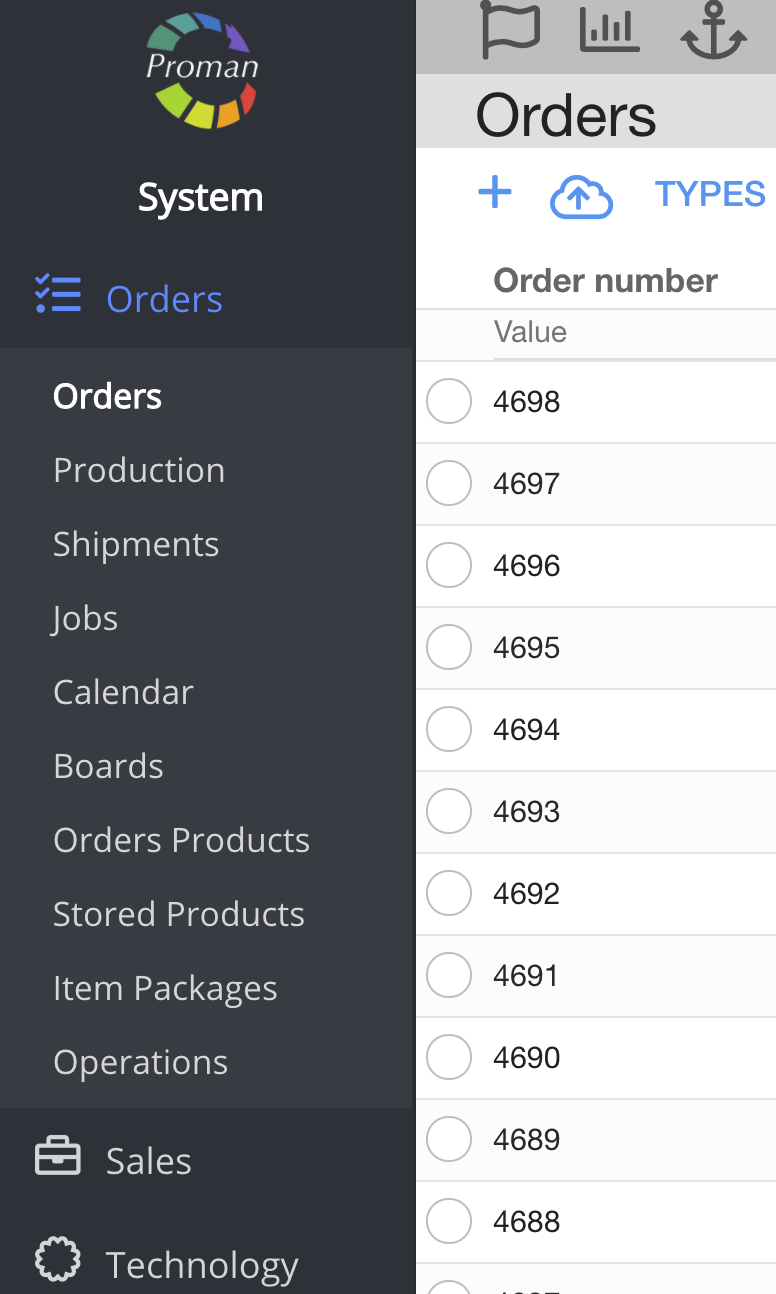
1. Click on

2. Then-
Now you can see "Jobs":

|
| Button | What does it indicate? |
 | You can choose an employee from the list |
 | You can choose a workplace from the list |
 | You can choose a date |
 | You can hide finished operations |
 | You can choose an auto update |


| Button | What does it indicate? |
 | You can see today's jobs |
 | You can see yesterday's jobs |
 | You can see tomorrow's jobs |
 | You can see week's jobs |
 | You can see unconfirmed jobs |
 | You can see jobs, where the production is started |
 | You can see unassigned jobs |
 | You can see jobs that are late |
| How to manage "Jobs"? |
You can manage jobs with buttons:
| Button | What does it indicate? |
 | You can see the employee (if you can't see any employees, the job is unassigned) |
 | You can see main information about the job: order name, customer, quantity, order parameters and production parameters |
 | You can see and upload documents about operation |
 | You can print a barcode |
 | You can see and add materials for the production (for more information click here) |
 | You can see parameters |
 | You can go to the operation |
 | You can start an operation |
 | You can finish the operation |
 | You can see the comments |
 | You can delete created and finished jobs |
| How to add materials to an operation? |
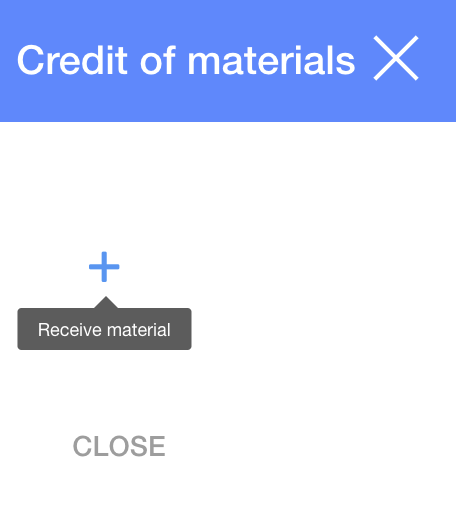
To add credit of materials to an operation:
1. Click on
In the dialog table:
2. Click on

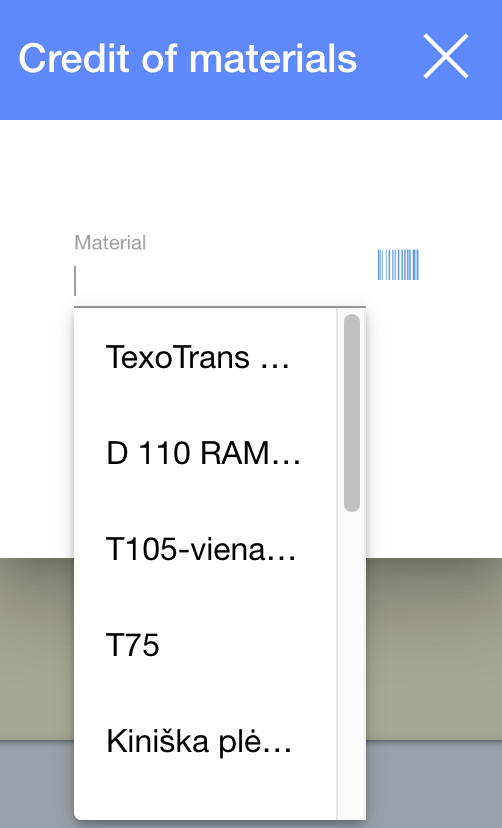
3. Choose the materials you need (from templates or enter a barcode), enter a remnant and quantity;
4. Click

5. And click